
Google TV displays promotional banners and content recommendations on the main home screen. Many users consider these content recommendations to be advertisements. These promotional banners take up space on the screen. They can also slow down the television operating system. If you prefer a clean interface, you can remove Google TV home screen ads. You can change specific settings to hide partner content. You can also replace the default home screen completely. This article explains how to remove home screen ads on Google TV in 2026. We will explain three different methods. We will also explain how these changes affect your streaming applications.
Réponse rapide
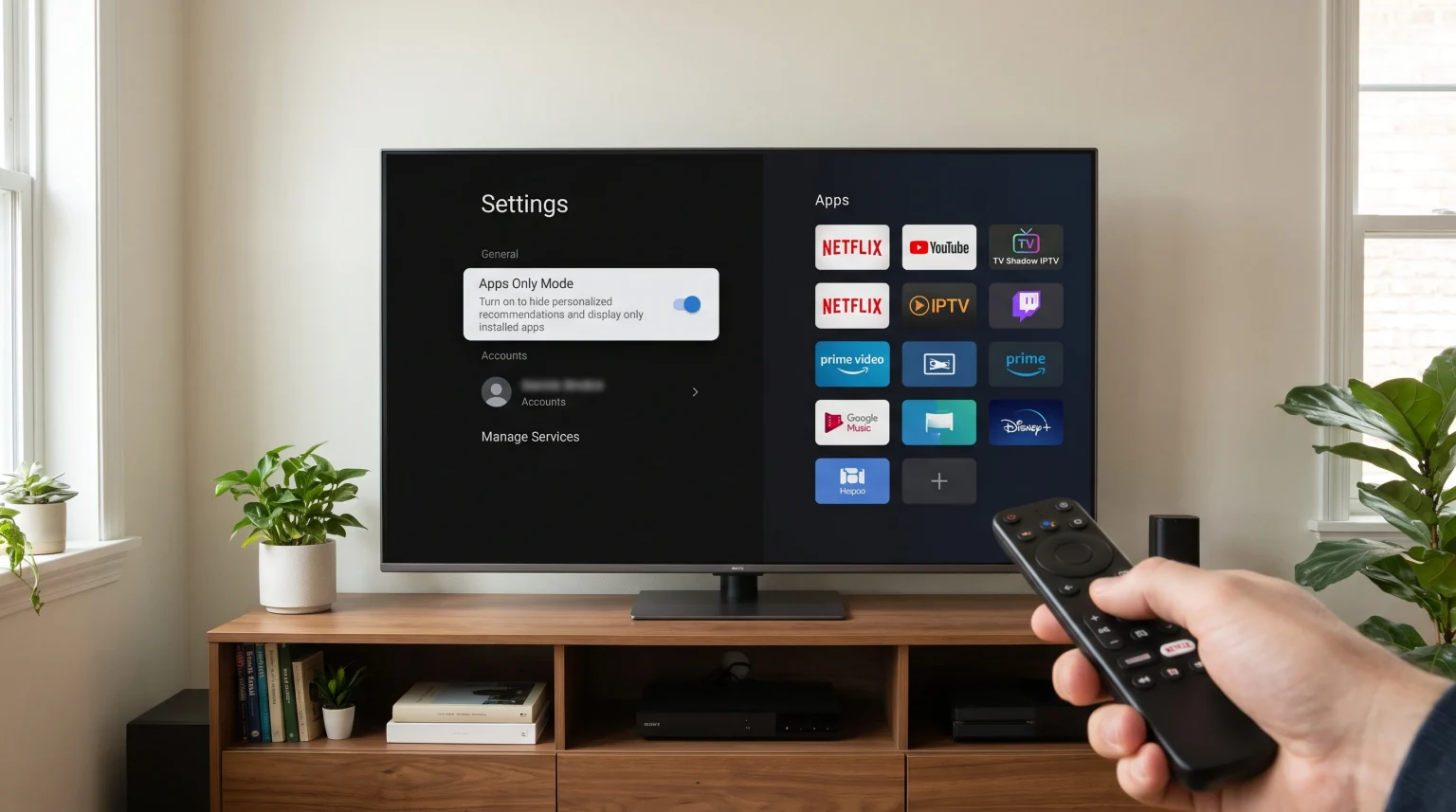
To remove Google TV home screen ads, you have three primary options. First, you can enable Apps Only Mode in the Google TV settings. Apps Only Mode hides personal recommendations but still displays one large banner. Second, you can select Basic TV Mode during the initial television setup. Basic TV Mode disables the smart television features completely. Third, you can install a custom Android launcher from the Google Play Store. A custom launcher replaces the default Google TV interface and removes all promotional banners.
Understanding Google TV Home Screen Ads
The Google TV operating system uses an interface that focuses on content discovery. The operating system gathers data from your streaming applications. Google TV then displays recommendations from these applications on the home screen.
Google also displays sponsored content. Entertainment companies pay Google to show these promotional banners. You cannot uninstall the advertising software because the advertising software is built into the Google TV operating system. However, you can use alternative modes to hide the advertisements. If you are comparing televisions, you can read our guide to Meilleur système d'exploitation pour Smart TV dédié à l'IPTV en 2026 : Tizen, Google TV et webOS en comparaison to see how other brands handle advertisements.
Method 1: Enable Apps Only Mode
Apps Only Mode is an official Google TV feature. When you activate Apps Only Mode, Google TV hides your personal recommendations. The home screen will only display a simple grid of your installed applications.
However, Apps Only Mode does not remove the main banner at the top of the screen. The main banner will still show promotional images.
Follow these steps to activate Apps Only Mode:
Allumez votre appareil Google TV.
Select your profile icon in the top right corner of the screen.
Ouvrez le menu « Paramètres ».
Select Accounts and Sign-in.
Select your Google account profile.
Scroll down and enable Apps Only Mode.
Method 2: Use Basic TV Mode
Basic TV Mode is an option available on televisions that have Google TV built directly into the hardware. If you use Le téléviseur Sony BRAVIA est-il adapté à l'IPTV en 2026 ?, you can choose this mode. Basic TV Mode is not available on external streaming devices like the Google Chromecast.
Basic TV Mode turns off all smart television features. The television will not connect to the internet. You can only use the HDMI inputs and the live television antenna connection. Because the television has no internet connection, Google TV cannot download advertisements.
Follow these steps to activate Basic TV Mode:
Open the Google TV Settings menu.
Select System.
Select About.
Select Reset to perform a factory reset.
When the television restarts, the setup screen will appear.
Choose the option called Basic TV.
Method 3: Install a Custom Launcher
A custom launcher is a third-party application. A custom launcher completely replaces the default Google TV home screen. Custom launchers do not contain advertisements. They provide a fast and simple grid of your applications. Popular custom launchers in 2026 include Projectivy Launcher and FLauncher.
Follow these steps to install a custom launcher:
Open the Google Play Store on your television.
Search for a custom launcher application.
Install the custom launcher application.
Open the television Settings menu.
Select Apps, then select Special App Access.
Enable the necessary permissions for the new custom launcher.
Open the custom launcher.
Comparing the Ad Removal Methods
The table below explains the differences between the three methods.
| Fonctionnalité | Apps Only Mode | Basic TV Mode | Custom Launcher |
| Official Google feature | Oui | Oui | Non |
| Removes all banners | Non | Oui | Oui |
| Internet connection required | Oui | Non | Oui |
| Smart apps work normally | Oui | Non | Oui |
| Difficulty level | Facile | Facile | Moyen |
How Ad Removal Affects IPTV Applications
Many users want to know if removing advertisements will break their IPTV applications. If you use a custom launcher or Apps Only Mode, your IPTV applications will work normally. You can still download IPTV players from the Google Play Store. You can still enter your M3U playlists and Xtream Codes server details.
When you use a custom launcher, you can place your preferred IPTV application at the top of the screen. This makes opening the IPTV application very fast. Using TV Shadow IPTV is easy because you can launch your IPTV player directly from the clean home screen.
If you choose Basic TV Mode, you cannot use IPTV applications directly on the television. Basic TV Mode disables the internet connection and the app store. You must connect an external streaming device to an HDMI port if you want to watch IPTV in Basic TV Mode.
Watching Live Football on a Clean Home Screen
Removing advertisements can improve television performance. The default Google TV home screen uses system memory to load promotional videos in the background. When you remove the home screen ads, the television uses less system memory.
This performance improvement can help your television run more smoothly. When you open an IPTV application to watch live football, the application will load faster. A fast system is important for streaming high-quality sports. If you notice picture quality problems during football matches, read our guide on Pourquoi l'IPTV est-elle floue sur un téléviseur 4K neuf ?.
A clean home screen does not improve motion handling or the hardware refresh rate. The picture quality depends on your specific television model and your internet connection speed.
Conclusion
You can successfully remove Google TV home screen ads in 2026. The best method depends on how you use your television. Apps Only Mode is the easiest method, but this mode still leaves one large promotional banner. Basic TV Mode removes all advertisements, but this mode disables all smart features. Installing a custom launcher is the best overall solution. A custom launcher provides a clean interface without advertisements. A custom launcher also allows you to use all your applications normally. You can easily access your favorite streaming applications and your TV Shadow IPTV service from a fast, clean home screen.
Foire aux questions (FAQ)
Can I block Google TV ads using a router?
Yes, you can block advertisement servers using a router or a DNS service. However, Google changes server addresses frequently. Blocking servers can also break other Google applications like YouTube.
Will a custom launcher void my television warranty?
No, a custom launcher will not void your television warranty. A custom launcher is simply an application downloaded from the Google Play Store. You can uninstall the custom launcher at any time.
Does Apps Only Mode remove all advertisements?
No, Apps Only Mode does not remove all advertisements. Apps Only Mode hides personal recommendations. The main banner at the top of the screen will still display sponsored images.