
The Roku Pro LX OLED TV provides excellent picture quality and a very simple user interface. Many users purchase this premium television for streaming movies and live sports. However, users often want to know if they can install third-party IPTV applications directly onto the television.
Understanding how the Roku operating system works is essential before you purchase a television specifically for IPTV streaming. Roku uses a proprietary operating system called Roku OS. This software is completely different from Android TV, Google TV, and Amazon Fire OS. Because the operating system is different, the application store also has different rules and different available applications.
This article explains the current availability of Roku Pro LX IPTV apps. It also details the technical limitations of the Roku operating system, alternative methods for watching IPTV on a Roku television, and how the OLED screen performs for live sports broadcasting.
Réponse rapide
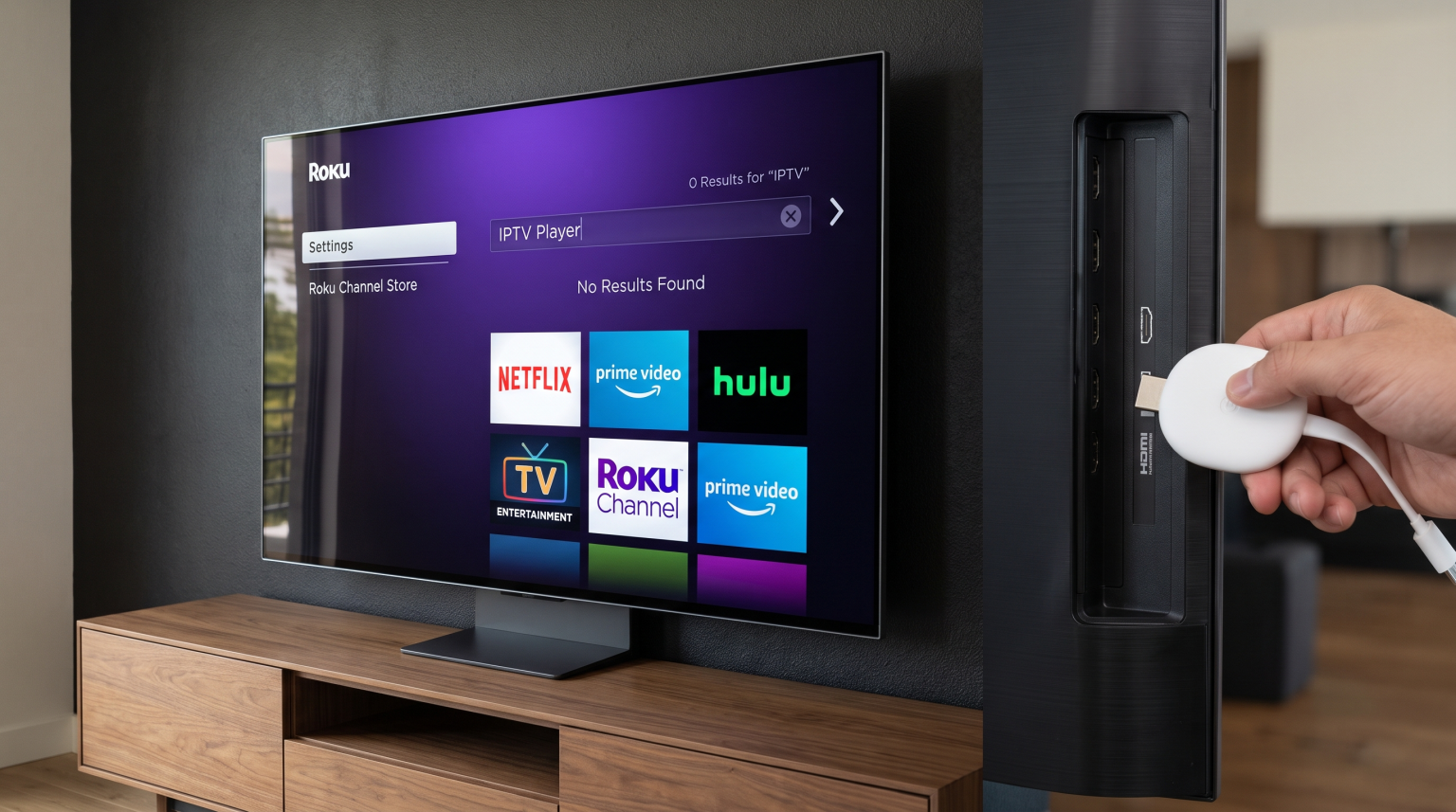
You cannot natively install most popular third-party IPTV players on the Roku Pro LX OLED TV. The Roku operating system is a closed platform. The official Roku Channel Store does not allow standard M3U or Xtream Codes players. Furthermore, users cannot install Android APK files on a Roku television.
To use TV Shadow IPTV or similar services on a Roku Pro LX OLED TV, you must use an external streaming device, such as a Google TV dongle, connected to an HDMI port. Alternatively, you can use screen mirroring from a smartphone, though this method is less reliable for live sports.
Understanding the Roku Operating System
The Roku Pro LX OLED TV uses Roku OS. This operating system focuses on simplicity and official streaming partners.
The Roku Channel Store strictly regulates application availability. Roku removes applications that allow users to load custom M3U playlists or Xtream Codes server details. Therefore, famous IPTV players like TiviMate, Smarters Pro, or XCIPTV are completely absent from the Roku Channel Store.
Many users confuse Roku OS with Android TV. Android TV is an open platform created by Google. If an application is not in the Google Play Store, Android TV users can download the application file directly from the internet. This process is called sideloading.
Roku OS does not support sideloading. The system cannot read or install Android application files (APK files). If you attempt to transfer an APK file to a Roku TV using a USB drive, the television will not recognize the file. If you are comparing different platforms, our guide to Meilleur système d'exploitation pour Smart TV dédié à l'IPTV en 2026 explains the specific differences between Roku OS, Tizen, and Google TV.
Roku Pro LX IPTV Apps Availability
Searching for Roku Pro LX IPTV apps in the official store will yield very few useful results for custom playlist users.
You will find official applications from legitimate cable television providers. You will also find official applications for subscription services like YouTube TV or Sling TV. However, you will not find generic M3U playlist players.
Sometimes, an independent developer publishes a generic IPTV player in the Roku Channel Store under a false name. Roku usually deletes these applications within a few days. If you install one of these temporary applications, the application will stop working when Roku removes it from the central server.
Because app availability is very poor, we do not recommend using the internal Roku operating system for custom IPTV services.
Comparison: Roku OS vs Google TV for IPTV
This table compares the internal Roku operating system against an external Google TV device for IPTV purposes.
| Fonctionnalité | Roku OS (Roku Pro LX) | Google TV (External Device) |
| Système d'exploitation | Roku OS | basé sur Android |
| App Store | Roku Channel Store | Google Play Store |
| M3U Player Availability | Very low | Très élevé |
| Xtream Codes Support | Very low | Très élevé |
| Sideloading (APK files) | Not supported | Supported |
| Native VPN Support | Not supported | Supported |
Alternative Methods for IPTV on Roku TVs
If you already own a Roku Pro LX OLED TV, you can still watch custom IPTV services. You must use alternative methods to bypass the Roku operating system restrictions.
Method 1: Use an External HDMI Streaming Device
The best solution is connecting an external streaming device to the Roku television. The Roku Pro LX OLED TV has multiple high-speed HDMI ports.
You can purchase an Android TV box, a Google Chromecast with Google TV, or an Amazon Fire TV Stick. You plug this small device into the HDMI port on the back of the Roku TV. You then use the television simply as a display screen.
The external device will have its own operating system. If you connect a Google TV device, you can access the Google Play Store. You can then download premium IPTV players, input your TV Shadow IPTV credentials, and enjoy full Electronic Program Guide (EPG) support.
Method 2: Screen Mirroring (Casting)
The second method is screen mirroring. The Roku Pro LX OLED TV supports Apple AirPlay and Android screen casting.
You can install an IPTV application on your smartphone or tablet. You enter your M3U link or Xtream Codes into the smartphone application. You start playing the live television channel on your phone. Then, you press the “Cast” or “Screen Mirroring” button to send the video signal wirelessly to the Roku TV.
This method does not require extra hardware. However, screen mirroring has disadvantages. The video quality may drop. The wireless connection can cause buffering. Furthermore, using screen mirroring drains your smartphone battery quickly. You also cannot use a standard television remote control to change channels; you must use your smartphone.
Watching Live Football on the Roku Pro LX OLED
Many users want IPTV access specifically for live football and other sports. The hardware capabilities of the Roku Pro LX OLED TV make it an excellent display for fast-moving sports, provided you use a high-quality external IPTV device.
Traitement des mouvements et fréquence de rafraîchissement
The Roku Pro LX OLED TV features a 120Hz refresh rate. A 120Hz television refreshes the picture 120 times every second. This high refresh rate is ideal for live football. When the camera moves quickly across the grass, the ball and the players remain sharp.
OLED technology also provides instant pixel response times. Unlike traditional LED televisions, OLED pixels change color immediately. This prevents motion blur behind fast-moving objects. If you want to understand more about panel technologies, read our comparison on OLED ou Mini-LED pour le football en direct ?.
Picture Quality and Upscaling
IPTV streams often broadcast in 1080p resolution or 720p resolution. The Roku Pro LX OLED TV is a 4K television. The television must process the 1080p signal and stretch it to fit the 4K screen. This process is called upscaling.
The Roku Pro LX has a strong internal processor for upscaling. The processor sharpens the image and reduces video compression noise. However, the final picture quality always depends on the original source. If the IPTV stream is heavily compressed, the television cannot make the picture perfect. To learn more about this technical process, see our guide on Qu'est-ce que la conversion ascendante TV et est-ce utile pour l'IPTV ?.
Stabilité de la connexion réseau
Live football requires a very stable internet connection. The Roku Pro LX OLED TV includes modern Wi-Fi technology. However, Wi-Fi signals can suffer from interference.
For the best IPTV streaming stability, we recommend using a wired Ethernet connection. Connect a network cable directly from your internet router to the television, or to your external streaming device. A wired connection prevents unexpected buffering during important sports moments.
Electronic Program Guide (EPG) Support
A good IPTV experience requires a functional Electronic Program Guide (EPG). The EPG is the digital menu that shows current and upcoming television programs.
Because Roku OS does not support advanced IPTV players, you cannot utilize a standard EPG interface natively on the television. The few generic video players that occasionally appear on Roku do not have the memory or software framework to load large XMLTV guide data.
If you connect an external Android device to the Roku TV, you can use applications like TiviMate. These applications process EPG data perfectly. You can browse categories, view channel logos, and see exactly what program is currently broadcasting.
Software Updates and Security
Roku frequently updates the Roku OS software. These updates improve the television menu speed, fix software bugs, and add new official applications.
However, Roku software updates also strengthen the security system. If an independent developer finds a way to bypass Roku app restrictions, Roku will close that loophole in the next software update. This aggressive update policy is the main reason why users should not rely on temporary Roku IPTV workarounds.
Using an external HDMI device protects you from Roku’s restrictive updates. The external device handles all the IPTV software, while the Roku TV simply acts as a monitor.
Conclusion
The Roku Pro LX OLED TV is an outstanding piece of hardware with exceptional picture quality for live sports and movies. However, the Roku operating system is highly restrictive. You cannot natively install standard IPTV players or M3U applications directly from the Roku Channel Store.
For users of services like TV Shadow IPTV, the television’s internal software is not suitable. The most effective and stable solution is to connect an external Android TV or Google TV device to the television’s HDMI port. This setup allows you to enjoy the beautiful OLED screen of the Roku Pro LX while bypassing the software limitations of Roku OS.
Foire aux questions (FAQ)
Can I install Android APK files on a Roku TV?
No, you cannot install APK files on a Roku TV. Roku OS is a proprietary system and does not recognize Android application files. You must use an Android-based external device if you want to install APK files.
Is Smart IPTV available on Roku?
No, the Smart IPTV application is not available in the official Roku Channel Store. Roku removed generic M3U players from their platform several years ago.
How can I watch TV Shadow IPTV on my Roku Pro LX?
The best way to watch TV Shadow IPTV on a Roku TV is by connecting an external device like a Google Chromecast with Google TV or an Amazon Fire TV Stick. You can install standard IPTV players on the external device.