
When you buy a new Smart TV, the remote control and operating system are very important. Samsung uses the Tizen operating system. Brands like Sony and TCL use Google TV. Both systems offer different experiences when you use the remote control. Samsung provides a minimalist SolarCell remote with very few buttons. Google TV devices often include a voice remote with more traditional buttons, depending on the manufacturer.
This article compares Samsung Tizen and Google TV. We will examine which operating system is easier to navigate using a remote control. We will compare home screen navigation, voice search, live football viewing, and IPTV app compatibility. Understanding these differences will help you choose the best Smart TV for your daily entertainment.
Réponse rapide
Which operating system is easier to use with a remote? The answer depends on your preferences. Samsung Tizen is better for users who want a simple, minimalist remote control with solar charging and very few physical buttons. The Tizen interface is built for horizontal scrolling. Google TV is better for users who prefer Google Assistant and a more traditional directional pad (D-pad) layout. Google TV organizes content into vertical categories. For IPTV users and live sports fans, Google TV often provides faster access to third-party applications and channel guides because many Google TV remotes include number buttons.
The Remote Controls: Physical Design and Buttons
The physical design of a remote control changes how you interact with your television.
Samsung SolarCell Remote
Samsung Smart TVs include the SolarCell remote. This remote does not use traditional removable alkaline batteries. Instead, the remote charges using indoor light, outdoor light, or a USB-C cable.
The physical design is very minimalist. The remote is thin and lightweight. It includes a circular directional pad (D-pad), a select button in the center, a volume toggle button, and a channel toggle button. It also has quick-launch buttons for popular streaming services.
Because the Samsung SolarCell remote has few buttons, you must use the on-screen menus for many functions. For example, there are no physical number buttons. To type a television channel number, you must press a button to open a virtual number pad on the television screen. You then use the D-pad to select the numbers. This process requires multiple button presses.
Google TV Voice Remote
Google TV is available on media players like the Google TV Streamer, and on Smart TVs from brands like Sony, TCL, and Hisense. The remote control design varies depending on the hardware manufacturer.
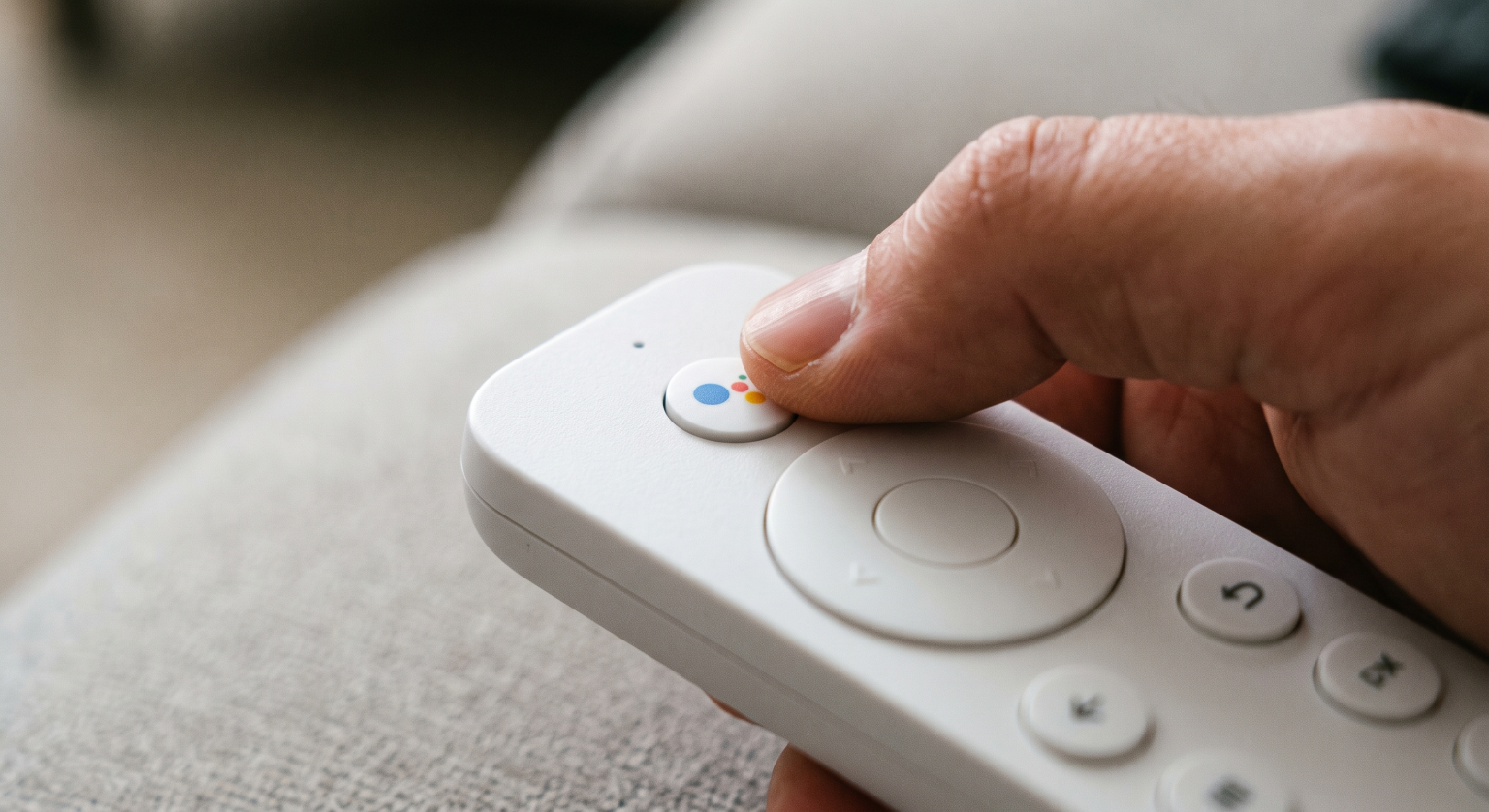
However, the standard Google TV remote focuses on a prominent D-pad and a dedicated Google Assistant button. Television brands like Sony often provide a larger remote control with Google TV. These remotes usually include physical number buttons, color buttons, and more shortcut buttons.
This traditional layout makes it easier to change channels directly. You can press a number button to jump immediately to a specific channel. The Google TV remote design usually feels more familiar to users who are upgrading from an older television. Both remote types use Bluetooth technology, so you do not need to point the remote directly at the television.
Navigating the Home Screen Interface
The operating system interface determines how many times you must press the remote buttons to find your content.
Samsung Tizen Interface Navigation
The Samsung Tizen home screen uses a horizontal design. When you press the Home button on the SolarCell remote, a navigation hub appears on the screen. You use the left and right D-pad buttons to scroll horizontally through your applications.
Recently, Samsung updated the Tizen interface to fill the entire television screen. This full-screen menu shows personalized content recommendations and applications. Moving through large blocks of content requires many button presses. Some users find the full-screen Tizen menu slightly slow to navigate with the remote. You must often scroll past sponsored content to reach your favorite applications.
Google TV Interface Navigation
The Google TV home screen is highly integrated with the Google ecosystem. It uses a vertical and horizontal grid layout. You use the up, down, left, and right D-pad buttons to explore different categories.
Google TV categorizes content into sections like “For You,” “Movies,” and “Shows.” The interface combines content from many different streaming applications into one screen. Navigating Google TV with the remote feels fast and responsive. The D-pad allows you to scroll down through personalized recommendations very easily. If you want a television that recommends shows from all your applications, Google TV provides a smooth remote control experience.
Quick Comparison: Tizen vs Google TV Remote Usage
Here is a simple comparison of how the two systems operate with a remote control.
| Fonctionnalité | Samsung Tizen | Google TV |
| Default remote style | Minimalist, few buttons | Varies by brand, often traditional |
| Battery type | Solar panel and USB-C | Varies (often standard AAA batteries) |
| On-screen navigation | Horizontal menus, full-screen hub | Vertical and horizontal grid |
| Physical number buttons | No (on default SolarCell remote) | Yes (on most Sony and TCL remotes) |
| Voice assistant button | Yes (Samsung Bixby or Amazon Alexa) | Yes (Google Assistant) |
| Connection technology | Bluetooth | Bluetooth |
Voice Search and Assistant Integration
Typing on a television screen with a D-pad is slow. Therefore, voice search is a very important feature for modern remote controls.
Samsung Bixby and Alexa
The Samsung SolarCell remote has a dedicated microphone button. You press and hold this microphone button to speak. Samsung televisions use Samsung Bixby as the default voice assistant. You can also configure Amazon Alexa on most modern Samsung televisions.
You can use the voice remote to open applications, search for movies, or change the television volume. However, Samsung Bixby is sometimes less accurate than Google Assistant when searching for complex information or specific YouTube videos. You must speak clearly into the top of the remote control.
Google Assistant on Google TV
Google Assistant is built directly into the Google TV remote. You press the dedicated Google Assistant button to search. Google Assistant is generally excellent at recognizing different accents and languages.
When you ask Google TV to find a movie, Google Assistant searches across all installed applications. It then shows you exactly where you can watch the movie. For voice control, the Google TV remote generally provides a faster and more accurate experience than Samsung Tizen. You can also use the Google TV remote to control compatible smart home devices, such as turning off connected lights.
IPTV Compatibility and Remote Usability
Si vous utilisez TV Shadow IPTV, the television operating system changes how you interact with your IPTV applications.
Navigating IPTV Apps with Samsung Tizen
Samsung Tizen has a closed application ecosystem. You must download IPTV apps from the official Samsung App Store. Some popular IPTV players are available, but the selection is limited.
When using an IPTV application on Samsung Tizen, the minimalist remote can be challenging. Because the SolarCell remote lacks physical number buttons, you cannot simply press “5” to go to channel 5. You must use the D-pad to open the Electronic Program Guide (EPG), scroll to the channel, and press the select button. This process makes changing channels slower. Loading a large M3U playlist can also cause slight navigation lag when using the Tizen D-pad.
Navigating IPTV Apps with Google TV
Google TV provides access to the Google Play Store. The Google Play Store contains many excellent IPTV applications that support M3U playlists and Xtream Codes. Using an IPTV application is generally easier on Google TV.
If you use a Sony or TCL television with Google TV, the remote control usually has physical number buttons. This feature allows you to type a channel number directly. The Google TV D-pad is also very responsive for scrolling quickly through a long EPG. For IPTV navigation, Google TV often provides a superior and faster experience.
Si vous souhaitez comparer les systèmes d'exploitation pour téléviseurs, consultez notre guide sur Meilleur système d'exploitation pour Smart TV dédié à l'IPTV en 2026 : Tizen, Google TV et webOS en comparaison explains the differences between platforms in more detail.
Watching Live Football and Sports
Live sports require fast channel changes and clear picture quality. The remote control and the television operating system both affect this viewing experience.
Changing Channels During Live Games
When two live football matches happen at the same time, you may want to switch between them quickly. On a Google TV device with a traditional remote, you can switch channels instantly using the number buttons or the dedicated channel up and down buttons.
On Samsung Tizen with the SolarCell remote, you must use the on-screen menu or push the channel toggle button up or down. The lack of direct number input makes quick channel switching slightly slower on a Samsung television.
Motion Handling and Picture Settings
Watching live football requires excellent motion handling to prevent blurry players or a blurry football. To fix motion blur, you must change the television picture settings.
On Samsung Tizen, you must press the Settings button, navigate through the home menu, and find the specific picture clarity settings. This process covers part of the football match.
On many Google TV devices, such as Sony BRAVIA televisions, you can press a “Quick Settings” button on the remote control. This action opens a small menu at the bottom of the screen. You can adjust the motion settings and brightness without hiding the live football match.
For more information about sports viewing, read our article about Téléviseurs 60 Hz ou 120 Hz pour le football en direct.
Installing and Managing Apps
Downloading new applications should be easy to do with a remote control.
App Installation on Samsung Tizen
To install an application on Samsung Tizen, you press the Home button and navigate to the “Apps” icon. You then use the D-pad to select the search icon at the top of the screen. You must use the on-screen keyboard to type the name of the application. The process is simple, but typing with the D-pad takes time. The Samsung App Store also has fewer applications than the Google Play Store.
App Installation on Google TV
On Google TV, you can navigate to the “Apps” tab using the remote control. However, the easiest method is to use the Google Assistant button. You can hold the button and say, “Download [App Name].” Google TV will find the application in the Google Play Store immediately.
This voice installation feature makes Google TV much easier to manage with a remote control. You avoid using the on-screen keyboard completely. You can also read our guide to Tizen vs Google TV pour les applications IPTV : quelle est la différence ? to learn more about application availability.
Conclusion
Choosing between Samsung Tizen and Google TV depends on how you like to interact with your television. Samsung Tizen offers a modern, minimalist experience. The SolarCell remote is environmentally friendly and very simple to hold. However, the lack of number buttons can make IPTV channel navigation slower.
Google TV provides a highly integrated experience with excellent voice search. If you buy a television from brands like Sony or TCL, you often receive a more traditional remote control with physical number buttons. This traditional design makes Google TV very easy to use for live football, IPTV channel switching, and fast menu navigation. Both operating systems are excellent, but Google TV is generally more flexible for users who want traditional remote control features and complete control over their applications.
Foire aux questions (FAQ)
Does the Samsung SolarCell remote need traditional batteries?
No. The Samsung SolarCell remote charges using a built-in solar panel that absorbs indoor and outdoor light. You can also charge the remote using a standard USB-C cable.
Puis-je installer des applications Android sur un appareil Samsung Tizen ?
No. Samsung Tizen does not support Android applications or the Google Play Store. You can only install applications that are available in the official Samsung App Store.
Which remote control has better voice search?
The Google TV remote generally provides better voice search. Google Assistant is very accurate at understanding different languages and finding specific content across multiple applications.
Is it easy to type numbers on a Samsung TV remote?
No. The standard Samsung SolarCell remote does not have physical number buttons. To type numbers, you must press a button to open a virtual number pad on the television screen, then use the D-pad to select numbers.
Does Google TV support M3U playlists for IPTV?
Google TV itself is an operating system. You must download a third-party IPTV player application from the Google Play Store. Many of these third-party applications support M3U playlists and Xtream Codes.
Can I use my smartphone as a remote control?
Yes. You can use the Samsung SmartThings application to control a Samsung Tizen television. You can use the Google Home application or the Google TV application to control a Google TV device. Both smartphone applications provide a virtual remote control.
Is the Samsung SolarCell remote backlit?
No. The standard Samsung SolarCell remote does not have illuminated buttons. Some premium Google TV remotes from brands like Sony do feature backlit buttons that turn on automatically in dark rooms.