
Did you turn on your TV only to find your favorite streaming icons missing? If a recent Fire TV update app settings shift has completely scrambled your home screen, you are not alone. Here is exactly how United States users can quickly fix their devices and regain full control.
Many viewers recently discovered that their familiar Amazon Fire Stick settings change without warning. This is because background updates reorganize tabs, rows, and core software permissions overnight.
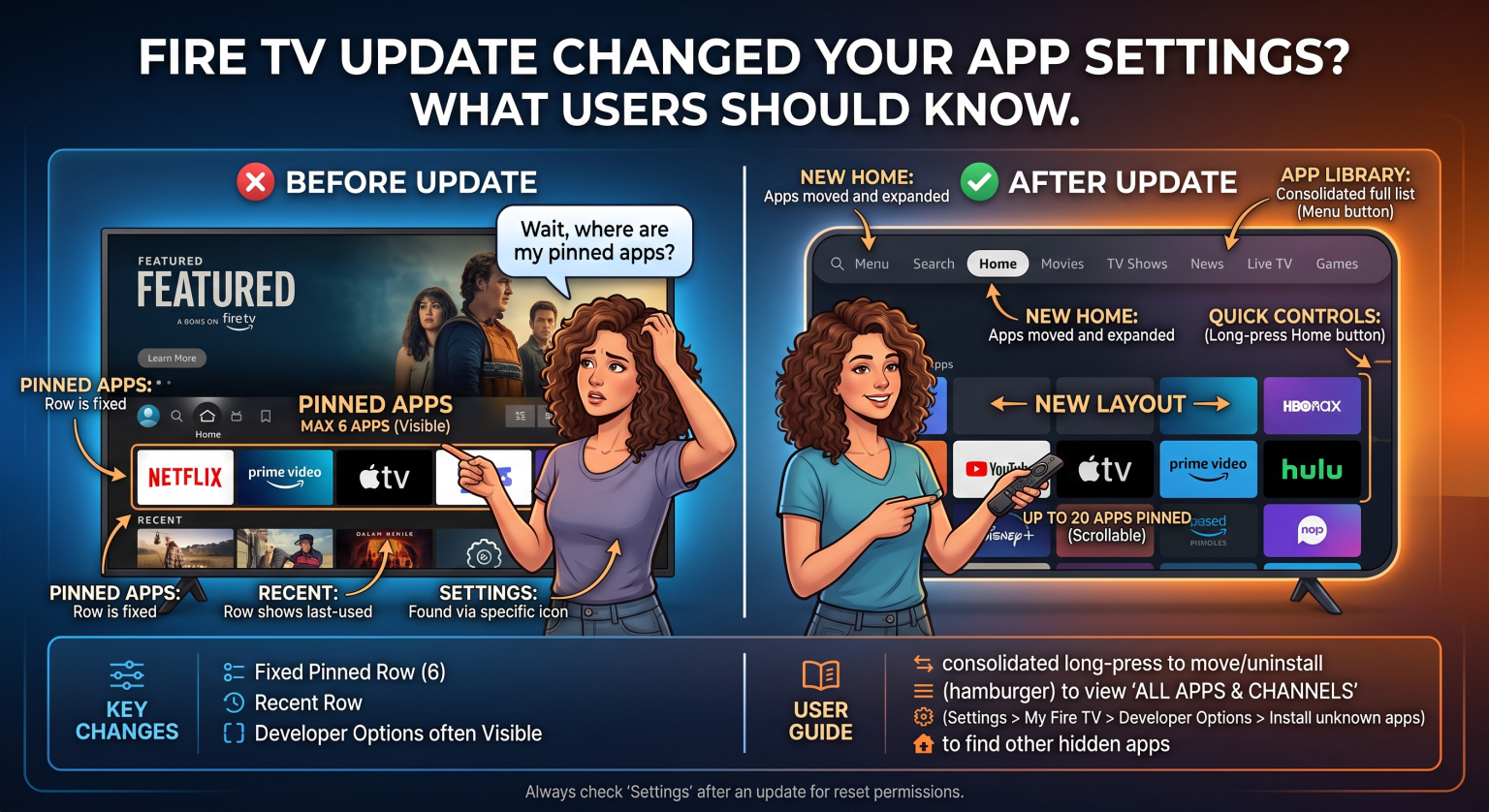
How a Recent Fire TV Update App Settings Change Affects United States Users
When an automatic Fire OS update rolls out across the United States, it often alters how your device interacts with third-party software. Amazon continuously refines its interface to highlight promoted content, which sometimes pushes your installed apps out of view.
You might also notice that familiar menus like “My Fire TV” have been permanently renamed to “Device & Software”. Because of these unexpected shifts, many users mistakenly believe their apps were deleted when they were merely relocated to a different menu.
The Mystery of Hidden Developer Options
One of the most frustrating changes involves the sudden disappearance of sideloading capabilities. If you heavily rely on third-party software, a Fire TV update app settings adjustment will likely hide this menu entirely.
To bring it back, you must navigate to your device’s “About” page and click the device name seven times. Once unlocked, you can safely restore Fire TV apps and seamlessly manage your preferred streaming ecosystem.
Navigating the New Fire TV Home Screen Layout
If your icons vanished overnight, do not panic or factory reset your device. The latest interface updates often move your most-used platforms into a separate “Library” or nested apps view.
Simply use your remote to pin your favorites back to the front row. Highlighting an app and pressing the Menu button will allow you to easily reorder your Fire TV home screen layout.
Compare Your App Management Options
Not sure what actually changed? Here is a quick comparison of how the most recent software updates affect your daily viewing experience.
| Feature Category | Pre-Update Experience | Post-Update Experience |
| Opties voor ontwikkelaars | Visible by default in the Settings menu | Hidden; requires clicking the device name 7 times |
| App Library Placement | Front and center on the main Home Screen | Relocated to an internal “Library” or nested tab |
| App Permissions | Broadly enabled with a single toggle | Tightly restricted; requires per-app approval |
Step-by-Step Fixes to Reclaim Your Device
Taking back control of your device is much easier than you might think. By adjusting a few key toggles, you can confidently prevent future background updates from disrupting your weekend movie nights.
Restoring Sideloaded App Permissions
Security features are much stricter following recent patches. You must now manually grant storage and network access for any unofficial software you install.
Head into the newly unlocked Developer Options to enable “Install Unknown Apps” for each specific downloader. Actively managing these sideloaded app permissions ensures your custom platforms run smoothly without crashing.
Managing Automatic Amazon Fire Stick Settings Changes
To avoid future surprises, you should adjust how your device handles background downloads. Navigate to your Appstore settings and turn off automatic updates if you prefer total manual control.
This ensures that no Amazon Fire Stick settings change can occur without your explicit permission. You will always know exactly what version of a platform you are running.
Conclusion for United States Fire TV Owners
Navigating a Fire TV update app settings change doesn’t have to ruin your binge-watching plans. By understanding where menus have moved and how to unlock hidden developer modes, United States users can quickly restore their ideal setup.
Ready to fully optimize your streaming experience? Schrijf je vandaag nog in voor onze premium tech-nieuwsbrief for weekly tips, exclusive app guides, and the latest smart home troubleshooting tricks!
Veelgestelde vragen (PAA)
Where did my apps go after the Fire TV update?
Your apps were not deleted; a Fire TV update app settings adjustment likely moved them to the “Library” or “Apps” tab. You can easily pin them back to the main screen by highlighting the app and pressing the Menu button on your remote.
How do I turn Developer Options back on?
Go to Settings, select “My Fire TV” (or “Device & Software”), and click on “About.” Highlight your device’s name and press the select button seven times to reveal the hidden developer menu.
Can I stop my Fire TV from updating automatically?
While you cannot entirely stop core system updates, you can stop individual apps from updating in the background. Go to Settings > Applications > Appstore and toggle off “Automatic Updates”.