
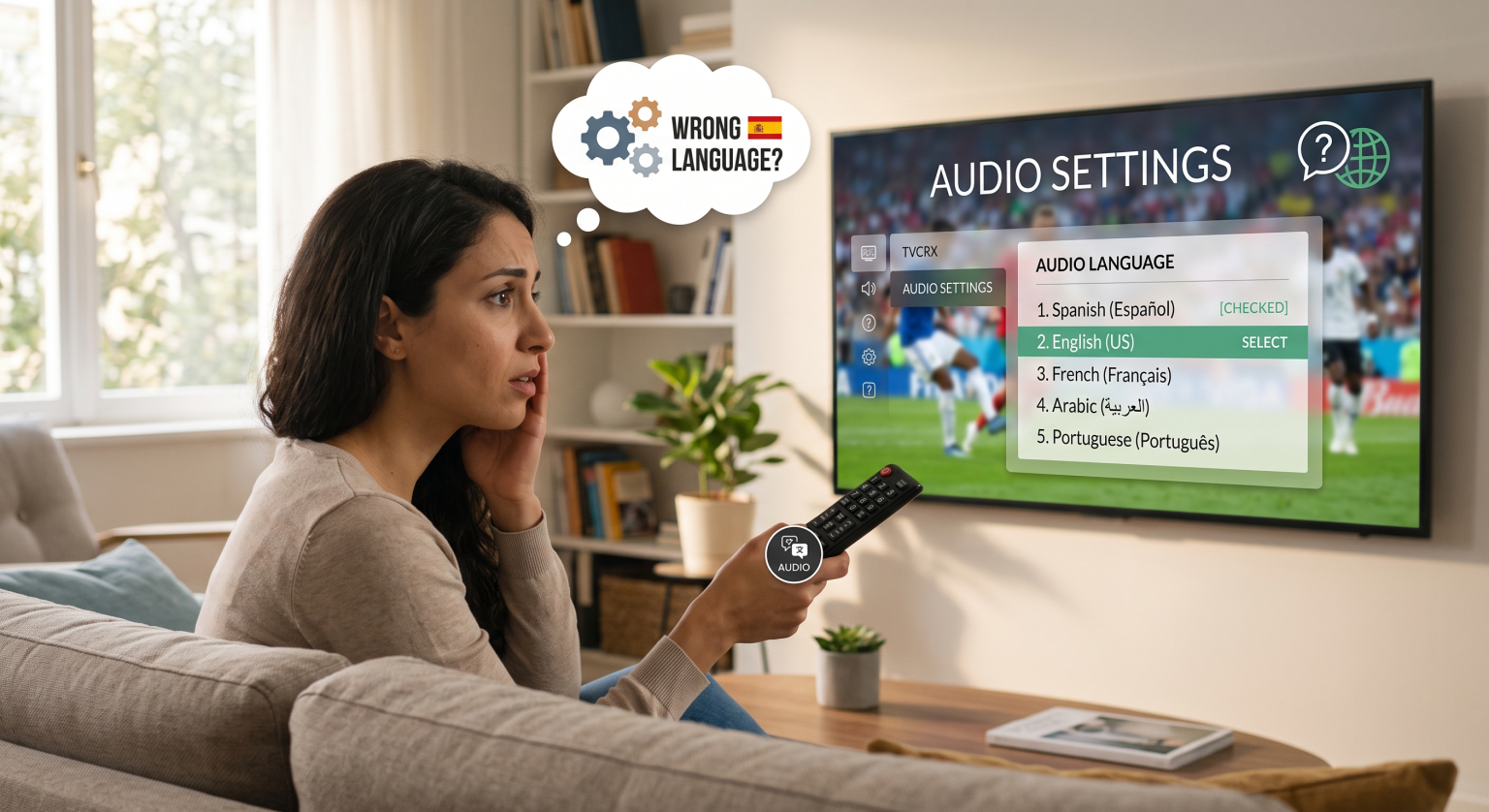
You finally sit down to watch the big game or a blockbuster movie, but there is a huge problem: the audio is in the wrong language. Don’t panic! If your stream sounds foreign, performing an IPTV change audio language adjustment is usually a breeze. Here is your ultimate guide to fixing your audio tracks in seconds.
Why Your IPTV Audio Language Is Wrong
Many premium broadcasting networks provide multilingual IPTV channels to cater to a global audience. As a result, the source file often contains multiple audio streams embedded in a single broadcast.
When you load up a channel, your media player automatically selects the primary track by default. If that default track happens to be Spanish, French, or even an accessibility track, you will need to manually switch audio tracks on IPTV to your native language.
Step-by-Step: IPTV Change Audio Language on Top Players
Different applications handle media settings in their own unique ways. Below is a quick breakdown of how to navigate the menus of the most popular streaming applications.
Quick Comparison of Audio Settings by Player
| IPTV-speler | Steps to Change Audio Track | Moeilijkheidsgraad |
| IPTV Smarters Pro | Tap screen > Click ‘Settings’ gear > Select ‘Audio’ > Choose language. | Extremely Easy |
| TiviMate | Long-press ‘OK’ > Scroll to ‘Audio’ icon > Select preferred language. | Makkelijk |
| VLC-mediaspeler | Right-click video > Go to ‘Audio’ > Click ‘Audio Track’ > Select track. | Makkelijk |
How to Change Audio Stream on Smarters Pro
IPTV Smarters Pro is incredibly user-friendly when it comes to customizing your viewing experience. To fix the issue, simply tap the screen while the video is playing to bring up the bottom menu.
Click on the small gear icon, select the audio tab, and choose your preferred language. This change audio stream Smarters method takes less than five seconds to execute.
Adjusting VLC IPTV Audio Settings
If you are watching on a PC, you are likely using VLC Media Player. VLC is powerful and handles dual audio IPTV streams flawlessly.
To initiate an IPTV change audio language switch, right-click anywhere on the playing video. Hover over “Audio,” navigate to “Audio Track,” and click on the track that matches your desired language.
Switching Audio on TiviMate
TiviMate is a favorite for Android TV users, offering a highly intuitive interface. If your language is wrong, simply long-press the ‘OK’ or ‘Select’ button on your remote while watching live TV.
Scroll down to the bottom menu, find the audio track icon (it looks like a small speaker or equalizer), and pick the correct track. Your stream will instantly update with the new audio.
Troubleshooting: What If the Language Won't Change?
Sometimes, you might attempt an IPTV change audio language fix, but only one track is listed in the menu. This means the channel provider is only broadcasting a single language for that specific feed.
In other cases, users complain of strange robotic voices describing the on-screen action. This means you have accidentally selected the visually impaired track, and you need to ensure the audio description is turned off by selecting the standard stereo track instead.
Verbeter vandaag nog uw kijkervaring
Are you tired of dealing with missing audio tracks, constant buffering, and confusing setups? It’s time to upgrade your entertainment.
[Click here to subscribe to our Premium IPTV Service today!] Enjoy instant access to thousands of high-quality, multilingual channels with perfectly synced audio tracks. Choose your pricing plan now and start streaming seamlessly!
Veelgestelde vragen (PAA)
Why does my IPTV channel have two languages playing at once?
Lorem ipsum dolor sit amet, consectetur adipiscing elit. Ut elit tellus, luctus nec ullamcorper mattis, pulvinar dapibus leo.
Can I set a default audio language on my IPTV player?
Lorem ipsum dolor sit amet, consectetur adipiscing elit. Ut elit tellus, luctus nec ullamcorper mattis, pulvinar dapibus leo.
Does changing the audio track cause buffering?
No, switching tracks simply tells your player which embedded audio file to output. It does not require additional bandwidth and will not cause your stream to buffer.