
Setting up your player only to return later and find your XCIPTV recording not working is incredibly frustrating. Whether you missed a live sports event or a favorite series, scheduled recording failures are a common hurdle for many streaming enthusiasts. Fortunately, troubleshooting these IPTV recording errors is straightforward once you know where to look. No matter where you are located globally, dealing with local ISP throttling or regional network setups, these universal fixes will restore your DVR functionality.
Here is exactly how to diagnose and fix your XCIPTV scheduled recordings.
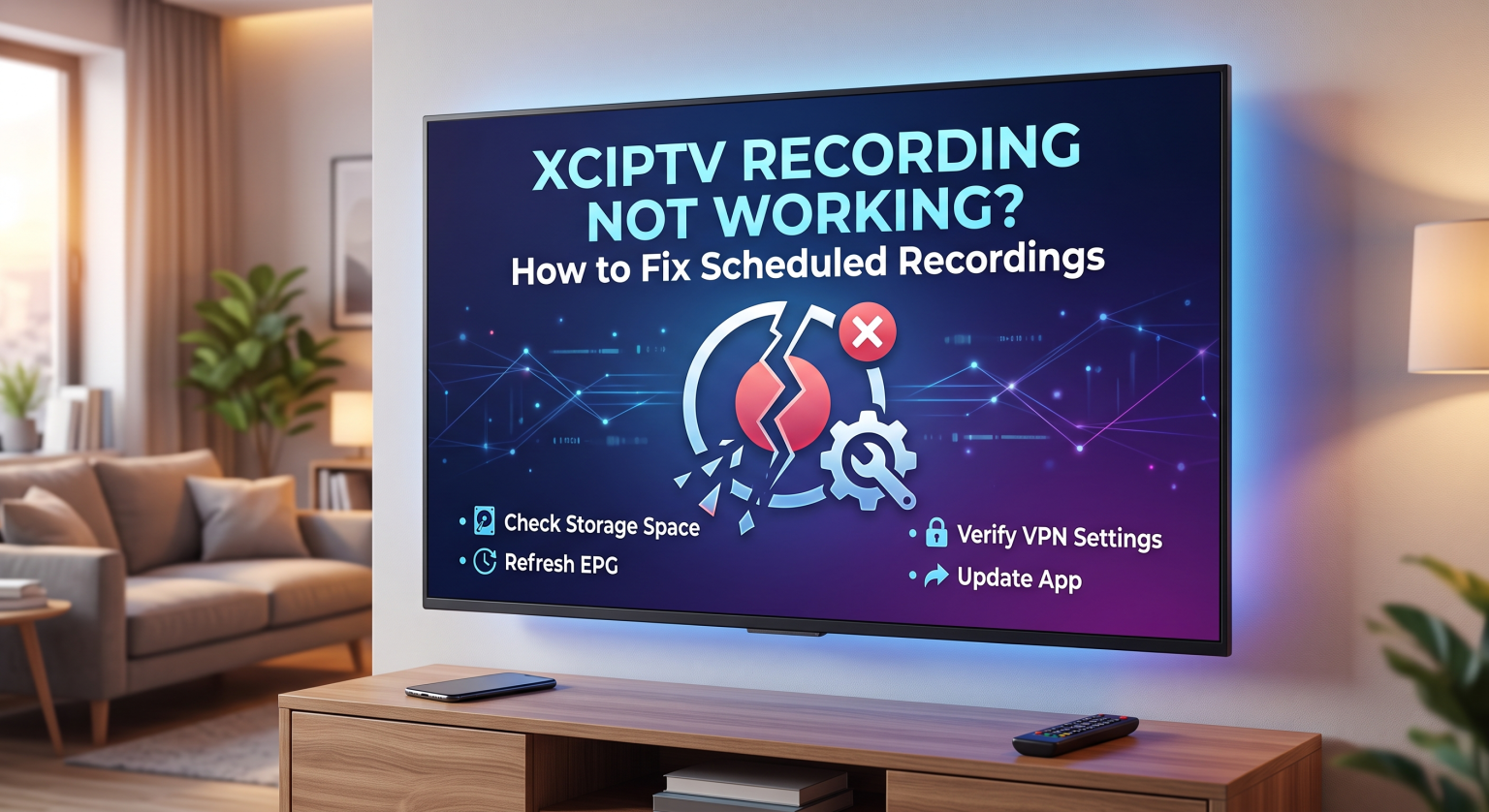
Why Your XCIPTV Scheduled Recording Failed
Several background factors must align perfectly for a scheduled recording to execute successfully. Unlike simply watching a live stream, recording requires continuous read-and-write permissions, stable background processing, and perfectly synced timing.
Storage Permissions and Space Limits
The most frequent cause of a failed recording is restrictive device permissions. By default, many Android TV devices and Firesticks block apps from writing files to internal or external storage. If XCIPTV cannot write the video file, the recording will instantly fail. Furthermore, high-definition streams consume massive amounts of data, meaning a nearly full hard drive will cause the recording to stop prematurely.
Provider Connection Limits
Many users try to record one channel while actively watching another. If your IPTV subscription only allows a single connection, the server will block the second stream. Background recording counts as an active connection. You will need a multi-connection plan to watch and record simultaneously.
EPG Sync and Timing Drift
Scheduled recordings rely entirely on your Electronic Program Guide (EPG). If the EPG data from your provider is out of sync with the actual broadcast time, XCIPTV will start and stop recording at the wrong moments.
How to Fix XCIPTV Player Recording Setup Errors
To get your DVR feature running flawlessly, follow these exact troubleshooting steps.
Format External Drives Correctly: If you are using a USB drive via an OTG cable on a Firestick or Android box, ensure the drive is formatted to FAT32. Most streaming devices cannot read NTFS or exFAT drives natively.
Grant Storage Permissions: Navigate to your device’s main Settings > Apps > XCIPTV-speler > Permissions. Ensure that storage access is fully granted to the application.
Set the Correct Recording Path: Open the XCIPTV settings and verify the recording folder path. Create a dedicated, simple folder on your drive rather than using protected system folders.
Disable Battery Optimization: Operating systems often put background apps to sleep to save memory. Go to your device settings and exclude XCIPTV from any battery-saving or background-restriction lists.
Choosing the Best Recording Storage Option
Selecting the right hardware to store your media is just as critical as the app settings. Here is a breakdown of the best storage configurations for capturing IPTV streams.
| Storage Type | Reliability for Recording | Moeilijkheidsgraad van de installatie | Beste toepassingsvoorbeeld |
| Device Internal Storage | Zeer hoog | Extremely Easy | Short manual recordings (under 30 mins) |
| USB Flash Drive (FAT32) | Hoog | Moderate (Requires OTG) | Scheduled movies and live sports events |
| Network Attached Storage (NAS) | Maximum | Complex (Requires SMB setup) | Archiving daily series and massive libraries |
Advanced Fixes for Persistent IPTV Recording Errors
If you have verified your storage and connection limits but still experience issues, corrupted app data might be the culprit. Over time, the app cache can swell, causing EPG synchronization failures and scheduling bugs.
Navigate to your device settings, find XCIPTV, and select Cache leegmaken. Do not click “Clear Data” unless you are prepared to re-enter your login credentials and playlist URLs because this wipes out your user settings. Finally, always perform a one-minute manual recording test to verify that the storage path works before relying on a long-term scheduled timer.
Als je XCIPTV recording not working issue persists despite these local network optimizations, it may be time to upgrade your streaming environment. Securing your connection with a premium VPN prevents ISP throttling, while upgrading to a robust IPTV package guarantees the extra connections needed for background DVR capabilities. Check out our recommended premium plans today to guarantee a seamless, buffer-free recording experience.
Veelgestelde vragen (FAQ)
Why does XCIPTV only record for a few minutes and then stop?
This usually happens due to a lack of available storage space, an unstable internet connection dropping the stream, or the device going into sleep mode and terminating background apps.
Can I record one channel while watching another on XCIPTV?
Yes, but only if your IPTV subscription allows for two or more simultaneous connections. If you only have a single-connection plan, attempting to watch and record at the same time will result in an error or a banned account.
What format should my USB drive be for XCIPTV recording?
For maximum compatibility with Android TV boxes and Amazon Firesticks, your external USB drive should be formatted to FAT32.