
Many users buy a new Amazon streaming device and experience a sudden software problem. Older Amazon devices use the Fire OS operating system. New 2026 Amazon devices, such as the Fire TV Stick 4K Select, use the Vega OS operating system. These two operating systems use completely different software code. You might wonder if you can keep your television channels when you change your streaming device. You might ask if you can move your subscription to the new system. This article explains how to transfer your service. We will explain why your old applications do not work. We will also show you how to move your service successfully.
Kort svar
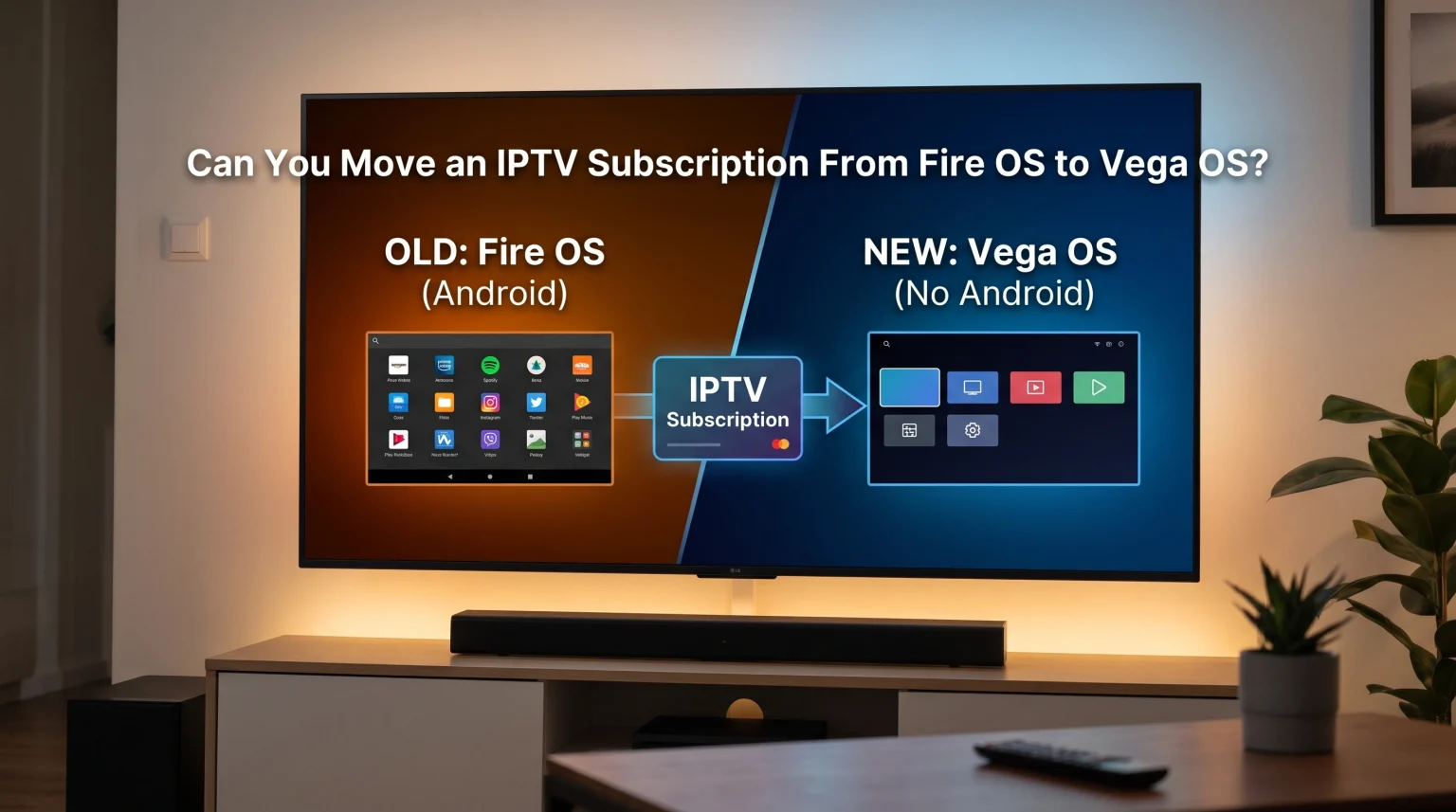
Yes, you can move your IPTV subscription from Fire OS to Vega OS. Your IPTV subscription is a digital account. The subscription connects to a remote server. The subscription is not locked to one specific operating system. However, Vega OS cannot run Android applications. You cannot install popular Fire OS applications such as TiviMate or Downloader on Vega OS. To successfully move IPTV subscription Vega OS devices require you to download a new, compatible IPTV player application from the official Amazon Appstore.
Understanding the Two Operating Systems
To understand the transfer process, you must understand the difference between the two Amazon operating systems. Amazon uses two different software platforms for television devices in 2026.
What Is Fire OS?
Fire OS is an older operating system created by Amazon. Amazon built Fire OS using Google Android technology. Because Fire OS uses Android technology, Fire OS can read Android Package Kit (APK) files. This Android compatibility allows users to install thousands of independent applications. Users can enable a setting called “Developer Options”. This setting allows users to install applications from the internet. People often call this process “sideloading”. This open system makes Fire OS very popular for IPTV users.
What Is Vega OS?
Vega OS is a new operating system created by Amazon. Amazon built Vega OS using Linux technology and modern web technologies. Vega OS does not use Android technology. Because Vega OS does not use Android technology, Vega OS cannot read Android APK files. You cannot install Android applications on Vega OS. The new operating system does not have a “Developer Options” menu. You cannot install unknown applications from the internet. You can only install applications that Amazon approves. You must download every application directly from the official Amazon Appstore.
Application Differences: Fire OS vs Vega OS
The change from Android technology to Linux technology creates a major application problem. If you use a popular IPTV player application on Fire OS, that application will probably not work on Vega OS.
Many IPTV players are designed exclusively for Android systems. For example, TiviMate is an Android application. The developer of TiviMate has not created a Vega OS version. Therefore, TiviMate cannot run on Vega OS.
Furthermore, the famous Downloader application does not work on Vega OS. The Downloader application is designed to download and install Android APK files. Because Vega OS cannot install APK files, the Downloader application is incompatible with the new system.
When you change devices, you must find a new IPTV player application. You must search the official Amazon Appstore on your new Vega OS device. You must find an IPTV player application that the developer created specifically for Vega OS.
Comparison: Fire OS vs Vega OS
| Funksjon | Fire OS Devices | Vega OS Devices |
| Programvareplattform | Android technology | Linux technology |
| Application installation | Amazon Appstore and internet | Kun Amazon Appstore |
| Android APK file support | Ja | Nei |
| Developer Options menu | Tilgjengelig | Not available |
| Downloader application | Works perfectly | Does not work |
| TiviMate application | Works perfectly | Does not work |
| IPTV player choices | Thousands of options | Limited options |
How to Move Your IPTV Subscription
If you decide to move IPTV subscription Vega OS compatibility becomes your most important task. You cannot move the old application, but you can move the account details. Follow these clear steps to transfer your service to the new device.
Step 1: Retrieve Your Subscription Details
Before you disconnect your old Fire OS device, you must find your subscription details. Your IPTV provider gave you these details when you purchased the subscription. You need one of these two connection methods:
Xtream Codes: This method requires a Server URL, a Username, and a Password.
M3U Playlist: This method requires a long web address ending in “.m3u” or “.m3u8”.
If you cannot remember your details, open the IPTV player application on your old Fire OS device. Navigate to the application settings. Look for a menu named “Playlists” or “Account”. Write down the connection details carefully. Ensure you copy every letter and number exactly.
Step 2: Set Up the Vega OS Device
Connect your new Vega OS device to your television. Connect the Vega OS device to your home internet network. Complete the initial Amazon setup process. Ensure the Vega OS device installs the latest software updates.
Step 3: Find a Compatible IPTV Player Application
Open the Amazon Appstore on the Vega OS device. Select the search icon. Type the letters “IPTV” into the search bar. The Amazon Appstore will display a list of compatible IPTV player applications.
You must choose an application that supports your connection method. Read the application description carefully. Ensure the application accepts Xtream Codes or M3U playlists. Select the “Download” or “Get” button to install the application.
Step 4: Enter Your Subscription Details
Open the new IPTV player application. The application will ask you to add a user or add a playlist. Enter the connection details that you wrote down in Step 1.
If you use Xtream Codes, type the Server URL, the Username, and the Password into the correct boxes. If you use an M3U playlist, type the long web address into the playlist box.
Select the “Save” or “Connect” button. The new application will connect to the IPTV server. The application will download your channel list and your Electronic Program Guide (EPG). You have now successfully moved your subscription.
TV Shadow IPTV-kompatibilitet
TV Shadow IPTV is an independent digital service. We provide the server connection and the channel list. We do not manufacture television hardware. We do not manufacture IPTV player applications.
You can use TV Shadow IPTV on any operating system, including Vega OS. When you purchase a subscription from TV Shadow IPTV, we send you your personal connection details. We provide both Xtream Codes and an M3U playlist URL.
To watch TV Shadow IPTV on a Vega OS device, you simply need a compatible player. Because Vega OS is a new operating system, the Amazon Appstore currently offers fewer IPTV player applications than the Google Play Store. However, developers are adding new applications every month.
You must search the Vega OS Appstore for an available player. Once you install a player, you can enter your TV Shadow IPTV connection details. The player will then display the TV Shadow IPTV channels perfectly.
Hvis du sammenligner operativsystemer for TV-er, kan du sjekke ut vår guide til Det beste Smart TV-operativsystemet for IPTV i 2026: Tizen vs Google TV vs webOS explains the differences between Tizen, Google TV, and webOS.
Watching Live Football on Vega OS Devices
Many users move their IPTV subscription because they want to watch live football on a newer, faster device. Vega OS devices process video very quickly. However, live football requires specific hardware and network conditions to look smooth.
Internet Connection Stability
Live football requires a very stable internet connection. Television broadcasts transfer a large amount of video data every second. If your internet connection is unstable, the live football video will pause or stop completely.
Wi-Fi connections are convenient, but Wi-Fi signals can fluctuate. Walls and furniture can block Wi-Fi signals. For the best live football experience, we recommend an Ethernet cable. An Ethernet cable provides a direct, stable connection between your internet router and your Vega OS device. Some Vega OS devices require a separate Ethernet adapter.
Bevegelseshåndtering og oppdateringsfrekvenser
The IPTV player application receives the video signal. The Vega OS device processes the video signal. Finally, your television screen displays the video signal. If the football moves too fast, the picture might look blurry.
This blurriness is often caused by the television screen, not the IPTV subscription. A television with a 60Hz refresh rate updates the picture 60 times per second. A television with a 120Hz refresh rate updates the picture 120 times per second. A 120Hz television displays moving footballs much more clearly than a 60Hz television. You can learn more in our detailed guide about 60 Hz- og 120 Hz-TV-er til direktesendt fotball.
Bildebehandling
New 4K televisions must enlarge standard high-definition video to fit the large 4K screen. This process is called upscaling. If your television uses a low-quality upscaling processor, the live football might look soft or pixelated. If you experience this problem, read our article explaining Hvorfor ser IPTV uskarpt ut på en ny 4K-TV?.
Konklusjon
Moving an IPTV subscription between devices is usually a very simple process. The subscription account remains on the provider’s server. You only need to enter your login details into a new device. However, changing from Fire OS to Vega OS introduces a significant software restriction.
You can easily move the subscription, but you cannot move your Android applications. Vega OS is a closed operating system that blocks Android APK files. You must abandon your favorite Fire OS applications. You must use the official Amazon Appstore to find a new IPTV player application. Once you install a Vega OS compatible application, you can enter your Xtream Codes or M3U playlist and continue watching your television channels normally.
Ofte stilte spørsmål
Can I install TiviMate on Vega OS?
No, you cannot install TiviMate on Vega OS. TiviMate is an Android application. Vega OS cannot read Android software code. The developer of TiviMate must create a completely new version for Vega OS. Currently, a Vega OS version of TiviMate does not exist.
Can I use the Downloader application on Vega OS?
No, the Downloader application does not work on Vega OS. The Downloader application is designed to install Android APK files. Because Vega OS cannot install Android APK files, the Downloader application cannot function on the new operating system.
Does TV Shadow IPTV have a native Vega OS application?
TV Shadow IPTV provides the server connection details. We do not provide a native player application. You must download a third-party IPTV player application from the official Amazon Appstore. You can then enter your TV Shadow IPTV credentials into that third-party application.