
Right in the middle of a crucial movie scene or the big game, your screen suddenly zooms in and cuts off the edges. If your IPTV aspect ratio keeps changing, you are dealing with one of the most frustrating streaming glitches around. Fortunately, you can permanently fix this formatting nightmare in just a few minutes.
When your TV picture size fluctuates randomly, it completely ruins your viewing experience. By adjusting a few specific streaming display settings, you can lock in the perfect screen dimensions. Let’s dive into why this happens and exactly how to resolve it.
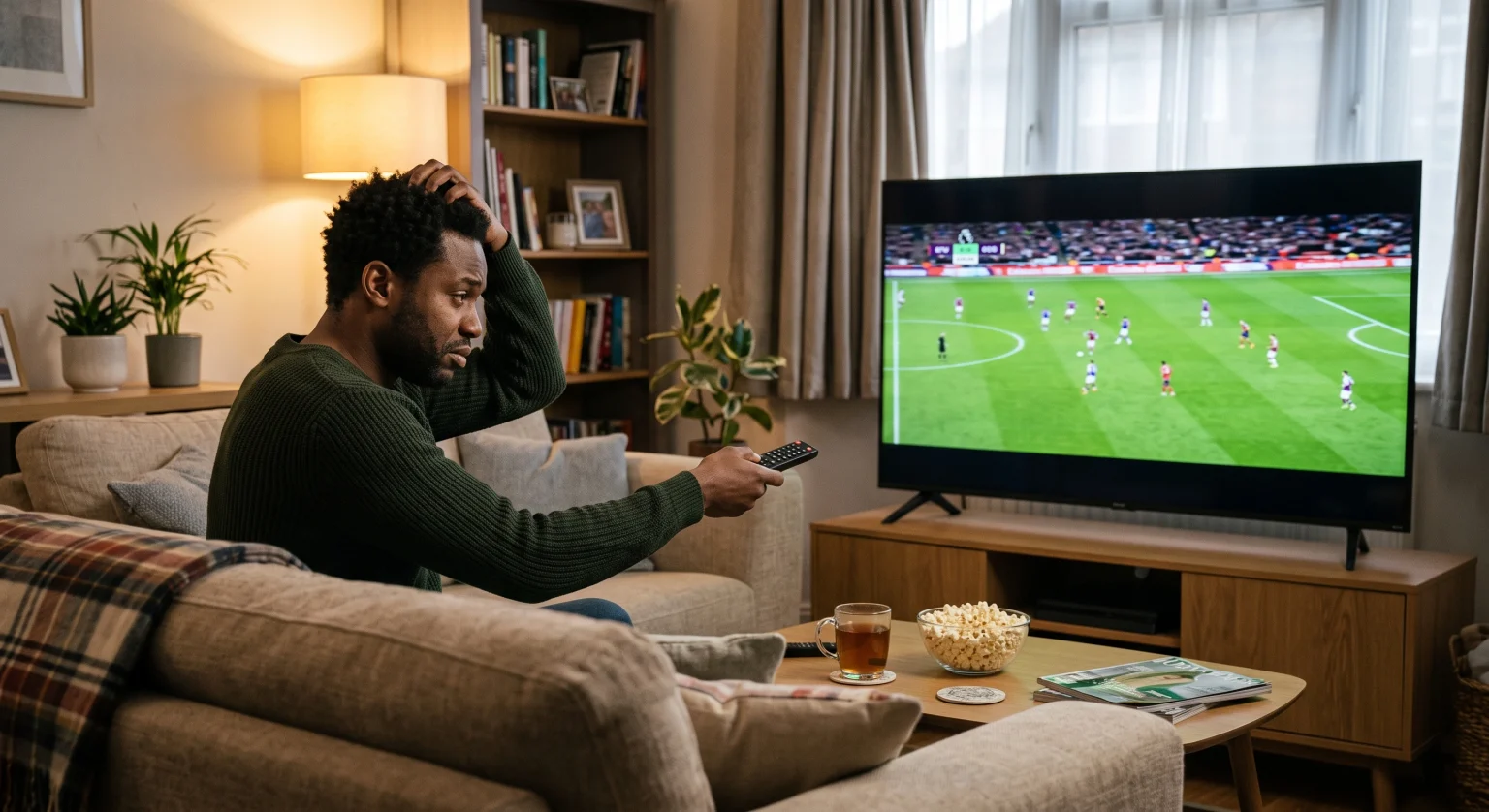
Why Your IPTV Aspect Ratio Keeps Changing
The root cause of an unstable screen size usually comes down to conflicting settings. Most modern televisions and streaming devices are designed to automatically detect the best IPTV screen resolution. However, when you are watching a playlist with mixed video formats, this auto-detect feature gets confused.
If the broadcast switches from a 1080p feed to a 720p commercial break, your TV might attempt to resize the image on the fly. This conflict between your TV, your streaming device, and your IPTV player settings causes the picture to stretch, shrink, or zoom unexpectedly. To fix it, you need to tell your hardware to stop guessing.
Common Display Modes Compared
Before diving into the fixes, it helps to understand the standard aspect ratios you will encounter. Use this comparison table to determine which setting is best for your setup.
| Aspect Ratio Setting | Best egnet til | Potential Drawbacks |
| 16:9 (Widescreen) | Modern HD and 4K flat-screen TVs. | May stretch older broadcasts horizontally. |
| 4:3 (Standard) | Classic TV shows and retro broadcasts. | Leaves vertical black bars on the sides of modern TVs. |
| Auto / Original | Letting the TV decide based on the source. | Causes the screen size to keep changing during mixed streams. |
Step-by-Step Fixes for Unstable IPTV Screen Sizes
To stop the screen from jumping around, you need to manually override the automatic video format adjustments. Follow these three simple steps to lock in your picture.
1. Disable Auto-Adjust on Your Television
Your physical television is usually the primary culprit. Grab your TV remote and navigate to the Picture Settings eller Display Options menu. Look for the screen size feature, which is often labeled “Auto-Fit,” “Just Scan,” or “Smart View.”
Change this setting from “Auto” to a fixed “16:9” or “Fit to Screen” mode. This forces the television to maintain a static frame, regardless of the incoming video signal.
2. Lock the Aspect Ratio in Your IPTV App
Sometimes, the streaming app itself is trying to outsmart your television. Open your IPTV application and navigate to the internal media player settings. Look for the aspect ratio or scaling options.
Select “Full Screen,” “16:9,” or “Stretch” and ensure it is saved as the default for all channels. By locking the ratio inside the app, you prevent the software from transmitting conflicting resizing commands.
3. Check Streaming Device Display Settings
If you use a Firestick, Apple TV, or Android box, its internal display settings might be interfering. Go into the main system settings of your streaming device and locate the Display & Audio section.
Ensure the resolution is manually set to match your TV (e.g., 1080p 60Hz eller 4K) rather than leaving it on automatic. Turning off auto-resolution ensures a steady, uninterrupted video feed.
Ready for a Flawless Streaming Experience?
You shouldn’t have to constantly fiddle with your remote just to watch your favorite shows. Now that you know how to lock your display settings, it’s time to pair your perfect setup with a premium, buffer-free streaming provider.
Tired of low-quality streams and glitchy channels? [Subscribe to our Premium IPTV Service today]! Check out our affordable pricing plans, grab a free trial, and enjoy crystal-clear, uninterrupted entertainment exactly the way it was meant to be seen.
Ofte stilte spørsmål (PAA)
Why does my IPTV screen zoom in on its own?
Your screen zooms in because either your TV or your IPTV app is set to automatically adjust to the broadcast’s native resolution. When the source quality changes, the screen attempts to compensate, resulting in a zoomed or stretched image.
What is the best aspect ratio for IPTV?
For almost all modern televisions, 16:9 is the best aspect ratio. It fills the entire screen naturally without cutting off the edges or distorting modern HD and 4K broadcasts.
Can a slow internet connection affect my screen size?
Yes. If your IPTV service uses adaptive bitrate streaming, a drop in internet speed will lower the video quality. If your devices are set to “Auto” aspect ratio, this sudden drop in resolution can cause the screen size to temporarily shrink or change.