
Dealing with a black screen during your favorite live broadcast is incredibly annoying. In most cases, the application successfully receives the data, but your streaming device simply does not know how to display the high-efficiency video picture.
For users based in the US, local ISP blocking can sometimes mimic this issue. However, if you can still hear the broadcast, it is primarily a hardware decoding error. Let’s dive into the quickest ways to resolve this HEVC codec problem and get you back to the action.
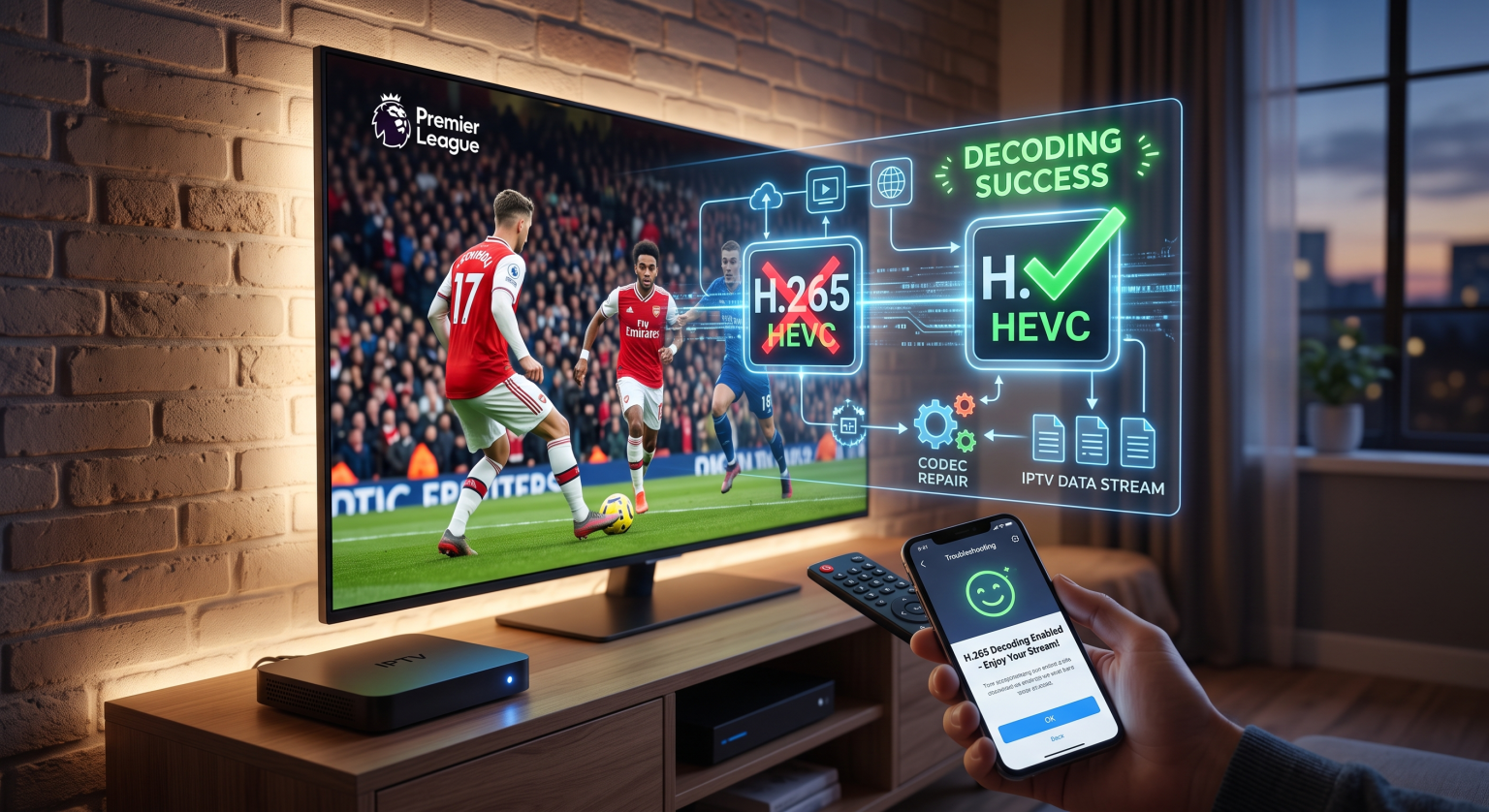
What Causes an IPTV H265 Black Screen?
When you tune into a crisp 4K or HD channel, it often uses the modern H.265 (HEVC) compression standard to save bandwidth. If your streaming device lacks a compatible HEVC decoder chip, it will successfully play the audio track but fail to render the video.
This specific failure results in the dreaded IPTV H265 black screen. The stream isn’t broken; your player just doesn’t have the right tools to visually unpack it.
Dekoding med maskinvare kontra programvare
Your IPTV app relies on one of two methods to decode incoming video streams:
Hardware Decoding (HW): This uses your device’s graphics chip. It is fast and efficient, but fails instantly if the physical chip doesn’t support the H.265 codec.
Software Decoding (SW): This uses the device’s main processor to do the heavy lifting. It acts as a perfect fallback for incompatible streams, bypassing hardware limitations.
Top Solutions to Fix Your IPTV H265 Black Screen in the US
If you are streaming locally in the US, network restrictions and mismatched device settings are your main suspects. Here is how to troubleshoot the problem effectively.
1. Switch Your Video Decoder (The 30-Second Fix)
This simple tweak solves 90% of cases where you have sound but no picture. If you use popular apps like TiviMate or IPTV Smarters, you can easily toggle this setting directly in the app.
Open your app’s Spillerinnstillinger or long-press the channel.
Locate the Video Decoder option.
Endre innstillingen fra Hardware (HW) til Software (SW).
Restart the stream, and your video should instantly appear.
2. Disable Tunneled Playback and AFR
For Android TV og Firestick users, advanced playback settings often clash with live IPTV feeds.
Tunneled Playback: Turn this off in your player settings to prevent the buggy audio-syncing errors that cause black screens.
Auto Frame Rate (AFR): Disable AFR to stop your TV from struggling to handshake with European or international frame rates.
Comparing IPTV Video Decoders
Understanding which playback engine to use can permanently prevent an IPTV H265 black screen. Check out this comparison to choose the right setup for your specific device.
| Funksjon / Metrisk | Maskinvaredekoding (HW) | Programvareavkoding (SW) | External Player (e.g., VLC) |
| Processing Source | GPU (Graphics Chip) | CPU (Main Processor) | App-Bundled Codecs |
| Best egnet til | Modern 4K devices with HEVC support | Older devices lacking H.265 chips | Streams failing on built-in players |
| Power Consumption | Low (Runs cool) | High (Can cause overheating) | Moderat |
| H.265 Success Rate | Fails if chip is incompatible | Very High (Bypasses chip limits) | Extremely High (Built-in codecs) |
Local ISP Throttling vs. Codec Problems
Sometimes, the root cause isn’t your device at all. Internet Service Providers in the US frequently throttle high-bandwidth streaming during major live events.
If you experience a total blackout meaning no sound and no video try the hotspot test. Connect your Firestick to your mobile phone’s data hotspot. If the stream suddenly works perfectly, your ISP is actively blocking your home connection, and you will need a reliable VPN to bypass this local restriction.
Final Thoughts on Fixing Codec Problems
Å fikse en IPTV H265 black screen is usually as simple as tweaking your media player’s internal decoder settings. Whether you are watching a local broadcast in the US or streaming international sports, understanding your hardware’s limitations ensures uninterrupted viewing.
Ready to upgrade your streaming setup? If your current application still struggles with HEVC channels and constant buffering, it might be time for a change. Download a premium, codec-friendly IPTV player today, connect a reliable VPN, and never miss a moment of the action again!
Ofte stilte spørsmål (FAQ)
Why do I get sound but no picture on IPTV?
This happens because your device can decode the standard audio format (like AAC) but lacks the specific HEVC/H.265 codec required to render the video. Switching your app’s decoder to Software (SW) usually fixes this immediately.
Does an IPTV H265 black screen mean my subscription is dead?
Nei. If the channel list loads and you can hear the broadcast audio, your subscription is active. The failure is happening locally on your device during the video decoding phase.
Can a VPN fix a black screen on IPTV?
If your screen is completely black with absolutely no audio, your local ISP might be throttling or blocking the connection. In this specific scenario, a VPN will encrypt your traffic, stop the throttling, and restore your connection.