
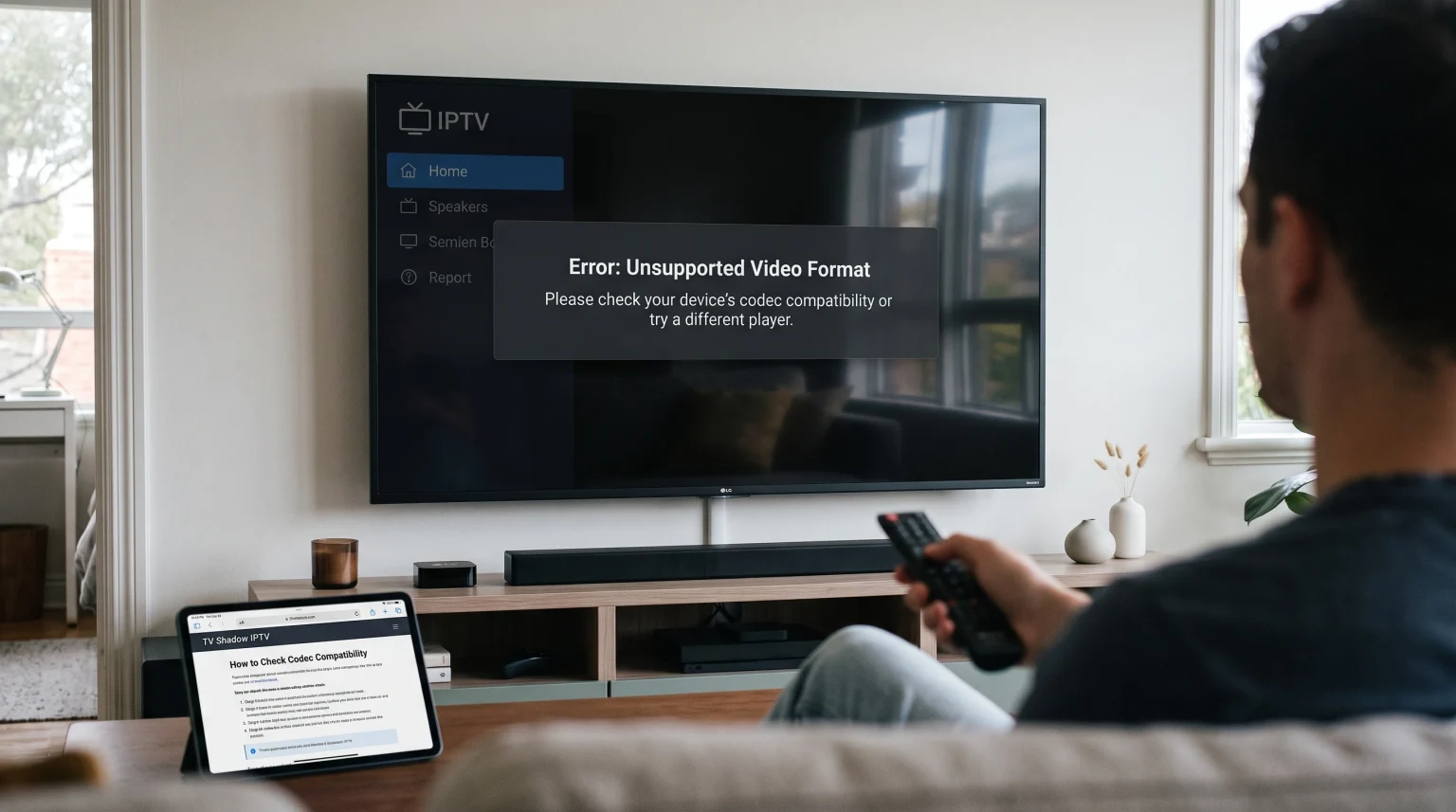
You open your IPTV application to watch a channel or a movie. Instead of a picture, the television screen displays an error message. The message says: “Unsupported video format” or “Audio codec not supported.” This error is very common for Smart TV users.
This article explains why the IPTV unsupported video format error happens. You will learn how to check the codec compatibility of your device. You will also learn practical steps to fix this problem so you can watch your content.
Kort svar
Den IPTV unsupported video format error happens when your Smart TV or streaming device cannot read the specific compression format used in the video stream. The video stream uses a codec. If your television lacks the correct software or hardware to decode that codec, the video will not play.
To fix this error, first try a different IPTV application. Many modern IPTV applications include custom media players with better codec support. If changing the application does not work, you can connect an external Android TV box or an Amazon Fire TV Stick to your television. External devices usually support more video formats than older Smart televisions.
What Is a Video Codec?
To understand the IPTV unsupported video format error, you must understand codecs.
A video file is very large. Video providers must compress the video data before sending the video over the internet. The technology that compresses the video is called a codec. Codec is a short word for “coder-decoder.”
Coder: The IPTV provider uses a coder to compress the live video or movie.
Decoder: Your television uses a decoder to decompress the video.
Your television must have the exact decoder to match the provider’s coder. If the IPTV stream uses the H.265 codec, your television must support the H.265 codec. If your television only supports the older H.264 codec, your television will show the IPTV unsupported video format error.
Common Video and Audio Codecs in IPTV
IPTV services use several standard formats. Your Smart TV must support these formats to play the streams correctly.
Videokodeker
H.264 (AVC): This is the most common video codec in the world. Almost every Smart TV, computer, and mobile phone supports H.264. This codec is very reliable for standard HD streams.
H.265 (HEVC): This is a newer video codec. H.265 compresses video much better than H.264. Many IPTV providers use H.265 for 4K streams. Older televisions often do not support H.265.
MPEG-4: This is an older format. Most televisions support MPEG-4. Providers rarely use MPEG-4 for modern HD streams.
Audio Codecs
Sometimes the video plays perfectly, but you hear no sound. The television might show an “Unsupported audio format” error.
AAC (Advanced Audio Coding): This is a very common audio format. Most televisions support AAC without problems.
AC3 (Dolby Digital): Many movies use AC3 audio. Some Smart televisions do not include a license for AC3 audio. If your television lacks the AC3 license, the television will not play the sound.
MP3: This is a basic audio format. Almost all devices support MP3.
Smart TV Operating Systems and Codec Compatibility
Different Smart TV operating systems have different levels of codec support. If you are buying a new television, the operating system is very important. Our guide to Det beste Smart TV-operativsystemet for IPTV i 2026 forklarer i detalj forskjellene mellom Tizen, Google TV og webOS.
Here is a simple comparison of how different operating systems handle IPTV video formats.
| Operativsystem | Native Codec Support | Ability to Install Custom Media Players | External Audio Support (AC3) |
| Google TV / Android TV | Utmerket | High (Google Play Store available) | Utmerket |
| Samsung Tizen | Bra | Low (Closed app store) | Depends on exact model year |
| LG webOS | Bra | Low (Closed app store) | Depends on exact model year |
How to Check Your Smart TV Codec Compatibility
Before you try to fix the problem, you should check which formats your television officially supports.
1. Read the Digital Manual
Most modern televisions have a digital manual built into the settings menu. Open the television settings. Navigate to the “Support” or “Help” section. Open the digital manual. Look for a section named “Supported File Formats” or “Video Codecs.”
2. Check the Manufacturer Website
Find the exact model number of your television. The model number is usually on a sticker on the back of the television. Go to the official website of Samsung, Sony, or LG. Search for your model number. Read the technical specifications page to see the supported video formats.
3. Test with a USB Drive
You can test compatibility manually. Download short video test files from the internet to your computer. Download one H.264 file, one H.265 file, and one file with AC3 audio. Copy these files to a USB drive. Plug the USB drive into your television. Try to play the files using the standard media player on the television. If the television plays the H.265 file from the USB drive, the television supports H.265.
How to Fix the IPTV Unsupported Video Format Error
If your television shows the IPTV unsupported video format error, you can use several methods to fix the problem.
Method 1: Change the Media Player Engine in Your App
Many IPTV applications allow you to change the internal media player engine.
Åpne IPTV-appen din.
Go to the application settings.
Look for a menu named “Player Settings,” “Media Engine,” or “Playback.”
You will often see options like “ExoPlayer,” “VLC Player,” or “Hardware Player.”
Change the player engine. For example, switch from ExoPlayer to VLC Player.
Restart the application and try to play the video stream again.
The VLC Player engine often supports more codecs than standard hardware players.
Method 2: Try a Different IPTV Application
Different applications use different software to decode video. If your current application shows an error, a different application might work perfectly.
If you use a Samsung or LG television, open the official app store. Search for highly rated IPTV applications. Install a new application and test the video stream. If you need help choosing an application for a specific television brand, read our comparison: Samsung Tizen vs. Sony BRAVIA Google TV: Hvilken er best for IPTV i 2026?.
Method 3: Use an External Streaming Device
This is the most reliable method to fix the IPTV unsupported video format error.
If your television hardware is too old to decode new formats like H.265, software changes will not help. You must bypass the television hardware. You can do this by connecting an external streaming device to the HDMI port on your television.
Popular external devices include:
Google Chromecast with Google TV
Amazon Fire TV Stick 4K Max
NVIDIA Shield TV Pro
Generic Android TV Boxes
These devices have powerful modern processors. These devices support almost all video and audio codecs. When you use an external device, the external device decodes the video. The television only acts as a monitor. This completely solves the compatibility problem.
Method 4: Ask Your IPTV Provider About Stream Formats
Sometimes the problem is the specific stream format. Many IPTV providers offer streams in different formats, such as M3U8 (HLS) or TS (MPEG-TS).
If your application cannot play TS streams, contact your IPTV provider. Ask the provider if they can switch your playlist format from TS to HLS. HLS format is often more compatible with older Smart televisions.
Watching Live Football: Why Codecs Matter
Sports fans often experience codec errors. Live football requires very high video quality to look good on a large television. To achieve this high quality, providers use advanced codecs.
Live football streams often use 50 frames per second (fps) or 60 frames per second (fps) to keep the fast motion smooth. If you want to learn more about frame rates for sports, read our guide: 60 Hz- og 120 Hz-TV-er til direktesendt fotball.
When providers broadcast live football in 4K resolution at 60 frames per second, they must use the H.265 codec. The H.264 codec cannot compress 4K video efficiently. Therefore, if your television cannot decode H.265, you will not be able to watch the 4K live football streams. You will see the unsupported format error, or the screen will simply remain black. Using a modern external Android TV box is the best way to ensure you can watch high-quality live football streams without errors.
Using TV Shadow IPTV Safely
When using services like TV Shadow IPTV, we recommend using modern hardware. TV Shadow IPTV works best when your device can decode standard modern formats like H.264 and H.265. TV Shadow IPTV does not manufacture televisions or hardware. Therefore, verifying device compatibility is the responsibility of the user.
Konklusjon
Den IPTV unsupported video format error can be frustrating. However, the error is easy to understand. The error simply means your device lacks the correct decoder for the video stream.
To solve this problem, always start with software solutions. Explore the settings inside your current IPTV application. Try changing the internal media player engine to VLC or ExoPlayer. If your current application does not have these settings, install a different application from your television app store.
If software solutions fail, your television hardware is likely outdated. The most permanent and reliable solution is to purchase a modern external streaming device, such as a Google TV stick or an Android TV box. An external device will update your system, bypass your old television limitations, and allow you to watch your favorite content without codec errors.
Ofte stilte spørsmål
Why does my IPTV app play some channels but not others?
Lorem ipsum dolor sit amet, consectetur adipiscing elit. Ut elit tellus, luctus nec ullamcorper mattis, pulvinar dapibus leo.
Can I download a new codec to my Smart TV?
Lorem ipsum dolor sit amet, consectetur adipiscing elit. Ut elit tellus, luctus nec ullamcorper mattis, pulvinar dapibus leo.
What is the best IPTV app for unsupported formats?
Lorem ipsum dolor sit amet, consectetur adipiscing elit. Ut elit tellus, luctus nec ullamcorper mattis, pulvinar dapibus leo.
Why do I have video but no sound?
Lorem ipsum dolor sit amet, consectetur adipiscing elit. Ut elit tellus, luctus nec ullamcorper mattis, pulvinar dapibus leo.
Does internet speed cause the "unsupported format" error?
Lorem ipsum dolor sit amet, consectetur adipiscing elit. Ut elit tellus, luctus nec ullamcorper mattis, pulvinar dapibus leo.
Will an Amazon Fire Stick fix codec errors?
Yes, in most cases. An Amazon Fire Stick has its own processor and its own video decoders. When you use a Fire Stick, the Fire Stick processes the video instead of your television. Modern Fire Sticks support H.264, H.265, and most audio formats.