
You sit down to watch live sports or your favorite show, launch the app, and get hit with a blank screen or a perpetual loading spinner. A Smart IPTV playlist not loading is one of the most frustrating streaming roadblocks you can encounter.
Fortunately, this issue rarely means your television or hardware is broken. It almost always stems from a broken URL, server downtime, regional ISP blocking, or device cache buildup that you can fix in minutes.
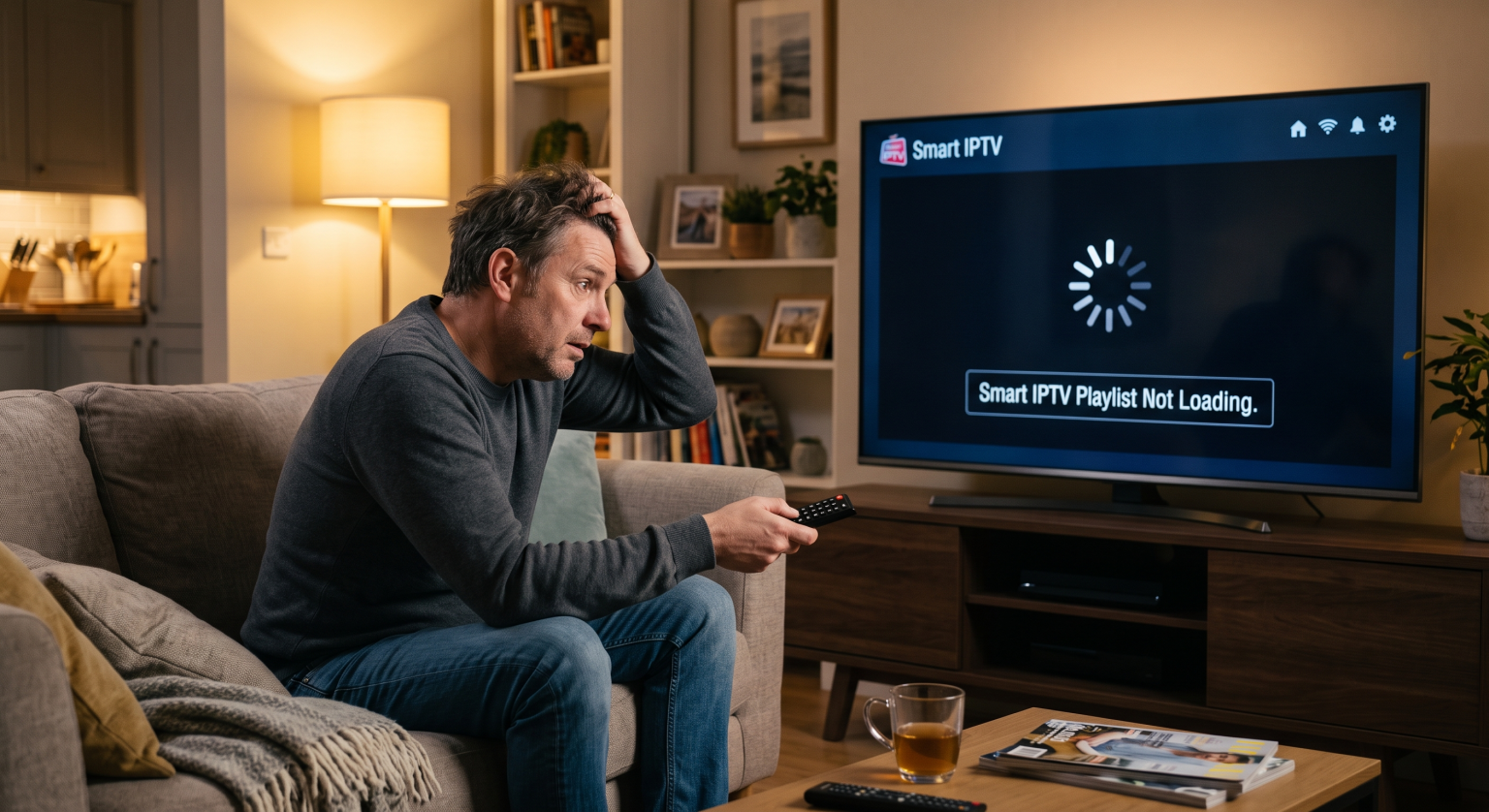
Why Is Your Smart IPTV Playlist Not Loading?
Before tweaking TV settings, it helps to understand what causes the loading failure. In most cases, the app cannot establish a handshake with the host server hosting your M3U playlist link.
Here are the primary culprits behind loading failures:
Expired or Mistyped M3U Link: Even a single missing character or expired token prevents the app from fetching your channel index.
Smart IPTV Server Congestion: The official Smart IPTV (SIPTV) database occasionally experiences heavy traffic during peak hours.
Local ISP Throttling & Geo-Restrictions: Many domestic internet service providers actively block or throttle unlicensed streaming traffic and unrecognized IPTV ports.
Exceeded File Size Limits: Low-memory Smart TVs (like older Samsung Tizen or LG webOS models) crash when trying to parse massive 50,000+ channel playlists.
What to Check First: 4 Quick Diagnostic Steps
When your Smart IPTV playlist not loading error first appears, follow these rapid checks before performing a full reset.
1. Verify Your Internet Connection and DNS
A slow connection or strict DNS filter will prevent your TV from downloading heavy stream manifests. Run a quick speed test on your TV’s built-in browser to ensure you receive at least 25–30 Mbps.
Switch your television’s network DNS from your local telecom provider’s default to Google DNS (8.8.8.8 / 8.8.4.4) eller Cloudflare (1.1.1.1) to bypass basic regional routing blocks.
2. Check the Playlist URL on a Secondary Device
Copy your M3U URL eller Xtream Codes login and test it on a desktop player like VLC or a mobile app like IPTV Smarters. If the stream fails there too, the problem lies with your IPTV provider’s server, not your television.
3. Clear App Cache and Reload
Turn off your TV, unplug the power cable from the wall for 60 seconds, and plug it back in. This performs a hard reboot, clearing temporary memory blocks and cache errors that freeze the Smart IPTV app.
4. Inspect Your Upload on the SIPTV Portal
Head to the official SIPTV portal (siptv.app/mylist) on your phone or PC. Enter your TV’s MAC address, check the “Keep online” box, and hit Reload to force a clean synchronization.
Smart IPTV Playlist Issues: Troubleshooting Comparison
Understanding the exact error message on your screen saves you hours of trial and error. Use this quick comparison table to pinpoint your exact problem and solution:
| Error Displayed | Primary Root Cause | Recommended Fix |
| “Check Playlist URL” | Syntax typo, expired subscription, or dead remote host link | Re-enter URL on the SIPTV web portal or request a fresh M3U link from your provider. |
| “Server Connection Timeout” | Local ISP blocking IPTV streams or regional CDN server outage | Connect through a streaming-optimized router VPN or switch your TV to Google Public DNS. |
| “Cannot Connect / Blank Screen” | M3U file is too large for TV RAM (exceeds memory capacity) | Request a streamlined M3U playlist from your provider containing only your preferred regions. |
| “Stream Failed / Audio Only” | Unsupported video codec (e.g., HEVC/H.265 on older TVs) | Adjust decoder settings in Smart IPTV preferences from “Default” to “Hardware” or “NCore”. |
How to Fix Regional ISP Restrictions and Stream Blocks
Depending on your local region and internet provider, IPTV traffic may be subject to automated firewall filters. During live events like the Premier League, Champions League, or NFL broadcasts, regional ISPs frequently enforce targeted traffic drops on unauthorized streaming ports.
If your playlist loads fine on cellular mobile data but fails on your home Wi-Fi, your local provider is actively filtering the connection.
To bypass local network restrictions:
Install a VPN at the Router Level: Because Smart IPTV runs directly on TV operating systems without native VPN apps, configure a VPN directly on your Wi-Fi router.
Select an Optimal Server: Route your connection through a nearby, low-latency server location where streaming traffic is unrestricted.
Enable Dynamic IP Protocols: Use protocols like WireGuard or OpenVPN UDP to minimize buffering and keep stream delivery seamless.
Upgrade to Reliable, Buffer-Free Streaming Today
Still tired of wrestling with broken M3U links, buffering spinners, and mysterious loading errors? Premium streaming shouldn’t require an IT degree.
Switch to our ultra-reliable, high-bandwidth streaming infrastructure. Enjoy 99.9% uptime, automated EPG syncing, and native anti-freeze technology that bypasses local ISP blocks effortlessly.
👉 [Explore Our High-Speed Streaming Plans Today] and get instant access to seamless 4K entertainment with zero setup hassle!
Ofte stilte spørsmål (PAA)
Why does my Smart IPTV say "Check playlist URL" when the link is correct?
This error usually means the remote server hosting your M3U list is down, your subscription has expired, or your internet provider is blocking access to that specific domain. Test the link directly inside a web browser or VLC media player to confirm if the host is reachable.
Can a playlist be too big for the Smart IPTV app?
Yes. Many Smart TVs have limited internal RAM (often 1GB to 1.5GB). If your provider assigns a universal playlist with 60,000 live channels and video-on-demand files, the app will run out of buffer memory and refuse to load. Ask your provider to prune non-essential foreign bouquets.
Does re-uploading the playlist delete my saved favorites?
Re-uploading a new M3U file directly replaces the existing database on the SIPTV portal. If you want to keep your favorites intact, make sure to check the “Keep online” option and only click Reload instead of uploading a blank file.