
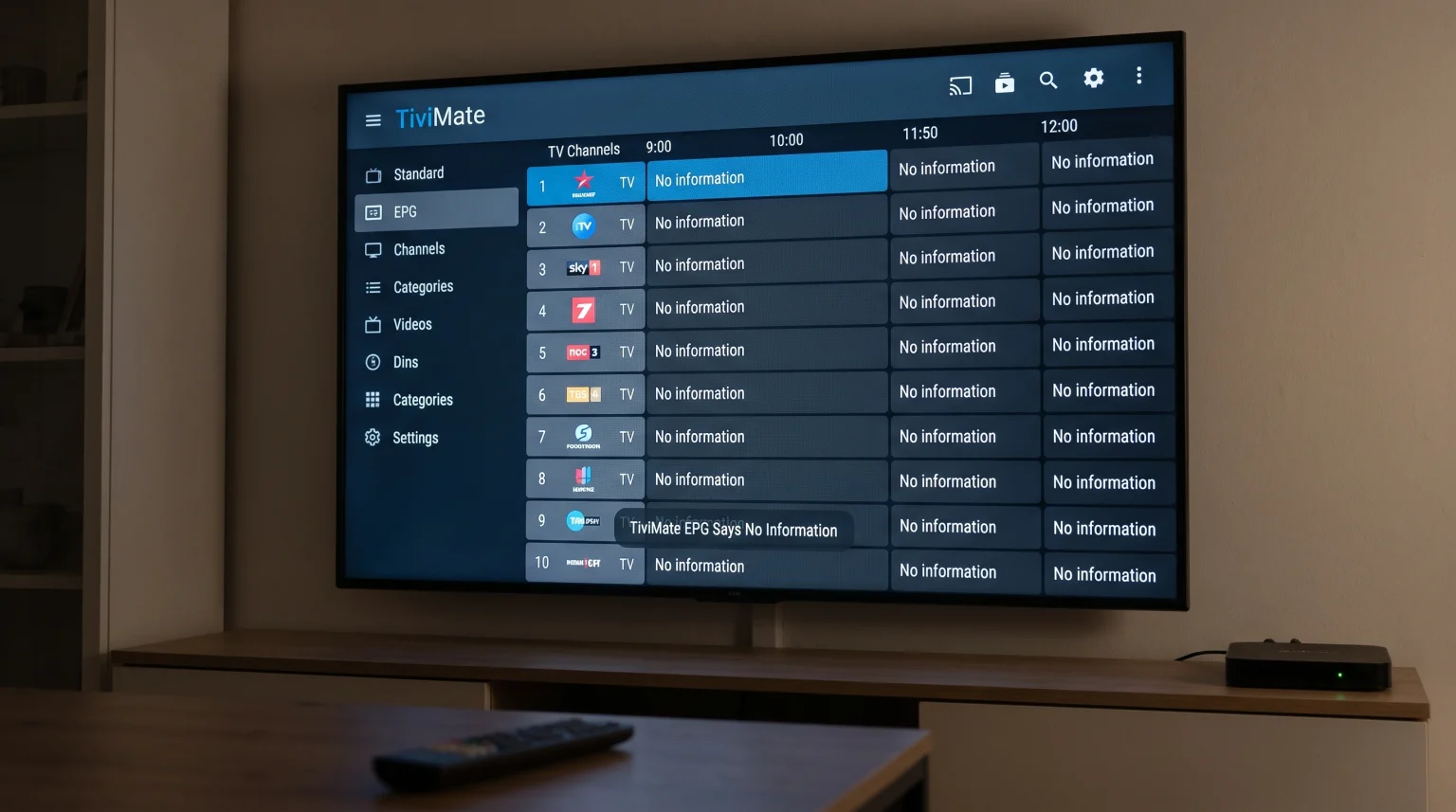
You open the TiviMate application and look at your television schedule. Every channel shows empty space. The screen says TiviMate EPG no information. You close TiviMate and open a different IPTV player. In the other IPTV player, the Electronic Program Guide (EPG) works perfectly, and you can see all the television shows.
This situation frustrates many television viewers. However, the television guide data is not broken. The IPTV subscription is also working correctly. The problem happens because TiviMate processes television guide data differently than other IPTV applications. TiviMate uses a very strict system to match television channels with the correct schedule.
This article explains why this specific error happens. This article also provides exact steps to fix the error and restore your television schedule.
Kort svar
TiviMate shows no information because the application requires a perfect text match between your television playlist and your EPG file. Other IPTV players often guess the channel names, but TiviMate requires exact channel identification numbers.
To fix the TiviMate EPG no information error, you should first clear the TiviMate application cache. If clearing the cache does not work, you must force a manual EPG update in the settings menu. For the best EPG reliability, users should log in using the Xtream Codes API method instead of using a standard M3U link.
Why TiviMate Shows No Information While Other Apps Work
Many users wonder why an EPG works in one application but fails in TiviMate. The answer involves how different software programs read data.
Your IPTV service provides two separate pieces of data. The first piece of data is the channel list. The second piece of data is the XMLTV file. The XMLTV file contains the television schedule. The IPTV player must connect the channel list to the XMLTV file.
Strict Channel ID Matching
TiviMate uses a strict matching system. Every channel in your playlist has an identification code called a “tvg-id”. Every schedule in the XMLTV file also has a “tvg-id”.
TiviMate requires these two identification codes to be exactly identical. If the playlist uses the code “BBC-One-UK” and the EPG file uses the code “uk.bbc1”, TiviMate will not connect them. TiviMate will leave the schedule empty.
Other IPTV applications use “fuzzy matching”. If the identification codes do not match, the other applications will read the channel name. The other applications will guess the correct schedule. TiviMate does not guess. TiviMate prefers empty schedules instead of wrong schedules.
The Problem With Large EPG Files
Some IPTV providers offer very large EPG files. These large files contain schedule data for many different countries.
TiviMate downloads the entire file before processing the data. If your television device has a weak processor or limited memory, TiviMate might fail to process a large XMLTV file. When TiviMate fails to process the file, the application displays no information. Other applications might download the schedule data in small pieces, which avoids memory errors.
How to Fix TiviMate EPG No Information
You can usually resolve the missing television guide by changing a few simple settings. Follow these troubleshooting steps in order.
1. Force a Manual EPG Update
TiviMate normally updates the television guide once per day. If your internet connection drops during this automatic update, the schedule will remain empty. You can force TiviMate to download the schedule again.
Open the TiviMate application.
Press the left direction button on your remote control to open the main menu.
Velg Innstillinger.
Velg EPG.
Rull nedover og velg Oppdater EPG.
Wait two minutes. Do not close the application.
After two minutes, return to the television guide and check for the schedule information.
2. Clear the TiviMate Application Cache
If the manual update fails, the TiviMate application might hold a corrupted data file. You must clear the application cache to delete the corrupted file.
Close the TiviMate application completely.
Åpne hovedmenyen Innstillinger menu on your television device.
Velg Søknader eller Apper.
Find TiviMate in the application list and select it.
Velg Tøm hurtigbufferen.
Do NOT select “Clear Data”. Clearing the data will delete your playlist and passwords.
Open the TiviMate application again and allow the EPG to download.
3. Check the EPG Source URL
If you use an M3U link to connect to your IPTV service, you must also type a separate EPG URL. This URL is a web address that points to the XMLTV file.
A single typing error in the EPG URL will stop the download.
Open TiviMate Innstillinger.
Velg EPG.
Velg EPG-kilder.
Read the URL very carefully. Look for missing letters, extra spaces, or wrong symbols.
If you find an error, correct the URL and save the changes.
4. Assign the EPG Channel Manually
If most channels show schedule information, but a few specific channels show no information, you must assign the EPG manually. This process forces TiviMate to connect the channel to the correct schedule.
Open the television guide in TiviMate.
Select a channel that has no information.
Press and hold the “OK” or “Select” button on your remote control.
A menu will appear. Select Assign EPG.
A list of channel schedules will appear. Search for the correct channel name.
Select the correct channel name to link the data.
TiviMate EPG Compatibility with Smart TVs
When discussing IPTV applications, users must understand operating system compatibility. TiviMate is exclusively an Android application. You can install TiviMate on Android TV devices, Google TV devices, and Amazon Fire TV devices.
You cannot install TiviMate directly on a Samsung Smart TV or an LG Smart TV. Samsung uses the Tizen operating system. LG uses the webOS operating system. These operating systems have different application stores.
If you own a Samsung or LG television, you must use different IPTV applications, such as Smarters Pro or IBO Player. These alternative applications handle EPG data differently than TiviMate. To understand these differences, you can read our guide comparing Det beste Smart TV-operativsystemet for IPTV i 2026.
Operating System Comparison
| Funksjon | Android TV / Google TV | Samsung Tizen | LG webOS |
| TiviMate support | Yes (Native application) | Nei | Nei |
| EPG matching style | Strict (requires exact ID) | Varies by application | Varies by application |
| Tilgjengelighet av IPTV-apper | Svært høy | Moderat | Moderat |
| Cache clearing easy? | Yes, in device settings | Yes, by restarting TV | Yes, by restarting TV |
If you want to use TiviMate on a Samsung television, you must purchase an external streaming device, such as a Google Chromecast. You can learn more about this hardware topic in our article discussing Samsung Tizen vs. Sony BRAVIA Google TV: Hvilken er best for IPTV i 2026?.
Live Football and the EPG Time Shift
A working Electronic Program Guide is essential for watching live football. Live sports events begin at exact times. If your EPG shows no information, you cannot find the correct channel for the football match.
Sometimes, TiviMate displays the schedule information, but the time is wrong. For example, the EPG says the football match starts at 20:00, but the match actually starts at 18:00. This happens because the EPG file uses a different time zone than your television device.
You can fix this timing error using the Time Shift feature.
Open TiviMate Innstillinger.
Velg EPG.
Velg EPG-kilder and choose your provider.
Velg Time Shift.
Adjust the time forward or backward (for example, +2 hours or -2 hours) until the schedule matches reality.
When the schedule is correct, you can enjoy live football. For the best sports viewing experience, your television hardware is also important. Modern televisions handle fast motion differently. If you want smooth motion during sports broadcasts, you should read our guide about choosing a 60 Hz- og 120 Hz-TV-er til direktesendt fotball.
At TV Shadow IPTV, we know that sports fans need reliable schedules. Maintaining a correct EPG ensures you never miss the start of the match.
Konklusjon
Seeing the TiviMate EPG no information error is annoying, but the solution is usually simple. Because TiviMate uses a strict data matching system, the application is less forgiving than other IPTV players.
You can fix most EPG problems by verifying your URL, clearing the application cache, and forcing a manual update. For individual broken channels, the manual assignment tool will fix the connection. Remember that using the Xtream Codes login method provides a much more stable experience than using a standard M3U link.
By applying these correct settings, your TiviMate television guide will populate correctly. A working guide allows you to enjoy the full entertainment experience provided by your IPTV service, including TV Shadow IPTV.
Ofte stilte spørsmål (FAQ)
Why does my TiviMate EPG say no information?
TiviMate says no information because the application cannot download the schedule data, or the application cannot match the schedule data to your channel list. This usually requires a manual update or clearing the application cache.
Does TiviMate EPG update automatically?
Yes. TiviMate usually updates the EPG automatically every time you open the application, or once every 24 hours. You can change this automatic schedule in the TiviMate settings menu.
Should I use an M3U link or Xtream Codes for the EPG?
You should always use the Xtream Codes login method when possible. The Xtream Codes method automatically connects the channel list and the EPG URL together. The M3U method often requires you to type two long web addresses manually, which causes more typing errors.