
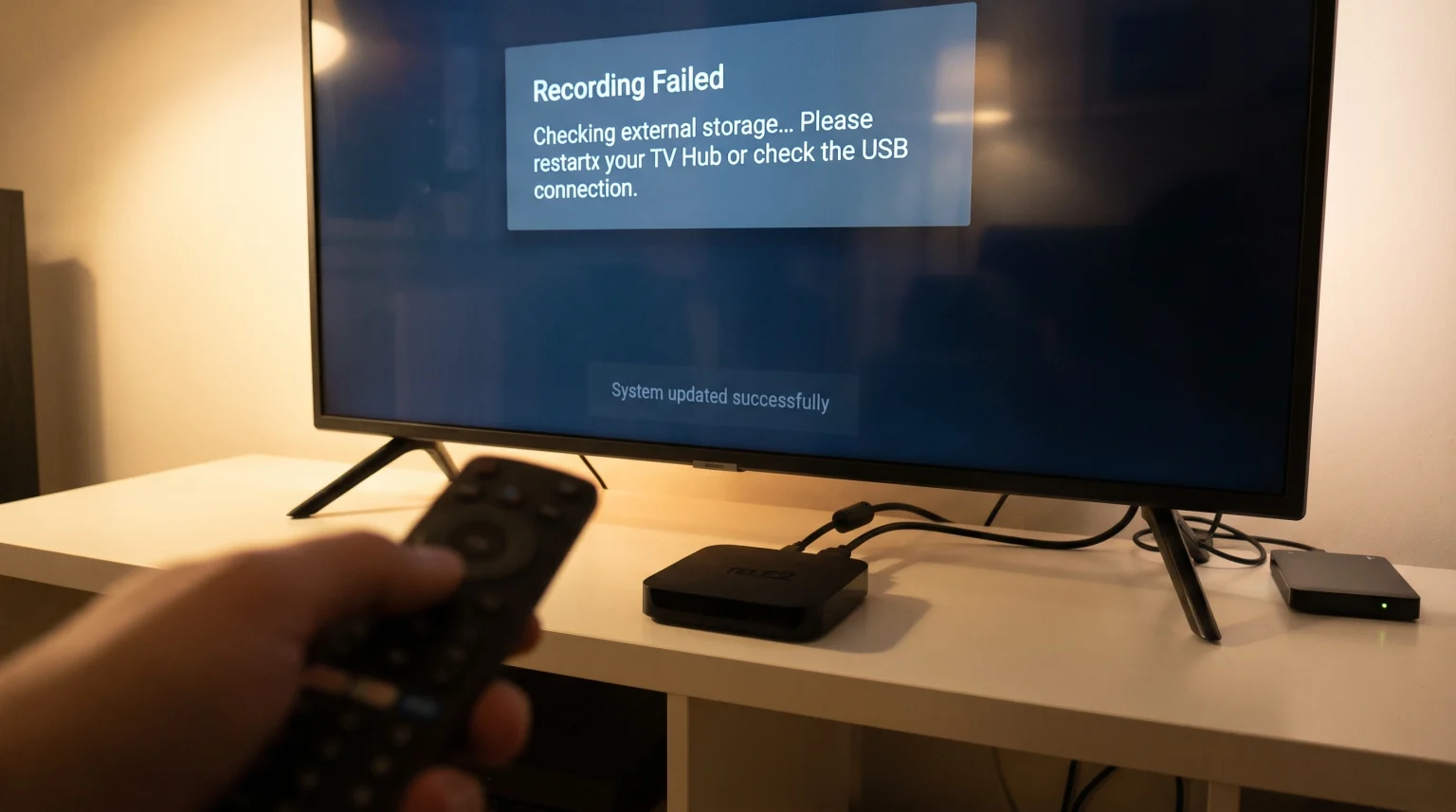
Many users experience Tele2 TV Hub recording problems after a system software update. A software update can change system settings, disconnect external hard drives, or create temporary data errors in the Android TV operating system. When this happens, scheduled recordings may fail. Live television pausing may also stop working.
This guide explains how to identify and fix these recording problems. You will learn how to check your storage devices, clear temporary system files, and restore normal recording functions. We will also discuss how the Tele2 TV Hub handles standard television broadcasts compared to modern streaming applications.
Snabbsvar
If you have Tele2 TV Hub recording problems after an update, first disconnect the power cable for 60 seconds to restart the device completely. Next, check that your USB hard drive is connected properly. If the problem continues, open the Android TV settings menu, navigate to “Apps,” select the Tele2 television application, and choose “Clear Cache.” If cloud recordings fail, log out of your Tele2 account and log back in to refresh your subscription status.
Common Causes of Recording Errors
A software update brings new features and security improvements. However, the update process can cause temporary problems.
The most common reasons for recording failures include:
Disconnected storage: The update process may fail to recognize the connected USB hard drive.
Corrupted cache data: Old application data conflicts with the new software version.
Account synchronization errors: The device loses communication with the Tele2 cloud recording servers.
Storage space limits: The hard drive or the cloud storage account is completely full.
Step-by-Step Guide to Fix Tele2 TV Hub Recording Problems
Follow these steps to restore your recording functions. Test the recording feature after completing each step.
1. Perform a Full Power Cycle
A simple restart often fixes temporary software errors.
Unplug the power cable from the wall outlet.
Wait for exactly 60 seconds.
Reconnect the power cable.
Turn on the TV Hub and try to record a live program.
2. Check the USB Hard Drive Connection
If you use a local hard drive for recordings, the update might interrupt the USB connection.
Disconnect the USB hard drive from the TV Hub.
Wait for 10 seconds.
Reconnect the USB hard drive to the same port.
Open the TV Hub settings menu.
Go to “Device Preferences” and select “Storage”.
Verify that the TV Hub recognizes the external hard drive.
3. Clear the Application Cache
Old temporary files can block new software from working correctly.
Open the main Settings menu on the Tele2 TV Hub.
Select “Apps”.
Select “See all apps”.
Find the main Tele2 television application.
Select “Clear Cache”.
Do not select “Clear Data” unless you want to erase your personal settings.
4. Verify Your Cloud Recording Status
Many Tele2 TV Hub users use cloud recording instead of a physical hard drive.
Open the account settings on the TV Hub.
Log out of your Tele2 user account.
Log back into the account using your normal login details.
Check if your previous cloud recordings are visible.
Try to schedule a new recording from the Electronic Program Guide (EPG).
5. Perform a Factory Reset
If the previous steps fail, you must reset the device to the original factory settings. This action deletes your downloaded applications and personal settings.
Öppna menyn Inställningar.
Select “Device Preferences”.
Select “About”.
Select “Factory Reset” and confirm.
Follow the instructions on the television screen to set up the TV Hub again.
Local Recording vs. Cloud Recording
The Tele2 TV Hub supports two different recording methods. Understanding the differences can help you identify your specific problem.
| Funktion | Local USB Hard Drive | Cloud Storage Recording |
| Storage location | Physical device connected to the Hub | Tele2 remote servers |
| Internet requirement | Required for EPG, not required for playback | Required for all recording and playback |
| Lagringskapacitet | Depends on the connected hard drive size | Depends on your specific Tele2 subscription |
| Update vulnerability | USB connection may disconnect during updates | Account synchronization may fail during updates |
| Live TV pausing | Supported immediately | Supported |
Using IPTV Apps on the Tele2 TV Hub
The Tele2 TV Hub uses the Android TV operating system. This makes the device highly compatible with third-party IPTV applications. If you use a service like TV Shadow IPTV, you can install dedicated IPTV players directly from the Google Play Store.
Popular IPTV applications such as TiviMate, Smarters Pro, and XCIPTV work well on Android TV devices. You can connect your IPTV service using M3U links or Xtream Codes login details.
However, third-party IPTV applications cannot usually record directly to the Tele2 cloud service. If you want to record IPTV streams, you must connect a local USB hard drive and configure the recording path inside the specific IPTV application settings.
If you are considering upgrading your television setup, our guide to the Det bästa operativsystemet för smart-tv för IPTV år 2026 explains the differences between Android TV, Tizen, and webOS.
Watching Live Football on the Tele2 TV Hub
Sports fans often experience picture quality problems after a software update. Live football requires fast motion handling and a stable internet connection. If the picture stutters while watching a football match, the video recording will also show the same stuttering.
To improve your live football experience:
Använd en Ethernet-kabel: Connect the TV Hub directly to your internet router with an Ethernet cable instead of using Wi-Fi. This provides a more stable connection for live video streaming.
Justera bildinställningarna: Turn off aggressive motion smoothing features on your television.
Check the broadcast quality: Some channels broadcast in 4K resolution, while others use standard High Definition (HD).
If you notice blurry pictures during sports, read our explanation of Varför ser IPTV suddigt ut på en ny 4K-TV? for more troubleshooting tips. Alternatively, you can learn about the hardware differences in our guide comparing a TV med 60 Hz jämfört med 120 Hz för direktsänd fotboll.
Slutsats
Tele2 TV Hub recording problems after an update are usually temporary software conflicts. Most users can fix these problems by restarting the device, checking the USB hard drive connection, or clearing the application cache. If the problem involves cloud recording, logging out and logging back into your account is the most effective solution. The Android TV operating system inside the Tele2 TV Hub remains an excellent platform for standard television and third-party IPTV applications. Always ensure your internet connection is fast and stable, especially when you are recording live sports or high-resolution broadcasts.
Vanliga frågor och svar
Does a software update delete my old recordings?
No, a software update does not automatically delete your video recordings. If your recordings are missing, the TV Hub has likely lost the connection to your USB drive or your cloud account.
Why does my scheduled recording fail every time?
A scheduled recording fails when the storage drive is full, the device has no internet connection, or the Electronic Program Guide (EPG) data is incorrect.
Can I downgrade the software on the Tele2 TV Hub?
No, Tele2 does not allow users to install older software versions. You must use the latest automatic update.