
The Tele2 TV Hub is a popular Android TV set-top box. Many users want to customize their Tele2 TV Hub subtitles for movies, television series, and live broadcasts. This guide explains how to enable subtitles, change the subtitle language, and adjust the text appearance.
You will learn how to configure system-wide accessibility settings in the Android TV operating system. You will also learn how to change subtitle preferences inside individual streaming applications and IPTV players.
Because the Tele2 TV Hub uses the Android TV operating system, the settings menu follows a standard Google layout. However, live broadcast television and third-party applications handle subtitles differently. We will explain these technical differences clearly so you can configure the Tele2 TV Hub correctly for your specific needs.
Snabbsvar
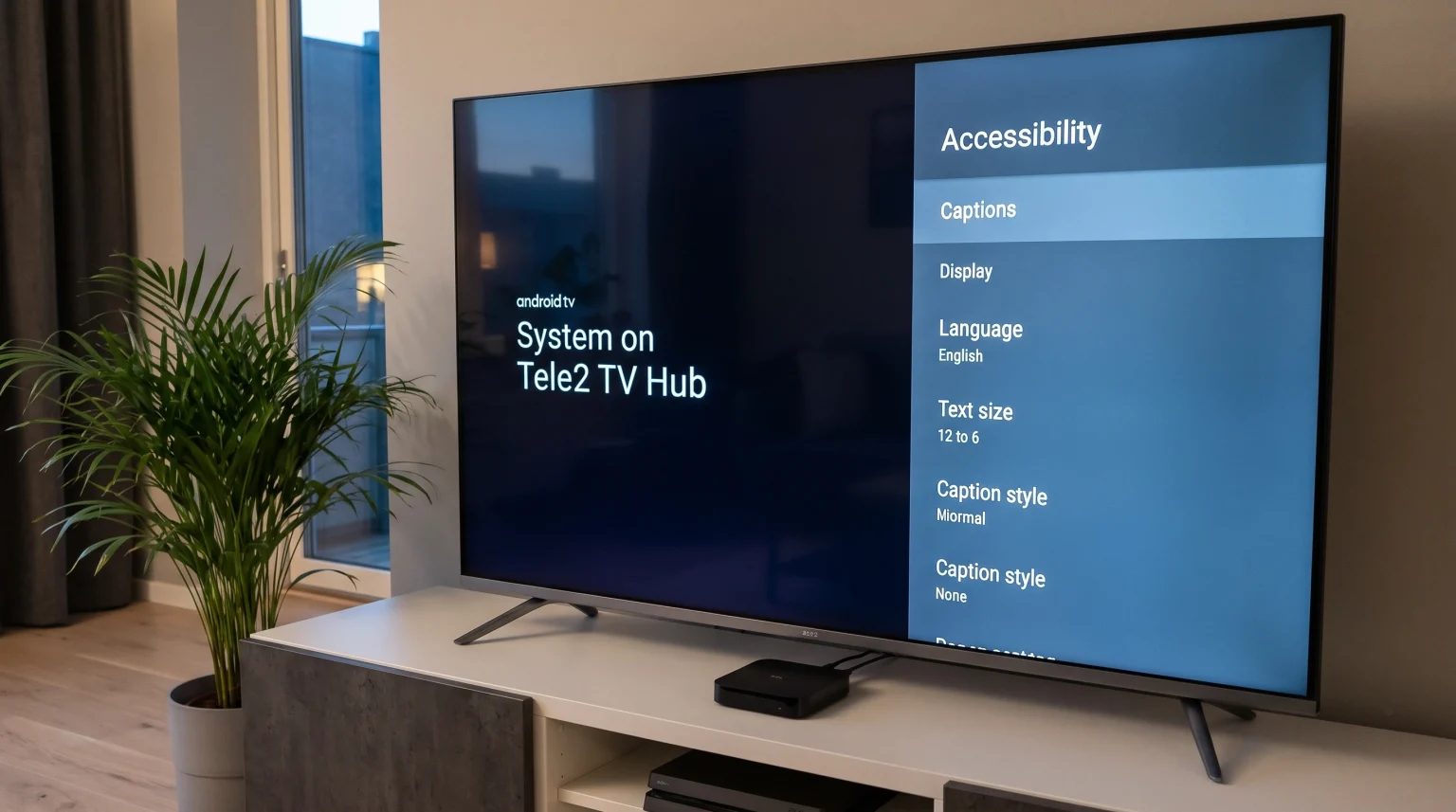
To change Tele2 TV Hub subtitles, press the Home button on your remote control. Navigate to the top right corner and select the Settings icon. Select “Device Preferences”, and then select “Accessibility”. Choose “Captions”. In this menu, you can turn system subtitles on or off. You can also change the subtitle language, text size, and text style. If you use a specific streaming application or an IPTV player, you must usually change the subtitle settings directly inside that application during video playback.
Understanding Tele2 TV Hub Subtitles
The Tele2 TV Hub operates on Android TV software. This means the device manages subtitles in two distinct ways. Users must understand the difference between system subtitles and application subtitles.
System Subtitles versus Application Subtitles
System subtitles are controlled by the main Android TV operating system. When you change the system subtitle settings, you tell the Tele2 TV Hub your default preferences. Some applications read these preferences and apply the settings automatically.
Application subtitles are controlled by individual software applications. Many streaming applications ignore the Android TV system settings entirely. Instead, these third-party applications require you to activate subtitles inside their own video player menus.
| Funktion | System Subtitles | Application Subtitles |
| Control location | Android TV Settings menu | Inside the specific video player |
| Kompatibilitet | Supported by native Google applications | Required for most third-party applications |
| Customization options | Change text size, color, and background | Depends completely on the application |
| IPTV software support | Usually does not affect IPTV players | Usually controls IPTV player subtitles |
Our article comparing Samsung Tizen vs Sony BRAVIA Google TV: Vilket är bäst för IPTV år 2026? explains how different television operating systems manage third-party applications compared to standard Android TV set-top boxes.
How to Change Subtitle Language on Tele2 TV Hub
You can configure your default subtitle language in the main Android TV settings menu. This configuration tells supported applications to display your preferred language automatically when that language is available.
Step-by-Step Instructions for Android TV Settings
Follow these precise steps to change your main subtitle preferences on the Tele2 TV Hub:
Turn on the Tele2 TV Hub and your television.
Press the Home button on the Tele2 remote control.
Navigate to the top right corner of the television screen.
Select the Settings icon. The icon looks like a gear.
Scroll down the menu and select “Device Preferences”.
Scroll down and select “Accessibility”.
Select “Captions”.
Toggle the switch to enable the subtitles.
Select “Language” to choose your preferred subtitle language.
In this exact menu, you can also select “Caption size” and “Caption style”. These display options allow you to make the subtitle text larger. You can also change the text color and the background color for better visual contrast.
Using the Remote Control for Quick Subtitle Changes
The Tele2 TV Hub remote control includes specific buttons for watching traditional live television channels. If you watch standard broadcast channels provided by Tele2, you can often change subtitles without opening the main Android TV settings menu.
Look for a remote control button labeled “SUB”, “SUBT”, or a teletext icon. When you press this specific button during a live television broadcast, a small menu will appear on the television screen. You can use the directional arrows on the remote control to select your preferred language.
This remote control method only works for official broadcast channels. The remote control subtitle button usually does not work when you use Android applications or IPTV players.
Tele2 TV Hub Subtitles for IPTV Applications
Many users install third-party IPTV applications on the Tele2 TV Hub. If you use an IPTV service such as TV Shadow IPTV, the Android TV system settings will usually not control your subtitles.
IPTV players manage subtitles independently from the Tele2 TV Hub operating system. The availability of subtitles depends entirely on the video stream provided by the M3U playlist or the Xtream Codes server.
How to Change Subtitles in IPTV Players
When you use popular IPTV applications such as TiviMate, IPTV Smarters Pro, or XCIPTV, you must open the on-screen display menu while the video is playing.
Start playing a movie or television series in your IPTV application.
Press the OK button or the Down arrow on the remote control to show the video player menu.
Look for a subtitle icon or an Audio/Video settings button on the screen.
Select the subtitle option.
Choose your preferred language from the list of available languages.
M3U Playlists and Xtream Codes Subtitles
An IPTV service usually delivers video content through an M3U playlist or an Xtream Codes API connection. When you connect an IPTV provider to an IPTV player application, the application downloads an Electronic Program Guide (EPG). The Electronic Program Guide shows the television schedule. The Electronic Program Guide does not contain subtitles. The subtitles are delivered inside the video stream itself.
When you watch Video on Demand (VOD) using Xtream Codes, the video file often contains multiple subtitle tracks. You can select your preferred language easily. However, when you watch live television channels via an M3U playlist, the subtitles are often embedded by the original television network. These are called hardcoded subtitles. Hardcoded subtitles are a permanent part of the video picture. You cannot turn hardcoded subtitles off, and you cannot change their language.
Live Football and Sports Viewing Settings
Subtitles are rarely necessary for live sports broadcasts. However, watching live football on the Tele2 TV Hub requires specific television settings for the best visual experience. The Tele2 TV Hub sends a high-quality video signal to your television, but your television handles the final picture processing.
Rörelsehanttering och uppdateringsfrekvens
Live football broadcasts feature very fast camera movements. If the football looks blurry when it moves across the screen, you must adjust your television motion settings.
If you use a modern Smart TV, look for a picture setting called “Motion Flow”, “Auto Motion Plus”, or “TruMotion”. Turn this specific setting to a low value, or turn the setting off completely. High motion processing can create visual errors around the football. A television with a 120Hz refresh rate will generally display fast sports better than a television with a 60Hz refresh rate.
You can read more about television display specifications in our guide explaining TV med 60 Hz jämfört med 120 Hz för direktsänd fotboll.
Internet Connection and Streaming Stability
Live sports streaming requires a very stable internet connection. The Tele2 TV Hub includes built-in Wi-Fi and a physical Ethernet port.
For live football, always connect an Ethernet cable to the Tele2 TV Hub if possible. A wired internet connection prevents video buffering and quality drops during important sports moments. If you must use Wi-Fi, ensure the Tele2 TV Hub connects to a 5GHz wireless network rather than a 2.4GHz wireless network. The 5GHz network provides faster data speeds for high-definition and 4K sports streams.
Troubleshooting Missing Subtitles on Tele2 TV Hub
Sometimes, you may follow the correct instructions, but the subtitles still do not appear on the screen. Here are common reasons and factual solutions for subtitle problems.
The Application Does Not Support System Settings
As explained earlier in this article, many applications ignore the Android TV settings menu. If you are watching an IPTV player, you must find the subtitle button inside that specific application. The system settings will not force subtitles to appear in third-party software.
The Video Content Has No Subtitles
Not every movie or television series includes subtitle files. If you use Video on Demand (VOD) from an IPTV provider, the video file might only contain one audio language and zero subtitle tracks. The Tele2 TV Hub cannot generate subtitles if the subtitles do not exist in the source file.
Outdated Device Software
Software errors can cause subtitle problems. Ensure your Tele2 TV Hub has the latest Android TV software update installed. Go to the Settings menu, select “Device Preferences”, select “About”, and choose “System Update”. You should also keep your streaming applications updated through the Google Play Store.
Slutsats
Changing the Tele2 TV Hub subtitles is a simple process when you understand how Android TV works. You can configure system-wide preferences in the main Accessibility menu to change the language, text size, and text color. However, you must remember that many streaming applications require you to adjust subtitles directly inside their own video players.
If you use third-party applications or services like TV Shadow IPTV, always check the on-screen menu during video playback. By keeping your device software updated and using a stable Ethernet internet connection, you can ensure a reliable viewing experience for movies, television series, and live sports.
Vanliga frågor (FAQ)
How do I turn on subtitles on my Tele2 TV Hub?
Press the Home button, go to the Settings menu, select “Device Preferences”, and then select “Accessibility”. Choose “Captions” and turn the switch to On. For specific third-party applications, you must change the setting inside the application video player instead.
Why can I not change the subtitle language on some live channels?
Some live broadcast channels use hardcoded subtitles. Hardcoded subtitles are printed permanently onto the video picture by the television broadcaster. You cannot remove hardcoded subtitles, and you cannot change their language.
Does the Tele2 TV Hub support external subtitle files?
The Tele2 TV Hub supports external subtitle files if you use a compatible media player application. Applications such as VLC Media Player allow you to download and add external SRT subtitle files to your video files manually.