
Det har vi alle oplevet. Du har forberedt snacksene, sætter dig ned for at se en stor sportsbegivenhed live eller finalen i din yndlingsserie, og lige i det allervigtigste øjeblik fryser skærmen. Den frygtede buffering Dødshjulet dukker op.
Hvis man betaler for en IPTV-tjeneste, forventer man, at den fungerer. Men når Netflix streamer uden problemer, mens ens IPTV har svært ved at indlæse så meget som et enkelt billede, er det nemt at give udbyderen skylden.
Overraskende nok er problemet som regel ikke selve IPTV-tjenesten. I de fleste tilfælde bremser din internetudbyder (ISP) aktivt din streaming. Hvis du leder efter en pålidelig måde at Undgå buffering af IPTV, VPN Løsninger er som regel den mest effektive måde at løse problemet på.
Lad os se nærmere på, hvorfor dine streaminger hakker, og hvordan du kan justere dine netværks- og VPN-indstillinger for at fjerne forsinkelsen én gang for alle.
Hvorfor opstår der overhovedet buffering på IPTV?
Inden du løser problemet, skal du finde ud af, hvad der forårsager det. Buffering ved IPTV skyldes som regel tre hovedårsager:
Begrænsning af internetudbyderens båndbredde: Det her er den store. Mange internetudbydere overvåger aktivt din internettrafik. Når de registrerer omfattende videostreaming – især fra ukendte IPTV-servere – begrænser de bevidst din båndbredde for at spare på data på deres netværk.
Overbelastning af netværket: Hvis du prøver at se tv kl. 20.00 en søndag, kæmper du om båndbredden med alle de andre i dit kvarter.
Hardwarebegrænsninger: Billige streaming-sticks kan blive overophedede, løbe tør for hukommelse eller have problemer med svage Wi-Fi-signaler.
Den ultimative løsning til at undgå buffering af IPTV: VPN-forbindelser
Hvis dine internethastighedstests viser lynhurtige tal, men din IPTV stadig hakker, er du næsten helt sikkert udsat for hastighedsbegrænsning fra din internetudbyder.
Det er her, et virtuelt privat netværk kommer ind i billedet. Et VPN krypterer din internettrafik og forvrænger dataene, så din internetudbyder ikke har den mindste anelse om, hvad du laver. Da de ikke kan se, at du henter enorme mængder videodata fra en IPTV-server, kan de ikke aktivere deres automatiske hastighedsbegrænsninger.
De ser blot en sikker strøm af ulæselige data. Din hastighed forbliver på det maksimale, og bufferingen stopper.
De bedste VPN-indstillinger til problemfri streaming
Det er ikke altid nok bare at aktivere et VPN. Hvis det er konfigureret forkert, kan et VPN faktisk gøre din forbindelse langsommere. For at sikre en problemfri streaming skal du gå ind i indstillingerne i din VPN-app og foretage disse hurtige justeringer:
1. Skift til en hurtig protokol (WireGuard eller UDP)
Ikke alle VPN-protokoller er ens. Hvis din VPN er indstillet til en krypteringsprotokol med høj sikkerhed, såsom TCP, prioriterer den fuldstændig datanøjagtighed frem for hastighed, hvilket medfører forsinkelser.
Gå ind i dine indstillinger og skift din protokol til WireGuard (den nuværende guldstandard for hastighed) eller OpenVPN (UDP). UDP venter ikke på at dobbelttjekke hver eneste datapakke, hvilket gør protokollen langt bedre egnet til livevideo.
2. Opret forbindelse til den nærmest mulige server
Du skal ikke bare trykke på knappen “auto-connect”. Afstanden svarer til forsinkelsen. Hvis du bor i London, vil der opstå store forsinkelser, hvis du opretter forbindelse til en VPN-server i Tokyo for at se tv. Vælg manuelt en VPN-server, der ligger tæt på din faktiske placering – helst en med lav brugerbelastning.
3. Aktivér split-tunneling
Behandlingen af krypterede data belaster din streaming-enheds CPU. Hvis din VPN-app tilbyder “Split Tunneling”, skal du aktivere den. Med denne funktion kan du omdirigere kun din IPTV-app via den sikre VPN-tunnel, mens dine vejr-apps, baggrundsopdateringer og almindelige webbrowsere forbliver på dit almindelige netværk. Ved at fjerne den unødvendige belastning fra VPN’en forbedres streamingydelsen markant.
Ud over VPN: Hurtige hardware-løsninger
Hvis du har optimeret din VPN og stadig oplever lejlighedsvis hakken, kan det være, at dit hjemmenetværk trænger til en opgradering.
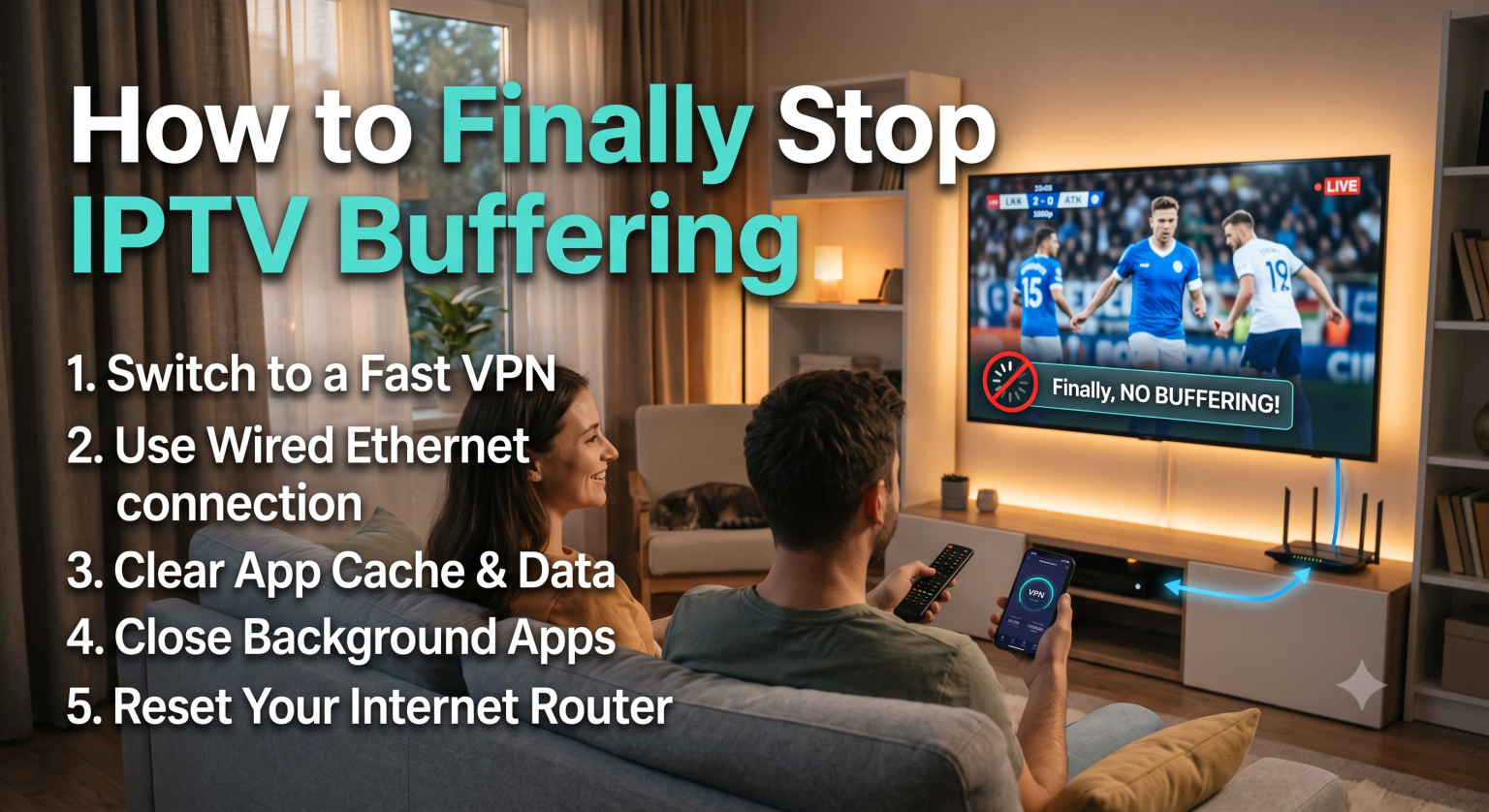
Glem alt om Wi-Fi: Wi-Fi er utroligt sårbart over for forstyrrelser fra vægge, mikrobølger og endda dine naboers routere. Tilslut din streaming-enhed direkte til din router med et Ethernet-kabel. Hvis du bruger en Firestick, skal du anskaffe dig en billig USB-Ethernet-adapter. Denne ene ændring løser 90% af problemerne med hjemmenetværket.
Ryd appens cache: Streaming-apps akkumulerer enorme mængder midlertidige data. Når en enheds lagerplads bliver fyldt op, går processoren i stå. Gå ind i enhedens indstillinger, find din IPTV-app, og tryk på “Ryd cache” mindst en gang om måneden.
Skift din DNS: Nogle gange er din internetudbyders standardrouting simpelthen elendig. Prøv at ændre DNS-indstillingerne på din router eller din streaming-enhed til Cloudflare (1.1.1.1) eller Google (8.8.8.8) for at opnå hurtigere responstider.
Afsluttende tanker
Du behøver ikke finde dig i, at skærmen hakker. Når du indser, at det sandsynligvis er din internetudbyder, der sætter en stopper for din båndbredde, kan du genvinde kontrollen over dit netværk.
For endeligt at Undgå buffering af IPTV, VPN Kryptering kombineret med en kabelforbundet Ethernet-forbindelse giver dig den fejlfri, førsteklasses seeroplevelse, du har betalt for.