
Hvis din Amazon Fire TV Stick er begyndt at fryse, uventet vender tilbage til startskærmen eller konstant bufferer midt i en live-udsendelse, er du sandsynligvis stødt på en lagergrænse.
Dette er et utroligt almindeligt problem, især hvis du bruger IPTV-tjenester. Da Fire Sticks kun har ca. 8 GB intern lagerplads (og en del af den optages af operativsystemet), bliver de hurtigt overbelastede. Hver gang du åbner en app, gemmer den midlertidige filer såsom billedminiaturer, afspilningshistorik og login-tokens i en skjult mappe, der kaldes cachen.
For IPTV-brugere er dette problem endnu større. Din IPTV-afspiller henter konstant enorme mængder EPG (Elektronisk programguide) datafiler, tusindvis af kanallogoer og omslagsbilleder til video-on-demand. Hvis du ikke rydder op i dette, vil din enhed med tiden gå helt i stå.
Her kan du se, præcis hvordan du rydder cachen og dataene på din Fire TV, så den igen kommer til at køre problemfrit.
Den hurtigste metode: Rydning af hele cachen på én gang
Hvis din Fire TV-enhed er fuldt opdateret til den nyeste version af FireOS, har Amazon for nylig tilføjet en meget efterspurgt funktion, der giver dig mulighed for at rydde cachen for alle apps på én gang.
Gå til Fire TV-startskærmen og gå til Indstillinger (tandhjulsikonet helt til højre).
Vælg Anvendelser.
Se efter indstillingen med navnet Ryd alle applikationscacher.
Vælg den, så vil skærmen vise dig præcis, hvor meget plads du er ved at frigøre.
Trykke Bekræft.
Bemærk: Hvis du ikke kan se denne indstilling, kører din Fire TV sandsynligvis en ældre softwareversion. Du kan stadig rydde din cache ved hjælp af den manuelle metode nedenfor.
Den manuelle metode: Rydning af cachen for bestemte apps
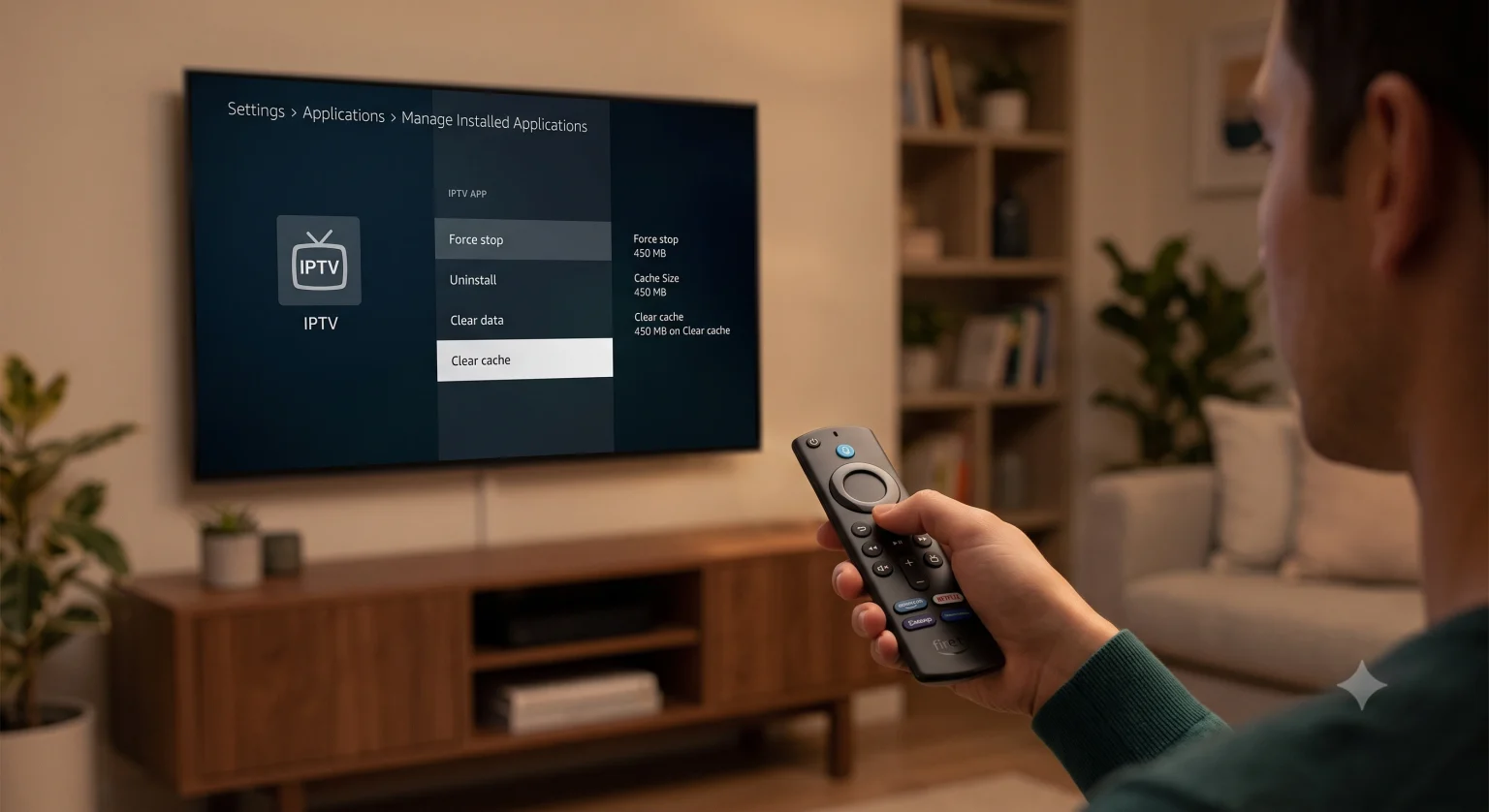
Hvis du kun vil målrette mod bestemte ressourcekrævende apps (som f.eks. din IPTV-afspiller, Kodi eller en streaming-app, der opfører sig ustabilt), kan du gøre det manuelt.
Gå til Indstillinger (gearknappen).
Rul ned og vælg Anvendelser.
Vælg Administrer installerede programmer.
Rul gennem din liste over apps, og vælg den, der giver problemer.
Klik Ryd cache.
Du vil se, at størrelsen på “Cache” til højre på skærmen falder til 0 KB. Du kan gentage denne fremgangsmåde for alle andre apps, der optager for meget plads.
Ryd cache vs. ryd data: Hvad er forskellen?
Når du klikker på en app i indstillingsmenuen, vil du se to forskellige muligheder. Det er vigtigt at forstå forskellen, især for IPTV-apps, så du ikke ved et uheld sletter dine kontoindstillinger.
Ryd cache: Dette er den sikre løsning. Den sletter midlertidige filer, der kan slettes (f.eks. gamle EPG-data, resterende opdateringsfiler og billedminiaturer). Det vil ikke slette dine loginoplysninger eller indstillinger. Dine IPTV-afspilningslister, XTREAM-koder og favoritter forbliver fuldstændig intakte.
Ryd data: Dette er den radikale løsning. Når du klikker her, fungerer det som en fabriksindstilling for den pågældende app. Det sletter alt. Hvis du sletter dataene på din IPTV-afspiller, bliver du logget ud, dine afspilningslister slettes, og du bliver nødt til at opsætte dine portaler eller M3U-links helt fra bunden. Brug kun “Slet data”, hvis en app er helt ude af drift, og det ikke hjalp at rydde cachen.
3 flere måder at forhindre, at din Firestick bufferer på
Hvis du har ryddet cachen, og dine IPTV-streams stadig bufferer eller hakker, skyldes problemet muligvis ikke lagerpladsen. Prøv følgende løsninger:
1. Deaktiver pauseskærmen
Dette er et mindre kendt trick, men Amazon-skærmspareren henter og gemmer faktisk hele tiden billeder i høj opløsning i cachen i baggrunden. Hvis man deaktiverer den, kan man frigøre hukommelse og stoppe baggrundsbehandlingen.
Gå til Indstillinger > Skærm og lyd > Skærmsparer.
Ændr starttidspunktet til Aldrig.
2. Deaktiver opdateringer af apps i baggrunden
Når apps opdateres automatisk i baggrunden, mens du forsøger at streame en live-kamp, belaster det din båndbredde og processor enormt.
Gå til Indstillinger > Programmer > App Store.
Skift Automatiske opdateringer til Fra.
3. Tving ubrugte apps til at lukke
Bare fordi du har forladt en app, betyder det ikke nødvendigvis, at den rent faktisk er lukket. Mange apps kører ubemærket i baggrunden og bruger din Fire TV’s begrænsede RAM.
Gå til Indstillinger > Applikationer > Administrer installerede applikationer.
Klik på de apps, du ikke bruger lige nu, og vælg Tvinget stop.
Et godt tip
Hvis du gør det til en vane at rydde cachen på din Fire TV en gang om måneden, vil du undgå 90% af de problemer med frysning og buffering, du oplever. Hvis du bruger IPTV meget, sikrer det, at din enhed har den maksimale mængde ledig hukommelse til at behandle streamingen uden tab af billeder, hvis du gør dette lige før en stor live sportsbegivenhed.