
If you’ve recently signed up for an IPTV-Dienst, you’re probably wondering how to actually get it onto your screen. You look at your shiny new 4K TV and think, “It’s a Smart TV, right? It should handle this perfectly.”
Well, yes and no.
It’s one of the most common debates in the cord-cutting community: Is the built-in software on your television enough for smooth, buffer-free 4K IPTV, or do you need to shell out extra cash for a dedicated streaming box like an Nvidia Shield, Formuler, or Fire TV-Stick?
Let’s break down exactly what you need to know before you start streaming.
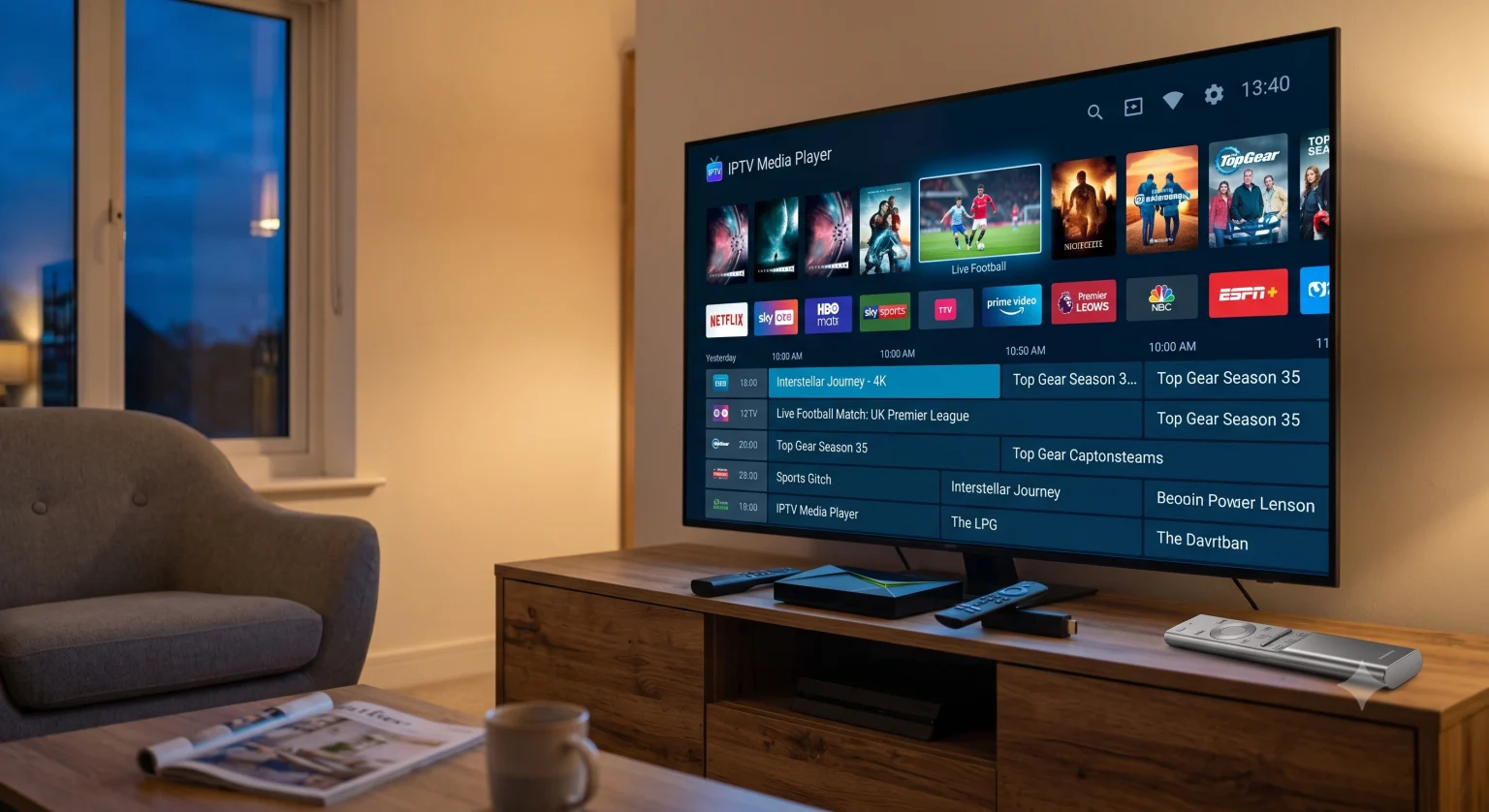
Why Your Smart TV Might Let You Down
On paper, relying on your Smart-TV makes perfect sense. It saves you money, cuts down on cable clutter, and means you only have to deal with a single remote. If you have a TV running Google TV or Android TV (like newer Sony or TCL models), you can even download popular IPTV players straight from the Google Play Store.
But there is a catch.
Most television manufacturers cut corners on internal hardware. The processor inside a standard Smart TV is designed to handle highly compressed, Abrufbar unter apps like Netflix and YouTube not the heavy lifting required to decode live, high-bitrate 4K IPTV streams.
Here is where Smart TVs usually fall short:
Low RAM and Storage: Live streaming apps need cache space to prevent buffering. Smart TVs notoriously lack onboard storage and RAM, which can lead to app crashes, menu lag, and frozen screens during peak viewing hours.
Walled Gardens: If you own a Samsung (Tizen OS) or LG (webOS) TV, you do not have access to the Google Play Store. This means you can’t install the industry-standard apps like TiviMate. You are stuck with basic, often clunky alternatives, and these proprietary app stores frequently purge IPTV players without warning.
Weak Network Cards: 4K IPTV requires a rock-solid internet connection. Many Smart TVs use cheap Wi-Fi chips and cap their physical Ethernet ports at 100 Mbps, which can bottleneck a high-speed home network.
The Case for a Dedicated IPTV Box
A dedicated streaming device bypasses your TV’s operating system entirely, turning your television into a monitor. You plug it into an HDMI port, connect it to your network, and all the processing happens inside the box.
If you want a flawless 4K viewing experience, here is why a separate device usually wins out:
1. Raw Processing Power
Devices like the Nvidia Shield TV Pro, Apple TV 4K, or even the Onn 4K Pro feature robust processors meant specifically for heavy streaming. They chew through uncompressed live feeds and hardware-decode the latest video formats (like AV1 and HEVC) without breaking a sweat.
2. Access to the Best Software
If you want the traditional cable-like experience complete with a grid Electronic Program Guide (EPG), catch-up TV, and recording capabilities you need a top-tier application. An Android-based streaming box gives you full access to powerhouses like TiviMate, widely considered the gold standard for managing massive IPTV-Wiedergabelisten.
3. Purpose-Built Hardware
Some devices are engineered strictly for this ecosystem. Take the Formuler Z11 Pro Max, for example. It comes with its own proprietary software (MYTVOnline 3) built specifically for handling live TV, VOD, and EPGs seamlessly. You won’t get that kind of native, optimized integration on a Samsung screen.
4. Superior Connectivity
Live 4K sports and events use a massive amount of bandwidth. High-end boxes offer Gigabit Ethernet ports and Wi-Fi 6 hardware, giving you the stable connection required to eliminate the dreaded buffering wheel when a game goes into overtime.
So, Which Route Should You Take?
Who can stick with a Smart TV?
If you only watch TV casually, you’re streaming mostly in 1080p HD, and you happen to own a TV with Google TV built-in, try it out first. Download a reputable app like IPTV Smarters or Sparkle TV, load your playlist, and see how it performs. If it doesn’t buffer and you are happy with the interface, you just saved yourself some cash.
Who needs a dedicated streaming box?
If you are trying to stream raw 4K channels, watch live sports where latency matters, or you own an LG or Samsung TV and want access to premium Android apps, buy a dedicated box.
The good news is you don’t necessarily have to spend $200. While premium devices like the Nvidia Shield remain the heavyweights, budget options like the Amazon Fire TV Stick 4K Max oder die Walmart Onn 4K Pro (usually hovering around the $50 mark) provide massive, immediately noticeable upgrades over standard Smart TV hardware.
Your TV is designed to display a great picture. Let a dedicated device handle the software. Separating the two almost always leads to a faster, smoother, and much less frustrating streaming experience.