
Are you tired of missing crucial sports moments because of sudden black screens and endless buffering? If you are dealing with an IPTV app crashing Firestick devices, you are definitely not alone. Across the Vereinigte Staaten, thousands of cord-cutters face these frustrating interruptions every single evening.
Fortunately, you don’t necessarily need to throw away your device or buy an expensive new setup. By following a few quick troubleshooting steps, you can eliminate memory leaks, bypass local ISP throttling, and get back to smooth, high-definition streaming.

Common Reasons Your IPTV App Keeps Freezing
When a streaming app closes unexpectedly on your Amazon Fire TV, it is rarely a random glitch. Most crashes stem from your device’s limited hardware.
First and foremost, older Firesticks only have 1GB of shared RAM. When your heavy channel list loads, the system simply runs out of memory, forcing the Android OS to kill the foreground application immediately to prevent a total device freeze.
Additionally, network interference plays a massive role. Major US internet service providers (ISPs) like Comcast Xfinity and Spectrum are known to throttle heavy streaming traffic during peak evening hours. This aggressive data monitoring can disrupt your connection just enough to crash a sensitive media player.
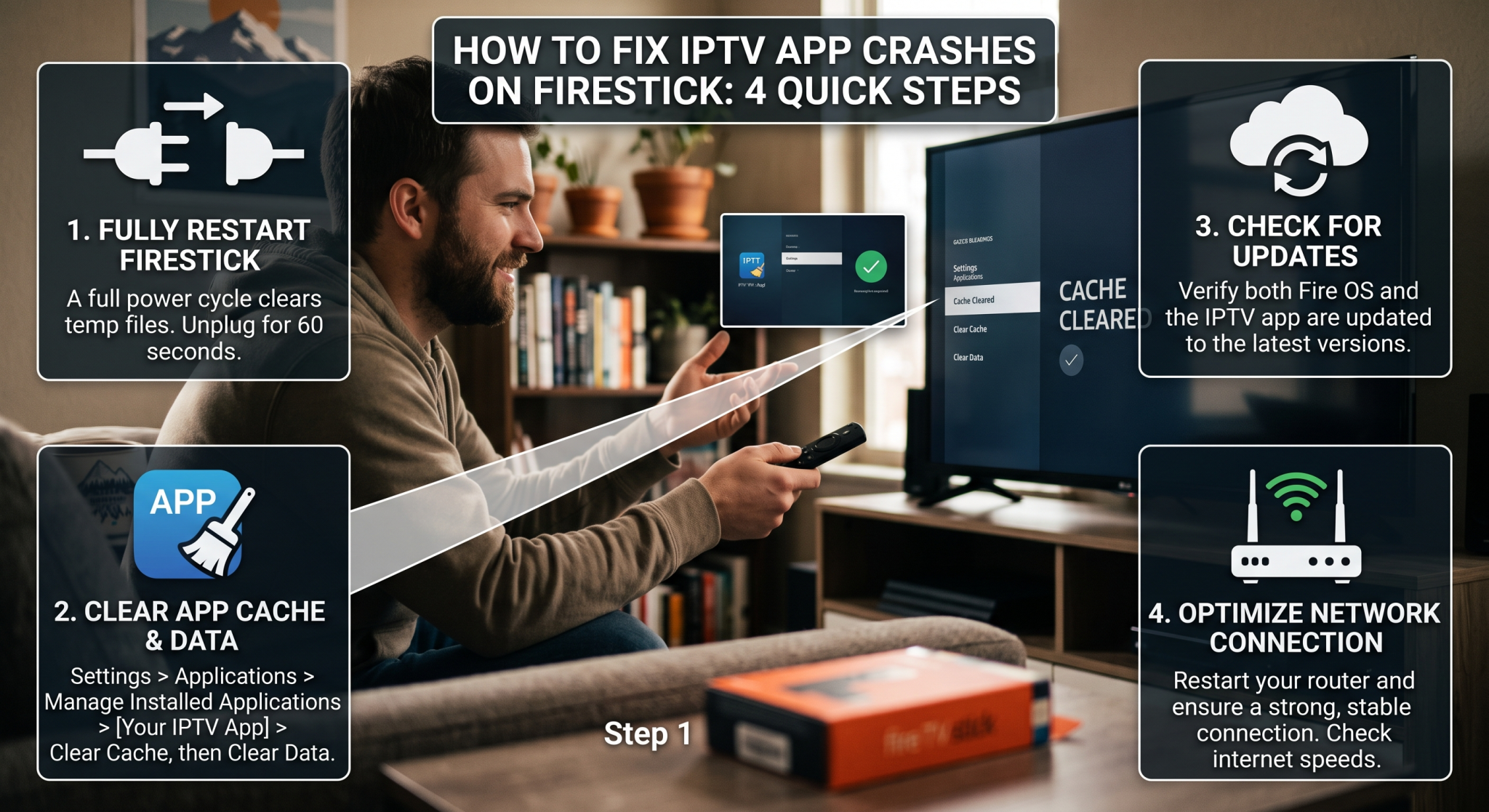
Top Solutions to Fix an IPTV App Crashing Firestick Devices
1. Clear Your IPTV Cache and Force Stop Background Apps
A bloated cache is the number one culprit behind slow loading and unexpected crashes. Over time, temporary files build up and choke your device’s memory.
To fix this, go to your Firestick Einstellungen > Anwendungen > Installierte Anwendungen verwalten. Select your specific IPTV player and click Cache leeren.
While you are in this menu, go through other heavy apps (like Prime Video or Netflix) and hit Beenden erzwingen. This simple maintenance routine frees up vital RAM for your live TV channels.
2. Disable Amazon’s Data Monitoring Feature
Many users don’t realize that Amazon runs a background data monitor that actively consumes resources and can negatively impact third-party APKs.
Gehen Sie zu Settings > Preferences > Data Monitoring and turn this feature completely OFF. Disabling this hidden performance killer provides an instant speed boost to your Fire TV Stick.
3. Upgrade to a Lightweight Media Player
If you are running a massive 10,000+ channel playlist on an older device, a heavy player will inevitably fail. Switching to a streamlined application can resolve hardware-induced crashing instantly.
4. Bypass US ISP Throttling with a VPN
If your app only crashes during big NFL games or UFC fight nights, your United States-based internet provider is likely throttling your bandwidth.
Routing your traffic through a secure Virtual Private Network (VPN) encrypts your data. When your ISP cannot see that you are streaming live television, they cannot selectively throttle your connection, preventing those frustrating sudden crashes.
Firestick IPTV Player Comparison
| IPTV Player Option | RAM Consumption | Recommended Firestick Model | Beste Funktion |
| TiviMate (Premium) | Hoch | Firestick 4K Max (2023+) | Beautiful UI & Advanced EPG |
| IPTV Smarters Pro | Mittel | Firestick 4K / Fire TV Cube | Easy multi-screen layout |
| GSE Smart IPTV | Niedrig | Older Firesticks (1st/2nd Gen) | Extremely lightweight |
Conclusion: Keep Your Firestick Running Smoothly in the US
Der Umgang mit einem IPTV app crashing Firestick hardware doesn’t have to ruin your weekend entertainment. By actively managing your device’s RAM, clearing the app cache regularly, and choosing the right media player, you can enjoy flawless streams from coast to coast across the Vereinigte Staaten.
If your current hardware is simply too old to handle modern applications, it might be time to upgrade to a device with more processing power.
Ready to stop buffering forever? [Click here to explore our top-rated Premium IPTV subscription plans] and experience ultra-stable, crash-free streaming today!
Häufig gestellte Fragen (FAQ)
Why does my IPTV app close by itself on Firestick?
Your app typically closes by itself because the Firestick has run out of RAM (Random Access Memory). To prevent this, go to settings and force-close unused background apps, then clear the cache of your IPTV application.
How do I update my IPTV app on Amazon Fire TV?
Since most of these apps are sideloaded, you cannot update them directly through the official Amazon Appstore. You must open the Downloader app, enter the specific URL for the newest APK version, and install the fresh update over your current version.
Will a factory reset fix my crashing Firestick?
Yes, if clearing your cache and deleting unused apps does not work, a factory reset will wipe corrupted files and give you a completely fresh start. Just remember that you will need to re-enter all your login credentials afterward!