
We’ve all been there. It’s the final minutes of a massive derby, the striker breaks through the defensive line, winds up for the shot, and bam. The screen freezes. The dreaded buffering circle appears, and by the time the stream catches up, you’re watching the players celebrate a goal you completely missed.
If you use Internet Protocol Television, you’ve likely noticed that performance can be flawless during a Tuesday afternoon documentary, only to turn into a stuttering mess during a major Sunday football match, pay-per-view fight, or the Super Bowl.
So, why does IPTV freeze during live sports, and more importantly, how can you stop it?
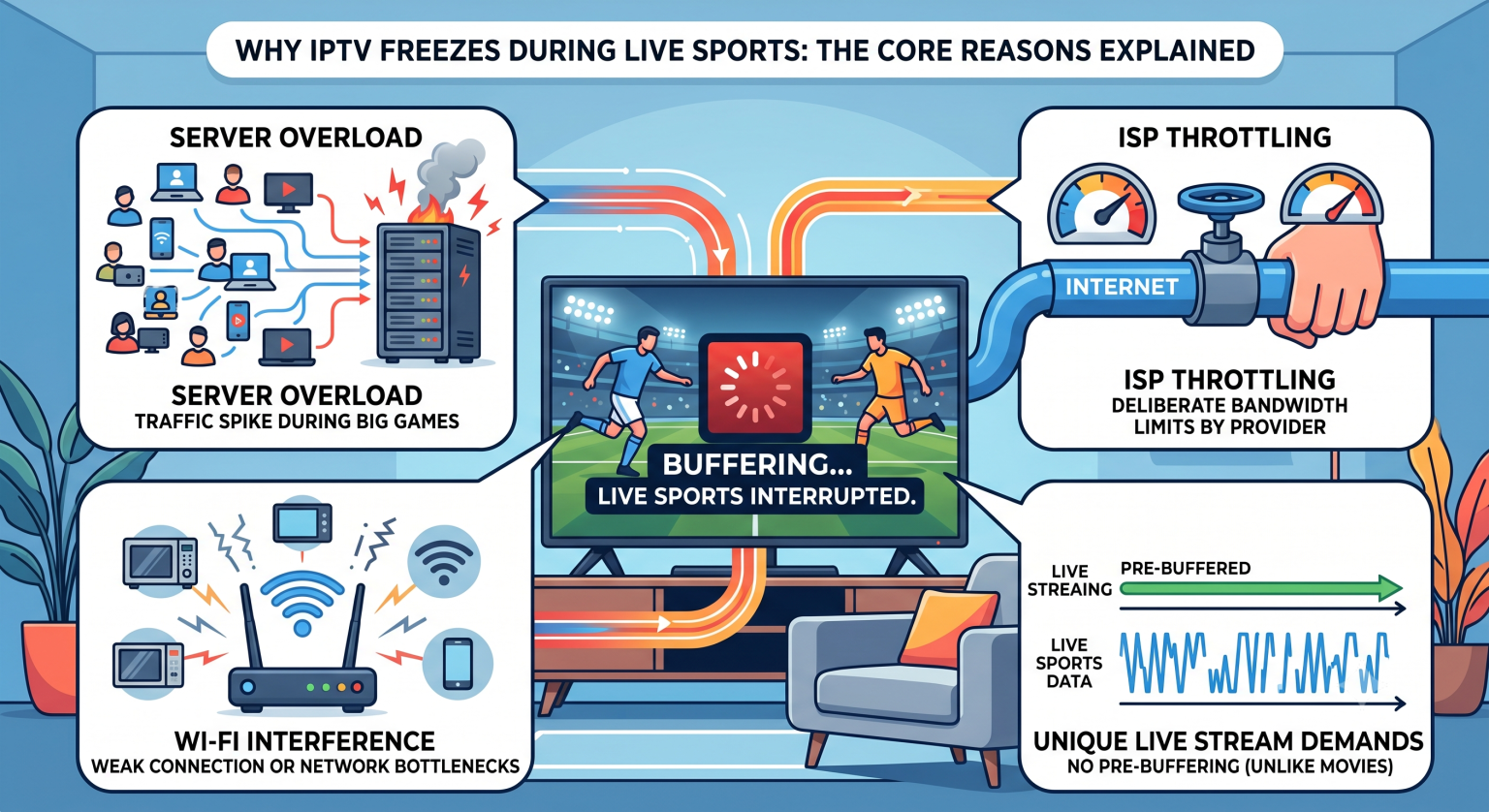
The Real Reason Live Sports Are Different
When you stream a movie on a massive commercial platform, the entire file sits on a highly optimized, global server network. Your app pre-loads (or “buffers”) several minutes of video ahead of what you’re currently watching. If your internet dips for ten seconds, you won’t even notice.
Live sports don’t have that luxury. The video is being encoded and beamed across the globe in real-time. Your streaming app can only buffer a few seconds of footage at most because the event is literally happening right now. This makes live streams incredibly fragile and highly sensitive to any network hiccups.
Top Causes of IPTV Freezing and Buffering
When a stream drops during a high-profile event, the blame usually falls into one of four categories:
1. Server Overload at the Source
Unlike multinational giants with billions of dollars in infrastructure, many IPTV-Anbieter rent finite server space. When a massive event kicks off, tens of thousands of subscribers log in simultaneously. This traffic spike overwhelms the provider’s bandwidth capacity, resulting in severe packet loss. The servers simply cannot push the video data out fast enough to everyone requesting it, leading to widespread freezing on the user end.
2. Bandbreitendrosselung durch Internetdienstanbieter
Your Internet Service Provider (ISP) monitors what type of data you’re downloading. Many major ISPs intentionally slow down (throttle) heavy streaming traffic during peak evening hours or major sporting events to manage overall network congestion. Because IPTV traffic requires a massive, continuous pipeline of data, ISPs frequently target these connections, strangling your bandwidth right when the game starts.
3. Wi-Fi Interference and Network Bottlenecks
Live streaming requires absolute stability, not just high top speeds. A wireless router placed behind a TV, dealing with interference from neighboring networks, Bluetooth devices, and thick walls, will drop packets of data. While a dropped packet just means a slightly slower load time for a normal website, for a live IPTV stream, it means an instant freeze.
4. Underpowered Hardware
That five-year-old budget streaming stick might handle basic apps fine, but decoding a live, uncompressed 4K or 60fps sports broadcast requires serious processing power. When the device’s CPU maxes out or its RAM fills up, the app physically cannot render the frames fast enough, causing the video to stutter while the audio continues playing.
Identifying Your Bottleneck
Figuring out what’s causing your IPTV buffering requires a bit of detective work. Here is a quick diagnostic comparison to help pinpoint the culprit.
| Symptom | Most Likely Cause | The Fix |
| Only freezes during massive games (UFC, Champions League, etc.) | Provider server overload | Ask provider for backup URLs; switch to a service with better load balancing. |
| Stream starts fine, then slows down exactly at 7:00 PM or 8:00 PM | ISP-Drosselung | Use a high-quality VPN to hide streaming traffic from your ISP. |
| Freezes constantly on one TV, but works perfectly on your smartphone | Wi-Fi / Hardware limits | Connect via Ethernet cable or upgrade to a faster streaming box. |
| Screen freezes entirely, but match audio keeps playing perfectly | Device CPU maxed out | Clear app cache, close background apps, or drop stream resolution to 1080p. |
Actionable Steps to Stop the Freezing
You don’t just have to sit there and accept a choppy stream. Here are the immediate steps you should take before the next big match:
Verbinden Sie Ihr Gerät über ein Kabel: Ditch the Wi-Fi. Run a Cat6 Ethernet cable directly from your router to your streaming device. If your router is too far away, invest in a set of Powerline adapters to route the internet through your home’s electrical wiring.
Deploy a VPN: If your ISP is choking your speeds during peak hours, a Virtual Private Network (VPN) encrypts your traffic. When the ISP can’t see that you’re streaming heavy video files, they can’t selectively throttle your connection.
Adjust App Settings: Dive into your IPTV player (like TiviMate, Smarters, or XCIPTV) and find the “Buffer Size” setting. Increasing this from ‘Small’ or ‘None’ to ‘Large’ or ‘Very Large’ gives the stream a bit more breathing room to handle tiny internet dropouts without stalling the video.
Clear the Cache: Streaming apps build up bloated temporary files over time. Go into your device settings, find your IPTV-Anwendung, and hit “Clear Cache” to free up crucial memory for video decoding.
Live sports demand a perfect chain of data delivery from the stadium to your screen. By optimizing your local home network, shielding your connection from ISP interference, and ensuring your hardware is up to the task, you can keep the action smooth right up to the final whistle.