
Is your IPTV not working on Samsung TV right when the big game is about to start? You are definitely not alone. Whether you are staring at a frustrating black screen, dealing with endless buffering, or facing sudden Tizen OS app crashes, we have the solutions.
For viewers in the USA, regional internet service providers (ISPs) often introduce specific network blocks that complicate matters. This complete 2026 guide will walk you through the fastest, proven fixes to get your Samsung Smart TV streaming perfectly again.
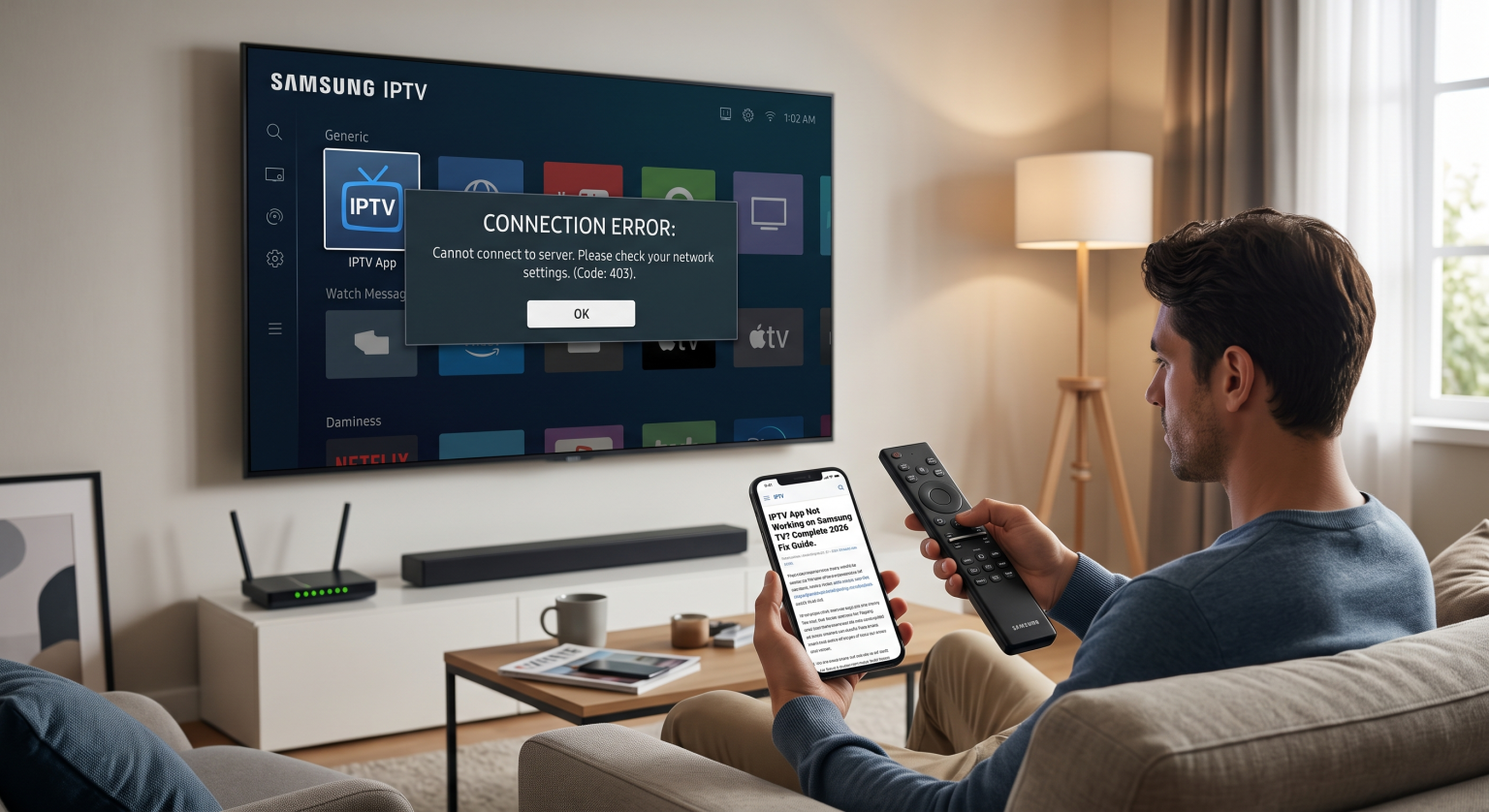
Why is My IPTV Not Working on Samsung TV?
If your IPTV subscription works fine on your smartphone but fails on your TV, the issue is usually localized to your living room setup. Samsung’s proprietary Tizen OS is fantastic for mainstream apps, but it handles third-party streaming playlists differently than Android devices.
Here are the most common culprits disrupting your stream:
Background Resource Hogs: Features like Samsung’s “Ambient Mode” secretly drain processing power.
ISP Throttling: Major USA broadband providers (like Comcast or Spectrum) frequently throttle IPTV traffic during peak evening hours.
Stale DNS Cache: Outdated network configurations can block your TV from connecting to your provider’s servers.
App Deprecation: Samsung routinely purges popular IPTV players from its Smart Hub store.
The “Black Screen” and Buffering Errors
Buffering is the enemy of live TV. On older Samsung models (2018–2020), limited RAM often causes IPTV buffering on Samsung TVs, leading to interface lag or sudden black screens. The TV simply cannot process massive M3U playlists fast enough.
Step-by-Step 2026 Fixes for Samsung Smart TV Apps
If you are dealing with a Smart IPTV black screen or network failure, try these immediate troubleshooting steps. These simple tweaks resolve 90% of local playback errors.
1. Perform a Tizen “Cold Boot”
Turning off your TV with the remote merely puts it to sleep. To truly clear the TV cache, you need a cold boot.
Method A: Press and hold the Power button on your Samsung remote for about 5-8 seconds until the TV restarts and the Samsung logo appears.
Method B: Unplug the TV directly from the wall outlet, wait exactly 30 seconds, and plug it back in.
2. Change Your DNS Settings
If your IPTV not working on Samsung TV error is network-related, changing your DNS is a highly effective fix. USA-based default ISP servers are notoriously slow for international IPTV routing.
Navigate to Settings > General > Network > Network Status.
Select IP Settings and scroll down to DNS Setting.
Change it from “Enter Automatically” to “Enter Manually.”
Input Google’s public DNS: 8.8.8.8 (or Cloudflare’s 1.1.1.1).
3. Disable Ambient Mode and Auto-Updates
Samsung’s background features compete for your Wi-Fi bandwidth. Go to your TV’s general settings and disable Ambient Mode. Additionally, turn off automatic software updates while you stream to free up maximum processing power.
Comparing the Best IPTV Apps for Samsung TVs
Sometimes, the app you are using is completely outdated. If your current player is failing, consider switching to a better alternative. Here is a quick look at the top Tizen-compatible options for 2026.
| App Name | Standout Feature | Tizen Compatibility | Estimated Price |
| IBO Player | Excellent stability & fast UI | Native (Available in Smart Hub) | ~$8 / year |
| Smart IPTV (SIPTV) | Extremely lightweight | Requires manual USB install | ~$6 (Lifetime) |
| SmartOne IPTV | Great server-side processing | Native (Available in Smart Hub) | ~$12 (Lifetime) |
Advanced Fixes for Stubborn Connectivity Issues
If you have tried the basics and your IPTV not working on Samsung TV issue persists, the problem likely lies with your home network infrastructure.
Switch to a Wired Ethernet Connection
Wi-Fi is convenient, but it introduces packet loss and latency that destroy live streaming quality. Running a direct Ethernet cable from your router to your Samsung TV is the single most effective way to eliminate hardware-based buffering.
Use a Premium VPN Service
As mentioned earlier, many USA ISPs actively block or throttle unverified IPTV portals. Installing a secure VPN routes your traffic through an encrypted tunnel, completely bypassing local ISP restrictions and giving you a seamless, buffer-free connection.
Conclusion & Next Steps for US Streamers
Dealing with an IPTV not working on Samsung TV error is incredibly frustrating, especially when you are just trying to relax. By performing a cold reboot, updating your DNS servers, and using a hardwired connection, viewers across the USA can easily bypass these annoying Tizen OS limitations.
Ready to upgrade your streaming experience? Don’t let ISP throttling ruin your viewing. [Click here to secure your connection with our top-rated VPN for Samsung TVs] and enjoy buffer-free, high-speed IPTV today!
People Also Ask (FAQ)
Why did my IPTV app disappear from my Samsung TV?
Samsung periodically removes unauthorized or unsupported IPTV applications from the Smart Hub. If this happens, you may need to sideload the app using a USB drive or switch to a currently supported alternative like IBO Player.
Does Samsung's dynamic picture mode cause buffering?
Yes. Setting your picture mode to “Dynamic” forces the TV to apply heavy real-time processing. Switching to “Movie” or “Standard” mode frees up CPU resources, which can significantly reduce streaming stutter on older models.
Can I update my Tizen OS manually?
Yes. Navigate to Settings > Support > Software Update and select Update Now. Staying on the latest firmware ensures your network drivers function optimally.