
The operating system is the most important feature when you choose a new television for IPTV. The operating system controls which applications you can install. In 2026, television hardware is very advanced across all major brands. However, software differences between brands remain significant. A television with a beautiful picture is useless for IPTV if the television cannot run your favorite IPTV application.
This article compares the major Smart TV operating systems in 2026. The article explains how Google TV, Samsung Tizen, and LG webOS handle IPTV applications so you can make an informed purchase.
Quick Answer
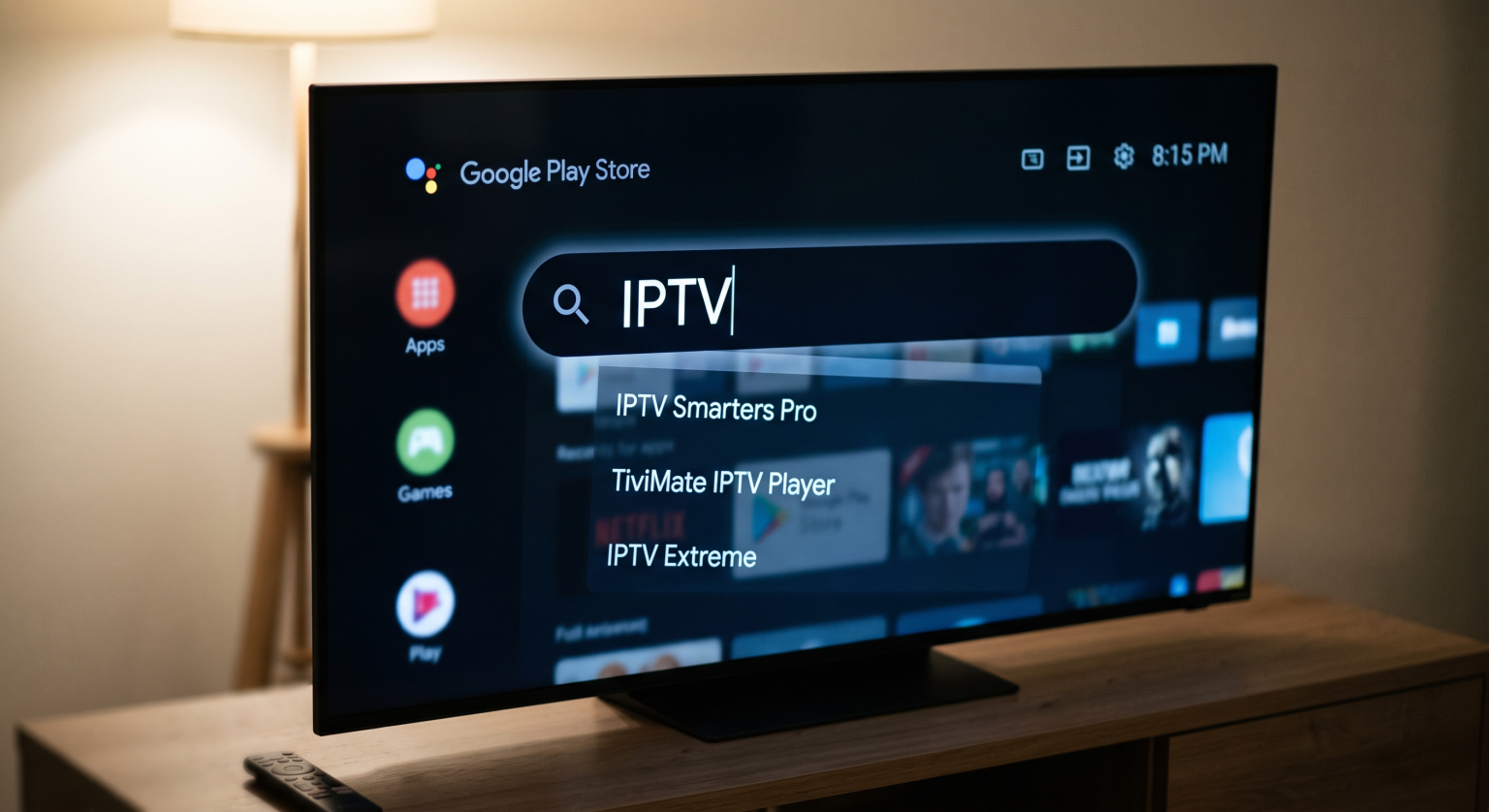
The best Smart TV for IPTV apps uses the Google TV or Android TV operating system. Sony, TCL, and Hisense manufacture televisions with Google TV. Google TV provides access to the Google Play Store. The Google Play Store offers the largest selection of IPTV applications. Google TV also allows users to install third-party applications manually. Samsung Tizen and LG webOS are excellent operating systems, but Tizen and webOS have closed application stores. Tizen and webOS offer fewer IPTV applications than Google TV.
The Role of the Operating System
A Smart TV operating system works like a smartphone operating system. The operating system manages the television menus. The operating system also connects to an application store.
Television manufacturers use different operating systems. Sony uses Google TV. Samsung uses Tizen. LG uses webOS. Application developers must create different application versions for each operating system. Many independent developers create IPTV applications for Android and Google TV first. Developers often ignore Tizen and webOS because creating applications for closed systems is expensive.
For more details about software differences, read our guide to Best Smart TV OS for IPTV in 2026: Tizen vs Google TV vs webOS.
Google TV and Android TV
Google TV is currently the most flexible operating system for IPTV [1]. Sony BRAVIA televisions use Google TV. Many TCL and Hisense televisions also use Google TV.
Google TV connects directly to the Google Play Store. The Google Play Store contains thousands of applications. Users can find many M3U players and Xtream Codes players in the Google Play Store.
Google TV also permits sideloading. Sideloading means installing an application from outside the official application store. If an IPTV application is not in the Google Play Store, the user can download the Android application package (APK) file. The user can then install the APK file directly onto the television. This flexibility makes Google TV the best choice for IPTV users.
Application Installation on Google TV
Installing an IPTV application on Google TV is simple.
Turn on the television and press the Home button on the remote control.
Navigate to the Search menu or the Apps tab.
Type the specific name of your preferred IPTV application.
Select the application from the search results.
Select “Install” to download the application.
If the application is not in the Google Play Store, you can use a downloader application. A downloader application allows you to type a web address and download the APK file directly to the television storage.
Samsung Tizen
Samsung televisions use the Tizen operating system. Tizen is fast and easy to navigate. In 2026, Samsung provides seven years of software updates for new televisions [2]. This long update support is excellent for television security and longevity.
However, Samsung Tizen uses a closed ecosystem. The user can only install applications from the official Samsung Apps store. Samsung Tizen does not support Android applications. You cannot install an APK file on a Samsung television.
The Samsung Apps store contains some popular IPTV applications. However, the selection is much smaller than the Google Play Store. Furthermore, Samsung sometimes removes IPTV applications from the Samsung Apps store without warning. Our article comparing Tizen vs Google TV for IPTV Apps: What’s the Difference? provides a deeper analysis of these two systems.
Application Installation on Samsung Tizen
Installing an application on Samsung Tizen requires the official Samsung Apps store.
Press the Home button on the Samsung remote control.
Navigate to the “Apps” icon on the bottom menu.
Select the Search icon at the top of the screen.
Search for the IPTV application name.
Select the application and press “Install”.
Samsung users must remember that Samsung controls this store strictly. If an application violates Samsung policies, Samsung can delete the application from the television during an automatic software update.
LG webOS
LG televisions use the webOS platform. Like Samsung Tizen, LG webOS is a closed operating system. LG now offers the webOS Re:New program. This program provides five years of software updates for modern LG televisions.
LG webOS requires applications from the official LG Content Store. The LG Content Store has a limited selection of IPTV applications. Some well-known IPTV players are available for LG televisions. However, new or specialized IPTV applications rarely appear on LG webOS.
You cannot install Android applications on LG webOS. Users who want maximum application choice often need to connect a separate Android TV box to their LG television.
Application Installation on LG webOS
The LG Content Store manages all applications on an LG television.
Press the Home button on the LG Magic Remote.
Navigate to the “Apps” icon or the LG Content Store icon.
Select the Search icon at the top of the screen.
Type the name of the IPTV application.
Select the application and choose “Install”.
The LG Magic Remote acts like a computer mouse. This remote control makes navigating IPTV menus very easy. However, the limited application selection remains a significant disadvantage for advanced IPTV users.
Operating System Comparison
This table summarizes the main differences between the three major television operating systems in 2026.
| Feature | Google TV & Android TV | Samsung Tizen | LG webOS |
| Default application store | Google Play Store | Samsung Apps | LG Content Store |
| Native Android support | Yes | No | No |
| Manual application installation (Sideloading) | Yes | No | No |
| IPTV application choice | Very high | Medium | Medium |
| Primary television brands | Sony, TCL, Hisense | Samsung | LG |
IPTV Compatibility and Limitations
When you use TV Shadow IPTV or another IPTV service, you need a compatible player application. The player application reads your subscription data and displays the video streams.
Not all IPTV applications work on every television. The television operating system dictates the available players. Important factors for IPTV compatibility include the connection method and the remote control interface.
Understanding M3U Playlists
An M3U playlist is a simple text file. This file contains a list of streaming links. When you load an M3U file into an IPTV player, the player reads the links and displays the television channels. Most IPTV applications support M3U playlists. However, very large M3U files can cause slow performance on older televisions with weak processors.
Understanding Xtream Codes
Xtream Codes is an alternative connection method. Instead of downloading a large file, the user enters three pieces of information:
Server URL
Username
Password
The Xtream Codes method is generally faster than the M3U method. The IPTV application downloads only the necessary data. If you use TV Shadow IPTV, we recommend using an application that supports the Xtream Codes connection method.
Best TV Features for Live Football
Many people use IPTV to watch live sports. Live football requires a television with excellent hardware. The operating system handles the application, but the hardware handles the picture.
When you buy a television for live football, you must evaluate the picture processing and the internet connection capabilities.
The Importance of Picture Processing
Televisions must upscale low-resolution video to match the 4K screen resolution. Live television broadcasts often use 1080p or 720p resolutions. If the television has a weak processor, the football match will look blurry. Sony BRAVIA televisions are famous for excellent upscaling processors. Samsung and LG also use powerful processors in their high-end models. You can read more about upscaling in our article about What Is TV Upscaling and Does It Help IPTV?.
Refresh Rate and Motion Handling
Fast-moving footballs can look blurry on cheap televisions. A good television uses advanced picture processing to keep the ball sharp. A 120Hz television updates the screen 120 times per second. This speed creates smoother motion than a standard 60Hz television. You can learn more about this technical difference in our article about 60Hz vs 120Hz TV for Live Football.
Wi-Fi vs Ethernet for Streaming
High-quality IPTV requires continuous data transfer. A 4K television stream uses a lot of internet bandwidth.
Wi-Fi: Wireless internet is convenient. However, walls and other electronic devices can block the Wi-Fi signal. This interference causes video buffering.
Ethernet: A wired Ethernet cable connects the television directly to the internet router. This connection prevents signal interference. Always use an Ethernet cable for the most stable live football experience.
Conclusion
Choosing the right Smart TV for IPTV requires careful consideration of the operating system. In 2026, televisions running Google TV offer the most flexibility. Sony, TCL, and Hisense televisions with Google TV give you full access to the Google Play Store and allow manual application installation.
Samsung Tizen and LG webOS offer excellent picture quality and long software update periods. However, their closed application ecosystems restrict your application choices. If you buy a Samsung or LG television, you might need to connect a separate Android streaming device to use your preferred IPTV applications. Always prioritize a television operating system that supports the specific software you want to use.
Frequently Asked Questions
Can I install Android applications on a Samsung TV?
No, you cannot install Android applications on a Samsung television. Samsung uses the Tizen operating system. Tizen only supports applications from the official Samsung Apps store.
Do all IPTV applications work on LG webOS?
No, only a few IPTV applications work on LG webOS. Application developers must create specific software versions for LG televisions. Most developers focus on Android instead.
What should I do if my TV does not have good IPTV apps?
You should connect an external streaming device to your television. An Android TV box or an Amazon Fire TV Stick connects via HDMI and gives you access to thousands of applications immediately.
Is Wi-Fi or Ethernet better for watching live football?
Ethernet is always better for watching live football. A wired Ethernet connection prevents buffering and provides a stable video stream. Wi-Fi signals can drop unexpectedly.
How long do television manufacturers provide software updates?
In 2026, update policies are improving. Samsung provides software updates for seven years on new models. LG provides updates for five years through the webOS Re:New program.
What is the best Smart TV operating system for IPTV?
Google TV is the best operating system for IPTV. Google TV offers the largest application selection through the Google Play Store. Google TV also allows users to install applications manually using APK files.