
Are you missing crucial moments in a game because your IPTV picture in picture not working error keeps popping up? You are not alone; viewers everywhere face this frustrating floating window error. Whether you are streaming from the US, the UK, or anywhere else globally, PiP crashes can ruin your multi-screen viewing experience.
Fortunately, getting your background player up and running is usually a simple process. Let’s dive into the most effective solutions to stop your PiP playback issues today.
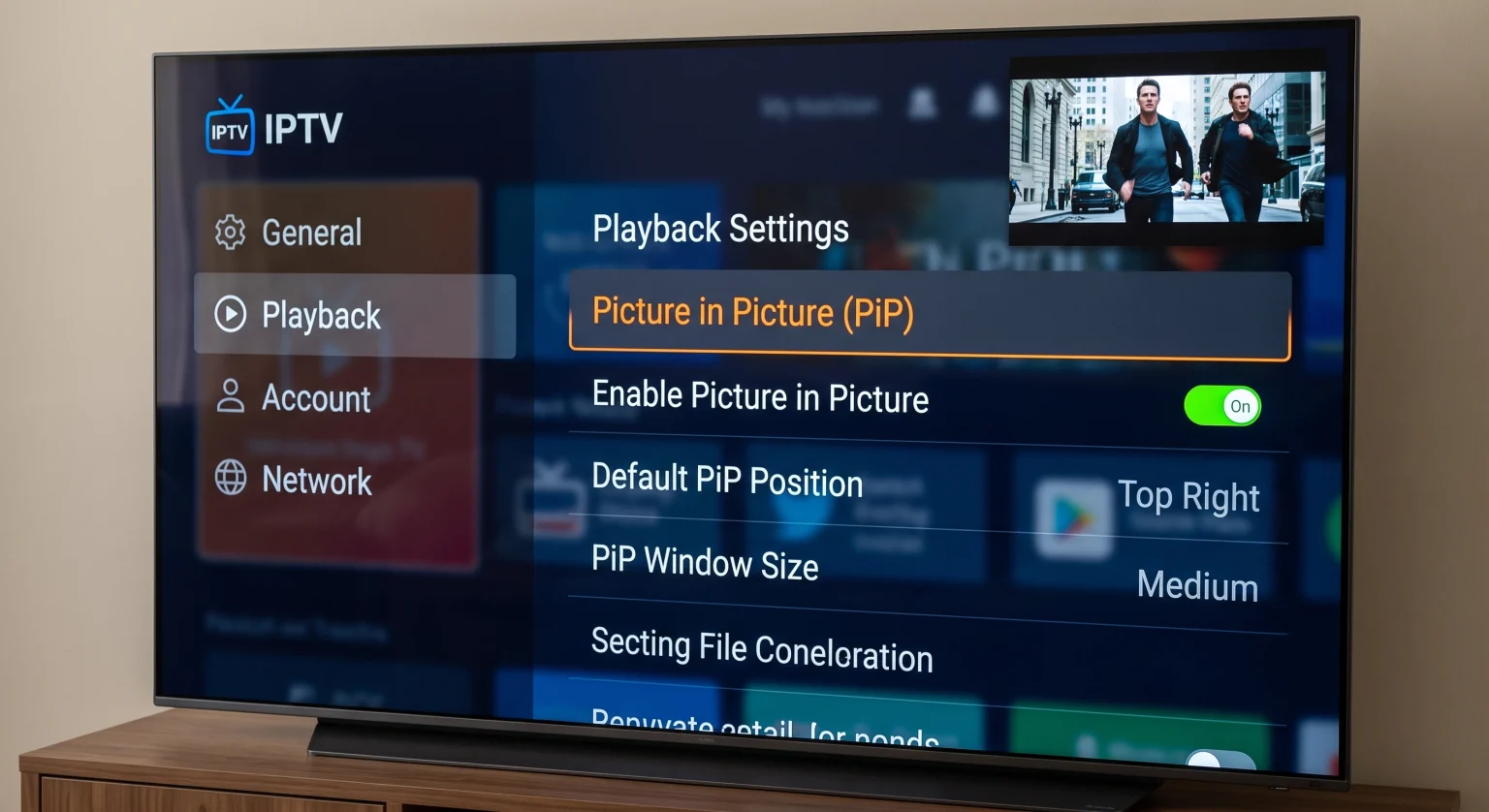
Why is My IPTV Picture in Picture Not Working?
Understanding why your split-screen streaming is failing is the first step to fixing it. Most of the time, the issue stems from aggressive battery optimization on your device. When your phone or tablet tries to save power, it often kills background tasks, causing your IPTV app’s PiP mode to close unexpectedly.
Another common culprit is outdated IPTV app settings or conflicting system permissions. If your device hasn’t granted the app permission to “draw over other apps,” the multi-screen mode simply cannot function. Finally, using an outdated app version can lead to frequent background player crashing.
Top Fixes for PiP Playback Issues
If your floating window keeps disappearing, you can easily troubleshoot the problem. Try these quick fixes to restore your multi-screen viewing experience:
Enable “Draw Over Other Apps”: Navigate to your device settings, find your IPTV app, and ensure it has permission to display over other applications.
Disable Battery Optimization: Stop your operating system from force-closing the app by setting the app’s battery usage to “Unrestricted.”
Clear App Cache: Go into your storage settings and clear the cache for your streaming application to remove corrupted data.
Update the App: Developers frequently release patches for floating window errors, so make sure you are running the latest version.
Comparing Top IPTV Apps with PiP Features
Not all streaming apps handle picture-in-picture equally. If your current player constantly fails, consider testing a different application.
| App Name | PiP Reliability | Best Feature for Multi-Screen |
| TiviMate | High | Seamless background transitions and excellent UI. |
| IPTV Smarters Pro | Medium | Built-in multi-screen viewing for up to 4 streams. |
| GSE Smart IPTV | High | Highly customizable floating window settings. |
| XCIPTV | Medium | Lightweight player that resists battery optimization kills. |
Device-Specific Solutions for PiP Crashing
Fixing Android Floating Window Errors
Android devices are notorious for aggressively closing background apps. To fix your IPTV picture in picture not working on Android, go to Settings > Apps > [Your IPTV App]. From there, toggle on “Picture-in-Picture” and change battery settings to “Unrestricted.”
Fixing iOS Multi-Screen Viewing
On Apple devices, PiP issues are usually tied to global settings. Go to Settings > General > Picture in Picture and ensure “Start PiP Automatically” is toggled on. If your specific IPTV app still fails, try uninstalling and reinstalling it to reset the application permissions.
Start Enjoying Uninterrupted Streaming Today
Don’t let a simple settings glitch ruin your entertainment experience. By adjusting your device permissions and battery settings, you can fix your IPTV picture in picture not working issue in minutes, no matter where you are globally.
Ready to upgrade your streaming setup for flawless PiP playback? [Check out our premium, PiP-optimized IPTV plans today and never miss a second of the action!]
People Also Ask (FAQ)
Why does my IPTV PiP close when I lock my screen?
Your device likely suspends the app to save battery when the screen is locked. Check your app’s background activity settings and ensure premium features (if required by the app) are active to allow audio or PiP playback when locked.
Can I watch two IPTV streams at once using PiP?
It depends on your app and provider. Apps like IPTV Smarters Pro offer built-in multi-screen viewing, but your IPTV subscription must support multiple simultaneous connections to avoid buffering or bans.
Does clearing the cache delete my IPTV playlists?
No, clearing the app cache only removes temporary files that might be causing playback issues. However, if you “Clear Data,” you will need to log in and re-add your playlists.