
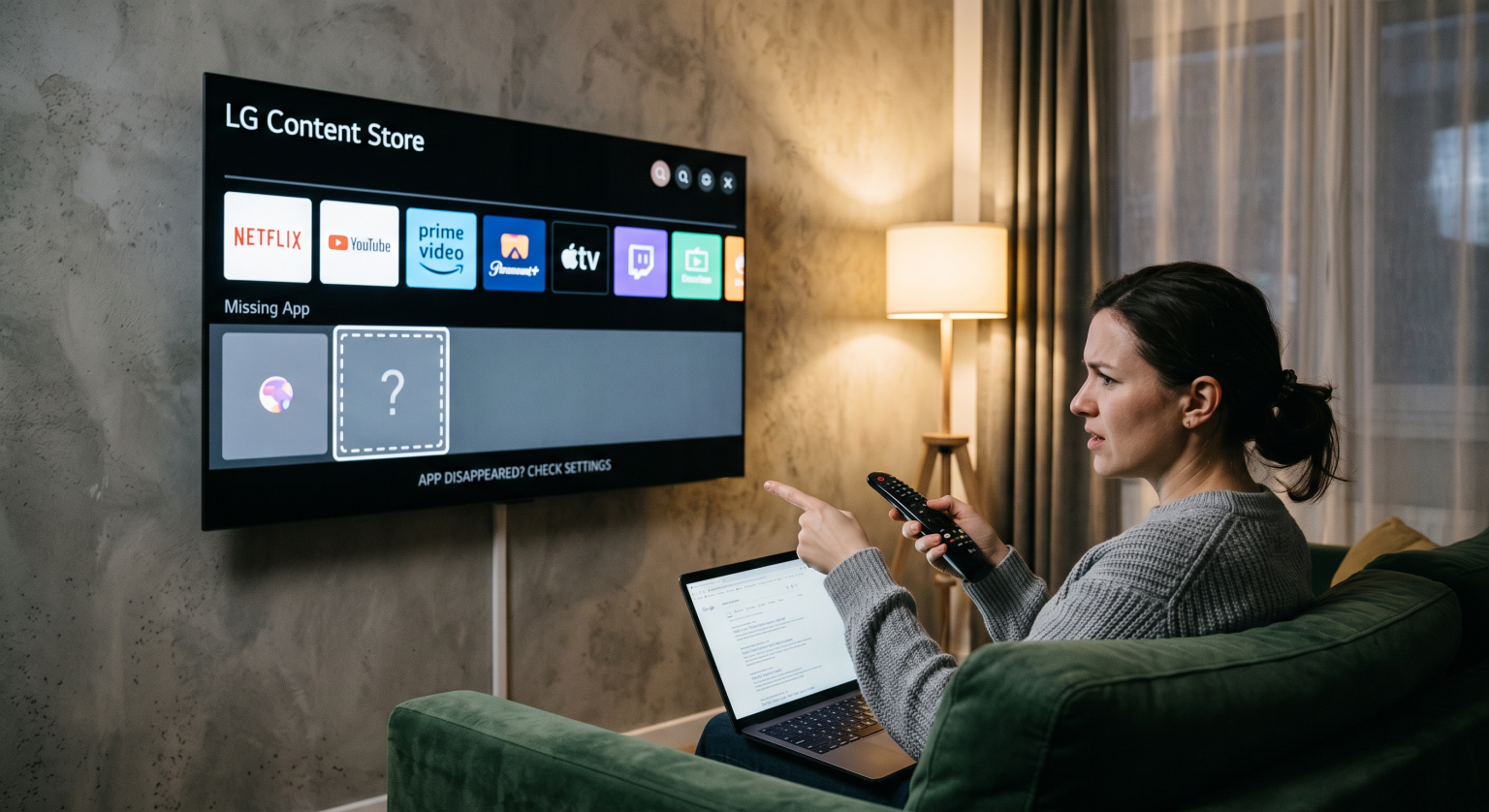
Turning on your television to stream your favorite show only to find your LG TV app disappeared is incredibly frustrating. If the LG Content Store is suddenly missing your go-to platforms, don’t panic. You can restore your apps in minutes with a few simple adjustments to your system settings.
Why Are LG Content Store Apps Missing?
When an LG smart TV application is not showing, it usually points to a software glitch, network error, or incorrect regional setting. Modern webOS updates occasionally clear cached data or require a manual app reinstallation. Additionally, temporary server outages can make the LG Content Store appear empty.
How to Fix When an LG TV App Disappeared in the United States
For users in the United States, region mismatches are the most common culprit behind a missing webOS app. The LG Content Store filters applications based on your broadcast country. If your location settings get switched, your favorite U.S. apps will immediately vanish from the dashboard.
1. Verify Your LG Services Country Settings
Ensure your TV is configured for the correct local region. Go to Settings > General > System > Location > LG Services Country and select the United States. Reboot the TV and check the Content Store again to see if your apps have returned.
2. Perform a Deep Power Cycle
A simple reboot can solve temporary glitches when an LG TV app is not loading. Unplug your TV from the wall for at least 60 seconds. Press and hold the physical power button on the TV for 15 seconds to drain residual power, then plug it back in.
3. Clear Cache and Reinstall
Low internal storage can cause apps to silently crash or disappear from your home screen. Navigate to Settings > Support > OLED Care / Device Self-Care and run the Memory Optimizer. Once cleared, search the Content Store to manually restore deleted LG apps.
4. Update Your WebOS Firmware
Running outdated firmware can cause compatibility issues with newer app versions. Navigate to Support > Software Update to check for the latest system software. Installing the newest U.S. webOS patch ensures optimal Content Store performance.
Troubleshooting Methods: Which Fix Should You Try First?
Choosing the right troubleshooting step saves time and prevents unnecessary frustration. Review this quick comparison of common fixes to restore your missing apps efficiently.
| Troubleshooting Method | Primary Cause Addressed | Estimated Time |
| Change LG Services Country | App geo-restrictions and region errors | 2 Minutes |
| Deep Power Cycle | Temporary software glitches and frozen apps | 3 Minutes |
| Memory Optimizer / Cache Clear | Low storage and corrupted webOS data | 1 Minute |
Conclusion: Get Your LG TV App Back in the United States
Discovering that an LG TV app disappeared doesn’t mean your television is broken. By checking your region settings, clearing your system cache, and verifying your software, you can easily get back to streaming. Keep your LG Services Country locked to the United States to prevent future regional lockouts and missing apps.
Ready to upgrade your streaming setup? Subscribe to our weekly tech newsletter for more exclusive smart TV troubleshooting tips, or check out our premium tech support plans today to never miss a show again!
People Also Ask (FAQ)
Why did Netflix disappear from my LG TV?
Netflix can disappear if your LG Services Country accidentally changes or if a webOS software update corrupts the app data. Updating your location settings to the correct country and reinstalling the app from the Content Store usually resolves the issue.
How do I find a missing app on my LG smart TV?
Open the LG Content Store and navigate to the Search icon (magnifying glass) in the top right corner. Type the name of the missing app to manually locate it. If it doesn’t appear, verify your region settings and ensure your TV’s firmware is fully updated.
Will a factory reset restore missing LG apps?
Yes. If all other troubleshooting steps fail, navigating to Settings > General > System > Reset to Initial Settings will restore the TV to its factory defaults. You will then need to run through the initial setup, re-download your apps, and log back into your accounts.