
Accessible IPTV Client Android is an open-source media player created by developer serrebidev for Android devices, Android TV, and Google TV. The software is specifically built to work cleanly with Android screen readers such as TalkBack and directional pad (D-pad) remote controls.
Unlike standard television apps that use small icon buttons or auto-hiding menus, Accessible IPTV Client Android uses labeled text buttons, high-contrast focus outlines, and structured headings. Version 0.2.27 builds on the recent 0.2.x Android release series, which introduced improved live stream buffering, Dispatcharr restreamer compatibility, and single-stream connection handling per device.
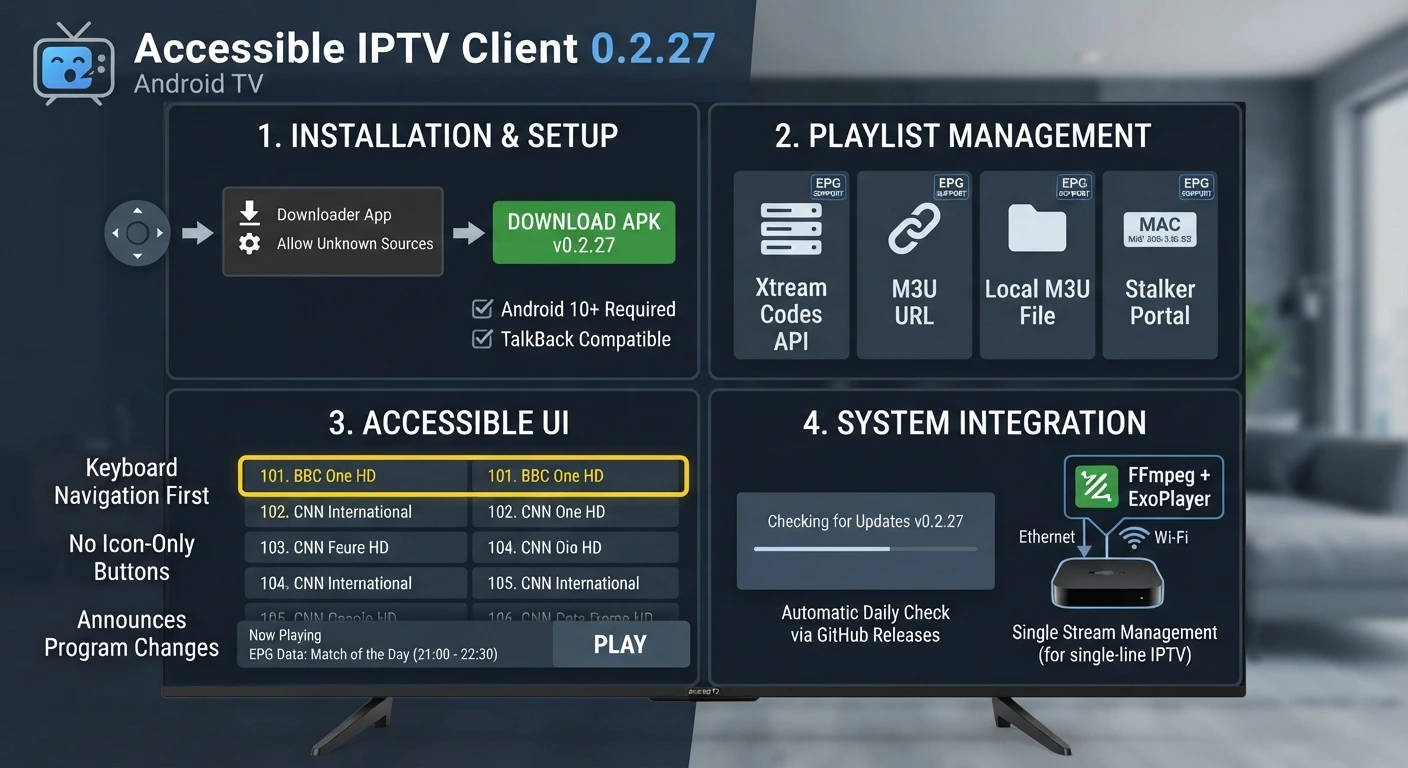
Respuesta rápida
Accessible IPTV Client Android (including the 0.2.27 release branch) is a free, open-source IPTV player designed for users who rely on TalkBack screen readers, keyboard navigation, or simple D-pad remote controls on Android TV and Google TV. It supports M3U playlists, Xtream Codes, Stalker Portals, and XMLTV program guides without hosting any built-in channels.
Standard IPTV players are often better for users who want heavy visual customization or built-in app store installation. Accessible IPTV Client Android is the better choice for blind or low-vision users and people who want a fast, text-focused interface on Android 10 or newer.
What Is Accessible IPTV Client Android?
Accessible IPTV Client Android is the Android companion to the desktop Accessible IPTV Client for Windows and Linux. The application acts purely as a local media player. It does not include television channels, movies, or subscription services. Users must supply their own playlist credentials from a service provider such as TV Shadow IPTV.
The application follows the CVS Health Android View accessibility guidelines. Every screen avoids unlabelled icons and hidden overlays. Instead, the interface presents plain text buttons and clear section headings so screen readers and television remote controls move predictably across every menu.
Key Features in Accessible IPTV Client 0.2.27
The 0.2.x series of Accessible IPTV Client Android includes technical features designed for reliable television playback and accessible navigation.
Screen Reader and D-Pad Navigation
TalkBack Optimization: Every channel or program row acts as a single navigation stop. Additional options—such as adding a channel to Favorites, opening the program guide, recording, or switching to an external video player—sit inside the TalkBack Actions menu or open via the remote control Menu key.
High-Contrast Focus Outlines: On Android TV and Google TV, every button and list item shows a thick, high-contrast border when selected with a D-pad remote control.
No Auto-Hiding Controls: Playback buttons remain visible and reachable without requiring timed mouse movements or touch gestures.
Spoken Announcements: The player announces program changes aloud. Users can adjust the detail level of spoken alerts inside Settings > Announcements.
Playlist and Protocol Support
Accessible IPTV Client Android connects to four common IPTV formats:
API de Xtream Codes: Loads Live TV, Movies, and Series into separate sections using a server URL, username, and password.
M3U and M3U Plus URLs: Loads remote playlists directly from a web address.
Local M3U Files: Reads playlist files stored directly on the television or streaming box.
Stalker Portals: Connects using a portal address and Media Access Control (MAC) address.
Electronic Program Guide (EPG) and Subtitles
The application imports Electronic Program Guide (EPG) data in standard .xml and compressed .xml.gz formats, including large files over several hundred megabytes. The guide organizes schedules under daily headings. Screen reader users can jump forward or backward one full day at a time using heading navigation.
During video playback, subtitles appear below the video frame and can also be read aloud by your Android screen reader.
Playback Buffering, Recording, and Catch-Up
Fast Channel Start: Live streams begin playing after buffering half a second of video. The player then fills the remaining buffer cushion (up to 30 seconds by default) at normal playback speed without slowing down the audio or video.
Automatic Reconnection: If a live television stream drops due to a brief network interruption, the client reconnects automatically.
Live Recording and Catch-Up: Active recordings appear at the top of the recordings list with a clear Stop button. If a catch-up download stops early due to a connection drop, the application fetches the missing segment again.
Numeric Remote Shortcuts: If your television remote has number buttons, pressing channel digits jumps directly to that channel number.
System Requirements and Device Compatibility
Accessible IPTV Client Android requires Android 10 or later. It runs on Android TV televisions, Google TV streaming devices, Android TV boxes, smartphones, and tablets.
App installation differs from standard Google Play apps because Accessible IPTV Client Android is distributed directly through the developer’s GitHub Releases page and a signed F-Droid repository rather than the main Google Play Store.
| Característica | Accessible IPTV Client Android (0.2.x) | Standard Google Play IPTV Players |
| Minimum OS Version | Android 10 or later | Varies by app (often Android 7.0+) |
| Installation Source | GitHub APK or custom F-Droid repository | Google Play Store |
| Screen Reader Support | Built natively for TalkBack navigation | Often limited or unlabeled icons |
| Formatos compatibles | Xtream Codes, M3U/M3U+, Stalker Portal | Usually M3U and Xtream Codes |
| Built-In Updates | Daily automatic check via GitHub Releases | Managed by Google Play Store |
| Price | Free and open-source | Free, freemium, or paid license |
If you are choosing hardware to run Android TV applications, our comparison of El mejor sistema operativo para Smart TV para IPTV en 2026: Tizen, Google TV y webOS explains why Google TV and Android TV allow sideloading APK files while Samsung Tizen and LG webOS do not.
How to Install Accessible IPTV Client on Android TV
Because Accessible IPTV Client Android is distributed as an Android Package Kit (APK) file, you must sideload it onto your television or streaming box.
Method 1: Install Using the Downloader App
Open the Google Play Store on your Android TV or Google TV device.
Search for and install the Downloader app by AFTVnews.
Open your television Settings, go to Privacy or Security & Restrictions, and allow Unknown sources for the Downloader app.
Open Downloader and enter the official project repository address: [https://github.com/serrebidev/Accessible-IPTV-Client-Android/releases](https://github.com/serrebidev/Accessible-IPTV-Client-Android/releases) or [https://fdroid.serrebiradio.com/](https://fdroid.serrebiradio.com/).
Select the latest AccessibleIPTV-v0.2.27.apk (or newest available release) file and download it.
Select Install when the Android package installer prompt appears.
Open the app from your Android TV home screen.
Method 2: Install Using ADB from a Computer
Advanced users can install the APK over a local network using Android Debug Bridge (ADB):
Download the AccessibleIPTV-v0.2.27.apk release file onto your Windows, macOS, or Linux computer.
Enable Developer options and USB/Network debugging on your Android TV device.
Connect to your television IP address using adb connect <TV-IP-ADDRESS>.
Run adb install AccessibleIPTV-v0.2.27.apk in your terminal.
Automatic Updates After Installation
Once installed, Accessible IPTV Client Android checks GitHub Releases once per day for newer versions. You can also trigger a manual check by opening More > Check for updates inside the application. The updater verifies the SHA-256 cryptographic checksum before installing any update.
How to Set Up Your IPTV Playlist and EPG
After installing the application, follow these steps to connect your IPTV service:
Launch Accessible IPTV Client on your Android TV.
Seleccionar Listas de reproducción from the main screen.
Elige Añadir lista de reproducción and select your connection type: Códigos Xtream, URL de M3U, Archivo M3U, o Stalker Portal.
Enter the server URL, username, and password provided by your IPTV subscription—such as your TV Shadow IPTV account details—and save the profile.
Return to the main screen. The application loads your channel groups first and imports the XMLTV program guide in the background.
Abrir TV en directo, Películas, o Serie to browse categories, or select Buscar at the top of the screen. You can type a channel name or press the Voice button to search by speech.
Backing Up Your Configuration
Accessible IPTV Client Android allows you to export all settings, playlist logins, and favorite channels into a single backup file. If you set up a second television in your home, you can import that single file instead of typing long URLs with a remote control.
IPTV Compatibility and Streaming Performance
Accessible IPTV Client Android works well with standard M3U playlists and Xtream Codes logins from providers like TV Shadow IPTV, provided your device runs Android 10 or newer. Sin embargo, compatibility and stream smoothness depend on several hardware and network factors:
One Connection Per Device: Recent 0.2.x builds enforce one active provider stream per device while sharing that connection during local recordings. This prevents accidental multi-connection bans on single-line IPTV subscriptions.
Television Operating System Limits: Accessible IPTV Client Android works only on Android and Android TV / Google TV devices. It cannot be installed on Samsung Tizen or LG webOS televisions. If you are comparing television brands before buying a new screen, read our guide on Tizen vs Google TV for IPTV Apps: What’s the Difference?.
Live Sports and Motion Stability: When watching live football or fast-moving sports through any IPTV player, stream stability matters as much as app accessibility. Connect your Android TV box using an Ethernet cable instead of Wi-Fi whenever possible to avoid packet loss during peak evening hours. If live sports look blurry on a large screen, check our guide on ¿Por qué se ve borrosa la IPTV en un televisor 4K nuevo? to adjust your television motion and upscaling settings.
Note that TV Shadow IPTV has no official affiliation with Google, Android TV, or the independent developers of Accessible IPTV Client Android. Always verify that your playlist credentials and streaming usage follow local laws and your provider’s terms of service.
Conclusión
Accessible IPTV Client Android (including the 0.2.27 release branch) solves a major problem on Android TV and Google TV by offering a fast, screen-reader-friendly IPTV player without cluttered graphics or hidden menus. Its native TalkBack integration, high-contrast D-pad focus outlines, and support for Xtream Codes, M3U, and Stalker Portals make it a reliable player for accessible television viewing.
While users who prefer installing apps directly from the Google Play Store may choose mainstream players, users who value accessibility, keyboard or remote precision, and open-source transparency will find Accessible IPTV Client Android well suited for daily streaming with services such as TV Shadow IPTV.
Preguntas frecuentes (FAQ)
Is Accessible IPTV Client Android free to use?
Yes, Accessible IPTV Client Android is free and open-source software. It does not contain advertisements, paid tiers, or built-in television subscriptions. You only need your own M3U or Xtream Codes playlist from an IPTV provider.
Why is Accessible IPTV Client not in the Google Play Store?
The developer distributes the Android APK directly through GitHub Releases and a self-hosted F-Droid repository. This allows fast updates with cryptographic SHA-256 verification without waiting for third-party app store review delays.
Does Accessible IPTV Client 0.2.27 work with TalkBack on Android TV?
Yes, the application is built specifically for Android TalkBack and other screen readers. Every button has a descriptive text label, list items act as single focus stops, and program changes can be spoken aloud automatically.