
¿Es tu Downloader not working on Firestick right after a system update? You are not alone, as thousands of users experience this exact frustration when their device reboots. Updates often reset developer permissions, breaking your ability to install third-party applications.
Whether you are streaming from a local network in the US, the UK, or anywhere else globally, regional Fire OS updates frequently overwrite custom settings. Fortunately, getting your favorite sideloading tool back online only takes a few minutes.
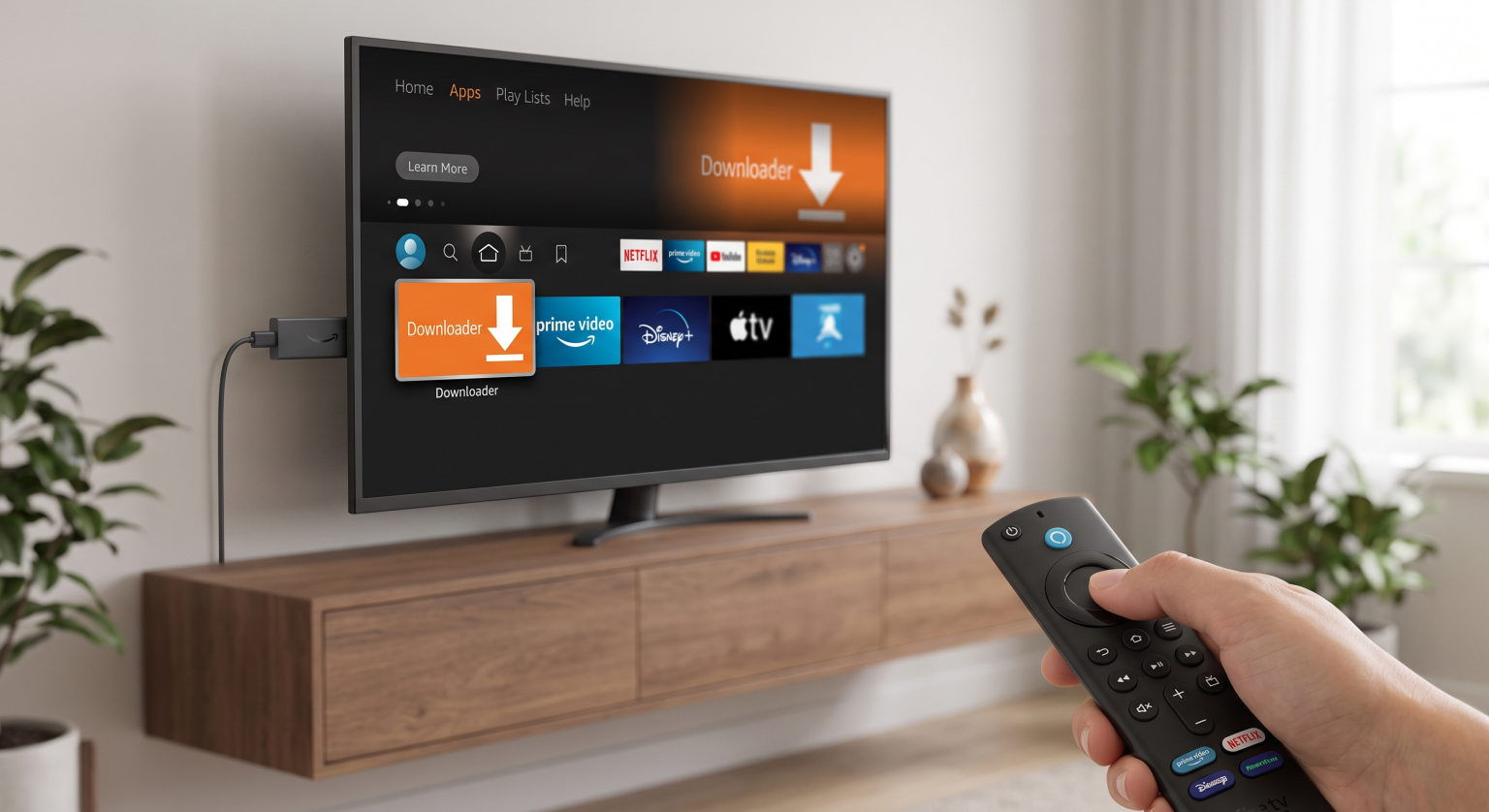
Why is Downloader Not Working on Firestick?
When Amazon pushes a new Fire OS update, it prioritizes device security and default configurations. This process often silently disables the permissions required for sideloading apps. If you are seeing a “parsing error” or the app simply refuses to open, the update is the likely culprit.
Additionally, accumulated cache data from older versions of the app can conflict with the new operating system. Clearing this digital clutter is often the fastest way to resolve a Downloader app error. Local network restrictions or regional ISP blocking can also prevent the app from fetching files properly.
The Impact of Regional Fire OS Updates
Depending on your local region, Amazon rolls out updates in staggered phases. This means you might suddenly find the Downloader not working on Firestick devices while your friends in another state or country have no issues. These regional patches frequently reset your “Unknown Sources” toggle back to the default “Off” position.
Top Alternatives to the Downloader App
If you need a quick workaround while troubleshooting your Fire TV, several alternative methods exist for transferring files. Here is how they stack up against the classic Downloader app.
| App / Method | Mejor característica | Ease of Setup |
| Downloader (AFTVnews) | Built-in browser and direct URL entry | ⭐⭐⭐⭐⭐ (Easiest) |
| Send Files to TV (SFTV) | Wirelessly push APKs from your smartphone | ⭐⭐⭐⭐ (Requires phone app) |
| Apps2Fire | Install apps directly from an Android device | ⭐⭐⭐ (Android users only) |
Step-by-Step Fixes for Fire TV Troubleshooting
If you are dealing with the Downloader not working on Firestick issue, follow these proven troubleshooting steps. These fixes address the most common post-update glitches.
1. Re-Enable Apps from Unknown Sources
System updates almost always disable developer options. To fix this, navigate to your Firestick Configuración, then select Mi Fire TV. Click on Opciones de desarrollador and ensure that “Install unknown apps” is turned ON specifically for the Downloader application.
Note: If Developer Options is hidden, click on “About” and tap the “Fire TV Stick” device name seven times to reveal the menu.
2. Clear App Cache and Data
Corrupted temporary files will cause the app to crash upon opening. Go to Ajustes > Aplicaciones > Gestionar aplicaciones instaladas. Scroll down to Descargador, and click Borrar caché followed by Detener a la fuerza.
3. Check Storage and Permissions
The app cannot download files if your device is out of space or lacks storage permissions. In the same “Manage Installed Applications” menu, verify that Downloader has permission to access your local storage. Delete unused apps if your Firestick has less than 500MB of free space remaining.
Asegúrate hoy mismo una experiencia de streaming óptima
Fixing the Downloader not working on Firestick error is only the first step to unlocking your device’s full potential. To ensure your ISP isn’t throttling your speeds or blocking your downloads, you need a secure connection.
Don’t let your ISP monitor your sideloading activity. [Suscríbete hoy mismo a una VPN premium] to encrypt your connection, bypass regional restrictions, and stream with ultimate privacy!
Preguntas frecuentes (FAQ)
Why does Downloader say "connection refused"?
This usually means your internet service provider (ISP) is blocking the specific URL you are trying to access. Using a reliable VPN will encrypt your traffic and bypass these local network blocks.
How do I update the Downloader app on Firestick?
Search for “Downloader” in the Amazon Appstore on your Firestick home screen. If an update is available, an “Update” button will appear in place of the standard “Open” button.
Is sideloading apps on Firestick safe?
Yes, but only if you are downloading APKs from trusted, reputable sources. Always be cautious of what you install to avoid malware.