
There’s nothing quite as irritating as sitting down to watch a game, opening your Reproductor de IPTV, and being greeted by an endless grid of “No Information.”
It’s the most common headache in the IPTV world. But before you fire off an angry email to your provider or start hunting for a new service, take a breath. The vast majority of EPG (Electronic Program Guide) failures are entirely fixable on your end, usually in just a couple of minutes.
Whether your XMLTV link is acting up, your app is choked by an overloaded cache, or the channel IDs are misaligned, here is the no-nonsense guide to getting your TV schedule populated again.
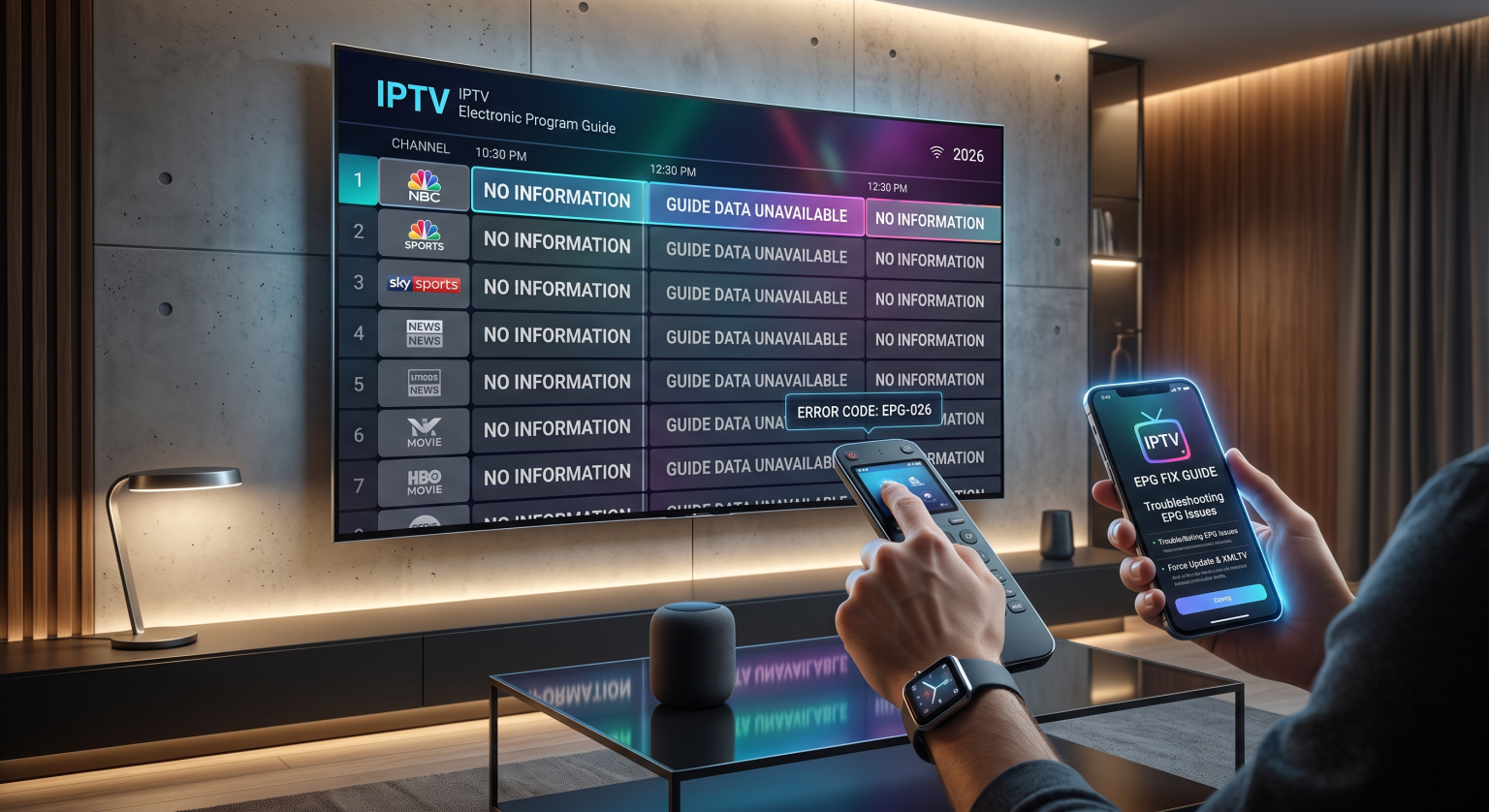
Why is Your IPTV EPG Blank?
Understanding why the guide breaks saves you from randomly mashing buttons. If you’re seeing a blank guide, the culprit almost always boils down to one of these three issues:
A typo in the XMLTV link: A single missing letter, or typing http instead of https, breaks the entire connection.
App cache overload: The player fails to pull the new schedule because it’s choking on outdated, corrupted data.
TVG-ID mismatches: The channel name in your playlist doesn’t perfectly match the name in the EPG archivo. For example, your playlist calls it “ESPN US,” but the guide data is looking for just “ESPN”.
5 Proven Fixes for the "No Information" Error
1. The 60-Second Fix: Clear Cache and Force Update
If you had a working EPG yesterday and a blank screen today, your app’s cache is likely jammed.
For TiviMate: Ve a Ajustes > EPG > Borrar EPG, then immediately select Actualizar la guía de programación (EPG). If that doesn’t do it, go to your device’s main settings (like your Firestick or Android TV menu), find the TiviMate app, hit Detener a la fuerza, selecciona Borrar caché, and relaunch.
For IPTV Smarters: Go to the app’s settings and click Borrar caché. Head back to the main dashboard, tap the Live TV section, and hit Refresh EPG.
2. Scrutinize Your XMLTV Link
Your guide data relies on an XMLTV URL (which usually ends in .xml or .xml.gz). If you entered this link manually, check every single character. A rogue space or a lowercase letter that should be uppercase will result in zero data. If you log in via Xtream Codes, the EPG should populate automatically. If it doesn’t, ping your provider their server might be experiencing temporary downtime.
3. Manually Assign the EPG to Stubborn Channels
Sometimes the EPG downloads perfectly, but the app just doesn’t know which data belongs to which channel due to a naming mismatch.
If only a handful of channels show “No Information,” you can map them yourself. In apps like TiviMate, simply long-press the blank channel in the guide and select Assign EPG. Use the search function to find the network manually. You’d be surprised how often a channel like “TSN 1” is actually listed as “TSN 1 CA” in the EPG database.
4. Stop Hammering the Server
A lot of people set their apps to update the EPG every hour or to force an update every time the app starts. Turn this off. Constantly pinging the EPG server overloads it, and some providers will temporarily block your IP address if you pull data too frequently. Set your EPG update interval to 24 horas and disable the “Update on app start” toggle.
5. Bring in a Third-Party EPG Source
Si tu IPTV EPG Not Working, you don’t have to rely on it. You can easily add external, free EPG sources. Community-driven databases like EPGShare01 or the IPTV-org project on GitHub provide massive, constantly updated XML files. Just paste their URL as an additional EPG source in your player’s settings and prioritize it over the default one.
Built-in vs. External EPG Sources
Wondering if you should stick with your provider’s guide or set up a third-party link? Here is how they stack up against each other.
| Característica | Built-in Provider EPG | External EPG (e.g., EPGShare, IPTV-org) |
| Proceso de configuración | Automatic (usually pairs with Xtream login) | Requires manually copying and pasting XMLTV URLs |
| Channel Match Rate | High (TVG-IDs are pre-configured by the provider) | Variable (requires manual “Assign EPG” for mismatches) |
| Fiabilidad | Depends entirely on the provider’s server health | Generally highly stable and community-driven |
| Data Quality | Basic (Usually just Title and Time) | Detailed (Season/Episode info, posters, descriptions) |
| Coste | Included in your IPTV subscription | Free to use |
Conclusión
Seeing “No Information” plastered across your guide doesn’t mean your Servicio IPTV is broken. Most of the time, a quick cache clear, a manual refresh, or adjusting a mismatched channel name will bring your schedule right back. Work through the steps above, stop pulling your hair out, and get back to watching your favorite streams.