
Many IPTV users experience incorrect television guide information when streaming. This problem usually happens because the IPTV application displays the wrong time. To fix the television guide, you must understand how your application calculates time. Applications use either the internal clock of your television or the external clock of the IPTV provider.
When the application time does not match the provider time, the Electronic Program Guide (EPG) will show television programs at the wrong hours. This makes recording programs or finding live broadcasts very difficult.
This article explains the difference between IPTV player server time vs device time. You will learn how to check your application settings. You will also learn how to configure the time correctly so your television guide always matches your local time zone.
Respuesta rápida
To check whether your IPTV player uses device time or server time, change the time zone in the main settings of your television or streaming device. Restart your IPTV application. If the time inside the application changes to match your television, the application uses device time. If the application time remains the same, the application uses server time. You can usually fix television guide errors by adjusting the “Time Offset” or “EPG Shift” setting inside your IPTV application menu.
Understanding IPTV Time Synchronization
IPTV applications require accurate time data to display the television guide correctly. The application must read a schedule file, usually called XMLTV data. This file contains the start times and end times for every television program.
The application must compare the program start time with the current time. The application can find the current time using two different methods.
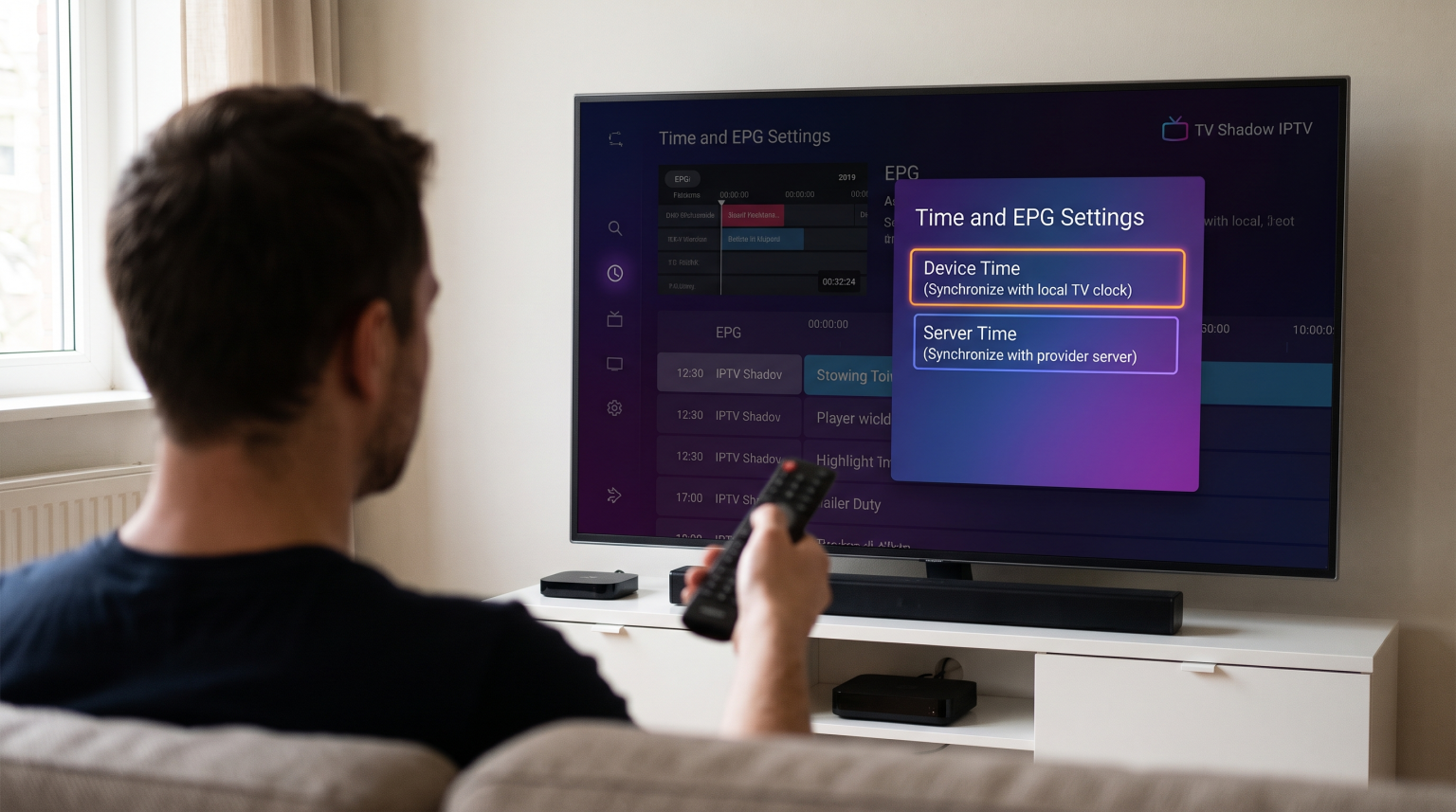
What Is Device Time?
Device time is the local time configured on your physical hardware. This hardware could be a Smart TV, an Android TV box, or an Amazon Fire TV Stick.
When an IPTV application uses device time, the application reads the system clock of your hardware. If you live in London and your television is set to London time, the IPTV application will display London time.
If you travel to another country and change your device clock, the application time will also change. This method is usually the most accurate way to display your local time. However, El mejor sistema operativo para Smart TV para IPTV en 2026: Tizen, Google TV y webOS handle device time differently. You must ensure your television is connected to the internet to keep the device time accurate.
What Is Server Time?
Server time is the time configured on the computer server of the IPTV provider. The provider sends this time data through the Xtream Codes API connection or the M3U playlist.
When an IPTV application uses server time, the application ignores the clock on your television. The application only displays the time provided by the external server.
If the provider server is located in Germany, the server time might be Central European Time. If you live in New York, the application will display German time instead of New York time. This causes the television guide to be incorrect for your local area.
IPTV Player Server Time vs Device Time: A Comparison
The table below explains the main differences between the two time calculation methods.
| Característica | Device Time | Server Time |
| Time source | Television or streaming hardware | External provider server |
| Local accuracy | Alto | Depends on server location |
| VPN impact | A VPN does not change the time | A VPN might change the time |
| Television guide accuracy | Requires local time zone alignment | Matches the provider broadcast schedule |
| User control | User can change time in TV settings | User cannot change server time |
How to Check Your IPTV Player Time Source
You can perform a simple test to discover which time source your IPTV application uses. Follow these steps carefully.
Step 1: Note the Current Application Time
Open your IPTV application. Open the television guide or the main menu. Find the clock displayed inside the application. Write down this exact time.
Step 2: Close the Application
Completely close the IPTV application. Do not leave the application running in the background. If you use an Android device, force close the application in the system settings.
Step 3: Change Your Device Time Zone
Open the main settings menu of your television or streaming device. Find the date and time settings. Turn off the automatic network time feature. Manually change your device time zone to a completely different time zone. For example, change the time ahead by four hours.
Step 4: Open the Application Again
Open your IPTV application again. Look at the clock inside the application.
If the application clock shows the new time, the application uses device time.
If the application clock shows the original time, the application uses server time.
Step 5: Restore Your Settings
Open your television settings again. Turn the automatic network time feature back on. This will restore your correct local time.
Fixing EPG Issues on TV Shadow IPTV
When using a premium service, you want the television guide to work perfectly. TV Shadow IPTV delivers accurate Electronic Program Guide data for all channels. However, your IPTV application must interpret this data correctly.
Most modern IPTV applications allow you to adjust time settings. If your television guide is showing programs at the wrong hour, you do not need to change the application time source. Instead, you can use a feature called “Time Offset” or “EPG Shift”.
How to Use Time Offset
The Time Offset feature pushes the television guide schedule forward or backward.
If the television guide shows a program starting at 14:00, but the real time is 12:00, the television guide is two hours ahead. You must enter a Time Offset of “-2”. This setting subtracts two hours from the television guide schedule. The program will now correctly show a start time of 12:00.
You can usually find the Time Offset setting in the Electronic Program Guide section of your application settings. Some applications allow you to set a Time Offset for the entire playlist. Other applications allow you to set a Time Offset for specific channels.
Why Time Synchronization Matters for Live Football
Accurate time synchronization is very important for watching live sports. Football matches have strict kickoff times. If your IPTV application displays the wrong time, you might miss the start of the match.
For example, a UEFA Champions League match might start at 21:00 Central European Time. If your television guide is not synchronized properly, the guide might show the match starting at 23:00. If you trust the television guide, you will turn on your television two hours late.
If you are buying a Los mejores televisores inteligentes para IPTV en 2026: comparación entre Samsung, Sony, LG y TCL, you must ensure the television operating system handles time zones correctly.
Time settings do not affect the video quality of the football match. Time settings only affect the text schedule. If the video quality of the match is poor, time synchronization will not fix it. If you experience poor video quality, you should read our guide explaining ¿Por qué se ve borrosa la IPTV en un televisor 4K nuevo?.
The Impact of VPN Connections on Time Settings
Many users connect to a Virtual Private Network (VPN) while streaming. A VPN changes your IP address. This can sometimes affect your time settings.
If your IPTV application uses device time, a VPN connection usually does not change the application clock. The application still reads the physical hardware clock.
If your IPTV application uses server time or automatic network time, a VPN connection might change the application clock. If you connect to a VPN server in Japan, the application might think you are located in Japan. The application might change the clock to Japan Standard Time.
If your television guide shows the wrong time after connecting to a VPN, you should check your device time settings. Ensure your device is set to use a manual time zone instead of an automatic network time zone.
Conclusión
Understanding the difference between IPTV player server time vs device time will help you fix television guide errors quickly. Device time reads the clock on your physical television. Server time reads the clock from the provider server.
When these two clocks do not match, your television guide will display incorrect program schedules. You can test your application by changing your television time zone manually. If you experience television guide errors, the easiest solution is to adjust the Time Offset setting inside your IPTV application. Keeping your time settings accurate ensures you never miss live football matches or your favorite television programs on TV Shadow IPTV.
Preguntas frecuentes
What does EPG shift mean?
EPG shift is a setting inside an IPTV application. This setting moves the television guide schedule forward or backward by a specific number of hours. You use this setting to fix incorrect program start times.
Why is my IPTV guide showing the wrong time?
Your IPTV guide shows the wrong time because the application time zone does not match the provider time zone. You can fix this by adjusting the time offset setting in your application menu.
Should I use device time or server time for IPTV?
You should usually use device time. Device time ensures the application matches your local clock. This makes reading the television guide much easier for daily use.