
Frustrated by losing your perfectly organized channels every time you switch devices? You are not alone. Figuring out how to perform a reliable IPTV playlist backup is a game-changer for cord-cutters. Whether you are upgrading your TV or switching apps, saving your personalized setup is entirely possible.
En el Estados Unidos, the streaming landscape shifts rapidly. Keeping your curated sports, news, and entertainment lists safe is a top priority for local viewers. No one wants to rebuild their custom groups from scratch just because an app crashed!
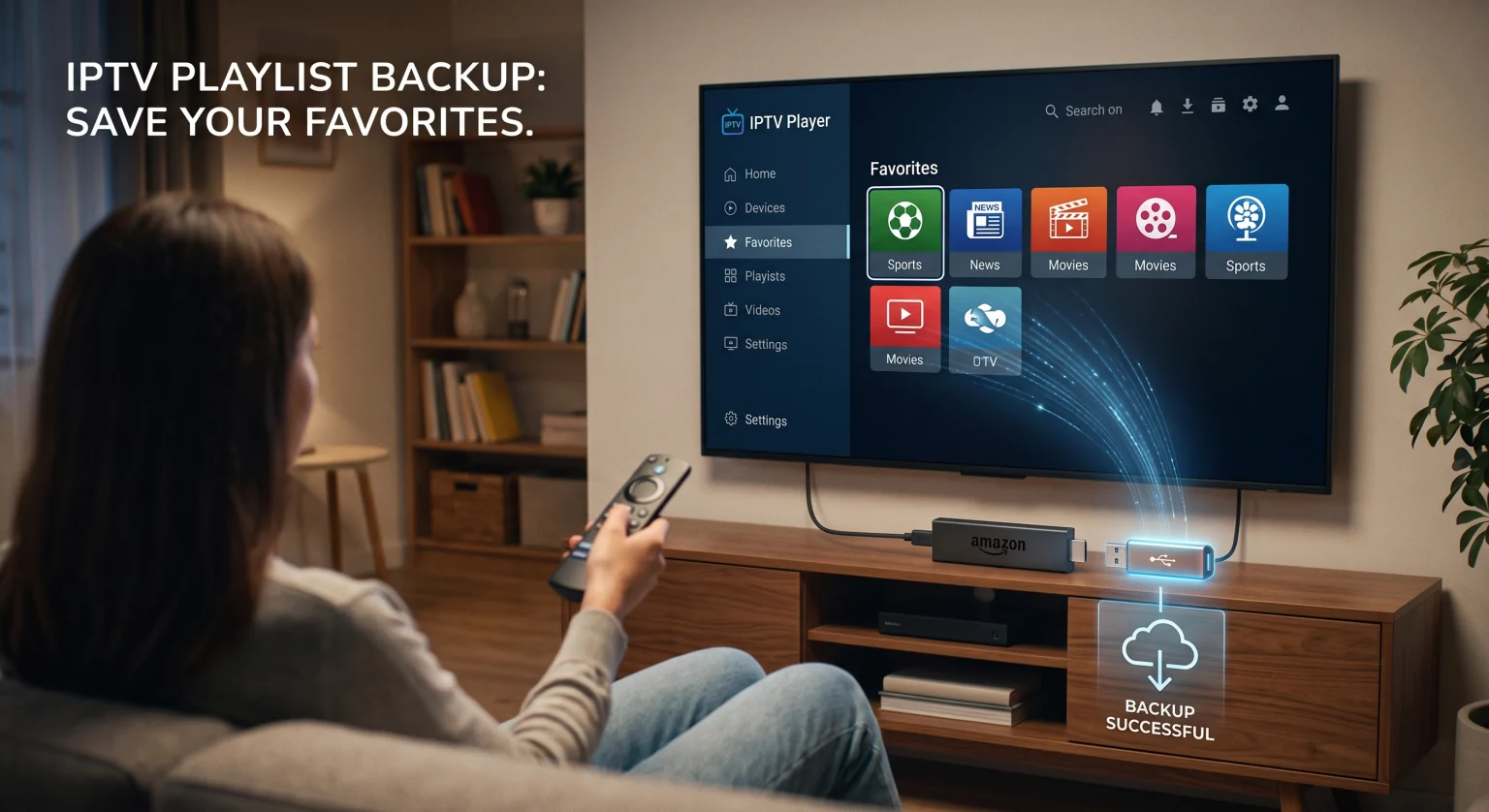
Why You Need an IPTV Playlist Backup in the United States
Creating the perfect home streaming setup takes time and patience. By executing an IPTV playlist backup, you safeguard hours of hard work. It allows you to export favorites, custom groups, and specific channel lists seamlessly to new devices.
If you rely on an URL de M3U o Códigos de Xtream, your provider only supplies the raw channels from their server. They do not save how you organize them on your local television or tablet. If your hardware fails or you buy a new US-based Android TV box, a secure backup file ensures you can restore settings in a matter of minutes.
Top IPTV Players Compared: Who Handles Backups Best?
Not all applications are created equal when it comes to saving your data. Below is a comparison of popular streaming players and their ability to handle backup and restore functions.
| Reproductor de IPTV | Backup Favorites & Playlists? | Backup Method & Core Features |
| TiviMate Premium | Yes, Full Support | Local device storage or SMB/Cloud. Backs up all settings, favorites, and custom groups. |
| IPTV Extreme | Yes, Full Support | Features a web portal for complete backup file uploads, plus local storage options. |
| IPTV Smarters Pro | Limited / Sync Only | Syncs favorites via Xtream codes login across devices, but lacks a direct local M3U file export. |
How to Export Favorites and Restore Settings
If you are using a high-end application like TiviMate, saving your data is a straightforward process. Always ensure your EPG data (TV guide) and playlists are fully updated before you begin.
Follow these simple steps to secure your custom setup:
Navigate to Settings: Open your player’s main menu and look for the “General” or “Backup Data” tab.
Create the File: Select the backup option, and the app will generate a localized file containing your complete IPTV playlist backup.
Move to Cloud/USB: Transfer this file to a USB flash drive or a cloud storage account (like Google Drive) using a basic file manager.
Restore on New Device: Open the app on your secondary device, select “Restore,” and point the software to your saved file to instantly mirror your setup.
Securing Your Streaming Setup Across the US
As the Estados Unidos streaming market continues to grow, taking total control of your media management is essential. Relying entirely on a provider’s default layout can ruin your weekend viewing experience.
By prioritizing a routine IPTV playlist backup, you guarantee that your carefully curated live TV channels remain exactly how you like them. You remain in the driver’s seat, giving you the freedom to seamlessly upgrade your home theater devices without fear of data loss.
Ready to level up your cord-cutting experience?
Preguntas frecuentes (FAQ)
Can I transfer my IPTV favorites to another device?
¡Sí! If your chosen app supports full data exports (like TiviMate or IPTV Extreme), you can generate a backup file. Simply transfer that file to your new device via USB or a network drive and run the restore function.
Do M3U links save my custom groups automatically?
No. An M3U link only provides the master list of media from the host server. Any favorites, hidden categories, or custom groups you create are saved locally on your specific device hardware, which is exactly why manual backups are crucial.
What is the best app for IPTV playlist backup?
For Android TV users, TiviMate Premium is widely considered the industry standard. It offers a flawless, built-in backup and restore feature that captures everything from your favorite channels to your exact interface preferences.