
TM IPTV Player is a popular application for viewing streaming media. Many users install this application on multiple devices. A user might have TM IPTV Player on a mobile phone, a computer, and a Smart TV. Managing separate settings on each device requires a lot of time. To solve this problem, the developer introduced the TM IPTV Google Sync feature.
The synchronization system allows the application to share your data automatically through your Google account. When you add a new playlist on your computer, the playlist immediately appears on your television. This article explains how TM IPTV Google Sync functions. We will compare this automatic system to traditional manual backups. We will also discuss how to configure the player for the best experience across different operating systems.
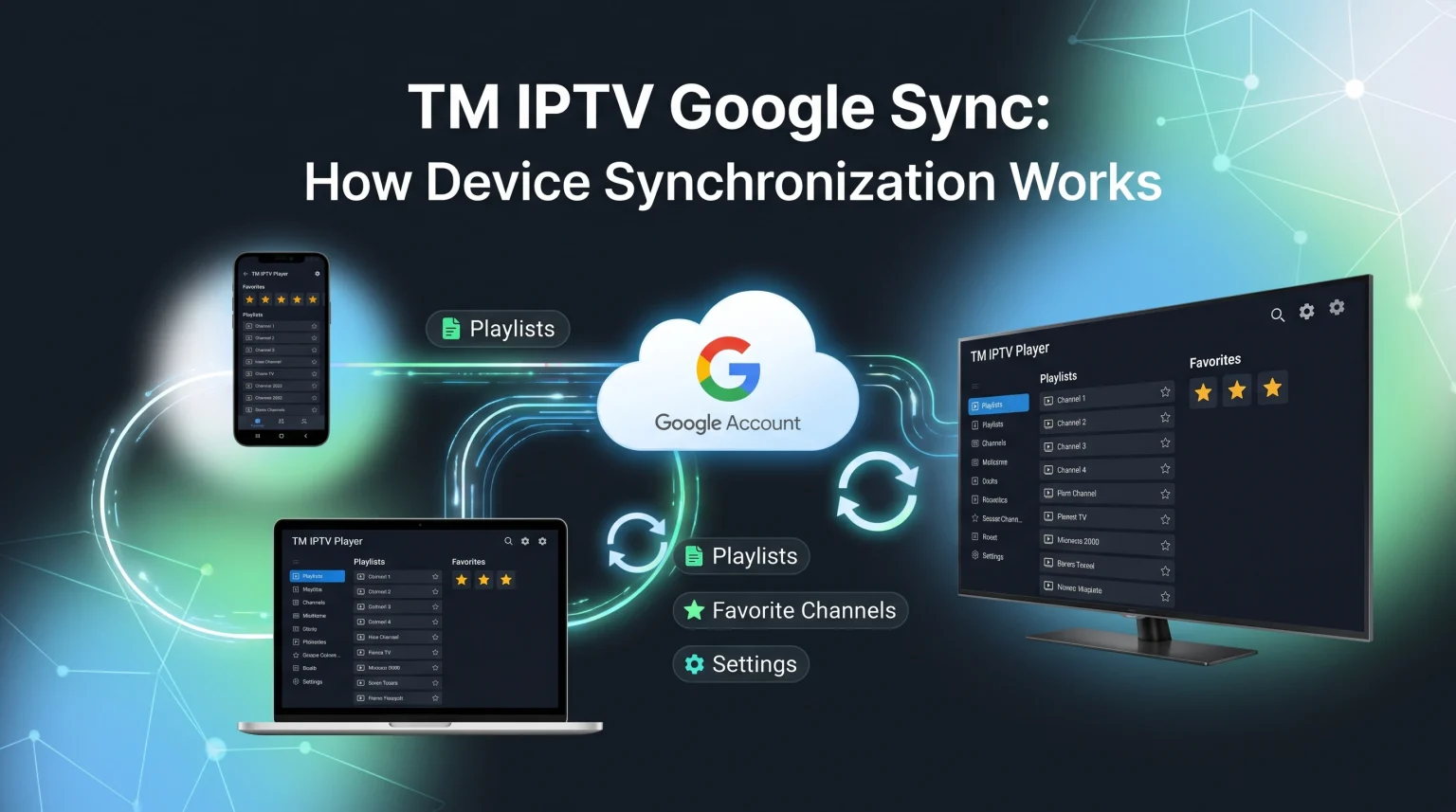
Respuesta rápida
TM IPTV Google Sync is a built-in feature that connects multiple installations of TM IPTV Player using a Google account. The feature automatically copies your playlists, favorite channels, and application settings to every connected device. This automatic process replaces manual file transfers. If you organize your channels on your mobile phone, the same organization appears on your Smart TV. TM IPTV Player does not include content, so you must provide your own media source. The synchronization requires an active internet connection to update your devices.
What Is TM IPTV Google Sync?
TM IPTV Google Sync is a cloud-based backup and sharing system. In the past, users had to configure every device separately. If a user bought a new Smart TV, the user had to type long playlist addresses again using a remote control.
The TM IPTV Google Sync feature changes this process. The feature uses your Google account to store a small configuration file in the cloud. This file is invisible, but it contains important data. The data includes your Xtream Codes login details, your M3U playlist links, your category preferences, and your favorite channels list.
When you open TM IPTV Player on a second device, you sign in with the same Google account. The application downloads the configuration file. The application then applies your settings to the new device automatically.
Manual Backup vs. Google Sync
Some media players only offer manual backups. TM IPTV Player offers both manual backups and automatic Google Sync. Understanding the difference helps you choose the best method for your home.
| Característica | Manual Backup | TM IPTV Google Sync |
| Data storage location | Local device memory | Google account cloud |
| File transfer method | User moves files manually with a USB drive | Application updates automatically over the internet |
| Updating a new device | Requires a new file import every time | Happens instantly when the application opens |
| Setup speed | Slow | Rápido |
| Internet requirement | No internet required for the backup file | Active internet required to synchronize |
Manual backup is useful if you only have one device. You can save the backup file on a USB stick. If your television breaks, you have a safe copy of your settings.
TM IPTV Google Sync is better for users with multiple devices. If you add a sports channel to your favorites on Monday using your phone, the sports channel will be in your television favorites on Tuesday. You do not need to move a USB drive between the phone and the television.
Supported Devices for Synchronization
TM IPTV Player is available on several platforms. The Google Sync feature works across different operating systems. This cross-platform compatibility is very useful.
You can install TM IPTV Player on:
Android TV devices
Google TV devices
Apple TV (tvOS)
Android mobile phones and tablets
Windows computers (via the Microsoft Store)
Because the synchronization uses a Google account, the operating system does not matter. You can configure your playlist on a Windows computer. The TM IPTV Google Sync feature will send that configuration directly to an Apple TV or an Android TV.
If you are currently choosing a new television, you must check the television’s operating system. TM IPTV Player requires specific app stores. For example, Samsung uses the Tizen operating system. Sony uses Google TV. If you want to understand the differences between television software, read our guide about El mejor sistema operativo para Smart TV para IPTV en 2026: Tizen, Google TV y webOS.
IPTV Compatibility and Playlist Formats
TM IPTV Player is an empty media player. The developer does not sell subscriptions. The developer does not provide television channels. Users must add their own content.
TM IPTV Player supports the two most common IPTV formats:
M3U Playlists: A digital list of media links. The user pastes a long URL into the player.
Xtream Codes: A login system. The user enters a server URL, a username, and a password.
The player also supports XMLTV format for the Electronic Program Guide (EPG). The EPG provides the television schedule.
Cuando utilizas un servicio como TV Shadow IPTV, you receive connection details. You can enter these TV Shadow IPTV details into TM IPTV Player. (Note: TV Shadow IPTV does not have an official affiliation with TM IPTV Player or Google).
If you use the TM IPTV Google Sync feature, you only need to type your connection details one time. The Google Sync feature will distribute the M3U link or the Xtream Codes login to all your other screens.
Provider Connection Limits
You must remember one important rule about synchronization. TM IPTV Google Sync copies your configuration. TM IPTV Google Sync does no give you more simultaneous connections.
Your IPTV subscription determines how many devices can play video at the exact same time. If your subscription only allows one connection, you cannot watch television on your phone and your Smart TV simultaneously. The TM IPTV Google Sync feature only synchronizes the menu layout and the playlists. The feature does not bypass your provider’s connection limit.
Managing Live Football Streams Across Devices
Sports fans benefit greatly from device synchronization. Live football requires reliable equipment and quick access to channels.
Imagine you are traveling home on a bus. You watch the first half of a live football match on your Android phone using TM IPTV Player. You add the specific sports channel to your favorites list. When you arrive home, you turn on your Android TV. Because of TM IPTV Google Sync, the sports channel is already waiting in your favorites list on the television.
Hardware Requirements for Live Sports
Synchronization makes finding the channel easy. However, the video quality depends on your television hardware.
Live football contains fast camera movements. To display fast movement clearly, a television needs good motion handling. The refresh rate is very important for sports. A higher refresh rate creates a smoother picture. If you are buying a television specifically for sports viewing, you should learn about Televisores de 60 Hz frente a 120 Hz para ver el fútbol en directo.
Network Stability
TM IPTV Google Sync requires a small amount of internet bandwidth to update your settings. Streaming live football requires a large amount of internet bandwidth.
For the best stability, connect your Smart TV directly to your internet router using an Ethernet cable. An Ethernet cable provides a constant connection. Wi-Fi connections can lose signal strength. A weak Wi-Fi signal will cause the live football video to freeze.
If your video stream looks bad on a high-quality television, the problem might be your internet speed or the original video resolution. For more information, read our explanation of ¿Por qué se ve borrosa la IPTV en un televisor 4K nuevo?.
How to Set Up TM IPTV Google Sync
Setting up the synchronization feature is a simple process. Follow these steps on your primary device:
Download and open TM IPTV Player.
Navigate to the application Settings menu.
Look for the Backup or Synchronization section.
Select the option to connect a Google account.
Follow the screen prompts to log into your Google account.
Allow TM IPTV Player permission to access its own data folder in Google Drive.
Add your IPTV playlist or Xtream Codes details.
Organize your categories and favorite channels.
After you finish the primary device, move to your second device.
Download and open TM IPTV Player on the second device.
Accede al menú «Configuración».
Connect the exact same Google account.
The application will detect your existing data.
The application will download your playlists and favorites automatically.
Common Synchronization Problems
Sometimes, the synchronization might fail. Here are common problems and simple solutions.
Wrong Google Account: Users sometimes connect a personal Google account on the phone, but connect a family Google account on the television. The TM IPTV Google Sync feature only works if all devices use the exact same Google account.
No Internet Connection: The application cannot share data without the internet. Ensure your device connects to Wi-Fi or Ethernet before you open TM IPTV Player.
Timeout Errors with Large Playlists: Some IPTV providers offer massive playlists with 100,000 items. Transferring massive playlists through Google Sync can take extra time. If the application shows a timeout error, wait a few minutes and try to synchronize again.
Conclusión
TM IPTV Google Sync is an excellent tool for users with multiple screens. The feature removes the frustration of typing long passwords using a television remote control. By using a Google account, the application keeps your playlists and favorite channels identical on Windows, Android TV, Apple TV, and mobile phones.
Manual backups remain useful for emergency situations. However, automatic synchronization is much faster for daily use. Remember that TM IPTV Player is only a media player. You still need a stable internet connection and a reliable media source, like TV Shadow IPTV, to watch live television. If you configure your primary device correctly, TM IPTV Google Sync will automatically prepare all your other devices.
Preguntas frecuentes (FAQ)
Does TM IPTV Player provide TV channels?
No. TM IPTV Player is only a software tool. The application does not contain movies, series, or live television channels. You must purchase a subscription from a separate IPTV provider and connect it to the player.
Is TM IPTV Google Sync free to use?
Yes. The TM IPTV Player application is free to download. The Google Sync feature is included in the free version. You do not need to pay a premium fee for synchronization.
Do I need a Google account to use TM IPTV Player?
No. A Google account is completely optional. You can use TM IPTV Player and enter your playlists manually without a Google account. You only need a Google account if you want to use the automatic synchronization feature or the Google Drive backup feature.