
Nothing is more frustrating than settling down for a live broadcast, only to have your screen freeze and kick you straight back to the Amazon home screen. If you are struggling with an IPTV app crashing on Firestick, you are not alone.
Streaming high-definition live feeds demands significant memory, stable hardware decoding, and reliable bandwidth from your local internet service provider. In this comprehensive 2026 troubleshooting guide, you will learn the exact causes behind these sudden crashes and the proven fixes to restore uninterrupted streaming.
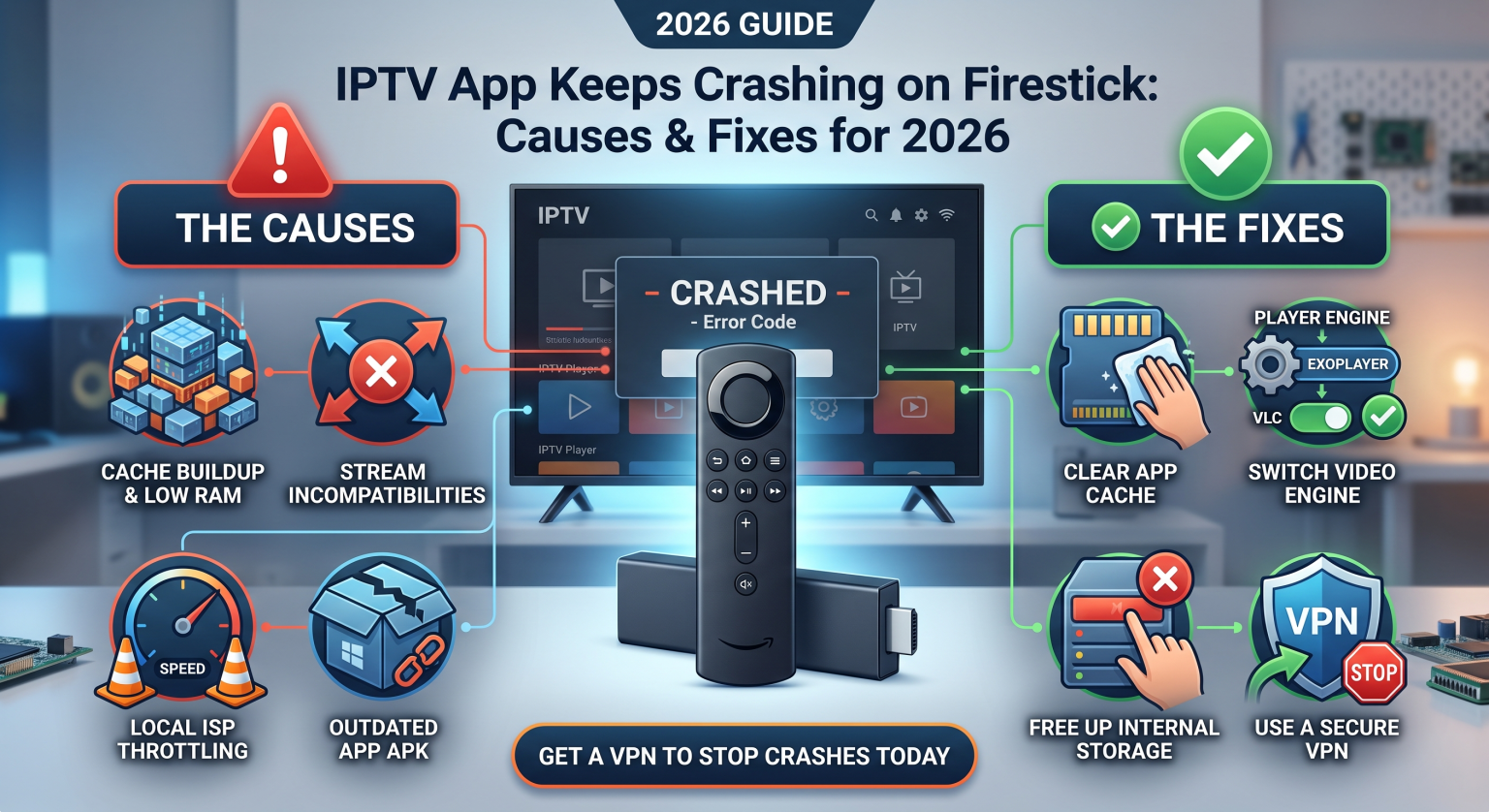
Why Is Your IPTV App Crashing on Firestick?
Amazon Fire TV Stick devices are compact and cost-effective, but their limited internal hardware makes them sensitive to resource overload. Pinpointing the root cause is the first step toward fixing the issue.
1. Cache Buildup and Low RAM
Firesticks generally operate with 1 GB to 2 GB of RAM. Continuous live streaming stores heavy temporary video buffers, leading to memory exhaustion and immediate app force-closures.
2. Stream Incompatibilities and Codec Errors
Modern IPTV streams use dynamic media containers such as H.264, HEVC (H.265), or AV1. If your IPTV player’s internal decoder cannot process the incoming stream format, the application will crash instantly.
3. Regional ISP Throttling and Connection Drops
Your local internet provider may detect high-bandwidth UDP video traffic and throttle your connection speed. Severe packet loss often triggers an unexpected Firestick app freezing loop followed by a crash.
4. Outdated APK or Corrupted Installation
Sideloaded IPTV applications do not always update automatically via the Amazon Appstore. Running an outdated APK on a newer Fire OS version frequently causes fatal system conflicts.
6 Proven Ways to Fix IPTV App Crashing on Firestick
Follow these actionable, step-by-step fixes to eliminate app crashes and optimize your Fire TV Stick for seamless playback.
1. Clear App Cache and Data
Clearing temporary files frees up vital system memory instantly without deleting your playlists (when clearing cache only).
Accéder à Paramètres on your Firestick home screen.
Sélectionner Applications > Gérer les applications installées.
Scroll down and click on your IPTV player (e.g., TiviMate, IPTV Smarters).
Cliquez ici Vider le cache.
If the issue persists, select Effacer les données (Note: You will need to re-enter your login credentials).
2. Switch the Video Player Engine (ExoPlayer vs. VLC)
Most IPTV players let you change the default media player engine to prevent decoder crashes.
Open your IPTV app settings and look for Joueur ou Lecture.
Switch the default engine from Built-in (ExoPlayer) à Hardware/VLC or an external media player.
Basculer Accélération matérielle on or off to test which setting delivers stable performance on your specific Firestick model.
3. Free Up Internal Device Storage
Your Fire TV Stick requires at least 1.5 GB to 2 GB of free storage space to buffer live TV streams properly.
Aller à Paramètres > Ma Fire TV > À propos > Storage to check available capacity.
Uninstall unused streaming apps and screen-recording utilities.
Delete downloaded APK files stored in your Téléchargeur app folder.
4. Deploy a Verified VPN to Bypass Local ISP Blocks
If your IPTV app closes specifically during peak evening hours or major sporting events, your local internet service provider is likely filtering your stream.
Install a reputable, lightweight VPN directly from the Amazon Appstore.
Connect to a high-speed server located closest to your physical location for optimal latency.
A VPN encrypts your traffic, bypassing ISP throttling and geo-restrictions that cause player timeouts.
5. Update Fire OS and Reinstall the Latest APK
Running an outdated operating system creates compatibility conflicts with modern streaming apps.
Aller à Paramètres > Ma Fire TV > À propos > Check for Updates and install pending updates.
If your IPTV app remains unstable, uninstall it completely, restart your Firestick, and download the latest version via the Téléchargeur app.
Local Network Optimization for Crash-Free Streaming
A weak local Wi-Fi connection frequently leads to buffer underruns that force IPTV applications to crash. Implement these quick local network adjustments:
Switch to a 5 GHz Wi-Fi Band: 5 GHz provides significantly higher bandwidth and lower interference than 2.4 GHz.
Use an Ethernet Adapter: For maximum reliability, connect your Firestick directly to your router using an official Amazon Ethernet adapter.
Restart Your Local Modem/Router: Power-cycle your networking hardware weekly to clear DNS cache and refresh local routing tables.
Comparing Top IPTV Players for Firestick Stability in 2026
If your current application continues to force-close despite troubleshooting, switching to a more stable, lightweight player often solves the problem entirely.
| Lecteur IPTV | Note de stabilité | Hardware Codec Support | Idéal pour |
| TiviMate Companion | ★★★★★ (Exceptional) | Auto / ExoPlayer / External | Premium UI, EPG stability, and multi-screen streaming |
| IPTV Smarters Pro | ★★★★☆ (High) | Built-in / VLC / Hardware | Ease of setup and multi-format playlist compatibility |
| Lecteur XCIPTV | ★★★★☆ (High) | ExoPlayer / VLC Built-in | Fast channel switching and integrated backup player |
| OTT Navigator | ★★★★☆ (High) | Highly Customizable Decoders | Advanced stream buffering controls on low-spec hardware |
Upgrade to a Reliable, High-Speed Streaming Setup Today
Eliminating an Application IPTV crashing on Firestick comes down to keeping your device cache clear, optimizing your hardware decoders, and securing an unthrottled local connection.
Ready to enjoy buffer-free, uninterrupted 4K streaming without sudden app crashes? Upgrade your streaming setup today with our ultra-fast, premium VPN protection and high-performance streaming gear!
Foire aux questions (PAA)
Why does my IPTV app keep closing automatically on Firestick?
The primary reasons are insufficient device RAM, an overloaded app cache, incompatible hardware decoders, or an outdated APK version conflicting with recent Fire OS updates.
Does clearing app data on Firestick delete my playlist?
Yes. Clicking Vider le cache is safe and removes only temporary junk, but clicking Effacer les données resets the app completely, requiring you to re-enter your M3U URL or Xtream Codes login.
Which video player engine is best to stop IPTV crashing?
For most modern Firestick 4K and 4K Max models, the built-in ExoPlayer with hardware acceleration enabled offers the best stability. On older Firestick models, switching playback to VLC often prevents memory crashes.