
Watching live UEFA Champions League matches requires perfect synchronization between video and audio. When the audio plays behind the picture, or the audio plays before the picture, the viewing experience suffers. Hearing the crowd celebrate a goal before you see the ball enter the net ruins the excitement of live football.
This synchronization problem is commonly called lip-sync delay or audio delay. A Champions League audio delay can originate from your Smart TV, your external soundbar, your internet network, or your IPTV application.
Because modern televisions apply complex image processing to live video streams, the television often finishes processing the audio signal faster than the video signal. This guide explains how to identify the exact cause of the audio delay and provides step-by-step instructions to fix the synchronization on your television and IPTV setup.
Snel antwoord
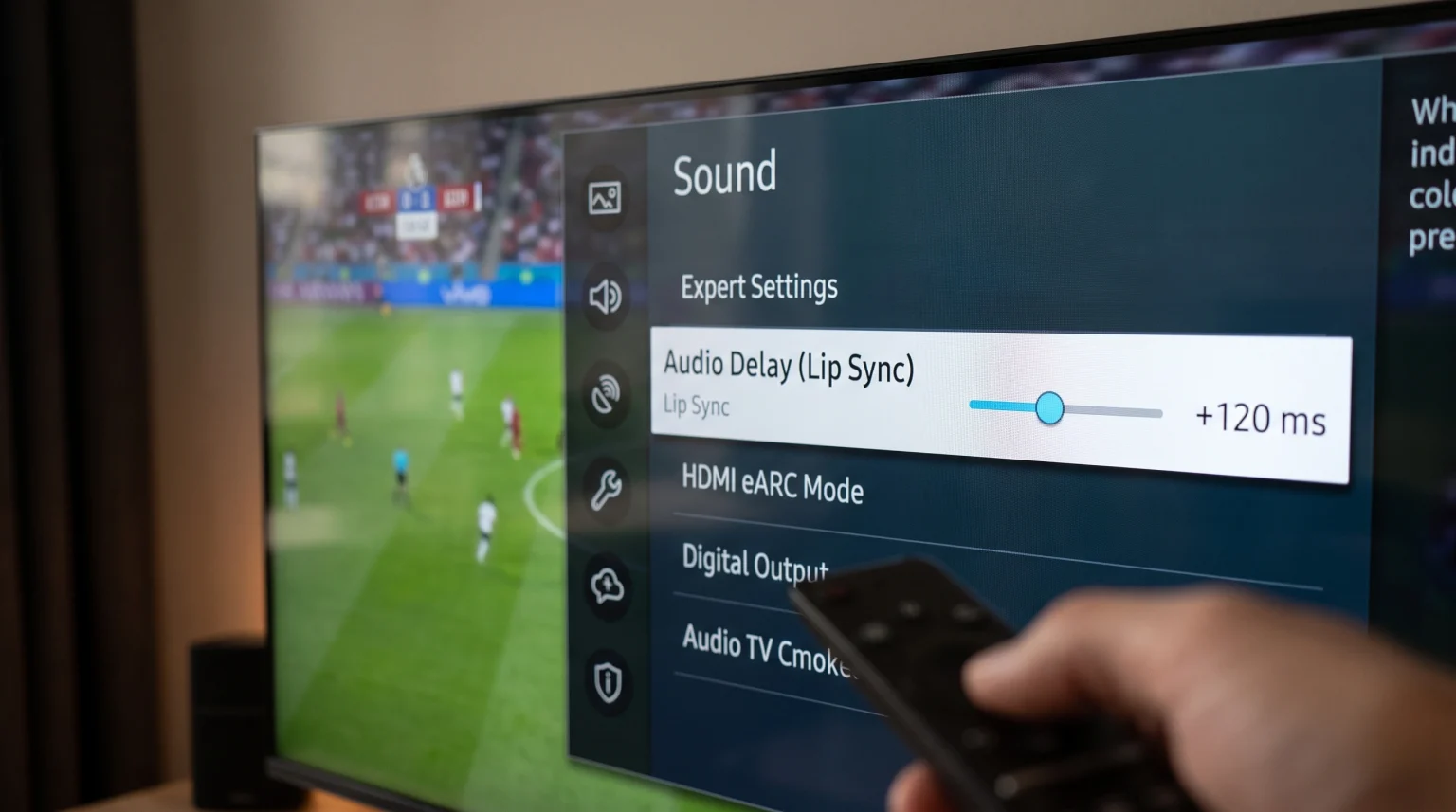
To fix a Champions League audio delay, first open the sound settings menu on your Smart TV. Locate the setting named “Lip Sync,” “Audio Delay,” or “A/V Sync.” Adjust the numerical slider until the stadium sound matches the video action.
If you use an external soundbar or audio receiver, change your television’s digital audio output format from “Auto” to “PCM” or “Pass-Through.” If the audio delay only occurs inside your IPTV application, open the application settings and switch the internal media player from hardware decoding to software decoding. Finally, disable all motion-smoothing picture settings on your television, as these features introduce heavy video processing delays.
Why Does Audio Delay Happen During Live Football?
Audio delay occurs because video data and audio data travel as separate streams. When a broadcaster transmits a live Champions League match, the television receiver must decode both streams simultaneously.
Video files require massive processing power. When you watch a live 4K football match, your television applies color correction, brightness adjustments, and motion smoothing to every single frame. This video processing requires milliseconds of time.
Audio files require very little processing power. The television can decode and play the audio instantly. Because the video takes longer to process, the video falls behind the audio. To solve this, manufacturers add an automatic audio delay to force the audio to wait for the video. When this automatic system fails, you experience a noticeable lip-sync error.
How to Fix Audio Delay on Your Smart TV
The fastest way to fix synchronization issues is to use the built-in audio delay settings on your television. Most major television brands provide manual adjustment sliders.
Samsung Tizen Audio Settings
If you own a Samsung Smart TV, the Tizen operating system includes an expert audio menu.
Press the Settings button on your remote control.
Navigate to Sound, then select Expert Settings.
Select “Digital Output Audio Delay.”
Adjust the slider. An increase in the number delays the audio more. Decrease the number if the audio is already playing too late.
Sony BRAVIA Google TV Audio Settings
Sony BRAVIA televisions running Google TV handle audio synchronization very effectively, but you may need to force the setting.
Open Settings and select Display & Sound.
Select Audio Output.
Locate the “A/V Sync” option.
Change the setting from “Auto” to “On” to force the television to delay the audio to match the video processing.
LG webOS Audio Settings
LG televisions offer a dedicated synchronization menu.
Press the Settings button and select All Settings.
Go to Sound, then select Advanced Settings.
Select “Match Screen and Sound.”
Choose “Bypass” to send the audio directly to your soundbar without processing, or use the slider to adjust the exact delay time.
If you are comparing different operating systems for your home entertainment setup, our guide to Het beste besturingssysteem voor smart-tv's voor IPTV in 2026 explains the differences between Tizen, Google TV and webOS in detail.
Soundbars and Home Theater Connections
Using an external soundbar or audio receiver introduces another step where audio delay can occur. The type of cable you use affects the transmission speed.
If your television processes the audio and then sends the audio to the soundbar, a delay is likely. You must configure the television to send the raw audio signal directly to the soundbar.
Audio Connection Types Compared
| Connection Feature | HDMI eARC | HDMI ARC | Optical (TOSLINK) |
| Bandwidth capacity | Zeer hoog | Medium | Laag |
| Uncompressed audio support | Yes (Dolby TrueHD, DTS-HD) | Nee | Nee |
| Automatic lip-sync feature | Mandatory | Optional | Nee |
| Audio delay risk | Lowest | Low to Medium | Hoog |
HDMI eARC (Enhanced Audio Return Channel) is the most modern connection. The eARC standard requires automatic lip-sync correction. If your television and your soundbar both support HDMI eARC, you should always use this connection.
Optical cables do not support automatic lip-sync correction. If you use an optical cable, you must adjust the audio delay manually using the television menus.
Changing the Audio Output Format
To reduce processing time, you must change how the television formats the audio.
Go to your television’s sound settings and find “Digital Audio Output Format.”
You will typically see three options:
PCM: The television decodes the audio and sends an uncompressed signal. This often eliminates delay but may disable surround sound.
Pass-Through (or Bitstream): The television does not touch the audio. The television sends the raw signal to the soundbar. The soundbar decodes the audio. This is usually the best option to maintain surround sound and fix synchronization.
Auto: The television decides. This setting frequently causes audio delay during live sports.
Live Football Picture Settings and Video Delay
Sometimes the audio plays at the correct time, but the video picture is arriving too late. This happens because the television is applying heavy video processing.
Many modern televisions include features called “Motion Smoothing,” “Action Smoothing,” or “TruMotion.” These features invent fake video frames to make fast movement look smoother. Creating these fake frames takes time. This processing time delays the video, which makes the audio sound like it is playing early.
When watching the Champions League, you should disable motion smoothing. Disabling this feature reduces video processing time and aligns the video with the audio.
You can also switch your television to “Game Mode.” Game Mode disables all unnecessary image processing to ensure the fastest possible video response. While Game Mode is designed for video games, it is an excellent tool for fixing stubborn video delays during live sports.
If you are confused by picture settings, read our guide exploring Een tv van 60 Hz versus een tv van 120 Hz voor live voetbal to understand how television hardware handles fast sports movement.
Fixing Audio Delay in IPTV Applications
When you watch live sports through TV Shadow IPTV or another IPTV service, the software application handles the video and audio streams. If the audio is perfectly synchronized on YouTube or Netflix, but delayed in your IPTV application, the problem is inside the IPTV software.
Hardware-decodering versus software-decodering
IPTV players usually offer two ways to process media: hardware decoding and software decoding. Hardware decoding forces the television’s physical processor chip to handle the video stream. Software decoding forces the application itself to handle the video stream.
If you experience a Champions League audio delay, open your IPTV application settings. Locate the internal media player settings. Switch the decoder from Hardware to Software, or from Software to Hardware. Restart the application and check the synchronization.
Changing the Audio Track
Some live sports broadcasts transmit multiple audio tracks simultaneously. For example, a stream might include a stereo audio track and a 5.1 surround sound audio track.
Sometimes, the surround sound track requires more processing time and becomes delayed. While watching the match, open the application’s video player menu. Select the audio track icon. Change the audio track from surround sound to stereo. A standard stereo track is simpler to process and often fixes synchronization errors immediately.
Adjusting the Buffer Size
Network fluctuations can separate the video and audio streams. When your IPTV application downloads the live stream, the application stores a few seconds of video in a temporary memory called a buffer.
If the buffer is too small, the video stream may stutter, which breaks the synchronization with the audio stream. Open your IPTV application settings and find the buffer size setting. Increase the buffer size to 3 seconds or 5 seconds. A larger buffer gives the application more time to perfectly align the audio and video streams before displaying them on your screen.
If you recently bought a new television and your sports streams do not look clear, our guide asking Waarom ziet IPTV er wazig uit op een nieuwe 4K-tv? explains how television resolution affects stream quality.
Network Connections and Stream Stability
A weak internet connection causes packet loss. Packet loss means some data pieces disappear during transmission. If audio packets arrive perfectly but video packets are lost, the video player will pause to wait for the missing video packets. This immediately ruins the audio synchronization.
Wi-Fi connections are highly susceptible to interference from walls, furniture, and other electronic devices. This interference causes fluctuating network speeds.
For live IPTV streaming, especially high-definition Champions League matches, you should always connect your Smart TV directly to your internet router using an Ethernet cable. An Ethernet cable provides a constant, stable data flow. This stability prevents the stream from buffering and ensures the audio and video remain perfectly locked together.
Conclusie
A Champions League audio delay disrupts the excitement of live football. However, the problem is almost always solvable by adjusting your hardware settings.
Begin by checking the audio output format on your Smart TV and changing the setting to PCM or Pass-Through. Next, adjust the built-in Lip Sync slider in your television’s sound menu. Ensure you are using an HDMI eARC connection if you have an external soundbar. If the problem persists only during live streaming, adjust the internal media player settings within your IPTV application and disable motion smoothing on your television. By bypassing unnecessary video and audio processing, you will synchronize the sound of the stadium perfectly with the action on the pitch.
FAQ
Why does the audio delay only happen on one specific channel?
If only one channel has an audio delay, the problem originates from the broadcaster or the stream source, not your equipment. The encoder creating the stream has misaligned the audio and video. You cannot fix this on your television. You must wait for the provider to fix the source stream.
Does a faster internet speed fix audio synchronization?
No. High internet speed allows you to watch higher quality video, but it does not fix lip-sync issues. Network stability (low latency and zero packet loss) is much more important for synchronization than total download speed.
Why is there a massive audio delay when I use Bluetooth headphones?
Bluetooth technology requires time to compress the audio, transmit it wirelessly, and decompress it inside the headphones. This process inherently causes an audio delay. For watching live football with headphones, use television models that support low-latency Bluetooth (aptX Low Latency) or use a wired connection.
Should I use PCM or Pass-Through for live sports?
If you experience an audio delay, Pass-Through is usually the best option when using a soundbar via HDMI eARC. Pass-Through forces the soundbar to decode the audio, bypassing the television’s slow processing. If you use the television’s internal speakers, this setting is not necessary.
How do I test if my audio is perfectly synchronized?
To test your television audio sync, open the YouTube application on your television. Search for “Audio Video Sync Test.” These videos usually show a bouncing ball hitting a line. The exact moment the ball hits the line, a sound should play. Adjust your television’s audio delay slider while watching this test video until the visual impact perfectly matches the sound.
Can an old Smart TV cause IPTV audio delay?
Yes. Older Smart TVs have weak processors. Modern high-definition IPTV streams require significant processing power. If an old television struggles to decode a heavy 4K video stream, the video will lag behind the audio.