
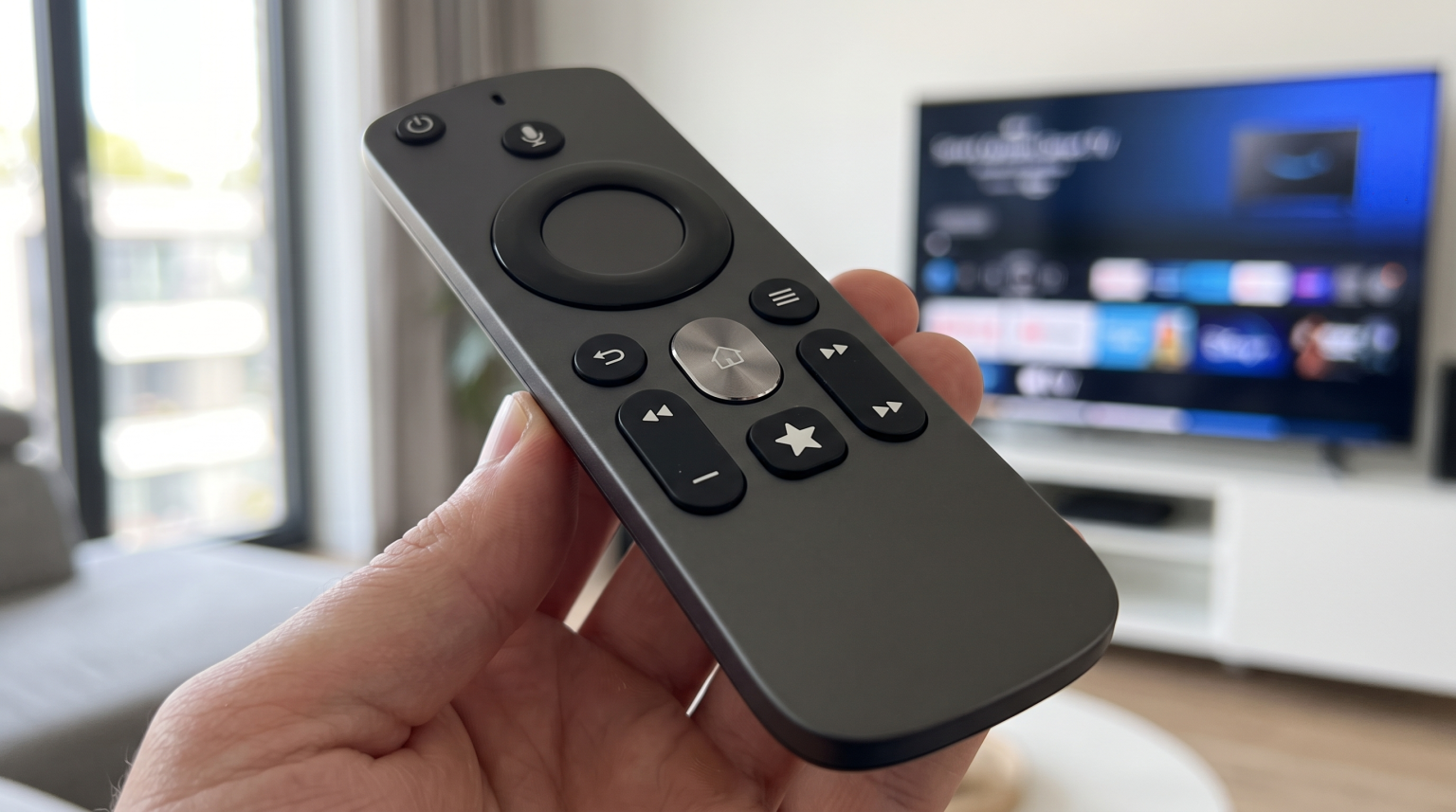
Amazon introduced a new Fire TV Remote in late 2026. This remote is included with the latest Fire TV Stick 4K. The remote features a new shape, a metal Home button, and a custom Star button. The Star button is a customizable shortcut key. You can program this button to open your favorite application or setting instantly. This article explains how the custom Star button works, how to program the Fire TV Remote 2026, and how IPTV users can use this feature to improve their television experience.
Snel antwoord
The custom Star button on the Fire TV Remote 2026 is a programmable shortcut key. You can assign one specific action to this button. When you press the Star button, the television immediately opens your chosen application, television channel, or system setting. To program the Star button, press and hold the button for five seconds until a menu appears on the screen. Then, select the application you want to link to the button. This feature helps users open their preferred media player quickly without navigating the main menu.
What Is the Custom Star Button?
Previous standard Fire TV remotes only included fixed application buttons for large streaming services. Users could not change these buttons. In 2026, Amazon added the Star button to the standard Fire TV Remote. The Star button displays a star symbol. The Star button gives users full control over one personalized shortcut.
You can use the Star button to open a downloaded video application. You can use the Star button to open the system settings. You can also use the Star button to switch television inputs. This feature was previously only available on the more expensive Alexa Voice Remote Pro. Now, Amazon includes this customizable feature on the standard remote control for the new Fire TV Stick 4K.
How to Program the Star Button on the Fire TV Remote 2026
Programming the Star button is a fast process. You do not need to install extra software to assign a shortcut. Follow these steps to program the Star button:
Turn on your Fire TV device.
Ensure the Fire TV Remote 2026 is paired correctly.
Press and hold the Star button for five seconds.
A customized panel will appear on the television screen.
Choose the application or setting you want to assign from the list on the screen.
Press the Select button on the remote to confirm your choice.
If you want to change the shortcut later, simply repeat these steps. The new choice will instantly replace the old shortcut.
Troubleshooting the Star Button
If the Star button does not open your application, follow these troubleshooting steps. First, check if your Fire TV device software is fully updated. Second, restart your Fire TV device. You can restart the device by holding the Select button and the Play button together for five seconds. Finally, ensure the assigned application is still installed on your device. If you delete an application, the Star button shortcut will stop working.
Comparison: New Fire TV Remote 2026 vs Standard Remote
The Fire TV Remote 2026 has a different physical design and better features compared to previous standard remotes.
| Functie | Fire TV Remote 2026 | Older Standard Fire TV Remote |
| Programmable shortcut | Yes (Star button) | Nee |
| Fixed application buttons | Ja | Ja |
| Home button material | Metal | Plastic |
| Remote shape | Asymmetric design | Symmetric design |
Using the Star Button for IPTV
Many users connect their Fire TV device to TV Shadow IPTV. The Fire TV Remote 2026 makes IPTV navigation much faster. You can link your preferred IPTV player to the Star button. When you want to watch television, you only press the Star button once. The Fire TV device will immediately launch your IPTV application.
When you use IPTV, you often need quick access to your Electronic Program Guide (EPG). The EPG shows the television schedule. Some advanced IPTV players allow you to map the Star button to open the EPG directly. This direct integration makes the Fire TV Remote 2026 an excellent tool for IPTV users.
If you are exploring different devices for your living room, our guide to De beste smart-tv's voor IPTV in 2026: Samsung, Sony, LG en TCL vergeleken explains which televisions provide the best overall experience.
Live Football and Sports Streaming Shortcuts
Live sports require fast access because matches start at specific times. The Star button on the Fire TV Remote 2026 is very useful for sports fans. You can program the Star button to open your live football application right before a match begins. This saves time and ensures you do not miss the start of the game.
For the best sports experience, you must also consider television performance. Live football requires a fast refresh rate to display moving objects clearly. A 120Hz television will display live football better than a 60Hz television. If you want to learn more about television specifications for sports, read our article about Een tv van 60 Hz versus een tv van 120 Hz voor live voetbal. Furthermore, using an Ethernet cable instead of a Wi-Fi connection provides a more stable data stream for live sports.
Conclusie
The Fire TV Remote 2026 introduces a helpful new feature for standard users. The custom Star button allows you to personalize your television experience without buying an expensive premium remote control. By pressing the Star button for five seconds, you can easily assign your most used application or setting to the remote. This feature is especially beneficial for users who want immediate access to live football, custom video players, or TV Shadow IPTV services. The Fire TV Remote 2026 makes navigation faster and more direct for every user.
Veelgestelde vragen (FAQ)
Can I program the other application buttons on the Fire TV Remote 2026?
No. The standard application buttons are permanently linked to specific streaming services. You can only program the Star button.
Do I need the Alexa Voice Remote Pro to get customizable buttons?
Nee. Previously, only the expensive Alexa Voice Remote Pro featured customizable buttons. The Fire TV Remote 2026 now includes one custom Star button on the standard model.
Will the Star button work if my television screen is turned off?
Yes, but you must enable the “Voice Commands when TV Screen is Off” setting in your Fire TV menu. The Fire TV device must also use a power adapter connected directly to a wall socket.
How many shortcuts can I assign to the Star button at the same time?
You can only assign one shortcut to the Star button at a time. If you want a new shortcut, you must overwrite the old shortcut.
Can I use the Star button to change HDMI inputs?
Yes. You can program the Star button to switch to a different HDMI input on compatible televisions. This is useful if you want to switch quickly to a video game console.
Does the Star button work with third-party downloaded applications?
Yes. The Star button can open any application installed on your Fire TV device. This includes third-party video players and utility applications.