
Many Amazon Fire TV users watch IPTV content through the Amazon Silk web browser. This happens when a user opens a web-based IPTV player instead of installing a dedicated application. Sometimes, the video player becomes zoomed in after you refresh the web page. This error cuts off the edges of the video picture. It also hides important menu buttons, making the web player difficult to control.
This display problem is frustrating, especially during a live event. The issue usually originates from the Silk browser settings, the Fire TV accessibility features, or the physical television display settings.
This guide explains exactly why the Fire TV Silk IPTV zoomed in error occurs. It provides step-by-step instructions to fix the zoom issue. It also explains how to improve your overall streaming experience.
Snel antwoord
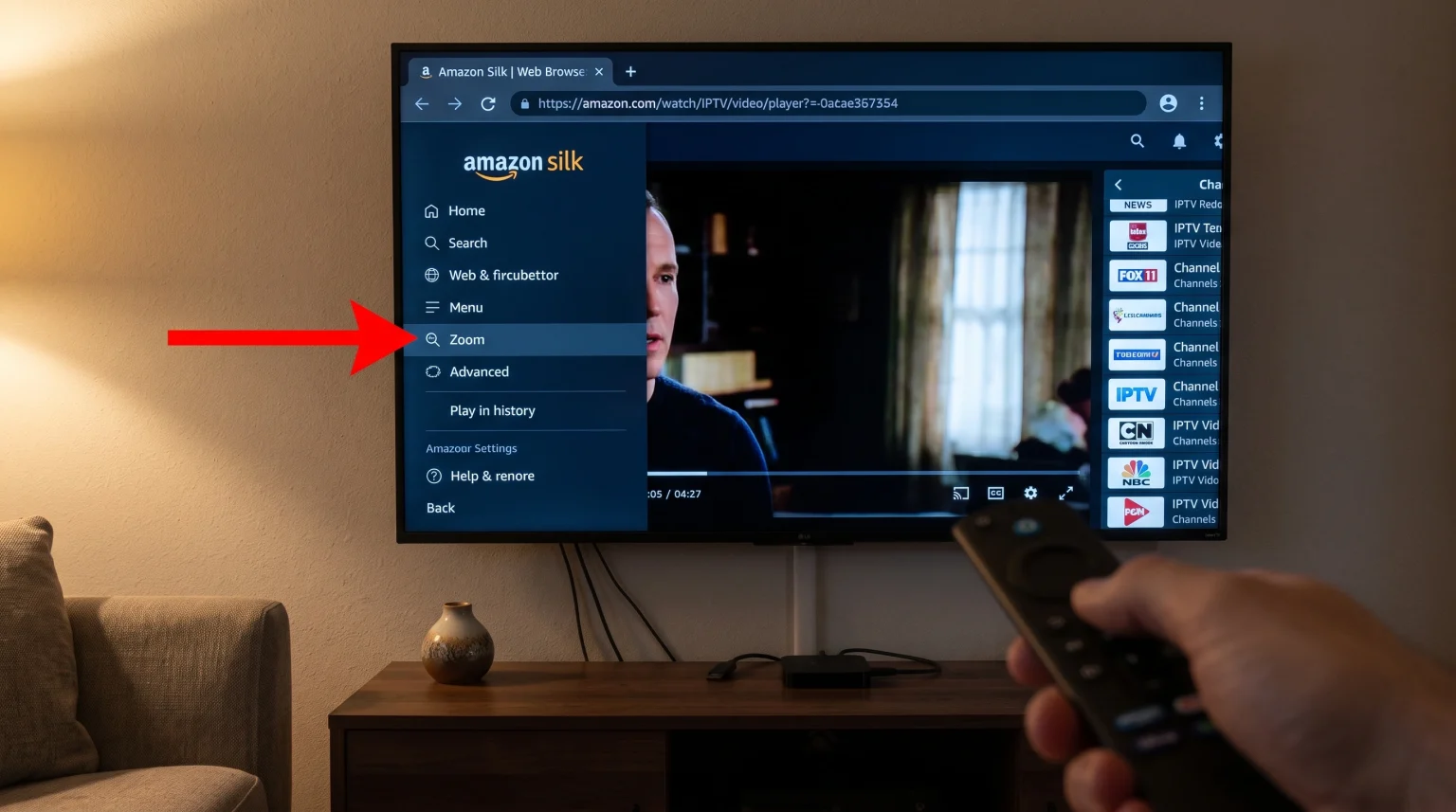
If your Fire TV Silk IPTV zoomed in after a page refresh, first check the Silk browser zoom settings. Press the Menu button (the icon with three horizontal lines) on your Fire TV remote. Scroll to the zoom option and ensure the zoom level is set exactly to 100%. Next, check the Fire TV system settings. Go to Accessibility and ensure the Screen Magnifier feature is disabled. If the problem continues, clear the Silk browser cache or install a dedicated IPTV application for better screen compatibility.
Why Does the Amazon Silk Browser Zoom In?
The Amazon Silk browser is designed to display standard websites on a television screen. Web-based IPTV players are usually designed for computer monitors or mobile phones. When you load a web player on a Fire TV, the Silk browser tries to adapt the website resolution to fit your television.
Refreshing the web page forces the browser to recalculate the screen size. During this refresh, the browser can make an error. The browser may misread the website code and apply an incorrect zoom level.
Additionally, many web-based video players do not feature a “responsive design.” Responsive design means the website automatically adjusts to different screen sizes. When a website is not responsive, the Amazon Silk browser may magnify the video to remove empty space. This magnification causes the zoomed-in effect.
How to Fix a Zoomed-In IPTV Player on Fire TV
You can solve this zoom problem by checking four specific settings on your Amazon Fire TV device. Follow these steps in order.
1. Reset the Silk Browser Zoom Level
The most common cause is an accidental change to the Silk browser zoom level. You might have pressed a button on the remote control that magnified the web page.
To reset the browser zoom:
Open the Amazon Silk web browser.
Load the web-based IPTV player.
Druk op de Menu button on your Fire TV remote control (the button with three horizontal lines).
Look at the top menu bar on your screen.
Find the magnifying glass icon.
Adjust the zoom percentage until it reads exactly 100%.
Exit the menu and check the video player.
2. Request the Desktop Site
Sometimes the Silk browser loads the mobile version of the IPTV web player. The mobile version is designed for vertical telephone screens. This causes severe display problems on a horizontal television screen.
To fix this:
Druk op de Menu button on your Fire TV remote while inside the Silk browser.
Scroll down the menu options.
Select the option named Request Desktop Site.
The web page will refresh automatically.
The video player should now display in the correct proportions.
3. Disable the Fire TV Screen Magnifier
The Amazon Fire TV operating system includes a Screen Magnifier tool for users with poor vision. If this tool is active, the entire television screen will appear zoomed in.
To disable the Screen Magnifier:
Druk op de Home button on your Fire TV remote.
Scroll to the Instellingen gear icon on the right side of the screen.
Selecteer Accessibility.
Selecteer Screen Magnifier.
Press the Select button to turn this feature UIT.
4. Adjust the Fire TV Display Calibration
If the edges of the Silk browser are cut off, your television might be applying an “overscan” effect. Overscan pushes the edges of the picture outside the visible screen area.
To calibrate your display:
Go to the Fire TV Instellingen menu.
Selecteer Display & Audio.
Selecteer Weergave.
Selecteer Calibrate Display.
Follow the on-screen instructions. Use your television’s original remote control (not the Fire TV remote) to change the TV picture size to “Just Scan”, “Screen Fit”, or “16:9”.
Ensure the gray arrows touch the exact edges of your television screen.
If you are evaluating different television brands for compatibility, read our guide on the Het beste besturingssysteem voor smart-tv's voor IPTV in 2026 to understand how different systems handle display scaling.
Web Browser vs Dedicated IPTV Apps
Watching IPTV through a web browser like Amazon Silk is possible, but it is rarely the best method. Web browsers require a computer mouse and keyboard for easy navigation. A standard Fire TV remote control is inefficient for clicking small icons on a website.
For the best experience, you should use a dedicated IPTV application instead of the Silk browser.
| Functie | Amazon Silk Browser | Dedicated IPTV App |
| Interface | Designed for reading websites | Ontworpen voor televisieschermen |
| Remote Control | Requires a virtual mouse cursor | Native remote control support |
| Zoom Issues | High risk of zoom errors | Very low risk of zoom errors |
| EPG-ondersteuning | Very limited | Full Electronic Program Guide support |
| Video Decoding | Uses basic web video players | Uses hardware video decoding |
Using Dedicated IPTV Players
Customers of TV Shadow IPTV can avoid web browser problems entirely by using dedicated applications. Amazon Fire TV uses an Android-based operating system called Fire OS. This means you can install thousands of excellent IPTV applications directly from the Amazon Appstore.
Applications such as TiviMate, IPTV Smarters Pro, or XCIPTV are built specifically for televisions. You can connect these applications to your TV Shadow IPTV subscription using an M3U link or Xtream Codes login details.
When you use a dedicated application, the video player will never zoom in accidentally after a refresh. The application manages the video resolution automatically. Dedicated applications also provide a fast Electronic Program Guide (EPG). You can change channels easily using the directional buttons on your remote control.
Picture Quality and Live Football
When the Amazon Silk browser zooms in on a video, the picture quality drops significantly. Magnifying a video stretches the pixels. This creates a blurry, pixelated image.
This quality loss is extremely noticeable when watching live football. Football matches feature fast camera movements and small details, like the football itself. If the web player is zoomed in, the grass will look blurry and the players will lack sharp details. If you are experiencing poor image clarity, you can learn more in our article explaining Waarom ziet IPTV er wazig uit op een nieuwe 4K-tv?.
For the best live sports experience, you need a high-quality video signal and proper motion handling. A dedicated IPTV app processes the video signal better than the Silk browser. Furthermore, your television hardware plays a major role in sports playback. You can read our detailed comparison regarding Een tv van 60 Hz versus een tv van 120 Hz voor live voetbal to understand how television refresh rates affect fast-moving sports.
Conclusie
A zoomed-in IPTV player on the Amazon Silk browser ruins the viewing experience. Fortunately, the problem is usually easy to fix. You can solve the error by resetting the Silk browser zoom level to 100%. You must also ensure that the Fire TV Screen Magnifier is disabled in the accessibility settings.
However, the permanent solution is to stop using web browsers for television viewing. Web players are unpredictable on television screens. For a stable, high-quality experience with TV Shadow IPTV, we highly recommend installing a dedicated IPTV application from the Amazon Appstore. Dedicated apps provide proper remote control navigation, hardware video processing, and automatic screen sizing.
FAQ
Why did my Fire TV Silk browser suddenly zoom in?
This usually happens because the user accidentally pressed a button combination on the remote control. It also happens when the website fails to recognize the television screen size after the user refreshes the page.
How do I zoom out on the Amazon Silk browser?
Press the Menu button (three horizontal lines) on your Fire TV remote. Move the cursor to the magnifying glass icon at the top of the screen. Reduce the zoom number to 100%.
Can I stop the Silk browser from loading mobile websites?
Yes. Open the Silk browser menu and select “Request Desktop Site”. This forces the browser to load the computer version of the website, which usually fits television screens better.