
Nothing ruins live sports or movie night faster than a spinning wheel in the middle of crucial action. If your screen keeps freezing, stuttering, or dropping resolution, you are not alone.
IPTV buffering is one of the most common issues cord-cutters encounter across the USA, UK, and worldwide. Fortunately, most streaming interruptions stem from solvable network bottlenecks, app misconfigurations, or server congestion.
Here are 9 proven, tested fixes to eliminate playback lag and restore flawless ultra-HD streaming today.
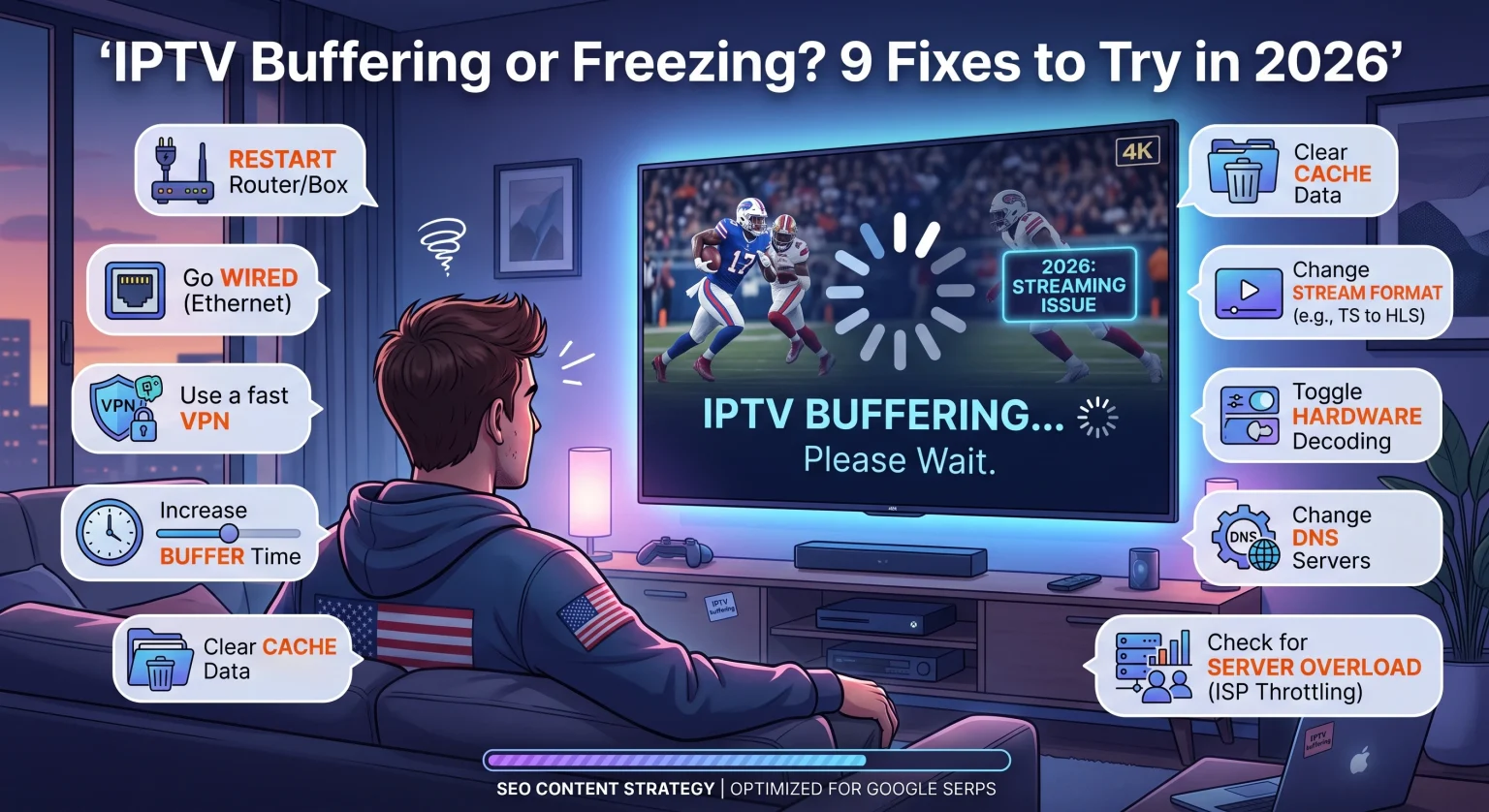
What Causes IPTV Buffering?
Before troubleshooting, it helps to understand why playback interruptions happen in the first place.
Live television streams require a continuous, uninterrupted stream of data packets between your device and the provider’s host server. When that stream breaks down, playback halts.
The most frequent culprits behind stream stutter include:
Beperking van de bandbreedte door internetproviders: Major internet providers (such as Comcast, Spectrum, BT, or Virgin Media) intentionally limiting high-bandwidth video traffic during peak evening hours.
Weak Wi-Fi Signals: Packet loss, physical wall interference, and congested 2.4 GHz frequency bands.
App Cache Buildup: Outdated temporary cache data overwhelming streaming sticks like Fire TV or Android TV boxes.
Overloaded Media Servers: Cheap or unoptimized providers running too many concurrent connections on weak server hardware.
9 Fixes to Stop IPTV Buffering and Freezing in 2026
1. Restart Your Router and Streaming Device
A standard power cycle clears accumulated DNS cache errors and resets your local routing table.
Unplug both your modem/router and your streaming device from power for at least 30 seconds. Plug the modem in first, wait for full connection lights, and then reboot your media player.
2. Switch to a Hardwired Ethernet Connection
Wi-Fi is convenient, but radio frequency interference causes micro-packet drops that trigger instant stream stuttering.
Connect an Ethernet cable directly from your router to your streaming device or TV. If running a long cable is impractical, consider using a Powerline Ethernet adapter to route stable internet through your home’s electrical wiring.
3. Use a Fast, Streaming-Optimized VPN
If your stream runs smoothly in the morning but starts stuttering during primetime or live sports, your internet service provider is likely throttling your connection.
A high-speed VPN encrypts your traffic so your ISP cannot detect or throttle your video streams. Connect to a local, low-latency server location within the USA or UK for optimal performance.
4. Adjust Buffer Size in Your IPTV Player
Most top-tier players including TiviMate, IPTV Smarters Pro, and XCIPTV allow you to adjust buffer memory allocation.
Open your player’s playback settings.
Locate the Buffergrootte of Stream Format settings.
Increase buffer length from “None” or “Small” to Medium (3 to 5 seconds) of Groot.
Note: A larger buffer adds a few seconds of initial loading time but creates a reliable cushion against sudden bitrate fluctuations.
5. Clear App Cache and Data
Streaming apps continuously write temporary video chunks to storage. Over time, low available storage on devices with limited RAM (like 8 GB Firesticks) degrades decoding efficiency.
Navigate to your device Instellingen > Toepassingen > Geïnstalleerde toepassingen beheren.
Select your IPTV app.
Klik Cache leegmaken (and force stop the application before relaunching).
6. Switch Streaming Protocols (HLS vs. MPEG-TS)
Different streaming engines decode video formats with varying efficiency depending on device hardware.
If your current playlist URL defaults to an MPEG-TS (.ts) output, try switching the stream type in your player settings to HLS (.m3u8). HLS handles variable network bandwidth much more smoothly and dynamically adjusts chunk delivery.
IPTV Buffering Troubleshooting Methods Compared
| Probleemoplossing | Moeilijkheidsgraad van de installatie | Succespercentage | Best Solution For |
| Aansluiting via ethernetkabel | Laag | High (85%+) | Eliminating Wi-Fi dropouts & home packet loss |
| Streaming VPN | Laag | Very High (90%+) | Bypassing ISP throttling & geoblocking |
| Buffer Size Adjustment | Very Low | Moderate (70%) | Smoothing out temporary bitrate spikes |
| Changing Video Player / Codec | Matig | Moderate (65%) | Resolving hardware decoding & audio sync lags |
| Upgrading to Premium Provider | Laag | Highest (95%+) | Fixing overloaded, low-bandwidth host servers |
7. Change Hardware Decoder Settings (Hardware vs. Software)
If your video stutters while the audio continues playing in real-time, your device’s graphics processor is struggling to decode the video stream.
Within your player settings, switch your video decoder:
Hardware Decoder (HW/HW+): Uses your device’s built-in GPU; recommended for modern 4K Firesticks, Apple TV, and Nvidia Shield.
Software Decoder (SW): Uses the CPU; recommended for older Android boxes running non-standard video formats.
8. Change Your DNS Servers
Default ISP Domain Name System (DNS) servers can be slow and subject to regional content filtering.
Change your router or device DNS settings to free, low-latency public alternatives:
Cloudflare DNS: 1.1.1.1 (Primary) & 1.0.0.1 (Secondary)
Google DNS: 8.8.8.8 (Primary) & 8.8.4.4 (Secondary)
9. Check for Peak-Hour Server Overload in Your Region
If you have applied all local fixes and your download speed exceeds 50 Mbps on a speed test, the issue lies on the server side.
Discount hosting providers frequently oversell server capacity. When thousands of concurrent viewers tune in for major football matches or pay-per-view events in the USA and UK, their CDN bandwidth collapses. In this scenario, upgrading to an established, load-balanced service is the only permanent solution.
Upgrade to Lag-Free Streaming Today
Persistent IPTV buffering does not have to ruin your favorite entertainment. By securing a wired connection, optimizing your player settings, and using a fast VPN to bypass regional ISP throttling across the USA, UK, and beyond, you can enjoy seamless 4K playback every single day.
Ready for a truly buffer-free viewing experience? Explore our premium, high-speed streaming plans today and start watching with 99.9% uptime guaranteed!
Veelgestelde vragen (PAA)
What internet speed do I need to prevent IPTV buffering?
For stable standard definition (SD) streams, a minimum download speed of 10 Mbps is required. For full HD (1080p), you need at least 25 Mbps, while reliable 4K Ultra HD streaming demands a steady connection of 50 Mbps or higher.
Why does my IPTV buffer only on live sports?
Live sporting events attract massive concurrent traffic spikes. If your provider’s content delivery network (CDN) cannot handle the sudden influx of viewers, or if your local ISP throttles live video traffic during broadcast windows, your stream will freeze.
Will using a free VPN stop IPTV buffering?
No. Free VPNs typically throttle bandwidth, impose strict data caps, and use congested servers that make buffering worse. Always choose a reputable, paid VPN with dedicated high-speed streaming servers and no bandwidth limits.