
Als je onlangs een IPTV-abonnement hebt afgesloten, weet je al dat de dienst zelf slechts de helft van het verhaal is. Je hebt een betrouwbare mediaspeler nodig om daadwerkelijk naar die zenders te kunnen kijken zonder last te hebben van voortdurend bufferen of een onhandige, verouderde interface.
Dat is waar IPTV Smarters komt in beeld. Het is veruit de populairste streaminginterface die er momenteel is, maar het kan soms frustrerend zijn om uit te zoeken hoe je deze precies op jouw specifieke apparaat kunt installeren vanwege het beleid van de app-stores. Of je nu op zoek bent naar de IPTV Smarters-speler downloaden Voor je Firestick, smart-tv, pc of telefoon legt deze handleiding precies uit waar je het kunt vinden en hoe je het aan de praat krijgt.
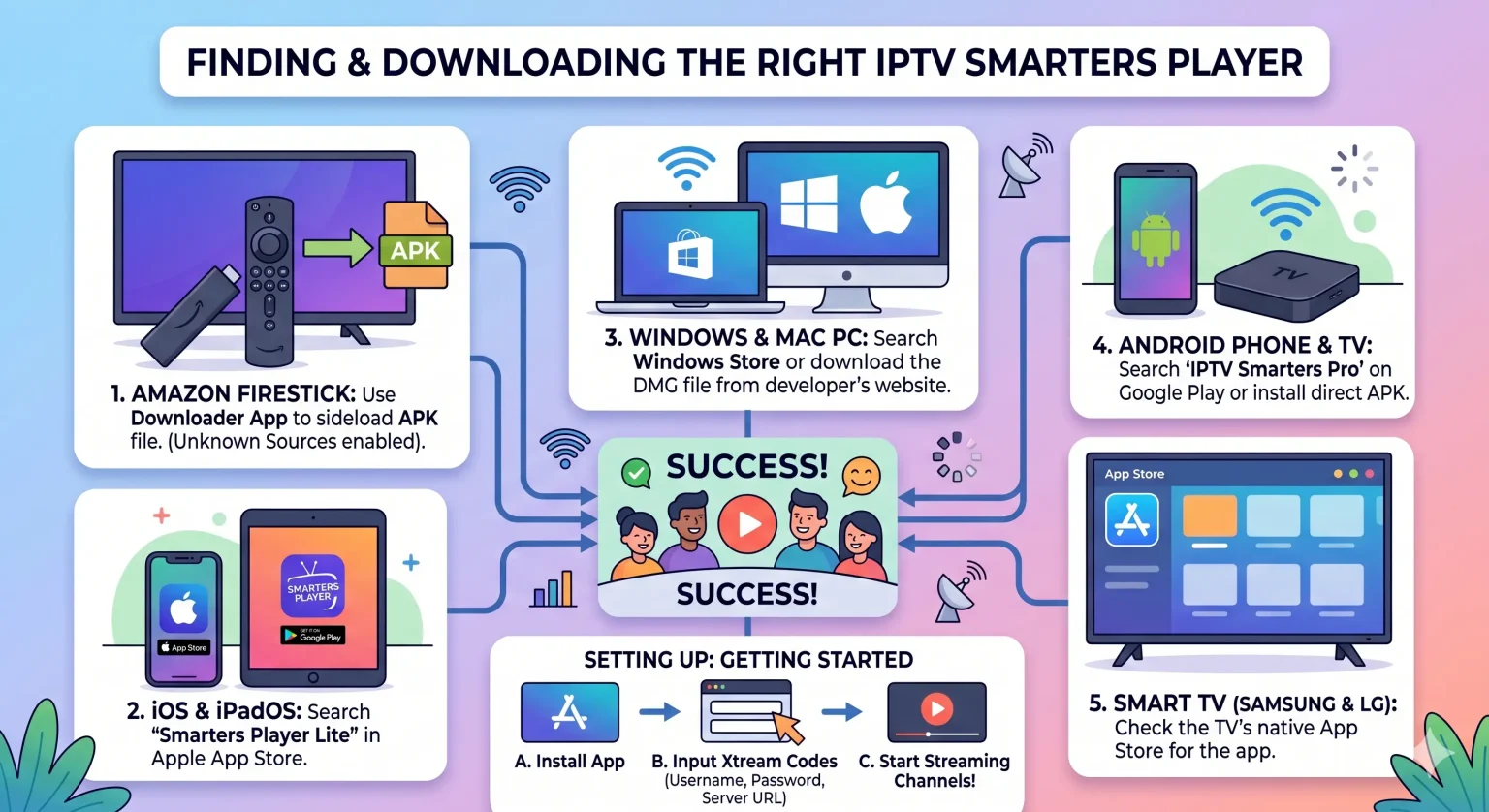
Wat je eerst moet weten
Even even de realiteit onder ogen zien voordat je iets installeert: IPTV Smarters Pro (en zijn iOS-tegenhanger, Smarters Player Lite) is uitsluitend een mediaspeler. Er zijn geen ingebouwde zenders, films of abonnementen bij inbegrepen. Zie het maar als een dvd-speler zonder dvd’s: je moet je eigen dvd’s meenemen. In dit geval betekent dat dat je een M3U-link moet vinden of Xtream Codeert de inloggegevens van de door u gekozen IPTV-aanbieder.
Downloadmethoden per apparaat
De beschikbaarheid van de app hangt af van de hardware die je gebruikt. Hieronder vind je een overzicht van de huidige mogelijkheden om de app te downloaden op de belangrijkste platforms.
Android en Android TV (smartphones, tablets, tv-boxen)
Google Play heeft een wisselvallige relatie met IPTV-apps, waardoor de officiële beschikbaarheid fluctueert.
De makkelijke manier: Zoek rechtstreeks in de Google Play Store naar “IPTV Smarters Pro” of “Smarters Player Lite”.
De sideload-methode: Als de app in jouw regio niet beschikbaar is, ga dan via de browser van je apparaat naar de officiële website van de ontwikkelaar en download het APK-bestand rechtstreeks. Open je bestandsbeheerder, tik op het APK-bestand en sta de installatie vanuit onbekende bronnen toe als daarom wordt gevraagd.
Amazon Firestick en Fire TV
Smarters is zelden te vinden in de officiële Amazon Appstore, waardoor de “Downloader”-methode je beste optie is.
Installeer de Downloader app vanaf het startscherm van je Firestick.
Ga naar je Firestick Instellingen > Mijn Fire TV > Opties voor ontwikkelaars en schakel de optie “Onbekende apps installeren” specifiek voor Downloader in.
Open Downloader, voer de directe APK-URL in die je van je IPTV-aanbieder of de officiële Smarters-website hebt gekregen, en klik op ‘Go’. De installatie start automatisch zodra het bestand is gedownload.
iOS, iPadOS en Apple TV
Voor Apple-gebruikers is de installatie het eenvoudigst. Ga naar de Apple App Store en zoek naar Smarters Pro (meestal uitgegeven door Tech Smarters Private Limited). Klik op ‘Downloaden’ en je bent klaar. De app synchroniseert naadloos tussen iPhones, iPads en de Apple TV 4K.
Windows-pc en Mac
Het uitvoeren van native desktopapplicaties levert aanzienlijk betere prestaties op dan het laden van afspeellijsten via een webbrowser.
Windows: Je kunt “Smarters IPTV Pro” rechtstreeks uit de Microsoft Store downloaden. Het is volledig geoptimaliseerd voor Windows 10 en 11 en levert uitstekende prestaties.
Mac: Op nieuwere Macs met Apple Silicon (M1/M2/M3-chips) kun je de iPad-versie van Smarters Pro rechtstreeks vanuit de Mac App Store gebruiken. Voor oudere Macs met een Intel-processor moet je de speciale
.dmginstallatiebestand van de officiële Smarters-website.
Smart-tv's (Samsung en LG)
Je hebt geen externe streamingstick nodig als je een relatief moderne Samsung-tv (met Tizen) of LG-tv (met WebOS) hebt. Open gewoon de ingebouwde app-winkel op je tv, zoek naar “IPTV Smarters Pro” en installeer de app.
Opmerking: Als de app niet in de app-winkel van je tv verschijnt, draait je televisie mogelijk op een ouder, niet meer ondersteund besturingssysteem. In dat geval is het aansluiten van een betaalbare Firestick op de HDMI-poort de beste oplossing.
Je account instellen
Zodra de app is geïnstalleerd, krijg je bij de eerste keer opstarten een aantal verschillende inlogopties te zien. De allerbeste en meest stabiele methode is Inloggen met de Xtream Codes API.
Jouw IPTV-aanbieder Ik had je drie verschillende stukjes informatie per e-mail moeten sturen:
Een gebruikersnaam
Een wachtwoord
Een server- of portaal-URL
Selecteer de optie “Xtream Codes”. Typ een naam voor je afspeellijst in het eerste veld (dit mag van alles zijn, bijvoorbeeld ‘Mijn tv’) en kopieer vervolgens zorgvuldig je inloggegevens naar de overige velden.
Let goed op de URL. Een dubbele punt weglaten, een schuine streep vergeten of iets typen .com in plaats van .net is de belangrijkste reden waarom mensen worden geblokkeerd door een inlogfout. Klik op “Gebruiker toevoegen”, wacht even tot je zenders en tv-gids zijn gedownload, en het hoofddashboard wordt geladen.
Snelle probleemoplossing
Constante buffering: Dit ligt zelden aan de app zelf. Meestal wijst het op een zwak wifi-signaal of op het feit dat je internetprovider het streamingverkeer afremt. Je hebt een stabiele verbinding van 30 Mbps nodig om 4K-video’s soepel te kunnen bekijken. Probeer je router opnieuw op te starten of overschakelen naar een bekabelde ethernetverbinding.
The Good Men ProjectFout: ongeldige gegevens: Controleer je inloggegevens nogmaals. Een toevallig spatie die door je telefoon automatisch aan het einde van je gebruikersnaam of wachtwoord wordt toegevoegd, zorgt ervoor dat het inloggen mislukt.
Lege tv-gids (EPG): Ga naar het instellingenmenu van de app en klik op “EPG vernieuwen”. Als het nog steeds niet ladt, is de programmaserver van je provider waarschijnlijk in onderhoud.