
Google has added its artificial intelligence, Gemini, to the Google TV operating system. This software update changes how users control their televisions. Previously, changing picture and sound settings was complicated. Users had to navigate through many confusing menus using a remote control. Now, users can ask Gemini to adjust brightness, change picture modes, or fix sound problems using natural voice commands. This article explains exactly how Gemini controls television hardware settings. It also discusses which television models support these new features in 2026. Finally, we explain how these artificial intelligence voice commands improve the experience for users who watch live football or use TV Shadow IPTV.
Snel antwoord
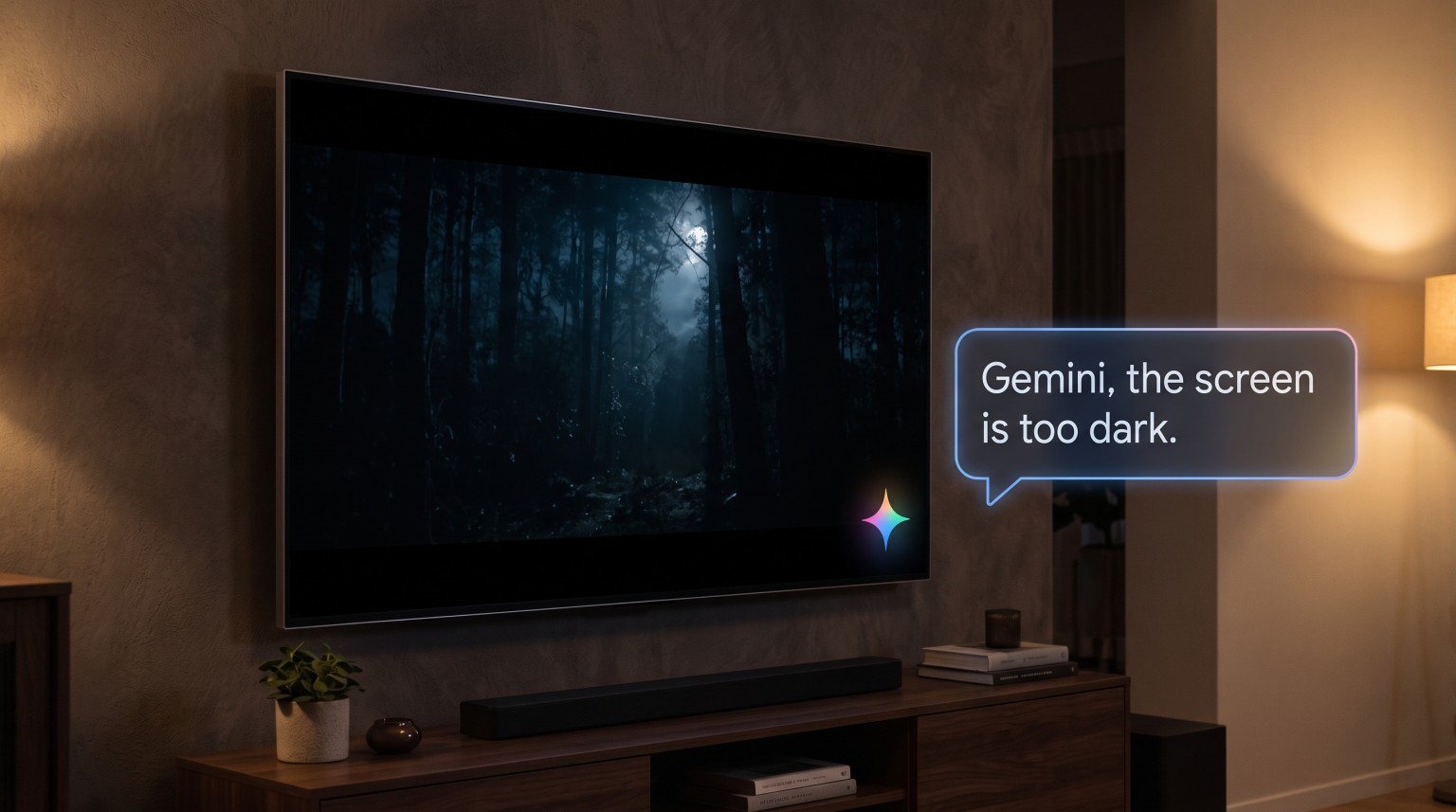
Yes, Gemini can change picture and sound settings on supported Google TV devices. Users can use voice commands to switch picture modes, adjust brightness, increase bass, or improve dialogue clarity. For example, you can say, “Set picture mode to Sport” or “The screen is too dark.” Gemini will automatically change the hardware settings or open the correct menu. This feature started in June 2026 for specific TCL televisions and will expand to other Google TV devices over time.
How Gemini Controls Google TV Settings
Older voice assistants, such as Google Assistant, provided basic functions. They could pause a video or turn off the television. Gemini offers deeper integration with the television hardware. Gemini can interpret conversational language and translate it into specific hardware adjustments.
Adjusting Video and Audio Settings
You do not need to memorize exact menu names. Gemini understands natural phrases. You can ask Gemini to change common television settings. These settings include:
Brightness and backlight
Contrast and color saturation
Picture mode (such as Standard, Movie, or Sport)
Volume levels
Sound mode (such as Music, Cinema, or Clear Voice)
Examples of valid voice commands include:
“Make the colors on my screen pop.”
“Set picture mode to Sport.”
“Increase the bass.”
“Show me the sound menu.”
When you speak these commands, Gemini immediately applies the requested change. The artificial intelligence removes the need to press many buttons on the remote control.
Troubleshooting Picture and Sound Problems
Sometimes, a television picture looks incorrect. However, the user does not know which technical setting to change. Gemini can diagnose and fix these problems automatically. You only need to describe the problem to the artificial intelligence.
Examples of troubleshooting voice commands include:
“The screen is too dark.”
“I cannot hear the dialogue clearly.”
“Why does motion not look smooth?”
When you say these phrases, Gemini identifies the correct solution. For example, if you complain about dark images, Gemini might increase the backlight or disable the energy-saving mode. If you complain about dialogue, Gemini might activate a speech-enhancement audio equalizer.
Deep Dive: Picture Settings
Understanding television settings helps you use Gemini more effectively.
Brightness and Backlight
Brightness controls how black the dark areas of the screen appear. Backlight controls the physical light behind the television screen. If your room is very bright during the day, you need a high backlight setting. You can say, “Gemini, increase the screen brightness.”
Color Temperature
Color temperature changes the general tint of the picture. A “Warm” color temperature makes white colors look slightly yellow. A “Cool” color temperature makes white colors look slightly blue. Movies usually look best with a Warm color temperature. You can say, “Gemini, make the picture look warmer.”
HDR and Picture Processing
High Dynamic Range (HDR) improves contrast and color. Different manufacturers support different HDR formats. Examples include Dolby Vision and HDR10+. When you watch HDR content, the television automatically switches to an HDR picture mode. You can ask Gemini to adjust the brightness within this specific HDR mode.
Deep Dive: Sound Settings
Modern televisions are very thin. Thin televisions usually have small speakers. Small speakers often produce weak sound. Gemini can help optimize the audio output.
Dialogue Enhancement
Many movies have loud sound effects but quiet dialogue. This difference makes it difficult to hear the actors. Gemini can adjust the audio equalizer to make human voices louder. You can simply say, “Make the voices clearer.”
Surround Sound and Soundbars
If you connect an external soundbar to your television using an HDMI cable, Gemini can often control the soundbar volume. This process uses a technology called HDMI CEC (Consumer Electronics Control).
Which Televisions Support Gemini Voice Control?
In 2026, Gemini voice control for picture and sound settings is a new feature. It is not currently available on every television.
Compatibiliteit met apparaten
Google started releasing this deep hardware integration in June 2026. The initial release included specific TCL Google TV models in the United States. These supported TCL models include:
QM9K
X11L
QM9L
QM8L
RM9L
Google plans to expand this functionality to other Google TV devices. This future expansion includes televisions from Sony BRAVIA and Hisense. It also includes the Google TV Streamer device.
However, the exact capabilities depend on the television manufacturer. Gemini can only adjust settings that the manufacturer allows it to control.
How to Enable Gemini on Google TV
To use these voice commands, you must activate Gemini.
Turn on your Google TV.
Go to the Settings menu.
Select “Accounts & Profiles”.
Select your user account.
Choose “Voice assistant”.
Select “Gemini for TV”.
You must also enable the microphone. Many televisions have a physical microphone switch on the television body. You can also use the microphone button on your remote control.
Comparison: Google Assistant vs. Gemini on Google TV
What is the difference between the old Google Assistant and the new Gemini artificial intelligence on televisions?
| Functie | Google Assistent | Gemini for TV |
| Basic volume control | Ja | Ja |
| Power on and off | Ja | Ja |
| Change picture modes | Nee | Ja |
| Adjust specific audio equalizer | Nee | Ja |
| Understand natural problem descriptions | Nee | Ja |
| Compatibiliteit van apparaten | All older Android TV and Google TV devices | Select 2026 Google TV devices |
Google Assistant is suitable for users who only need simple commands. Gemini for TV is more suitable for users who want to optimize their viewing experience without manually changing complex settings.
How Gemini Settings Affect TV Shadow IPTV
Many users watch live television through Internet Protocol Television (IPTV). TV Shadow IPTV provides access to many channels. However, the final picture quality always depends on your television settings.
Optimizing Picture Settings for IPTV Applications
When you open an IPTV application, the television treats it as a standard software application. Sometimes, the television applies a generic picture mode to all applications. This standard picture mode might not look perfect for live television broadcasts.
With Gemini, you can easily optimize the picture while you watch your IPTV stream. If the IPTV video looks dark, you can say, “Gemini, increase the brightness.” If you are watching a cinematic movie channel on TV Shadow IPTV, you can say, “Help make this feel like a cinematic experience.” Gemini will immediately apply the Cinema picture mode.
IPTV App Availability on Google TV
Google TV is an excellent operating system for IPTV. The Google Play Store offers many popular IPTV players. These video players support M3U playlists and Xtream Codes. An M3U playlist is a digital file that contains a list of television channels. Xtream Codes is a different login method that uses a username and password.
TV Shadow IPTV works well with most standard IPTV applications. These applications also support an Electronic Program Guide (EPG). The EPG shows you the television schedule.
However, TV Shadow IPTV does not have an official relationship with Google, TCL, Sony, LG, or any television manufacturer. You must download a third-party IPTV player from the Google Play Store to use the service. Because Google TV allows easy application installation, users can easily set up their preferred software.
If you are comparing television operating systems, our guide to Het beste besturingssysteem voor smart-tv's voor IPTV in 2026 explains the differences between Tizen, Google TV and webOS.
Gemini Settings for Live Football
Live sports require specific television settings. Football moves quickly across the screen. If your settings are wrong, the football players and the ball will look blurry.
Fixing Motion Blur with Gemini
Motion handling is the television’s ability to display fast movement clearly. Many modern televisions have a 120Hz (Hertz) refresh rate. The refresh rate measures how many times the screen updates per second. However, televisions also use software processing to smooth the image. This software is often called “motion interpolation”.
Sometimes, motion interpolation makes live football look unnatural. If you notice a blurry football, you can ask Gemini for help. You can say, “Why does motion not look smooth?” Gemini will automatically open the motion settings or reduce the motion smoothing software.
You can also read our detailed article about Een tv van 60 Hz versus een tv van 120 Hz voor live voetbal to understand hardware refresh rates better.
Voice Commands for Sports Mode
When watching live football on TV Shadow IPTV, you want bright colors and clear audio. You can use a single Gemini command: “Optimize the picture quality for live sports.”
Gemini will automatically switch your television to Sports mode. Sports mode usually increases the screen brightness. It also enhances the green color of the grass. Additionally, Sports mode often changes the audio settings to make stadium crowd noise sound more immersive.
Internet Connection for Live Sports
If your Wi-Fi connection causes streaming instability during a football match, Gemini cannot fix your internet speed. For the best live football experience, we recommend connecting your Google TV device directly to your router with an Ethernet cable. An Ethernet cable provides a much more stable connection than Wi-Fi.
Troubleshooting Gemini Voice Commands
Sometimes, Gemini might not understand your request or might fail to change a setting.
Microphone Issues
If Gemini does not respond, check your hardware microphone. Many modern Google TV televisions have a physical microphone switch on the back or bottom of the television. Ensure this switch is turned to the “ON” position. If you prefer, you can use the microphone button on your remote control instead.
Manufacturer Limitations
Gemini can only change settings if the television manufacturer’s software permits it. For example, TCL allows deep integration with Gemini. If you use a different television brand, Gemini might answer that it cannot change that specific setting yet. In this situation, you must say, “Open display settings,” and change the setting manually with your remote control buttons.
Software Updates
Because Gemini is a new artificial intelligence feature in 2026, it requires the latest software version. You should regularly check your Google TV for system updates. Go to Settings, select System, and click “About”. Then select “System update”.
Conclusie
Gemini changes how users control Google TV devices in 2026. The ability to change picture and sound settings with natural voice commands makes modern televisions much easier to use. Users no longer need to navigate confusing menus to fix dark screens or unclear dialogue. You can simply ask the artificial intelligence to fix the problem for you.
For users of TV Shadow IPTV, this Gemini Google TV settings control is very useful. You can quickly switch between a cinematic mode for movies and a bright, smooth mode for live football. While Gemini is currently limited to select television models, Google will likely expand this artificial intelligence to more devices in the future.
Veelgestelde vragen (FAQ)
Can Gemini control my television volume?
Yes, Gemini can control your television volume. You can say “Turn up the volume” or “Increase the volume by 10 percent.” Gemini uses the television’s internal software to adjust the sound level immediately.
Do I need a special remote control to use Gemini?
No, you do not need a special remote control. You can use the standard remote control included with your Google TV. If your television has a built-in hands-free microphone, you can use Gemini without holding the remote control.
Can Gemini change the picture mode to Game Mode?
Yes, Gemini can activate Game Mode. Game Mode reduces input lag when you play video games. You can say “Set picture mode to Game,” and Gemini will adjust the television specifically for gaming.
Does Gemini work on older Android TV devices?
Currently, Gemini is optimized for newer Google TV devices. Older devices running the standard Android TV operating system use the older Google Assistant. Google Assistant cannot change complex picture and sound settings.
Can Gemini fix buffering on my IPTV application?
No, Gemini cannot fix buffering. Buffering is usually caused by a slow internet connection or a weak Wi-Fi signal. Gemini can adjust television hardware settings, but it cannot increase your internet speed.
Is Gemini available in all languages?
At launch in 2026, Gemini for TV settings control is primarily available in English in the United States. Google usually adds more languages and regions over time through software updates.
Can I turn off the Gemini voice assistant?
Yes, you can disable Gemini. You can mute the physical microphone on your television or streamer device. You can also change your voice assistant settings in the Google TV accounts menu.