
If you use IPTV Smarters Pro, you already know it is one of the most versatile media players available for Firestick, Android TV, and smart TVs. But when your stream starts freezing, pixelating, or constantly looping a loading circle, it completely ruins the viewing experience.
The good news? The majority of buffering issues are not actually a problem with your provider’s servers. They almost always come down to misconfigured app settings, your internet service provider (ISP) throttling your traffic, or local hardware bottlenecks.
Instead of jumping ship to a new service, try these proven fixes to eliminate IPTV Smarters Pro buffering and get your streams running smoothly again.
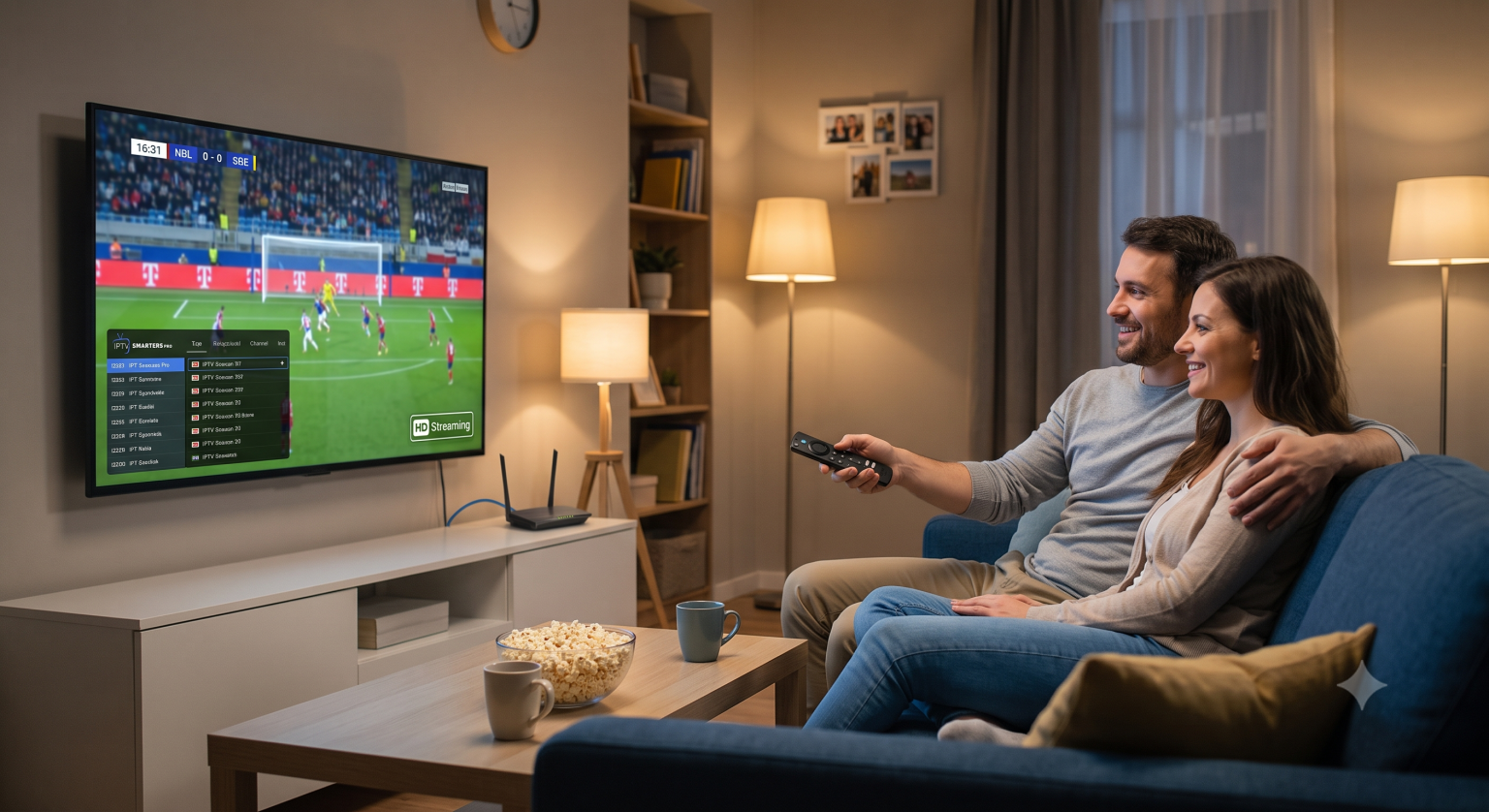
1. Change Your Player Settings (Enable Hardware Decoding)
This is the single most impactful setting you can change inside the app. By default, IPTV Smarters Pro might rely on software decoding, which forces your device’s main CPU to handle heavy video processing. Switching to hardware decoding offloads this work to the dedicated graphics processor (GPU), resulting in vastly superior performance.
How to change the decoder setting:
Open the app and navigate to Instellingen (het tandwielpictogram).
Selecteer Spelersinstellingen.
Look for the Hardware Decoder option and toggle it OP.
Save your changes and restart the app.
Note: If you are using a Firestick, hardware decoding is practically mandatory for 1080p and 4K streams. If you still experience issues on specific channels, you can temporarily revert to the Software Decoder as a fallback.
2. Stop ISP Throttling (The Hidden Culprit)
You can have a 500 Mbps fiber connection and still experience severe buffering during major sporting events or prime-time television. Why? Because many Internet Service Providers actively monitor your traffic and deliberately slow down (throttle) heavy streaming data.
If your stream runs perfectly on Tuesday morning but becomes unwatchable during a Saturday night pay-per-view, your ISP is likely shaping your traffic.
De oplossing: Route your connection through a reliable VPN (Virtual Private Network). A VPN encrypts your internet traffic so your ISP cannot see what you are streaming. Once the ISP can’t identify the IPTV traffic, they stop throttling it. Connect to a VPN server that is geographically close to your actual location to minimize latency.
3. Clear the App Cache and Manage Storage
Streaming devices like the Amazon Fire TV Stick and budget Android boxes have limited internal storage and RAM. Over time, IPTV Smarters Pro accumulates massive cache files. When your device runs out of “breathing room,” it struggles to process live video.
How to clear the cache on a Firestick or Android TV:
Go to your device’s main Instellingen.
Selecteer Toepassingen > Geïnstalleerde applicaties beheren.
Scroll naar beneden en selecteer IPTV Smarters Pro.
Klik Cache leegmaken (Doe niet click Clear Data unless you are prepared to log in and set up your playlist again from scratch).
For optimal performance, try to keep at least 15% to 20% of your device’s total storage space completely empty. Delete unused games or old apps you no longer need.
4. Tweak Your EPG (Electronic Program Guide) Updates
De EPG is what populates your channel schedules. It is highly convenient, but constantly downloading guide data in the background consumes bandwidth and processing power, which can lead to menu lag and stream stuttering.
How to optimize EPG settings:
Inside IPTV Smarters Pro, go to Instellingen > EPG Settings.
Disable the Auto Update EPG functie.
Alternatively, if your version allows it, change the update interval to 24 hours so it isn’t constantly refreshing while you are trying to watch a high-bitrate broadcast.
5. Ditch Wi-Fi for an Ethernet Connection
Live television requires a constant, uninterrupted flow of data. Wi-Fi is incredibly susceptible to packet loss caused by physical obstructions (walls, furniture) and interference from other networks or electronics.
If possible, hardwire your streaming device directly to your router. If you are using a Firestick, you can pick up a cheap micro-USB to Ethernet adapter. This single hardware change eliminates wireless dropouts and provides the immediate stability required for live high-definition video.
If hardwiring absolutely isn’t an option, ensure your device is connected to your router’s 5 GHz-band rather than the slower 2.4GHz band, and move the router as close to the TV as possible.
For a visual walkthrough on completely resetting the app to factory defaults when standard cache-clearing isn’t enough, check out Never Experience Buffering on IPTV Again! which details the exact steps to manually clear internal storage and fix stubborn glitches.