
Are you settling in for a movie, only to find your IPTV subtitles not working? Whether they are missing entirely, wildly out of sync, or displaying the wrong language, subtitle glitches instantly ruin the viewing experience.
For viewers streaming in the US and worldwide, seamless closed captions are essential for enjoying international content. Fortunately, fixing missing IPTV captions is usually a quick process that only takes a few clicks.
Read on to discover exactly how to troubleshoot your app, sync your text, and get back to enjoying your favorite shows.
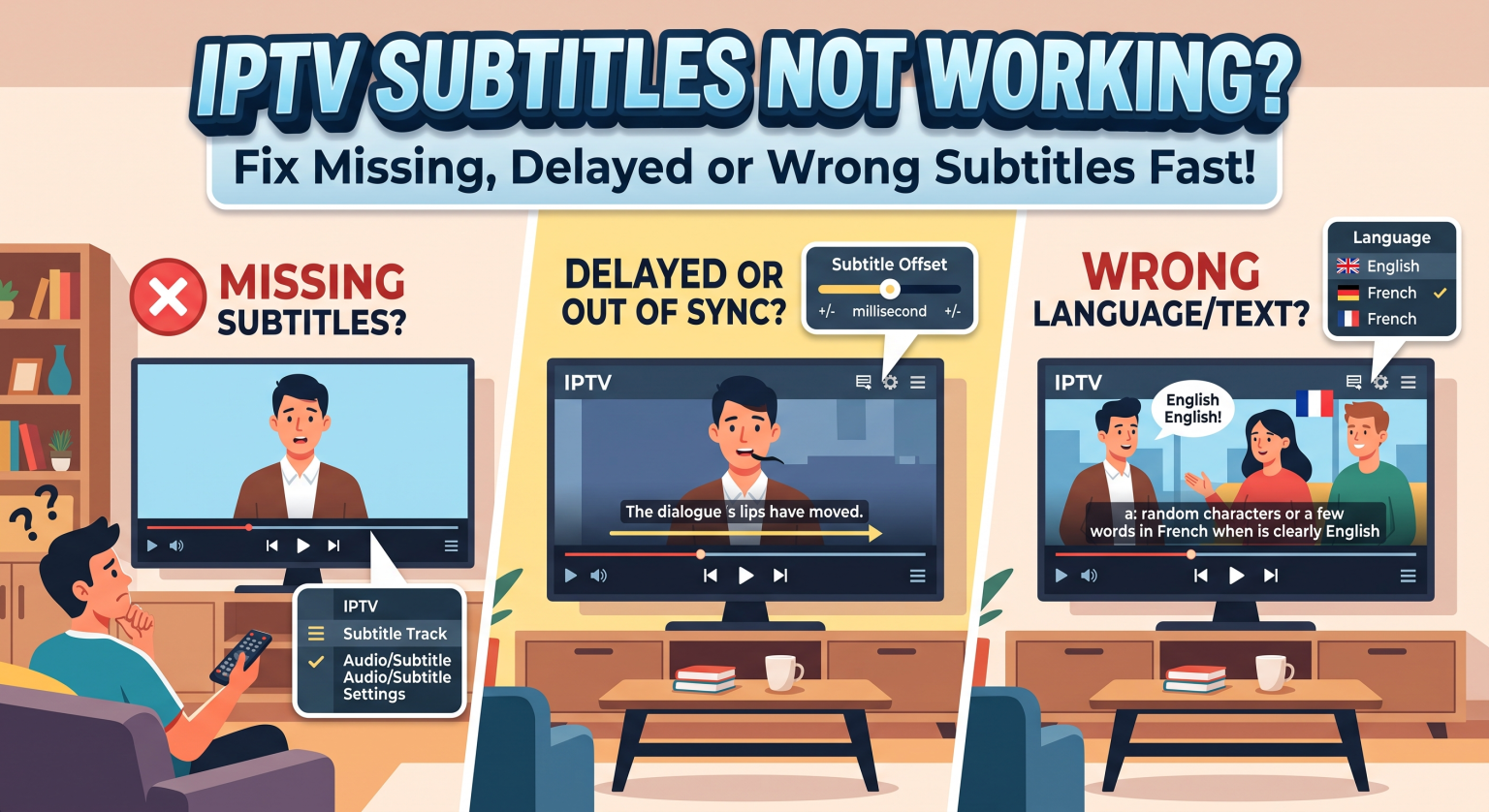
Why Are My IPTV Subtitles Not Working?
If you are dealing with IPTV subtitles not working, the issue usually stems from the media player rather than the stream itself. Many default players struggle to decode embedded subtitle tracks properly.
Another common culprit is a disrupted internet connection. If your stream buffers, the video and text can easily become unsynchronized, resulting in out of sync subtitles.
Finally, the VOD (Video on Demand) file might simply lack an embedded subtitle track. In these cases, you will need to manually load an external file to see the dialogue.
How to Fix Subtitles on IPTV (US & Global Streams)
1. Resync Delayed Captions
If the text appears seconds before or after the audio, you need to adjust your IPTV player subtitle settings. Most premium apps feature a “Subtitle Offset” or “Subtitle Delay” option.
Simply bring up the video overlay menu while watching. Adjust the offset slider in milliseconds until the text perfectly matches the spoken dialogue.
2. Download External SRT Files
When captions are entirely missing, the stream likely doesn’t have them embedded. You can easily fix this by downloading external SRT files from sites like Subscene or OpenSubtitles.
Once downloaded, open your IPTV app’s subtitle menu and select “Load External Subtitle.” Browse your device’s storage and select the SRT file you just saved.
3. Switch to a Better Media Player
Sometimes, the built-in player provided by your service is just too basic. Switching your stream to a robust third-party application often resolves missing text instantly.
VLC Media Player, TiviMate, and MX Player are highly recommended. They possess superior codecs that can read almost any caption format natively.
Comparing the Best IPTV Players for Subtitle Support
If you are constantly battling subtitle errors, upgrading your viewing app is the best permanent fix. Here is how the top options stack up:
| IPTV-speler | Subtitle Features | Sync Adjustment | External File Support |
| TiviMate | Excellent auto-detect | Built-in offset slider | Yes (SRT, VTT) |
| IPTV Smarters Pro | Good basic support | Limited to external player | Yes (Requires local download) |
| VLC-mediaspeler | Flawless decoding | Hotkeys (G/H) for instant sync | Yes (All formats supported) |
Upgrade Your Streaming Experience Today
Omgaan met een IPTV subtitles not working error doesn’t have to ruin your movie night. By adjusting your audio offset, loading external files, or upgrading your player, viewers in the US and across the globe can easily regain control of their content.
Are you tired of constantly troubleshooting a low-quality stream? Upgrade your entertainment setup today by subscribing to our premium, high-speed IPTV service. Enjoy crystal-clear channels, massive VOD libraries, and perfectly synced subtitles every time Click here to choose your plan and start watching now!
Veelgestelde vragen (Mensen vragen ook)
Why are my subtitles delayed on IPTV?
Subtitles usually delay due to minor stream buffering or a mismatch in the video’s frame rate. You can fix this by using the “Subtitle Offset” feature in your IPTV player’s settings menu.
How do I add subtitles to IPTV Smarters?
While watching a video, tap the screen to bring up the overlay, then tap the “Subtitle” icon. If the stream includes them, you can select your language; otherwise, you may need to play the stream through an external player like VLC to load custom files.
Can I use SRT files with my IPTV service?
Yes. As long as your chosen IPTV application (such as TiviMate or VLC) supports external file loading, you can download any SRT file and apply it directly to your live stream or VOD content.