
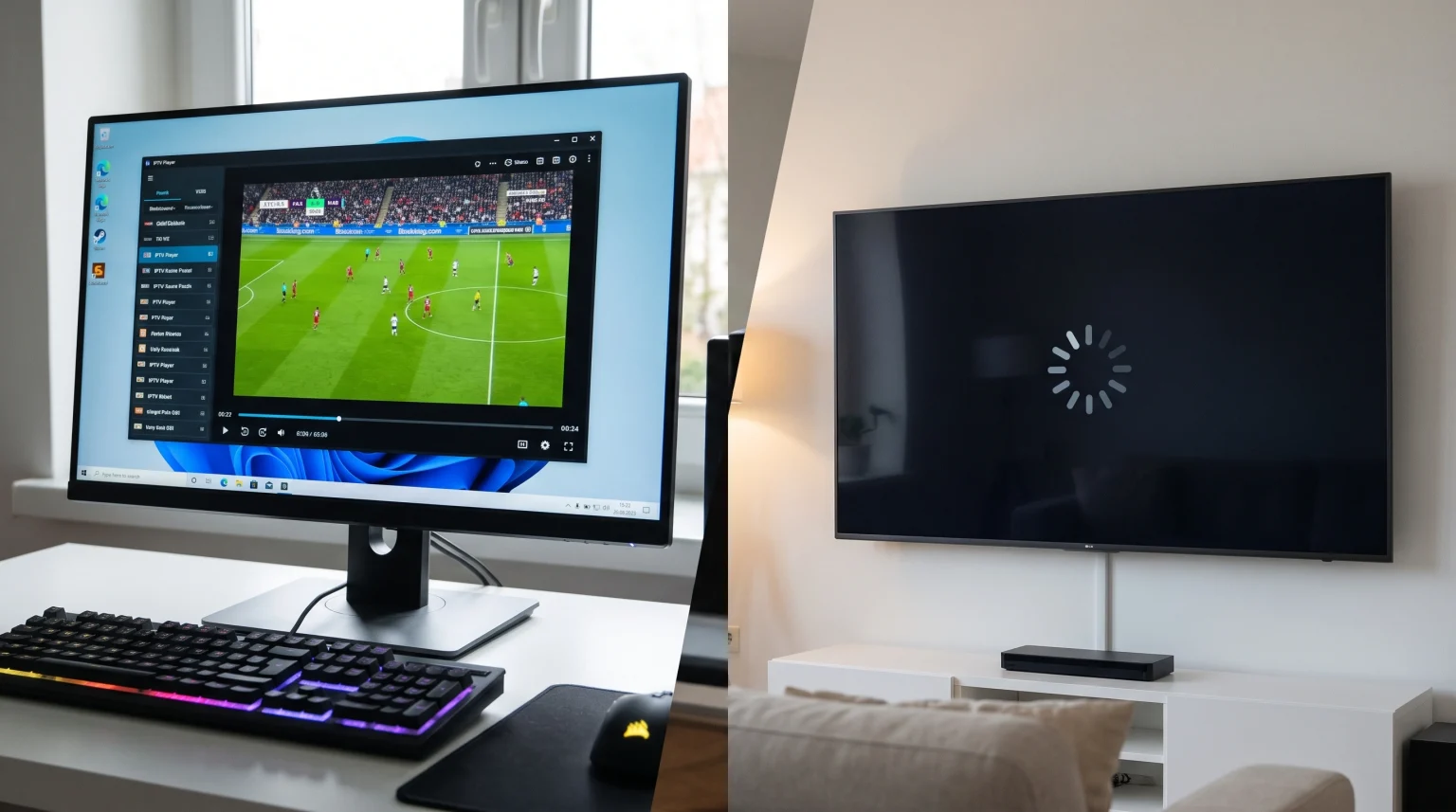
Many users experience a specific streaming problem. The IPTV stream plays perfectly on a Windows computer. However, the exact same IPTV stream fails, buffers, or shows a black screen on an Android TV. You might use the same internet connection for both devices. You might use the same IPTV credentials for both devices.
This situation happens because a Windows computer and an Android TV process video differently. A Windows computer has a powerful processor and a large memory capacity. An Android TV has limited hardware and strict application rules. This article explains the technical differences between these devices. This article also provides simple steps to make the IPTV stream work correctly on an Android TV.
Snel antwoord
Why does an IPTV stream work on a Windows computer but fail on an Android TV? The Windows computer has stronger hardware, better video codec support, and more memory. The Android TV often has a weak Wi-Fi connection, full storage space, or incompatible video codecs.
To fix this problem, you should connect the Android TV to the internet router with an Ethernet cable. You should also clear the IPTV application cache in the Android TV settings. If the problem continues, you must install a different IPTV player application from the Google Play Store.
Why Hardware Causes Streaming Problems
The physical components inside the device affect streaming quality. A Windows computer is built for heavy tasks. An Android TV is built for basic media playback.
Processor Speed and Memory
A modern Windows computer usually contains an Intel or AMD processor. A Windows computer also contains at least 8 gigabytes of Random Access Memory (RAM). This powerful hardware can process heavy video files easily.
An Android TV contains a small, low-cost processor from companies like MediaTek or Realtek. Most Android TV models only contain 2 gigabytes of RAM. When an IPTV application demands too much memory, the Android TV processor cannot process the data fast enough. This hardware limit causes the video stream to buffer or stop completely.
Video Codec Support
A video codec is software that compresses and decompresses digital video. A Windows computer can use programs like VLC Media Player. VLC Media Player includes almost every video codec in the world. If the IPTV stream uses an unusual video format, the Windows computer can play the video format.
An Android TV relies on hardware decoders built into the television. If the Android TV manufacturer did not include support for a specific video codec, the television cannot play the video. The IPTV application on the Android TV will show a black screen, or the application will play audio without the video picture.
Network Connections and Wi-Fi Strength
The internet connection is a major reason why users search for solutions when their [IPTV works Windows not Android TV].
A Windows computer often sits on a desk near the internet router. Many Windows computers connect directly to the router with an Ethernet cable. This creates a stable internet connection without interruptions.
Users typically place an Android TV in a living room or a bedroom. The Android TV usually connects to the internet using Wi-Fi. Television manufacturers often install weak Wi-Fi antennas inside the television. Walls, furniture, and other electronic devices block the Wi-Fi signal. If the Wi-Fi signal drops for one second, the live IPTV stream will freeze. The Windows computer does not freeze because the Windows computer receives a stronger internet signal.
Comparing Windows PC and Android TV for IPTV
This table explains the factual differences between a Windows computer and an Android TV when using an IPTV service.
| Functie | Windows Computer | Android TV |
| Processor power | Zeer hoog | Low to medium |
| Available memory (RAM) | 8GB to 32GB usually | 1.5GB to 3GB usually |
| Internet connection | Often wired Ethernet | Often wireless Wi-Fi |
| Video codec support | Almost unlimited via software | Limited by television hardware |
| IPTV application choices | Windows software (VLC, MyIPTV) | Google Play Store applications |
| Storage space for cache | Hundreds of gigabytes | Very limited (often 4GB to 8GB) |
How to Fix Android TV IPTV Errors
If your IPTV stream works on your Windows computer, your IPTV subscription is active and working. You do not need to buy a new subscription. You must change the settings on your Android TV.
1. Clear the Application Cache
Every time you open an IPTV application, the application creates temporary files. These temporary files are called cache. Because an Android TV has very small storage space, a full cache will cause the IPTV application to crash.
To clear the cache on an Android TV:
Open the Android TV Settings menu.
Select “Apps”.
Select your IPTV player application.
Select “Clear Cache”.
Restart the Android TV.
2. Connect an Ethernet Cable
Wi-Fi signals fluctuate. Live video streams require constant, stable data delivery. If your Android TV has an Ethernet port, plug an Ethernet cable directly from the internet router into the Android TV. This wired connection bypasses Wi-Fi interference. If your television does not have an Ethernet port, you can buy a USB-to-Ethernet adapter.
3. Change the IPTV Player Application
Not all IPTV applications work the same way. An application might have a bug on your specific Android TV model. If one application fails, you should try a different application.
Open the Google Play Store on your Android TV. Search for highly rated IPTV players such as TiviMate or IPTV Smarters Pro. Different applications use different video playback engines. A new application will often solve the black screen problem immediately. If you want to understand how the Android TV system compares to other television systems, read our guide about Het beste besturingssysteem voor smart-tv’s voor IPTV in 2026: Tizen vs Google TV vs webOS.
4. Adjust the DNS Settings
Sometimes, the internet service provider blocks IPTV traffic on the television, but the computer uses a different network configuration. You can change the Domain Name System (DNS) on your Android TV to improve network routing.
To change the DNS on an Android TV:
Open the Android TV Settings menu.
Select “Network & Internet”.
Select your Wi-Fi network or Ethernet connection.
Change the IP settings from “DHCP” to “Static”.
Enter Google DNS (8.8.8.8) or Cloudflare DNS (1.1.1.1) in the DNS fields.
TV Shadow IPTV-compatibiliteit
TV Shadow IPTV provides access credentials for your IPTV player applications. TV Shadow IPTV uses universal formats. These formats include M3U playlists and Xtream Codes API credentials.
Because TV Shadow IPTV uses standard formats, the credentials will work on any compatible IPTV player. TV Shadow IPTV does not manufacture your television or build the player applications. If your TV Shadow IPTV credentials work on your Windows computer, the TV Shadow IPTV servers are working perfectly.
The success of the stream on your Android TV depends entirely on the Android TV hardware, the Android TV internet connection, and the specific player application you choose to install. Ensure your Android TV software is fully updated to receive the best performance.
Best Settings for Live Football on Android TV
Live sports broadcasts push television hardware to the maximum limit. A football moves very quickly across the television screen. This fast movement requires excellent motion handling.
When you watch live football on a Windows computer monitor, the monitor usually has a very fast response time. The football looks clear. When you watch the same match on a cheap Android TV, the football might look blurry. This happens because the television panel cannot update the picture fast enough. If you want to learn why this happens on modern televisions, read our article about Waarom ziet IPTV er wazig uit op een nieuwe 4K-tv?.
Refresh Rates and Motion Processing
The refresh rate is the number of times the television updates the image per second. The refresh rate is measured in Hertz (Hz).
A standard Android TV has a 60Hz panel. The television updates the picture 60 times per second. A premium Android TV, such as high-end Sony BRAVIA models, has a 120Hz panel. The television updates the picture 120 times per second. A 120Hz television will display live football much more smoothly than a 60Hz television. You can learn more about this hardware difference in our guide about Een tv van 60 Hz versus een tv van 120 Hz voor live voetbal.
How to Improve Football Picture Quality
If your Android TV shows a blurry football stream, you can change the television picture settings.
Turn on “Game Mode” or “PC Mode” in the Android TV picture settings. This mode turns off unnecessary image processing and speeds up the television processor.
Turn off “Motion Smoothing” or “Motion Interpolation”. Television manufacturers use different names for this feature. This feature creates fake video frames and often makes live sports look worse.
Ensure the Android TV is using an Ethernet cable. A dropped Wi-Fi signal will lower the video resolution, which makes the football look pixelated.
Conclusie
It is frustrating when an IPTV stream plays flawlessly on a Windows computer but fails on an Android TV. However, this situation is completely normal. The problem is caused by the hardware limitations of the television. The Windows computer has superior processing power, massive memory, and universal video codec support.
You can fix most Android TV streaming problems by changing the physical setup. Connect the Android TV to the internet using an Ethernet cable. Clear the temporary cache in the Android TV settings to free up memory. Finally, install a high-quality IPTV player application from the Google Play Store. When you optimize the television hardware and network connection, your TV Shadow IPTV service will deliver the same high-quality experience on the television as it does on the Windows computer.
Veelgestelde vragen
Why does my IPTV buffer on my TV but not my PC?
Your television likely has a weaker Wi-Fi connection and a slower processor than your PC. To stop the buffering on the television, connect an Ethernet cable to the television and clear the IPTV application cache.
Do I need a different IPTV subscription for my Android TV?
No, you do not need a different subscription. If your provider allows multiple connections, you can use the same M3U link or Xtream Codes login on the Android TV. If your provider only allows one connection, you must close the IPTV application on the Windows computer before you open the IPTV application on the Android TV.
Which IPTV application is best for an Android TV?
TiviMate and IPTV Smarters Pro are very popular applications for Android TV. These applications are available in the Google Play Store. Both applications manage Electronic Program Guide (EPG) data efficiently, which requires less television memory.