
Many new Philips Smart TVs use an operating system called Titan OS. Philips introduced Titan OS to replace Android TV and Google TV on specific television models. Buyers often want to know if they can perform a Titan OS install APK procedure to add custom applications.
This article explains how the Titan OS system works. This guide will also explain the limitations of the Titan OS software. Finally, this article will show you how to use IPTV applications and watch live sports on a Philips Titan OS television.
Snel antwoord
Can you install Android APK files on Philips Titan OS Smart TVs?
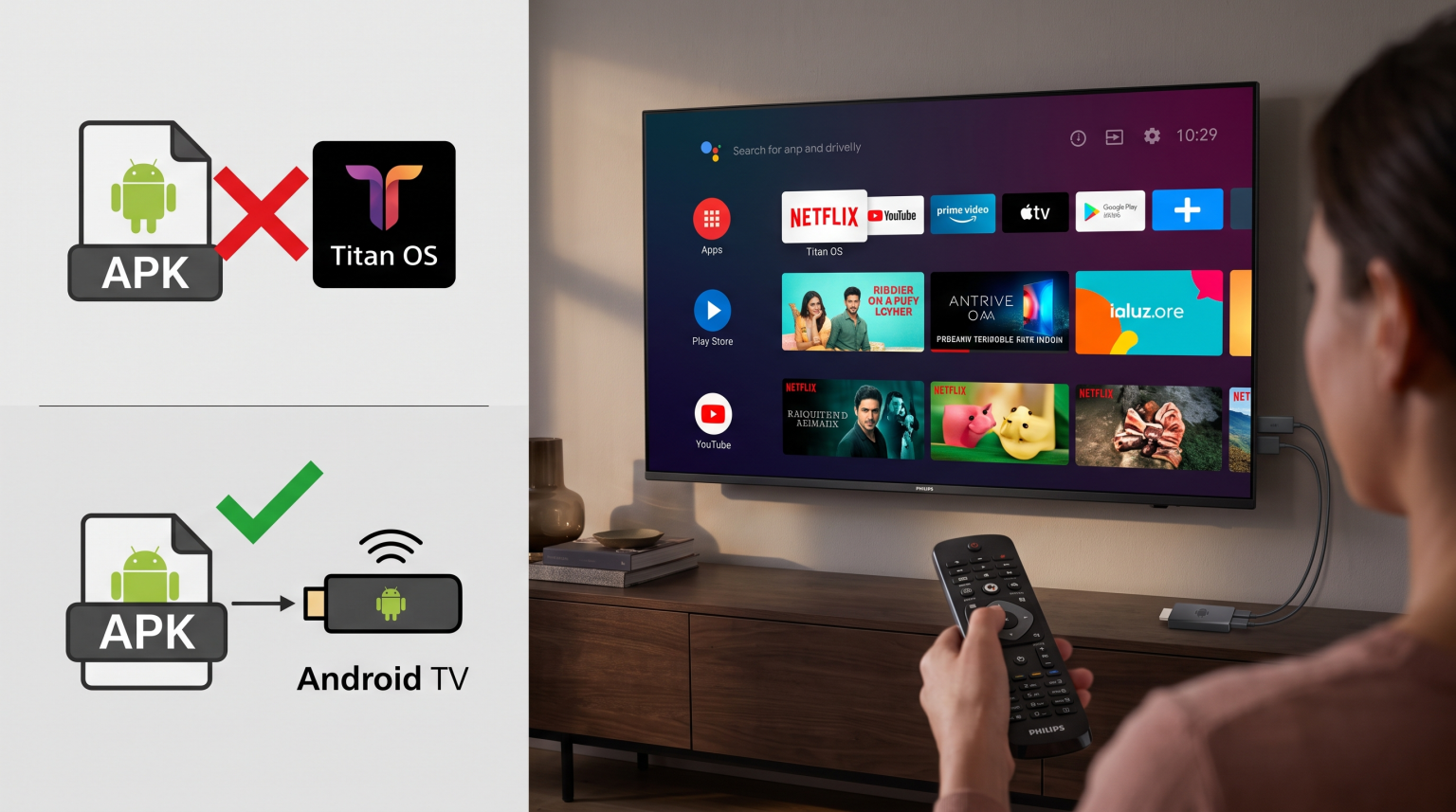
No. You cannot install Android APK files on a Philips Titan OS television. Titan OS is a Linux-based operating system. Titan OS does not use Android technology. Because of this, Titan OS cannot read, open, or install Android APK files.
If you want to use Android applications or sideload APK files, you must connect an external Android TV streaming device to your Philips television using an HDMI port.
What Is Titan OS?
Titan OS is an independent smart television operating system. Philips uses this software on many new Smart TV models instead of Google TV. Titan OS is a Linux-based platform. The operating system uses web technologies to run applications.
The Titan OS platform focuses on speed, personalized content, and simple navigation. The television home screen displays live television channels, streaming applications, and recommended videos. Because Titan OS is an independent system, the software has a specific application store. This store is smaller than the Google Play Store.
Titan OS vs Google TV: What Is the Difference?
When you buy a Philips Smart TV, the television will use either Titan OS or Google TV. The operating system depends on the specific television model. The two systems have completely different rules for application installation.
| Functie | Philips Titan OS | Philips Google TV |
| Operating system type | op Linux gebaseerd | op Android gebaseerd |
| Application store | Titan OS App Store | Google Play Store |
| Ondersteuning voor Android APK’s | Nee | Ja |
| Third-party sideloading | Not possible | Possible |
| Built-in Chromecast | Nee | Ja |
| Beschikbaarheid van IPTV-apps | Limited native selection | Large native selection |
If you want a television that supports every Android application, you must verify that the Philips TV model uses Google TV before you buy the television. If you already own a Philips TV with Titan OS, our guide to Het beste besturingssysteem voor smart-tv's voor IPTV in 2026 explains the differences between popular television software.
How to Install Apps on Philips Titan OS
You cannot perform a Titan OS install APK process. However, you can install official applications directly from the Titan OS application store. The application store contains popular streaming services such as Netflix, Amazon Prime Video, and YouTube.
To install an official application on a Philips Titan OS television, follow these steps:
Press the “Home” button on the television remote control.
Use the remote control directional buttons to select the “Apps” tab.
Browse the application categories or use the search function.
Select the application you want to download.
Press the “Install” button on the screen.
The television will download the application. You can then open the application from the television home screen.
How to Use Android APK Files on a Philips Titan OS TV
Because the Philips Titan OS software blocks Android APK files, you need alternative hardware to use Android applications. The easiest solution is an external streaming device.
An external streaming device connects to the HDMI port on the Philips television. The external device provides a completely new operating system. You can bypass the Titan OS software limitations by using one of these popular devices:
Google TV-streamer
Chromecast with Google TV
Amazon Fire TV Stick 4K Max
Nvidia Shield TV Pro
Xiaomi Mi Box S
When you connect an external Android TV device or an Amazon Fire TV device to your Philips television, you can download the “Downloader” application. The Downloader application allows you to transfer and install Android APK files. The Philips television screen will display the Android operating system from the external device.
Using IPTV on Philips Titan OS Smart TVs
Users often want to watch IPTV services on modern televisions. You can use TV Shadow IPTV on a Philips Titan OS television, but the setup method depends on your hardware choices.
Option 1: Using Built-in Titan OS IPTV Players
The Titan OS application store contains a limited number of IPTV player applications. An IPTV player is an empty application that reads video playlists. You can search the Titan OS application store for popular media players. If you find a compatible IPTV player, you can install the application.
After you install the IPTV player, you must enter your M3U playlist link or your Xtream Codes login details. The IPTV player will load the television channels. You can use the standard Philips remote control to change channels and navigate the Electronic Program Guide (EPG).
Option 2: Using an External Android Device
The built-in Titan OS IPTV players are often very basic. If you want advanced features, you should use an external Android TV device. When you connect an Android TV device to the Philips TV, you can install professional IPTV applications from the Google Play Store. You can also install custom APK files.
An external Android TV device provides better application availability, faster menu navigation, and better EPG support. TV Shadow IPTV works perfectly with Android TV applications like TiviMate or Smarters Pro.
Watching Live Football on Philips Smart TVs
Many people buy Philips Smart TVs to watch live football and other sports. Live sports require fast video processing and a stable internet connection. If you watch live football using IPTV, you should understand how television hardware affects video quality.
Refresh Rate and Motion Handling
Television displays update the video image many times per second. This is called the refresh rate. A 60Hz television updates the image 60 times per second. A 120Hz television updates the image 120 times per second.
For live football, a 120Hz Philips television provides smoother motion than a 60Hz Philips television. The fast movement of the football will look clearer on a 120Hz screen. You can read more about this in our guide: Een tv van 60 Hz versus een tv van 120 Hz voor live voetbal].
Internet Connection Quality
Live football streams require a continuous flow of internet data. Wireless internet (Wi-Fi) can lose data packages. This data loss causes the video stream to freeze or buffer.
For the best live football experience, you should connect your Philips television directly to your internet router. Use an Ethernet network cable. An Ethernet cable provides a stable connection for high-quality IPTV video streams. If you experience poor video quality on a new television, read our article: Waarom ziet IPTV er wazig uit op een nieuwe 4K-tv?.
Conclusie
You cannot perform a Titan OS install APK procedure on a Philips Smart TV. Titan OS is a Linux-based operating system that does not support Android files. You are restricted to the official applications inside the Titan OS application store.
If you want the freedom to install custom APK files, you have a simple solution. You can purchase a cheap external Android TV streaming stick. When you connect an Android TV stick to the Philips television, you can install any Android application. This is the best method for users who want to watch live sports or use advanced media players with TV Shadow IPTV.
Veelgestelde vragen
Does Titan OS support the Google Play Store?
No. Titan OS does not support the Google Play Store. Titan OS uses a private application store.
Can I use a USB drive to install apps on Titan OS?
No. You cannot use a USB flash drive to install applications on Titan OS. The television will not recognize installation files on the USB drive.
Can I install the Downloader app on Titan OS?
No. The Downloader application requires an Android operating system. Titan OS is a Linux-based system, so the Downloader application is not available.
Which Philips TVs use Titan OS?
Philips uses Titan OS on many mid-range and entry-level television models manufactured after 2023. Premium Philips OLED models often still use Google TV. You must check the specific television model specifications before purchasing.
Will Philips update Titan OS to Android TV?
No. Philips will not change a Titan OS television into an Android TV using a software update. The two operating systems use completely different software architectures.
What is the best way to watch IPTV on a Titan OS TV?
The best way to watch IPTV on a Titan OS television is to connect an external Android TV streaming device, such as a Chromecast with Google TV. This gives you access to the best Android IPTV applications.