
Are you tired of manually turning on captions every time a new show starts? If your IPTV subtitles keep resetting on every episode, you are not alone. This frustrating loop interrupts your binge-watching experience, but it is incredibly easy to fix. Let’s lock in your subtitle preferences once and for all.
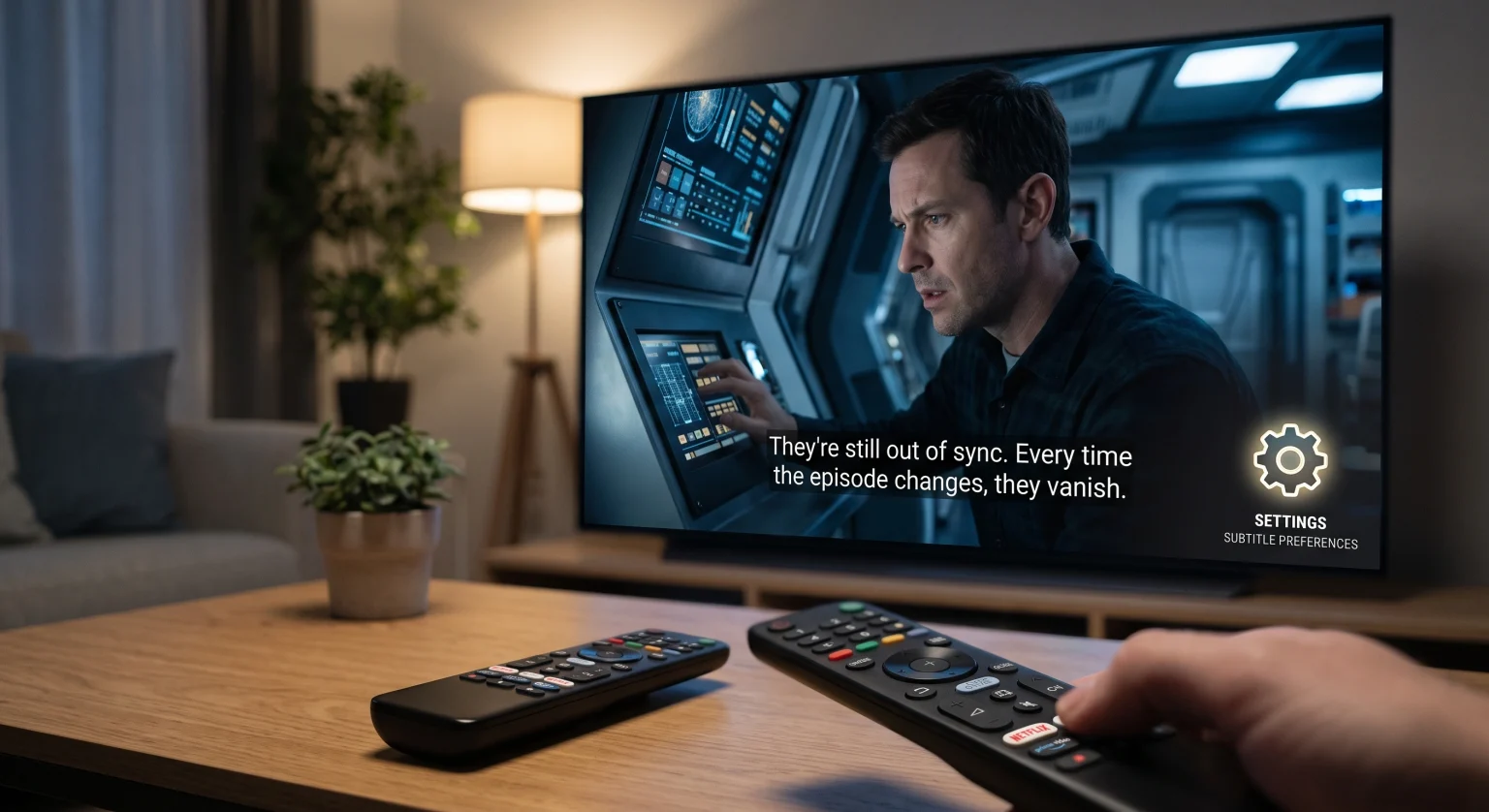
Why Your IPTV Subtitles Keep Resetting
Most media players treat live TV and Video on Demand (VOD) differently. By default, many streaming apps do not apply global caption settings to a playlist.
Instead, they remember your preferences on a per-stream basis. This means when a new episode loads, the player fetches the default video file without carrying over your previous configurations. Fortunately, tweaking your core player settings will solve this instantly.
How to Save Preferences Across Top IPTV Players
To stop this issue, you need to configure your streaming subtitles at the global application level. Setting a default language prevents the system from reverting to its factory state.
Here is how the top applications handle global caption settings.
Media Player Subtitle Features Compared
| Spiller-appen | Global Settings Path | Auto-Enable VOD Captions | External Subtitle Support |
| TiviMate | Settings > Playback > Subtitles | Yes (Set Default Language) | High (OpenSubtitles Integration) |
| IPTV Smarters Pro | Settings > Player Settings | Partial (Must save per session) | Medium (Local files only) |
| IBO-spiller | Settings > Subtitle Settings | Yes (Toggle Auto-Subtitles) | Low (Stream-dependent) |
TiviMate Subtitle Configuration
TiviMate offers some of the most robust global options on the market. To fix issues where your IPTV subtitles keep resetting, navigate to Settings > Playback.
From there, select your default save subtitle language and toggle the option to auto-enable them for VOD content.
IPTV Smarters Pro Adjustments
For Smarters Pro users, you must adjust your preferences in the main Player Settings menu. Ensure you select your preferred language before launching a series.
If you experience subtitle synchronization issues, you can also adjust the time delay directly from the on-screen playback menu.
Expert Tips to Lock in Your Caption Settings
Sometimes the application itself is not the culprit. If your settings are still dropping, check these critical factors:
Check your device settings: Operating systems like Android TV, Google TV, and Amazon Firestick have system-level caption toggles. Ensure these are turned on to force compatibility.
Update your app: Buggy, outdated versions of your favorite apps often fail to save media player preferences. Always run the latest firmware.
Look for hardcoded options: Some premium IPTV providers offer VOD libraries with hardcoded subtitles, completely eliminating the need for player-side toggles.
Stop Struggling with Your Streams
Ready for a flawless, buffer-free viewing experience where your settings actually save? Stop fighting with clunky apps and outdated playlists. Check out our premium IPTV subscription plans today to enjoy seamless VOD streaming, automatic subtitle support, and unparalleled reliability!
Ofte stilte spørsmål (FAQ)
Why do subtitles disappear after pausing on IPTV?
This usually happens due to a brief disconnection from the server when playback resumes. Hitting the “rewind” button for 10 seconds will usually force the stream to resync and bring the subtitles back.
Can I set a default subtitle language on all IPTV apps?
Most modern apps like TiviMate and OTT Navigator allow you to set a global default language. However, older apps may still require you to manually turn them on for each new video file.
How do I fix out-of-sync subtitles?
Open the playback menu on your streaming app and look for the “Subtitle Offset” or “Audio/Video Sync” tool. You can push the subtitles forward or backward by milliseconds until they align with the audio.