
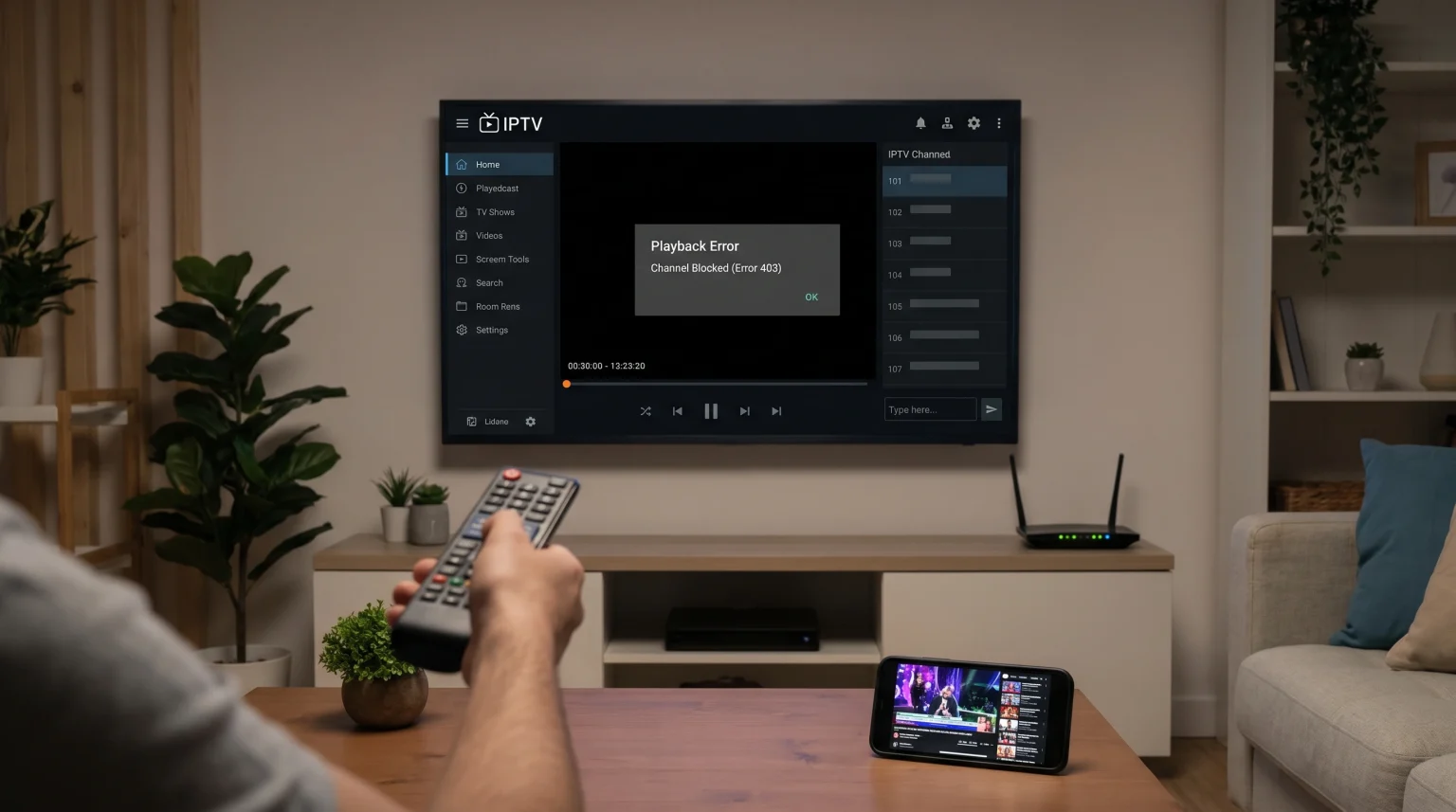
You open your IPTV application to watch a television channel. The application displays an error message. The message states that the channel is blocked. However, you know the stream is online. The same channel might work perfectly on your smartphone or your computer.
This situation is frustrating. The problem rarely involves the main stream. The issue usually happens between your local internet connection and your specific IPTV application.
This guide explains how to fix the [IPTV channel blocked error]. We will show you what to check on your television, your internet router, and your IPTV player. We will help you restore your connection quickly.
Krótka odpowiedź
If your IPTV player shows a blocked channel but the stream works elsewhere, your Internet Service Provider (ISP) is likely blocking the connection. ISP blocking happens frequently during live sports events.
First, restart your internet router and your television. Next, clear the cache memory in your IPTV application. If the error continues, activate a Virtual Private Network (VPN) on your television. A VPN hides your internet traffic. This stops your ISP from blocking the IPTV server connection. Finally, try a different IPTV player application to check for software problems.
Why You See an IPTV Channel Blocked Error
You must understand the cause of the problem to fix it. Several different factors can trigger a blocked channel message.
Internet Service Provider (ISP) Blocking
Many ISPs actively monitor internet traffic. They often block connections to known IPTV servers. Your ISP can block the specific server URL. When this happens, your IPTV application cannot download the video stream. The application will show a blocked channel error.
Application Cache Problems
Smart TVs store temporary data. This data is called the cache. Sometimes, the IPTV application saves an old error state. The server might be online again. However, the application remembers the previous offline state. The application shows an error because the cache is corrupt.
User-Agent Restrictions
Every media player has a digital signature called a User-Agent. Some streaming servers block specific User-Agents. For example, a server might block the default User-Agent of VLC Player or a specific Smart TV application. If the server rejects your application’s User-Agent, the channel will not load.
Geolocation Restrictions
Some streams are only available in specific countries. The server checks your Internet Protocol (IP) address. If your IP address belongs to a restricted country, the server blocks your connection.
How to Fix the Blocked Channel Error
Follow these technical steps to resolve the problem. Test your television channel after completing each step.
1. Restart Your Devices
Always start with a complete restart. Turn off your television. Turn off your internet router. Disconnect both devices from the electrical power for two minutes. Reconnect the power. This process clears basic memory errors and establishes a fresh internet connection.
2. Clear Your IPTV Player Cache
You must delete the temporary files in your IPTV application.
On Android TV or Google TV: Open the television Settings. Go to Apps. Select your IPTV application. Choose “Clear Cache”.
On Samsung Tizen or LG webOS: You usually need to uninstall the IPTV application and install the application again. Our guide to Najlepszy system operacyjny dla telewizorów Smart TV do obsługi IPTV w 2026 roku explains these specific platform limitations.
3. Skorzystaj z wirtualnej sieci prywatnej (VPN)
A VPN is the most effective solution for ISP blocking. A VPN encrypts your internet connection. Your ISP cannot read your traffic. Therefore, your ISP cannot block the IPTV server URL. Install a reliable VPN application on your Smart TV or your streaming device. Connect to a VPN server in your own country. Then, open your IPTV application again.
4. Update Your M3U Playlist or Xtream Codes
Your playlist data might be outdated. IPTV providers frequently change server addresses.
Open your IPTV application settings.
Force an update of your M3U link or Xtream Codes API.
Wait for the Electronic Program Guide (EPG) to download completely.
Try to play the channel again.
5. Test a Different IPTV Application
Your current application might have a software bug. Download a second IPTV application. Enter your Xtream Codes or M3U link into the new application. If the channel works in the new application, the original application is the problem.
Comparing Different Block Types
The table below explains the differences between common connection blocks. Use this table to identify your specific problem.
| Block Type | Main Cause | Typowy objaw | Best Solution |
| ISP Block | Internet Provider blocks the server URL | Stream works on mobile data but fails on home Wi-Fi | Use a VPN on the television |
| App Cache Error | Corrupt temporary data in the TV | Channel worked yesterday but fails today | Clear app cache or reinstall app |
| Geo-block | Server restricts your country IP address | Stream fails on all devices in your house | Connect VPN to a different country |
| Provider Block | IPTV provider blocks your IP address | Account shows as banned or inactive | Contact your IPTV service provider |
Troubleshooting IPTV on Smart TVs
Your hardware determines how easily you can fix an IPTV channel blocked error. Different Smart TVs offer different troubleshooting options.
Samsung Tizen and LG webOS
Samsung Tizen and LG webOS use closed operating systems. These televisions have limited app stores. You cannot easily install VPN applications directly on older models. If you experience an ISP block on a Samsung or LG television, you might need to install the VPN directly on your internet router. You can learn more about these televisions in our guide to Najlepsze telewizory Smart TV do IPTV w 2026 roku: porównanie marek Samsung, Sony, LG i TCL.
Android TV i Google TV
Sony BRAVIA televisions and Google Chromecast devices use the Google TV operating system. This system is very flexible. You can open the Google Play Store. You can download many different IPTV applications. You can also download VPN applications directly to the television. This makes troubleshooting much easier.
Live Football and Sports Blocking
The IPTV channel blocked error happens most frequently during live football matches. Internet Service Providers actively monitor network traffic during major sports events.
Broadcasting companies ask ISPs to block unauthorized servers during the match. This is a temporary network block. The stream might work perfectly one hour before the match. The stream might suddenly stop when the match begins.
If you watch live sports, a VPN is highly recommended. The VPN prevents the ISP from seeing your connection to the sports stream. Additionally, using a wired Ethernet cable instead of Wi-Fi will improve streaming stability during busy periods. If your stream connects but the picture quality drops during a match, read our article explaining Dlaczego obraz z IPTV jest rozmyty na nowym telewizorze 4K?.
Wnioski
An IPTV channel blocked error is common but solvable. When the stream works on other devices, the problem is local to your television or your internet network. You should always start by restarting your devices and clearing your application cache.
If the error persists, ISP blocking is the most likely cause. Using a reliable VPN on your television is the best way to bypass ISP blocks. Finally, keep multiple IPTV applications installed on your television. This allows you to quickly switch applications and continue watching your favorite content on TV Shadow IPTV.
Najczęściej zadawane pytania (FAQ)
What does the IPTV channel blocked error mean?
This error means your IPTV application cannot reach the video server. The stream might be active, but something is stopping the connection between your television and the server.
Can a VPN fix a blocked IPTV channel?
Yes. A VPN fixes the problem if your Internet Service Provider is blocking the connection. The VPN encrypts your traffic so the ISP cannot block the server address.
Why does the stream work on my phone but not my TV?
Your phone might use a mobile cellular network. Your television uses your home Wi-Fi network. The home network ISP might block the stream, while the mobile network ISP does not.