
Many users open their television and notice the Ovemio IPTV channel order has suddenly changed. This situation happens frequently when you use M3U playlists or Xtream Codes. The IPTV application synchronizes data from the IPTV provider server. When the provider adds new television channels or removes old television channels, the application updates the channel list. This update can reset your customized channel order.
Understanding how provider channel numbers work helps you manage your viewing experience. You do not need to scroll through thousands of international channels every time you open the application. By learning how the Ovemio IPTV channel order functions, you can create stable lists for your favorite programs. This article explains why channel lists change, how provider synchronization works, and how to keep your television channels organized permanently.
Krótka odpowiedź
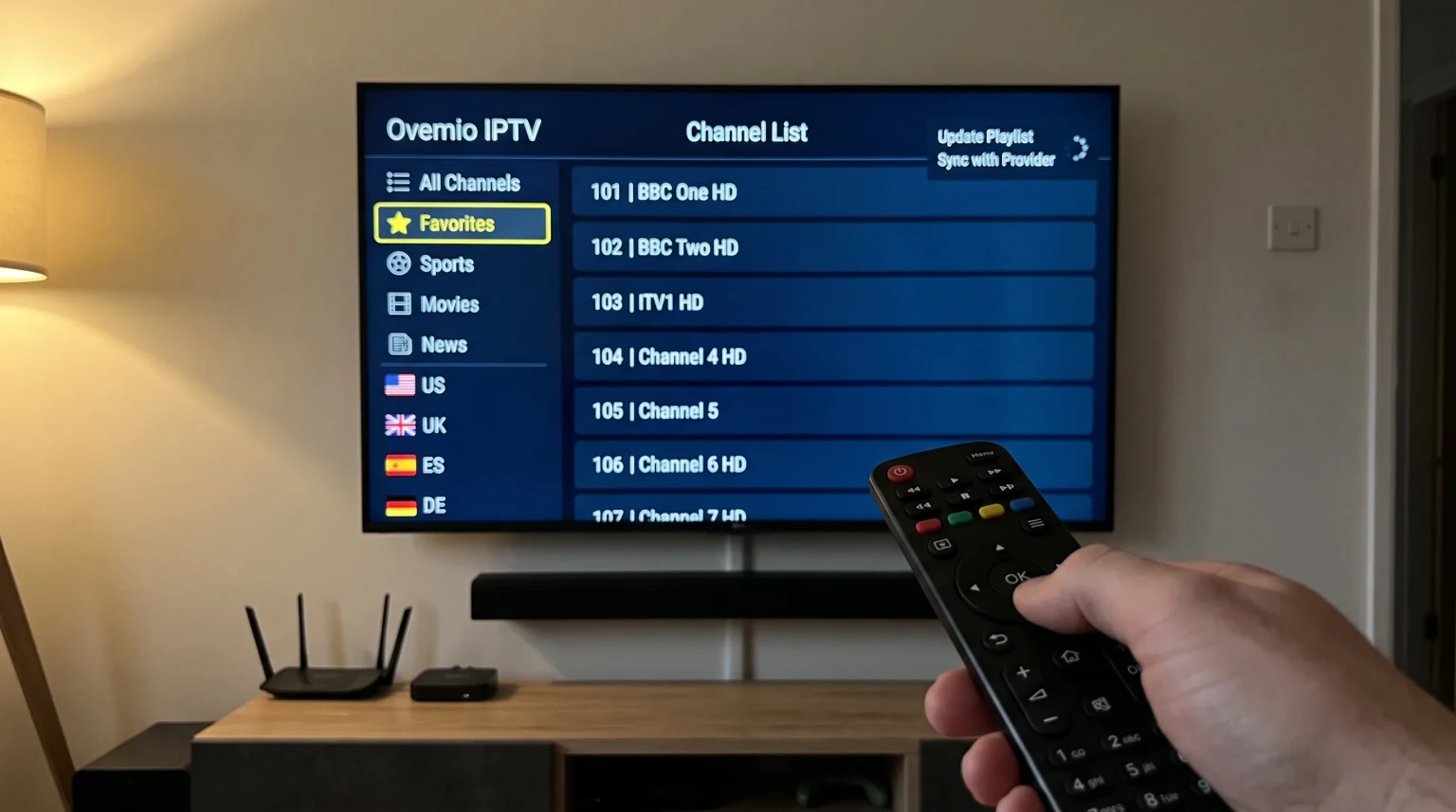
Your Ovemio IPTV channel order usually changes because the application synchronizes with your IPTV provider. When the provider updates the main playlist on their server, the Ovemio application downloads this new playlist. This download resets the channel numbers to the provider default settings. To stop this problem, do not rely on the default provider list. Instead, add your preferred television channels to the “Favorites” category. The Favorites category usually maintains a stable Ovemio IPTV channel order even after the main provider playlist updates.
Why Did My Ovemio IPTV Channel Order Change?
IPTV players do not store video files permanently. The Ovemio IPTV application acts as a reader for an external playlist. You provide this playlist using an M3U link or Xtream Codes login details.
Provider Updates
IPTV providers manage their own servers. Providers frequently add new movies, update live sports channels, and delete broken links. Every time the Ovemio application connects to the provider server, the application downloads the newest version of the playlist. If the provider changed the sequence of the channels, your Ovemio IPTV channel order will change too.
Application Updates
Sometimes, the software developer updates the Ovemio application. A software update might clear the application cache memory. When the cache memory clears, the application forgets your manual sorting preferences. The application then returns to the default provider channel numbers.
Wiele list odtwarzania
If you use more than one IPTV provider, the application might merge the lists. Switching between different provider profiles can cause the channel sequence to look completely different.
Understanding Provider Channel Numbers vs. Custom Sorting
Every television channel in an M3U playlist has a specific identification code. The IPTV provider assigns this code. The provider also assigns a category, such as “News” or “Sports”.
When you use the default provider sorting, you accept the exact structure from the server. If you want more control, you must use custom sorting features inside the Ovemio IPTV application.
| Sorting Method | Description | Stability After Provider Update |
| Provider Default | Shows the exact channel order from the IPTV server. | Low stability. The order changes when the provider updates the server. |
| Custom Groups | The user manually moves categories up or down. | Medium stability. Sometimes resets during major application updates. |
| Favorites List | The user saves specific channels to a dedicated menu. | High stability. Saved favorite channels usually keep their position. |
How to Organize Channels in Ovemio IPTV
You can make your television experience better by organizing your channels. TV Shadow IPTV recommends setting up your application correctly from the first day.
Use the Favorites Feature
The easiest way to fix the Ovemio IPTV channel order is the Favorites menu. Open your main channel list. Select a television channel you watch frequently. Press and hold the “OK” button on your television remote control. A menu will appear. Select “Add to Favorites”. Repeat this process for all important channels. You can now open the Favorites menu and ignore the changing provider channel numbers.
Hide Unwanted Categories
Most IPTV playlists contain thousands of international channels. You probably only watch channels from a few countries. Open the group management settings in the Ovemio application. Look for an option to hide groups. Hide all language categories you do not speak. Hiding groups makes the Ovemio IPTV channel order much shorter and easier to navigate.
Reorder Categories
Some modern IPTV players allow you to move entire categories. If your application supports this feature, open the category list. Change the sorting mode from “Default” to “Manual”. Move the “Sports” or “Movies” categories to the top of the screen.
Xtream Codes API vs. M3U Links
There are two main methods to load a playlist into the Ovemio IPTV application: M3U links and Xtream Codes API.
An M3U link is a long web address. It downloads a static list of channels. If the provider changes the Ovemio IPTV channel order, the M3U link must download the entire file again to see the changes.
Xtream Codes API uses a username, a password, and a server URL. This method communicates directly with the provider server. Xtream Codes API updates the channel categories and the EPG faster than M3U links. If you want the most accurate provider channel numbers, use the Xtream Codes API method when you log in.
Using Ovemio IPTV on Different Smart TVs
The Ovemio IPTV application and similar IPTV players require a compatible television operating system. Not all Smart TV brands support the same applications.
Google TV i Android TV
Televisions from Sony and TCL often use Google TV or Android TV. These operating systems offer the Google Play Store. You can download many different IPTV players directly. Managing your Ovemio IPTV channel order is very easy on Android devices because the remotes integrate well with the software.
Samsung Tizen
Samsung Smart TVs use the Tizen operating system. Samsung Tizen does not support Android applications from Google Play. You must use the official Samsung Apps store. The availability of specific IPTV players depends on your country and your television model year. If you are choosing a new television, you can read our guide comparing Najlepszy system operacyjny dla telewizorów Smart TV do obsługi IPTV w 2026 r.: Tizen kontra Google TV kontra webOS.
LG webOS
LG Smart TVs use the webOS operating system. Like Samsung, LG has a closed application environment. LG provides a good selection of IPTV applications in the LG Content Store, but you cannot install Android application files.
Finding Live Football Channels Quickly
Live football events require fast access to the correct channels. When a football match starts, you do not want to search through a disorganized Ovemio IPTV channel order.
Organize Sports Channels Before the Match
Providers often create temporary categories for big football tournaments. These temporary categories can disrupt your normal channel order. Add your preferred sports channels to your Favorites list one day before the match begins.
Television Hardware for Live Football
Organizing your channels is only the first step. The television hardware also matters for live football. Football involves fast camera movements. If your television has poor motion handling, the football will look blurry.
A high refresh rate helps keep the picture clear. A 120Hz television refreshes the screen 120 times per second. A 60Hz television refreshes the screen 60 times per second. A 120Hz television generally displays moving footballs more smoothly. For a detailed hardware comparison, read our article about choosing a Telewizory 60 Hz a 120 Hz do oglądania meczów piłki nożnej na żywo.
Additionally, use a wired Ethernet cable instead of a Wi-Fi connection. Ethernet provides a more stable data stream for live sports.
Picture Resolution and Upscaling
If you watch live football on a modern television, the picture resolution is important. Most IPTV sports channels broadcast in 1080p resolution. Modern televisions use 4K resolution. The television must upscale the 1080p image to fit the 4K screen. A high-quality television processor performs this upscaling smoothly.
The Role of the Electronic Program Guide (EPG)
The Electronic Program Guide (EPG) shows the television schedule. The EPG tells you what program is playing now and what program will play next.
The EPG connects to the Ovemio IPTV channel order using identification tags. Each channel in your M3U playlist has a specific “tvg-id” tag. The EPG file uses the exact same “tvg-id” tag. When the IPTV player reads both files, the player matches the schedule to the correct channel.
If your Ovemio IPTV channel order changes, the EPG might stop working temporarily. If the provider changes the channel identification tags, the EPG cannot find the correct schedule. To fix a broken EPG, open the application settings. Select the EPG menu and click “Update EPG”. This action forces the application to download the newest schedule and match the new channel numbers.
Wnioski
A changing Ovemio IPTV channel order can frustrate users who want a simple television experience. The channel numbers change because your application constantly synchronizes data with the provider server. This synchronization is necessary to receive new channels and updated stream links.
You cannot stop the provider from updating the main playlist. However, you can control your own experience. Use the Favorites feature to save your most important channels. Hide categories from countries you do not watch. Understand how to manually update your Electronic Program Guide when the channel tags change.
By organizing your application properly, you ensure quick access to movies, news, and live football. TV Shadow IPTV recommends spending ten minutes setting up your Favorites list today. This small effort will protect your channel order from future provider updates and make watching television much more enjoyable.
Najczęściej zadawane pytania
Why do my IPTV channels disappear completely?
Your IPTV provider probably removed the channels from their server. Providers regularly delete broken streams and replace them with new streams. When your application synchronizes, the old channels disappear.
Can I lock the Ovemio IPTV channel order permanently?
You cannot lock the main provider playlist order. However, you can lock your personal Favorites list. Add channels to Favorites, and this specific list will remain stable during provider updates.
What is an M3U playlist?
An M3U playlist is a simple text file format. This file contains the web links for the television streams. The Ovemio application reads the M3U file to display the video and the channel names.