
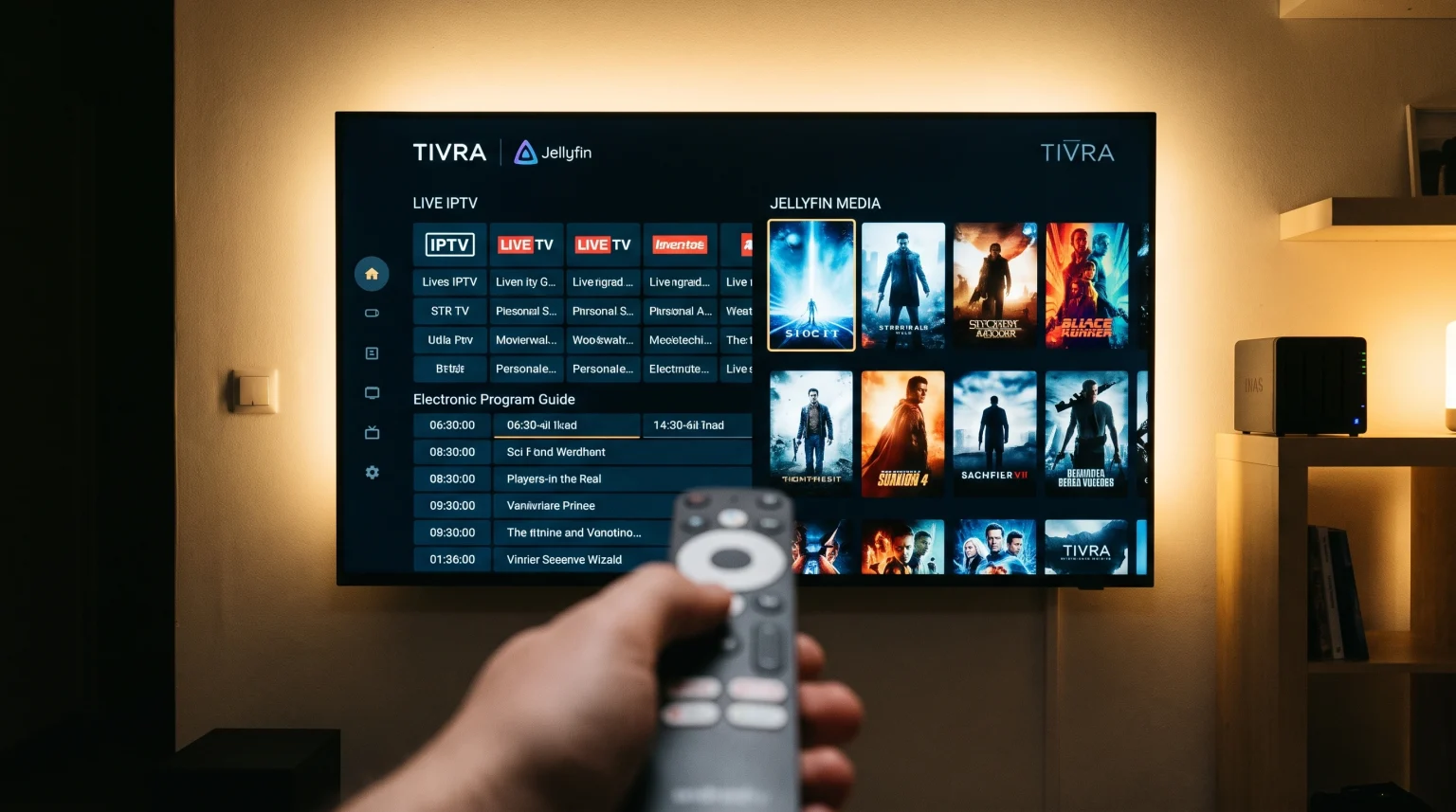
Many users manage two separate applications for home entertainment. They use one application for live television and a different application for personal media files. The TIVRA Android TV app solves this problem. It allows you to combine your live IPTV channels and your local Jellyfin media server into one single interface.
TIVRA functions primarily as an IPTV player. You add your own M3U playlist or Xtream Codes login. However, TIVRA also connects directly to a Jellyfin or Emby server. This means you can browse your downloaded movies and television series directly next to your live television guide. You do not need to switch applications on your Smart TV.
This article explains how the TIVRA Jellyfin IPTV integration works, how to set it up, and how it compares to the official Jellyfin Android TV application.
Krótka odpowiedź
To combine IPTV and Jellyfin in the TIVRA app, you must first add your live IPTV provider using an M3U link or Xtream Codes login. Then, you can connect your personal Jellyfin server directly within the TIVRA interface.
TIVRA is better for users who watch live television and sports every day, because it offers a dedicated Sports Hub and faster channel switching. The official Jellyfin application is better for users who only want to manage private media files and watch occasional live television through Jellyfin’s built-in live TV tuner.
Why Combine IPTV and Jellyfin?
Managing modern digital media often requires multiple applications. This creates a frustrating experience on a television screen.
The Problem with Separate Applications
Most Smart TV users use a dedicated IPTV player for live television. They use a separate application, such as the official Jellyfin or Plex app, to watch downloaded media. Switching between these applications is slow. It also confuses family members who want a simple television experience with one remote control.
How TIVRA Connects Both Worlds
The TIVRA Android TV app acts as a unified media player. It does not provide any video content itself. You must bring your own media.
First, TIVRA connects to your live IPTV provider. It downloads your channel list and the Electronic Program Guide (EPG). Second, TIVRA connects to your home Jellyfin server. It displays your personal movies and series in the same application. TIVRA browses the Jellyfin server live over your network. It does not download the media library to your television. This saves storage space on your Android TV device.
TIVRA App Overview for Android TV
TIVRA is a premium IPTV player designed specifically for televisions and remote controls. It is available for Android TV, Google TV, and Amazon Fire TV.
If you want to know more about different television platforms, our guide to Najlepszy system operacyjny dla telewizorów Smart TV do obsługi IPTV w 2026 roku explains the differences between Google TV, Tizen, and webOS.
Key features of the TIVRA app include:
Support for M3U playlists and Xtream Codes.
A fast Electronic Program Guide (EPG) that updates automatically.
User profiles with separate favorite channels and watch history.
Direct integration with Jellyfin and Emby servers.
A Sports Hub that automatically organizes live sports events.
Multi-view functionality to watch four channels simultaneously.
Understanding the Connection Requirements
Before you combine these services, you must understand the technical requirements.
A Jellyfin server requires a separate computer or Network Attached Storage (NAS) device. Jellyfin is free and open-source software. You must install Jellyfin on your device and add your media files. The device must remain powered on to stream movies to the TIVRA application.
For the best experience, connect your Android TV and your Jellyfin server to your internet router using an Ethernet cable. An Ethernet cable provides a more stable connection than Wi-Fi. This is very important when streaming high-quality video files or watching live sports.
Step-by-Step: Setting Up IPTV in TIVRA
You can set up TIVRA using your television remote control, or you can use a web browser on your computer. Using a web browser is much faster and easier.
Download the TIVRA application from the Google Play Store on your television.
Open the application. The screen will show a short connection code.
Open a web browser on your phone or computer. Go to the official TIVRA website dashboard.
Enter the short connection code.
Enter your IPTV provider details. You can use an M3U URL or an Xtream Codes login.
Save the settings.
The TIVRA application on your television will immediately download your live channels and your EPG data.
Understanding M3U and Xtream Codes
When you connect an IPTV service, such as TV Shadow IPTV, you usually have two options. You can use an M3U playlist link or an Xtream Codes login.
An M3U link is a long web address. It contains your username and password within the link. An Xtream Codes login requires three separate pieces of information: a server URL, a username, and a password.
TIVRA supports both connection methods. Xtream Codes is usually faster and more reliable because it updates the channel list more efficiently. You can manage these connection details easily using the TIVRA web dashboard. Standard IPTV services like TV Shadow IPTV are completely compatible with these connection methods.
How to Connect Your Jellyfin Server to TIVRA
After configuring your live television channels, you can add your Jellyfin server to the application.
Open the TIVRA web dashboard on your computer.
Navigate to the media server section.
Select “Jellyfin” as the server type.
Enter the local IP address or external URL of your Jellyfin server.
Enter your Jellyfin username and password.
Save the settings.
TIVRA will now display a new section on your television screen. You can browse your Jellyfin movies and series using TIVRA’s fast interface. The integration includes a search function to help you find your personal media quickly.
TIVRA vs. Official Jellyfin App for Live TV
Jellyfin has an official application for Android TV. The Jellyfin server software also supports live television natively. You can add an M3U playlist directly to the Jellyfin server settings.
So, should you use TIVRA or the official Jellyfin app?
| Funkcja | TIVRA App | Official Jellyfin App |
| Primary focus | Live IPTV and live sports | On-demand personal media files |
| Live TV setup | Add IPTV details directly to the app | Add IPTV details to the Jellyfin server |
| Multi-view (split screen) | Yes, watch up to 4 channels | Nie |
| Sports Hub | Yes, automatic sports organization | Nie |
| Connect to external servers | Yes, connects to Jellyfin and Emby | Only connects to Jellyfin |
TIVRA is the better choice if your main priority is live television and live sports. The interface is optimized for fast channel switching. The official Jellyfin application is the better choice if you primarily watch local media files and only watch live television occasionally.
Live Football and Sports Hub Features
Watching live football requires a fast and stable IPTV player. Fast motion handling and high refresh rates are important for sports. If you are buying a new television, Telewizory 60 Hz a 120 Hz do oglądania meczów piłki nożnej na żywo can help you choose the right display panel.
TIVRA includes a dedicated Sports Hub. This feature is very useful for sports fans. The Sports Hub automatically scans your IPTV provider’s channel list. It matches live sports events with the correct channels.
For example, if you want to watch a specific football match, the Sports Hub shows the match details and the exact channel number. You do not need to search through hundreds of channels manually.
TIVRA also supports multi-view. This allows you to watch four live football matches on the screen at the same time. The application allows you to pause, rewind, and record live sports.
Wnioski
Combining IPTV and Jellyfin in the TIVRA Android TV app creates a powerful home entertainment system. You no longer need to switch between different applications. TIVRA handles live television channels perfectly, while its Jellyfin integration provides instant access to your private media library. For users who want a fast, remote-friendly interface and advanced live sports features, TIVRA is an excellent solution.
Najczęściej zadawane pytania
Can I use TIVRA on a Samsung Smart TV?
No. TIVRA is only available for Android TV, Google TV, and Amazon Fire TV. Samsung televisions use the Tizen operating system. Tizen does not support Android applications from the Google Play Store.
Does TIVRA provide IPTV channels?
No. TIVRA is only a media player. It does not contain any video content, television channels, or movies. You must provide your own IPTV subscription.
Do I have to pay to use TIVRA?
Yes. TIVRA offers a 7-day free trial. After the trial, you must purchase a personal license, a family license, or a lifetime license to continue using the application.