
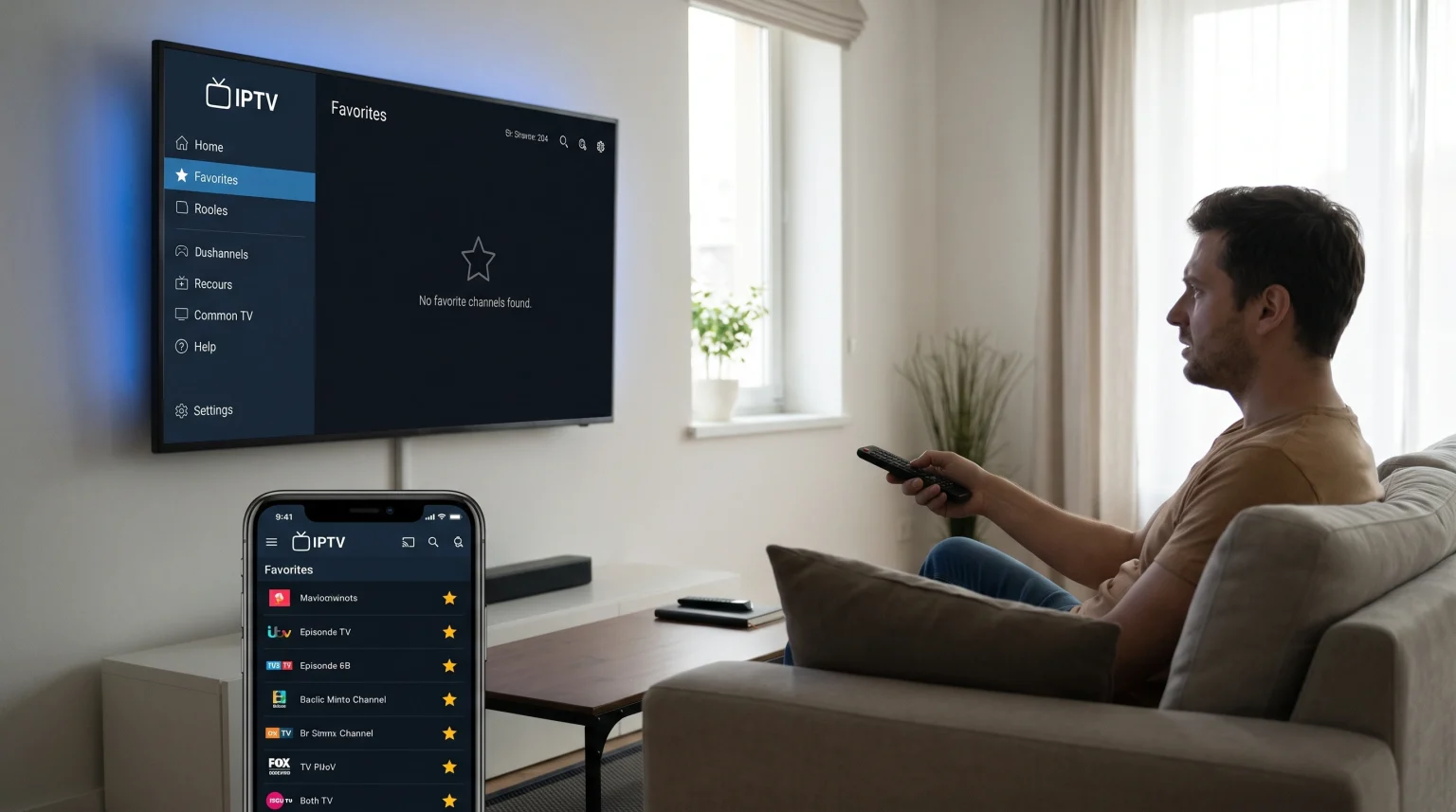
Many users watch IPTV on multiple devices. You might create a list of favorite channels on your main television. Later, you turn on a second television or open an application on your smartphone. You discover that your carefully organized favorite channels are missing. This is a frustrating experience.
When you experience IPTV favorites not syncing, the problem usually relates to the specific IPTV player application you are using. The issue rarely comes from your IPTV service provider.
This article explains why your favorite channels do not appear on all your devices automatically. We will explore how different applications store data. We will also provide clear solutions to help you copy your favorite channels to every television and smartphone in your home.
Snabbsvar
When your IPTV favorites are not syncing, the main reason is local storage. Most IPTV player applications save your favorite channel list directly to the physical memory of the television or smartphone. The application does not send this list to the IPTV provider’s server.
To fix this problem, you must use an IPTV player application that features a cloud account system. Applications with a cloud account allow you to log in on multiple devices and synchronize your data. If your application lacks this feature, you must manually create a backup file on the first device and restore this backup file on the second device.
How IPTV Applications Store Favorite Channels
To solve synchronization problems, you must understand how IPTV applications work.
An IPTV service provider supplies a list of channels, movies, and series. You load this list into an IPTV player application using an M3U link or Xtream Codes API details.
When you mark a channel as a “favorite” by clicking a star icon or a heart icon, the IPTV player application records this action. The application creates a small data file.
Local Storage vs. Cloud Storage
The location of this data file determines if your favorites will synchronize.
Most basic IPTV applications use local storage. The application saves the favorites data file only on the internal storage of the specific television or streaming stick. Because the file lives only on that one device, your second television cannot see the file.
Advanced IPTV applications use cloud storage. You create a personal account with the application developer. When you mark a channel as a favorite, the application saves this information to the developer’s internet server. When you open the same application on a different device and log in, the application downloads your favorites list from the server.
| Funktion | Local Storage Applications | Cloud Storage Applications |
| Data storage location | Television memory | Application developer server |
| Automatic synchronization | Nej | Ja |
| Requires application account | Nej | Ja |
| Moving favorites to new TV | Requires manual backup file | Requires logging in |
| Internet required to load favorites | Nej | Ja |
M3U Playlists vs. Xtream Codes API
The method you use to connect to your IPTV service can also affect synchronization.
An M3U playlist is a simple text file. It contains web links to media streams. M3U playlists do not support two-way communication. You cannot send your favorite channel list back to the M3U server.
The Xtream Codes API is a more modern connection method. It uses a username, a password, and a server URL. Some advanced IPTV applications can use the Xtream Codes API to synchronize watched history or favorites, but this depends entirely on how the application is programmed. Most applications still default to local storage even when using Xtream Codes API.
Common Reasons for IPTV Favorites Not Syncing
If you expect your channels to synchronize but they do not, check these common reasons.
1. Using Different Applications
You cannot synchronize favorites between two different applications. For example, if you use “App A” on your living room television and “App B” on your bedroom television, the favorites will never synchronize. Different applications use different file formats. You must use the exact same application on all devices.
2. The Application Lacks Cloud Features
Many popular free applications do not offer cloud synchronization. Operating a cloud server costs money for the application developer. Therefore, free applications usually rely on local storage.
3. Premium Features Are Not Unlocked
Some applications offer synchronization, but place this feature behind a paywall. You must purchase the premium version of the application to unlock the multi-device synchronization feature.
4. Fel i applikationscachen
Sometimes, an application has a synchronization feature, but the data fails to load. This can happen if the device memory is full or if the application cache is corrupted. Clearing the application cache in your television settings can often solve this problem.
How to Sync Favorites Across Devices
You have two main methods to duplicate your favorite channels across multiple devices.
Method 1: Use an Application with Cloud Sync
This is the easiest automatic method.
Find an IPTV player application that explicitly advertises “multi-device sync” or “cloud backup”.
Install this application on all your televisions and smartphones.
Create a user account within the application.
Log into this same user account on every device.
Add your IPTV subscription details.
When you add a favorite channel on one device, wait a few minutes. The application will send the data to the cloud, and the other devices will update automatically.
Method 2: Manual Backup and Restore
If your favorite application only uses local storage, you must move the data manually. Many good applications offer a “Backup Data” feature in the settings menu.
Open the application on the television where your favorites are currently saved.
Go to the application settings.
Find the “Backup” or “Export Data” option.
The application will create a backup file. Save this file to a USB flash drive or a local network folder.
Take the USB flash drive to your second television.
Open the same application on the second television.
Go to the application settings.
Find the “Restore” or “Import Data” option.
Select the backup file on your USB flash drive.
The application will load your exact favorites list and settings.
You must repeat this manual process every time you make significant changes to your favorites list.
Smart TV Operating Systems and Application Limits
The type of television you own affects which applications you can install. This directly impacts your ability to synchronize favorites.
If you are researching different television software, our guide to Det bästa operativsystemet för smart-tv för IPTV år 2026 explains the major differences between the popular platforms.
Samsung Tizen and LG webOS
Samsung uses the Tizen operating system. LG uses the webOS operating system. Both platforms have closed application stores. You can only install applications that Samsung and LG officially approve.
Because the selection is limited, you might struggle to find an application with a cloud synchronization feature in these specific stores. Furthermore, if you have a Samsung television in the living room and an LG television in the bedroom, you might not find one application that exists in both stores.
If you must use two different operating systems, you will likely need to manage two separate lists of favorite channels. You can learn more about these limitations in our article comparing Tizen kontra Google TV för IPTV-appar: Vad är skillnaden?].
Google TV och Android TV
Televisions from Sony, Philips, and TCL often use Google TV or Android TV. These operating systems provide access to the Google Play Store. The Google Play Store contains hundreds of different IPTV player applications.
Android devices also allow you to “sideload” applications. Sideloading means you can install an application directly from a file, even if the application is not in the official store.
Because Android offers so many choices, it is much easier to find advanced IPTV applications that support cloud synchronization and automatic backups.
Organizing Favorites for Live Football
Organizing your favorite channels is especially important for live sports. When a football match is starting, you do not want to scroll through thousands of channels to find the correct broadcast.
We recommend creating a specific favorites category just for sports. Most modern applications allow you to create custom folders within your favorites list. You can name a folder “Live Football” and store all relevant sports channels there.
When you synchronize this custom folder to your second television, you can switch rooms during halftime without missing any action. If you are buying a new television specifically for sports, you might wonder about hardware specifications. Our comparison of TV med 60 Hz jämfört med 120 Hz för direktsänd fotboll explains which hardware features provide the smoothest picture during fast motion.
Using TV Shadow IPTV Across Multiple Devices
At TV Shadow IPTV, we provide a high-quality streaming playlist containing international channels, sports, movies, and series.
Our service generates the channel list and the Electronic Program Guide (EPG). However, our service does not control the software on your television. The IPTV player application you choose to install is responsible for managing your favorite channels, your watch history, and your interface settings.
Your TV Shadow IPTV subscription can be used on different devices. However, you must observe your connection limits. If your subscription allows only one simultaneous connection, you cannot watch on two televisions at exactly the same time. You can install the playlist on multiple devices, but you must close the application on the first device before opening the application on the second device.
To keep your TV Shadow IPTV channels organized on every device, we recommend choosing one high-quality application, installing it everywhere, and using its built-in backup tools.
Slutsats
Experiencing IPTV favorites not syncing is a common issue caused by how applications store data. Most basic applications save your preferences locally on one single device.
To enjoy the same favorite channels on all your screens, you have two practical options. You can choose a premium application that features a cloud account system for automatic synchronization. Alternatively, you can use the manual backup and restore functions available in many standard applications.
By understanding these software mechanics, you can organize your TV Shadow IPTV channels perfectly and ensure a consistent viewing experience on every television in your home.
Vanliga frågor (FAQ)
Why did my favorite channels disappear suddenly?
Your favorite channels usually disappear if the application cache is cleared, if the application is uninstalled, or if your IPTV provider changes the exact name or ID of the channel. If the channel ID changes on the server, the application can no longer match the channel to your favorites list.
Will my favorites sync if I use M3U instead of Xtream Codes?
Usually, no. An M3U link is a one-way download. The application downloads the list, but it cannot send your favorites back to the server. You must rely on the application’s own synchronization features or manual backup files.
Can I share my favorites list with a friend?
Yes, if your application supports manual backups. You can export your backup data file and send this file to a friend. If your friend installs the exact same application, they can import the file. However, they must use their own IPTV subscription details.