
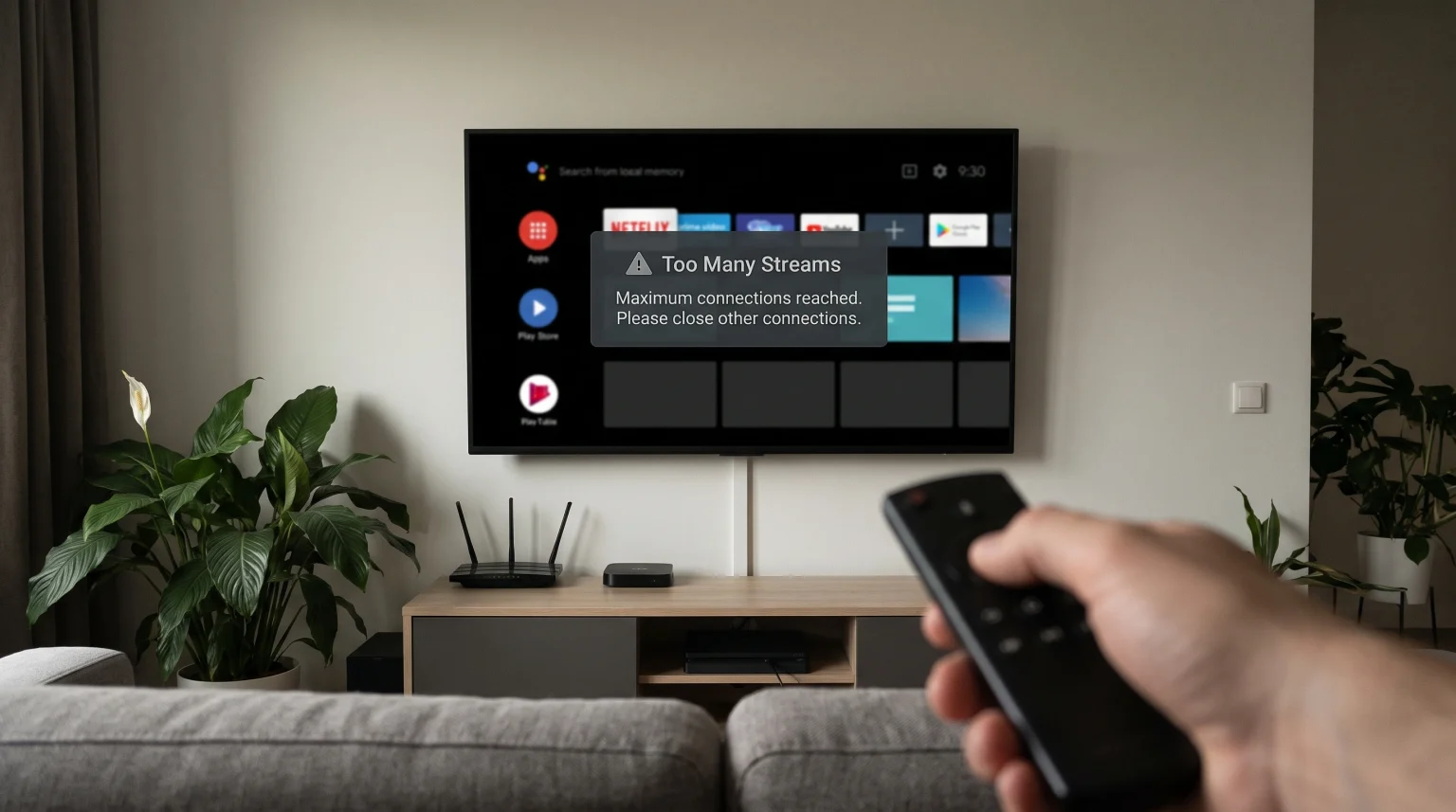
You sit down to watch television. You open your IPTV application. You press the button on your remote control to change the channel. Suddenly, the television screen goes black. You see an error message that says “Too many streams” or “Maximum connections reached”.
This is a common problem for many IPTV users. The error usually happens when users change channels rapidly. Every time you select a new channel, your IPTV application connects to a new server stream. If the application does not close the previous stream correctly, the server thinks you are using multiple connections at the exact same time.
This article explains why the IPTV too many streams changing channels error happens. The article also provides clear solutions to fix the problem and improve your television viewing experience.
Snabbsvar
Most IPTV subscriptions only allow one active connection at a time. When you change channels, your IPTV application must disconnect from the first channel and connect to the second channel. If you change channels very quickly, the application does not have enough time to close the first connection. The server sees two active connections and blocks the video stream. To fix the IPTV too many streams changing channels error, wait three to five seconds before selecting a new channel. You can also restart your IPTV application to reset all active connections to the server.
How IPTV Connections Work
To understand the error message, you must understand how IPTV technology works. IPTV delivers television programming through the internet instead of through satellite signals or cable wires.
The One-Connection Rule
When you purchase an IPTV subscription, the provider usually gives you one active connection. One connection means you can watch one channel on one device at a time. The server monitors your connection using your unique account details. If the server detects a second connection request while the first connection is still active, the server blocks the second request automatically.
The Channel Switching Process
Changing channels on an IPTV service is different from changing channels on traditional cable television. When you use traditional cable television, all the channels arrive at your television simultaneously. The television tuner simply switches between the available frequencies.
When you use IPTV, your device only receives one channel at a time to save internet bandwidth. When you press the channel button, the following sequence happens:
The IPTV application sends a “stop” command to the server for the current channel.
The server closes the first video stream.
The IPTV application sends a “start” command for the new channel.
The server authorizes the new connection and starts the second video stream.
This digital process requires a small amount of time.
The Main Causes of the "Too Many Streams" Error
Several different factors can disrupt the channel switching process. These disruptions cause the server to read multiple active connections.
Changing Channels Too Quickly
Changing channels very fast is the most common cause of the error. Many people call this habit “channel surfing”. If you press the channel up button three times in one second, your IPTV application sends three new connection requests to the server. However, the application might not send the disconnection requests fast enough. The server thinks you are trying to open four channels simultaneously. Because your account only allows one connection, the server shows the “too many streams” error.
App Background Activity
Sometimes, the IPTV application freezes or encounters a software bug. When you close a channel or press the back button, the application might keep the video stream running invisibly in the system background. The application fails to send the disconnection signal to the server. When you select a new channel, the server denies access because the first channel is still running in the background data.
Slow Internet or Router Issues
A slow internet connection can delay the communication between your Smart TV and the IPTV server. Your IPTV application might send the disconnection signal correctly, but network lag delays the signal. The server receives the new connection request before it receives the old disconnection request. High internet latency directly contributes to connection errors.
How to Fix the "Too Many Streams" Error
You can resolve this error quickly using several simple methods.
Wait Between Channel Changes
The easiest solution is to change your navigation habits. When you want to watch a different channel, select the channel and wait. Do not press the button multiple times. Allow the IPTV application three to five seconds to load the video stream. If you want to see what is playing on other channels, use the Electronic Program Guide (EPG) instead of switching the actual video streams.
Restart Your IPTV App
If the error message remains on your screen, a background process is likely blocking your account. You must force the IPTV application to close.
Exit the IPTV application and return to the main Smart TV menu.
Close the application completely using your Smart TV settings.
Wait ten seconds.
Open the IPTV application again.
This process resets the connection sequence. The server will recognize that the previous streams are closed.
Restart Your Internet Router
If restarting the application does not work, the problem might be your internet router. The router might hold an active network connection open. Unplug the power cable from your internet router. Wait exactly one minute. Plug the power cable back into the router. This action gives your router a fresh connection to your internet service provider and clears any stuck data requests.
Upgrade Your Subscription
If you frequently experience this error, or if you want to watch television on multiple devices simultaneously, you need more connections. Contact your IPTV provider and purchase a multi-connection subscription. A two-connection subscription allows the server to process overlapping channel requests without showing an error screen.
Does Your Smart TV Affect the Error?
The hardware and operating system inside your Smart TV can affect how quickly IPTV applications process commands. A television with a slow processor will take longer to close an active video stream.
Om du jämför operativsystem för tv-apparater kan vår guide till Bästa operativsystemet för smart-tv för IPTV år 2026: Tizen vs Google TV vs webOS explains the differences between Tizen, Google TV and webOS in detail.
Here is a simple comparison of how different television platforms manage application background processes:
| Funktion | Samsung Tizen | LG webOS | Sony Google TV |
| Application Memory | Måttlig | Måttlig | Hög |
| Background Process Control | Closes apps aggressively | Closes apps aggressively | Keeps apps running longer |
| Manual App Closing | Requires specific menu steps | Easy via recent apps menu | Easy via settings menu |
| Cache Clearing Feature | Automatic only | Automatic only | Manual clearing available |
Samsung Tizen and LG webOS often close inactive applications automatically to save system memory. This automatic closing can help prevent the “too many streams” error. Sony BRAVIA televisions using Google TV often keep applications running in the background for faster loading times. This means Google TV users might need to manually force close their IPTV applications if a stream gets stuck. You can learn more about this by reading our article: Tizen kontra Google TV för IPTV-appar: Vad är skillnaden?.
IPTV Apps and Connection Management
Not all IPTV applications handle connections the same way. The quality of the application software is very important.
När man använder TV Shadow IPTV, we recommend using a premium IPTV player application. Premium applications manage Xtream Codes API and M3U playlists efficiently. High-quality applications send immediate disconnection signals to the server when you change channels.
Some free or outdated IPTV applications have poor code. These applications might keep the audio and video connection open even after you select a different channel. If you experience the “too many streams” error every day, try installing a different IPTV application from your television app store. Ensure the application fully supports your Electronic Program Guide (EPG) so you can browse channels safely without opening the video streams.
Live Football and Streaming Stability
The connection error is very common during live football matches and other major sports events.
During live football weekends, viewers often switch rapidly between different matches to check the scores. This rapid channel switching triggers the server connection limit. Furthermore, live football requires a large amount of internet bandwidth to maintain smooth motion handling.
To improve your sports viewing experience:
Use the Electronic Program Guide (EPG) to check football scores instead of changing the video channels.
Connect your Smart TV directly to your internet router using an Ethernet cable. An Ethernet cable provides a much more stable connection than a Wi-Fi connection. A stable connection ensures the server receives your channel-change commands instantly.
Use a television with good motion handling. If your television struggles to process sports programming, read our guide on Varför ser IPTV suddigt ut på en ny 4K-TV?.
Slutsats
The “IPTV too many streams changing channels” error is frustrating, but it is easy to understand and fix. The error happens because the server receives a new channel request before the previous channel closes completely.
To prevent this problem, avoid pressing the channel button rapidly. Use your Electronic Program Guide (EPG) to search for television programs. Allow a few seconds for each channel to load. If the error appears and freezes your screen, simply restart your IPTV application or restart your internet router. A high-quality application, a stable internet connection, and patient navigation will provide you with a smooth and enjoyable TV Shadow IPTV viewing experience.
Vanliga frågor (FAQ)
Why does my TV say max connections reached?
Your IPTV provider limits your account to a specific number of simultaneous streams. If you change channels too fast, the system thinks you are watching the old channel and the new channel at the exact same time. The server blocks the stream because it exceeds your account limit.
How long should I wait between channel changes?
You should wait approximately three to five seconds between channel changes. This short delay gives the application enough time to completely close the first video stream and securely open the new video stream.
Does a faster internet connection fix the error?
A faster internet connection will not stop the error if you change channels too quickly. However, a stable internet connection with low latency helps the application communicate with the server faster. This faster communication reduces the chance of the error occurring.