
It’s the 89th minute. Your team’s striker breaks past the last defender, the goalie steps out, the shot is taken… and your screen freezes. You are left staring at a spinning circle while your neighbor screams in celebration through the wall ten seconds later.
If you rely on streaming for match day, you know exactly how infuriating this is. It always seems to work perfectly for the pre-game analysis, but the second the heavy action starts, the feed chokes. Finding an IPTV live sports no freezing setup isn’t just a marketing myth. It just takes a little bit of troubleshooting and knowing exactly where the bottlenecks are hiding in your home network.
Here is how to keep your streams smooth when it matters most.
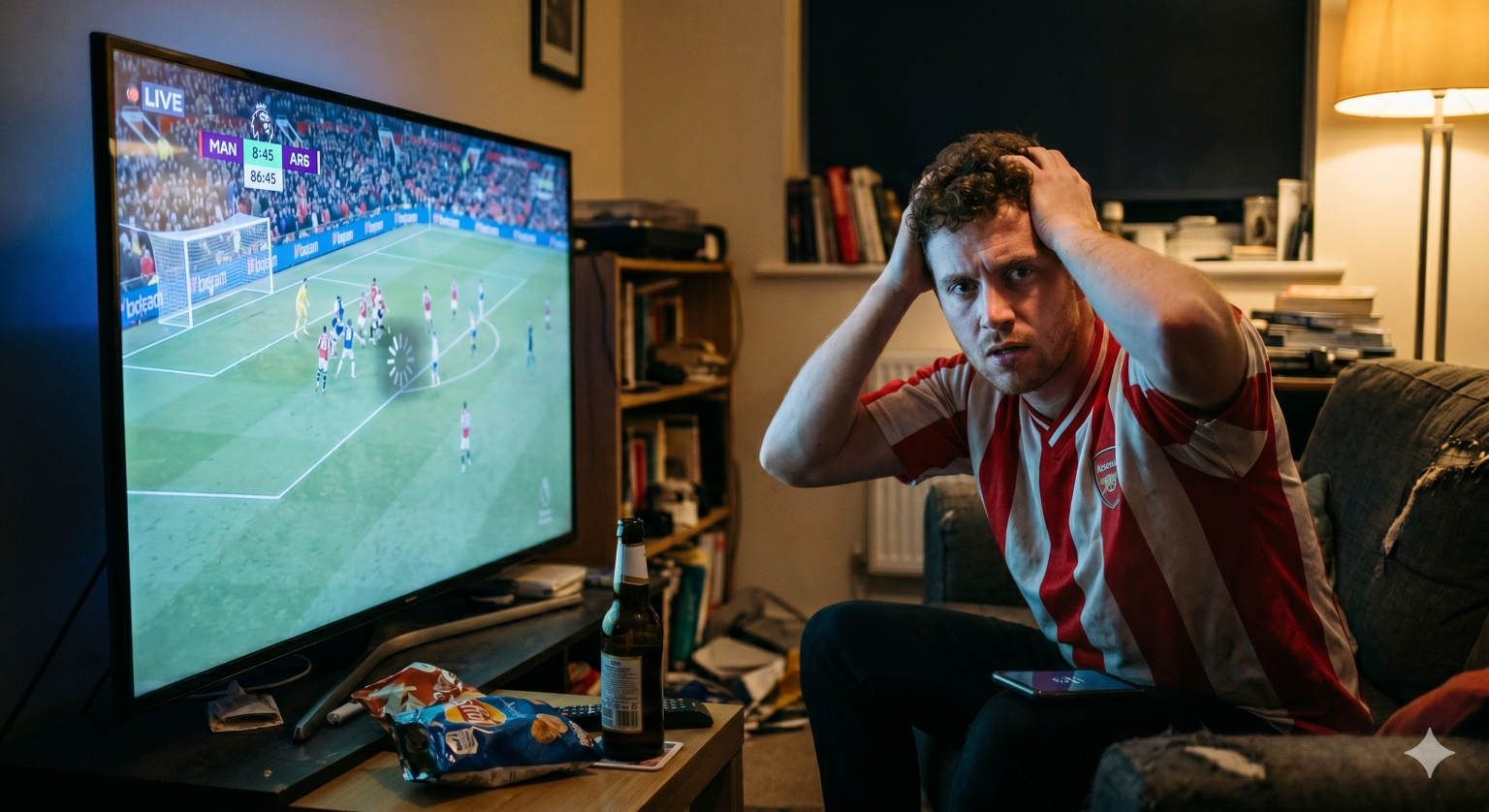
Why Streams Choke When the Whistle Blows
Most people instantly blame their provider when they experience IPTV freezing during football matches or highly anticipated fights. But the issue often lives much closer to home.
Streaming a massive live event is like rush hour on the highway. Millions of people are pulling heavy video data simultaneously. If your internet service provider (ISP) sees you pulling massive amounts of bandwidth from known streaming servers during peak hours, they will quietly throttle your speed.
Hardware Tweaks: Hardwire Everything
Let’s start with the physical connection. If you are wondering how to stop IPTV buffering on Firestick or any other popular streaming dongle, the absolute best thing you can do is hardwire it.
Wi-Fi channels are insanely crowded, especially in apartment buildings. Every time a microwave runs, a neighbor downloads a file, or a phone syncs to the cloud, it causes micro-drops in your wireless signal. Live TV cannot afford dropped packets. Grab a cheap OTG Ethernet adapter for your stick or plug your Android box directly into your router.
Also, give your hardware some room to breathe. Devices overheat easily when stuffed directly behind a hot TV panel, which completely kills their processing speed.
Software Settings Matter
The application you use to play the stream is just as important as the service itself. If you’re dealing with IPTV Smarters freezing on Android TV, the default player settings might be actively working against you.
Here are the bedst TiviMate settings for live sports (which also apply to most premium player apps):
Increase the Buffer Size: If you are hitting the default IPTV Smarters buffer limit, change your playback settings to “Large” or “Very Large.” This forces the app to download a few extra seconds of the broadcast ahead of time, smoothing out minor network drops before you even see them.
Change the Decoder: If the picture stutters but you still hear the crowd noise perfectly, try switching your video decoder from Hardware (HW) to Software (SW), or vice versa depending on your device.
Clear the Cache: Streaming sticks have terrible memory management. Clear your app cache before every major event to free up processing power.
Beat ISP Throttling
If your connection is hardwired, your cache is clear, and you still desperately need a UFC PPV buffering fix on a Saturday night, you are likely a victim of ISP throttling.
Running a solid, premium VPN encrypts your traffic. When your internet provider can’t see exactly hvad kind of data you are pulling, they can’t artificially slow down the feed based on your activity.
Picking a Service That Can Handle the Heat
If you’ve done all of the above and the game is still unwatchable, then yes, it’s time to dump your provider. Finding a good service requires testing them when their servers are actually under stress.
Do not sign up for a trial on a random Tuesday morning. You want to find the best IPTV free trial no buffering experience possible, so activate that 24-hour test on a Saturday afternoon when the Premier League, La Liga, and major college sports are all happening at the same time. If they can maintain a solid 60fps frame rate without kicking you out during peak rush hour, they actually have the server infrastructure to earn your money.
Look for a provider that offers multiple resolutions of the exact same channel. If your local internet is just having a terrible day, dropping the feed from 4K down to 1080p or 720p is the ultimate backup plan to save your viewing party.