
Du machst es dir für einen entspannten Filmabend gemütlich, nimmst die Fernbedienung in die Hand und … nichts. Wenn du frustriert feststellst, dass dein IPTV funktioniert nach einem TV-Update nicht mehr, damit sind Sie sicherlich nicht allein. Firmware-Updates setzen häufig die Systemeinstellungen zurück, löschen gespeicherte Konfigurationen oder führen zu unerwarteten Kompatibilitätsproblemen bei Apps. Glücklicherweise lässt sich die Wiederherstellung Ihrer Lieblingssender in der Regel schnell und problemlos bewerkstelligen.
Wenn Fernsehhersteller neue Software bereitstellen, verändert sich die Art und Weise, wie das Betriebssystem mit Anwendungen von Drittanbietern interagiert. Das bedeutet, dass es bei Ihrer bisher einwandfrei funktionierenden Konfiguration plötzlich zu Einfrieren, Pufferung oder Endlos-Abstürzen beim Start kommen kann. Um die eigentliche Ursache dieser Probleme zu verstehen, Probleme mit Streaming-Diensten ist der erste Schritt hin zu einer dauerhaften Lösung.
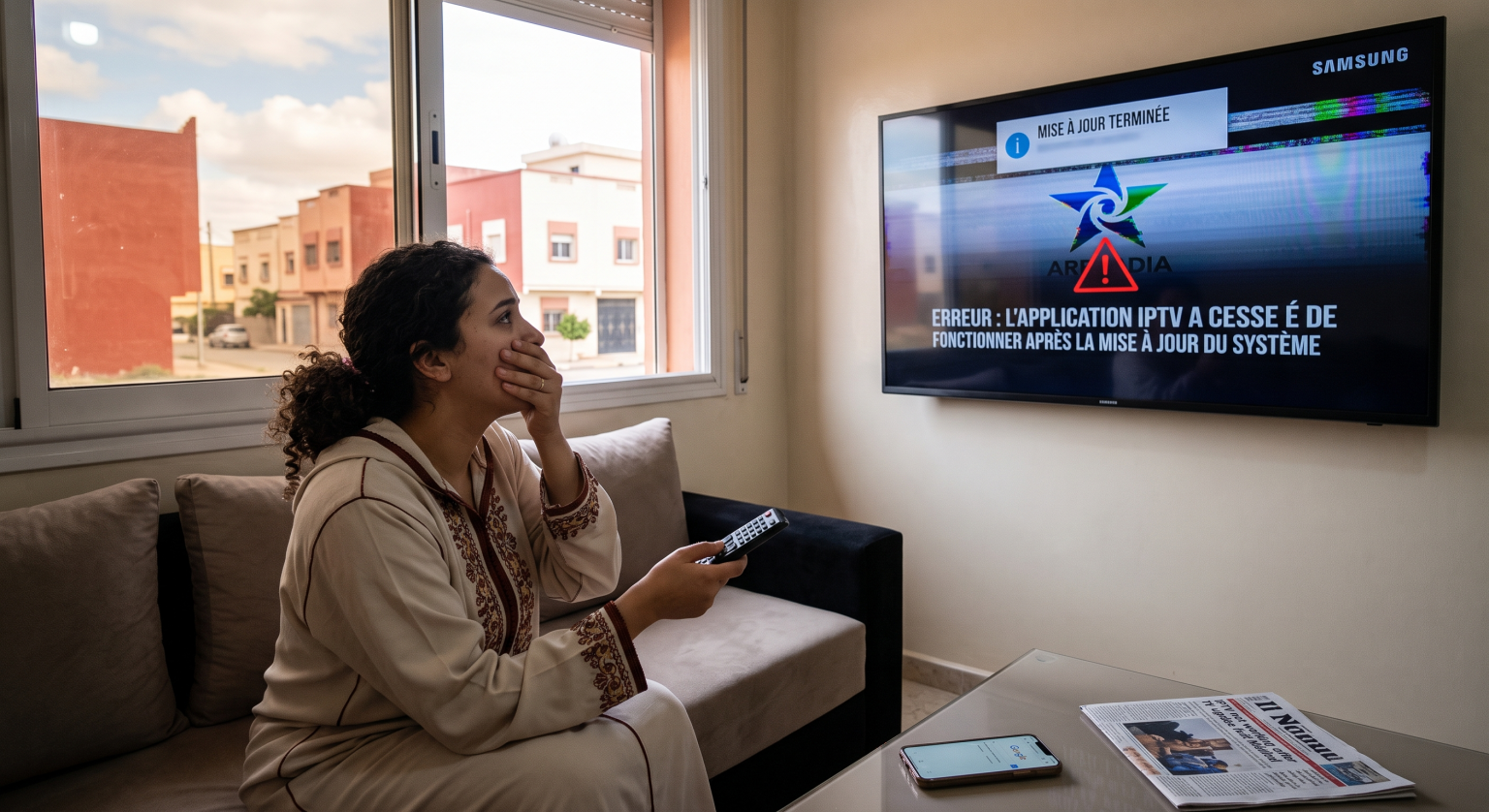
Warum Ihre IPTV-App nicht mehr funktioniert
Ein plötzliches Betriebssystem-Update kann Ihre Streaming-Umgebung komplett lahmlegen. Der häufigste Grund dafür ist eine beschädigte App-Cache, wo alte temporäre Dateien mit der neu installierten Fernsehsoftware in Konflikt geraten. Diese Dateninkongruenz führt dazu, dass die Anwendung einfriert oder unerwartet beendet wird.
Ein weiteres häufig auftretendes Problem ist Smart-TV-Kompatibilität. Viele App-Entwickler benötigen einige Wochen, um Patches zu veröffentlichen, die mit den neuesten Firmware-Updates für Fernseher kompatibel sind. Falls Ihr System über Nacht automatisch aktualisiert wurde, läuft auf Ihrem Mediaplayer möglicherweise nun eine veraltete, nicht mehr unterstützte Version.
Um Ihr System wieder in Betrieb zu nehmen, achten Sie auf folgende unmittelbare Warnzeichen:
Netzwerk-Resets: Bei Updates gehen oft Ihre benutzerdefinierten DNS- oder WLAN-Passwörter verloren.
Beschädigte Wiedergabelisten: M3U-Links können über die App-Oberfläche entfernt werden.
Speicherbeschränkungen: Möglicherweise hat die neue Firmware den verbleibenden Systemspeicher aufgebraucht.
Schritt-für-Schritt-Anleitungen zur Wiederherstellung Ihrer Streams
Wenn Sie es mit IPTV funktioniert nach einem TV-Update nicht mehr, keine Panik. Befolgen Sie diese logischen Schritte zur Fehlerbehebung, um Ihr Entertainment-Center wieder funktionsfähig zu machen.
1. App-Cache und -Daten löschen
Ihr erster Schritt besteht darin, die alten, widersprüchlichen Daten zu löschen. Rufen Sie die Einstellungen Ihres Fernsehers auf, suchen Sie das App-Menü und wählen Sie Ihren jeweiligen Mediaplayer aus. Wählen Sie die Option, um Cache leeren, starten Sie den Fernseher neu und versuchen Sie, die Anwendung erneut zu öffnen.
2. Installieren Sie die IPTV-Anwendung neu.
Wenn das Leeren des Caches nicht funktioniert, ist oft ein kompletter Neustart erforderlich. Löschen Sie die App vollständig aus dem internen Speicher Ihres Fernsehers. Rufen Sie Ihren nativen App-Store auf, laden Sie die neueste Version herunter und geben Sie Ihre M3U-Playlist oder Xtream-Codes wieder.
3. Überprüfen Sie Ihre Netzwerkverbindung auf Probleme
Durch Updates werden benutzerdefinierte Netzwerkkonfigurationen häufig gelöscht. Vergewissern Sie sich, dass Ihr Fernseher aktiv mit Ihrem WLAN-Router verbunden ist. Wenn Sie einen benutzerdefinierten DNS-Server verwenden, um Sperren Ihres Internetanbieters zu umgehen, stellen Sie sicher, dass diese spezifischen Zahlen während des Software-Updates nicht gelöscht wurden.
Vergleich alternativer Mediaplayer
Wenn Ihre derzeitige Anwendung auf der neuen Firmware überhaupt nicht mehr funktioniert, ist es vielleicht an der Zeit, zu wechseln. Hier finden Sie einen kurzen Vergleich zuverlässiger Alternativen, die sich schnell an neue Software-Patches anpassen:
| Name der App | Beste Funktion | Smart-TV-Kompatibilität |
| TiviMate | Hochwertige Benutzeroberfläche und Aufnahmefunktionen | Android TV, Google TV, FireOS |
| IPTV Smarters Pro | Anzeige auf mehreren Bildschirmen | Samsung Tizen, LG WebOS, Android |
| Flix IPTV | Leicht und schnell ladbar | Samsung, LG, Android TV |
So schützen Sie Ihre Konfiguration vor zukünftigen Updates
Der einfachste Weg, künftige Ausfallzeiten zu vermeiden, besteht darin, die Kontrolle über Ihre Hardware zu übernehmen. Rufen Sie die Systemeinstellungen Ihres Fernsehers auf und deaktivieren Sie automatische Firmware-Updates. Auf diese Weise können Sie die Installation neuer Software zurückstellen, bis Sie sich vergewissert haben, dass die App-Entwickler kompatible Updates veröffentlicht haben.
Bewahren Sie außerdem stets eine Sicherungskopie Ihrer Anmeldedaten für Ihren Anbieter auf. Wenn Sie Ihre Xtream-Codes oder M3U-URLs auf Ihrem Smartphone gespeichert haben, können Sie schnell Installieren Sie Ihre IPTV-App neu. ohne dass Sie Ihre ursprüngliche Willkommens-E-Mail erst mühsam suchen müssen.
Häufig gestellte Fragen (FAQ)
Wird meine IPTV-Wiedergabeliste durch ein Update meines Fernsehers gelöscht?
In der Regel wird Ihre Wiedergabeliste durch ein normales Software-Update nicht gelöscht. Sollte das Update jedoch zu einer Beschädigung des App-Caches führen, müssen Sie möglicherweise die Daten löschen, wodurch Sie die URL Ihrer Wiedergabeliste erneut eingeben müssen.
Warum stürzt meine IPTV-App nach einem Update beim Start ab?
Dies geschieht, wenn der ältere Code der App nicht mehr mit der neuen Betriebssystemumgebung des Fernsehers kompatibel ist. Durch das Deinstallieren und Herunterladen der neuesten Version der App lassen sich die Abstürze in der Regel beheben.
Wie kann ich die Firmware meines Smart-TVs auf eine ältere Version zurücksetzen?
Ein Downgrade der Firmware ist äußerst schwierig und wird in der Regel von Herstellern wie Samsung und LG verhindert. Anstatt ein riskantes Rollback zu versuchen, ist es wesentlich sicherer, auf eine andere, kürzlich aktualisierte Mediaplayer-App umzusteigen.