
Opening your favorite channel only to stare at an IPTV app black screen is incredibly frustrating. You are missing the big game, and restarting your router simply isn’t helping. Fortunately, whether you are tuning in from the United States or anywhere else, resolving this error usually requires a quick setting tweak.
In most cases, an IPTV playback error is caused by hardware mismatches, unsupported codecs, or strict ISP throttling. Keep reading to discover exactly how to restore your video on Samsung, LG, and Firestick devices.
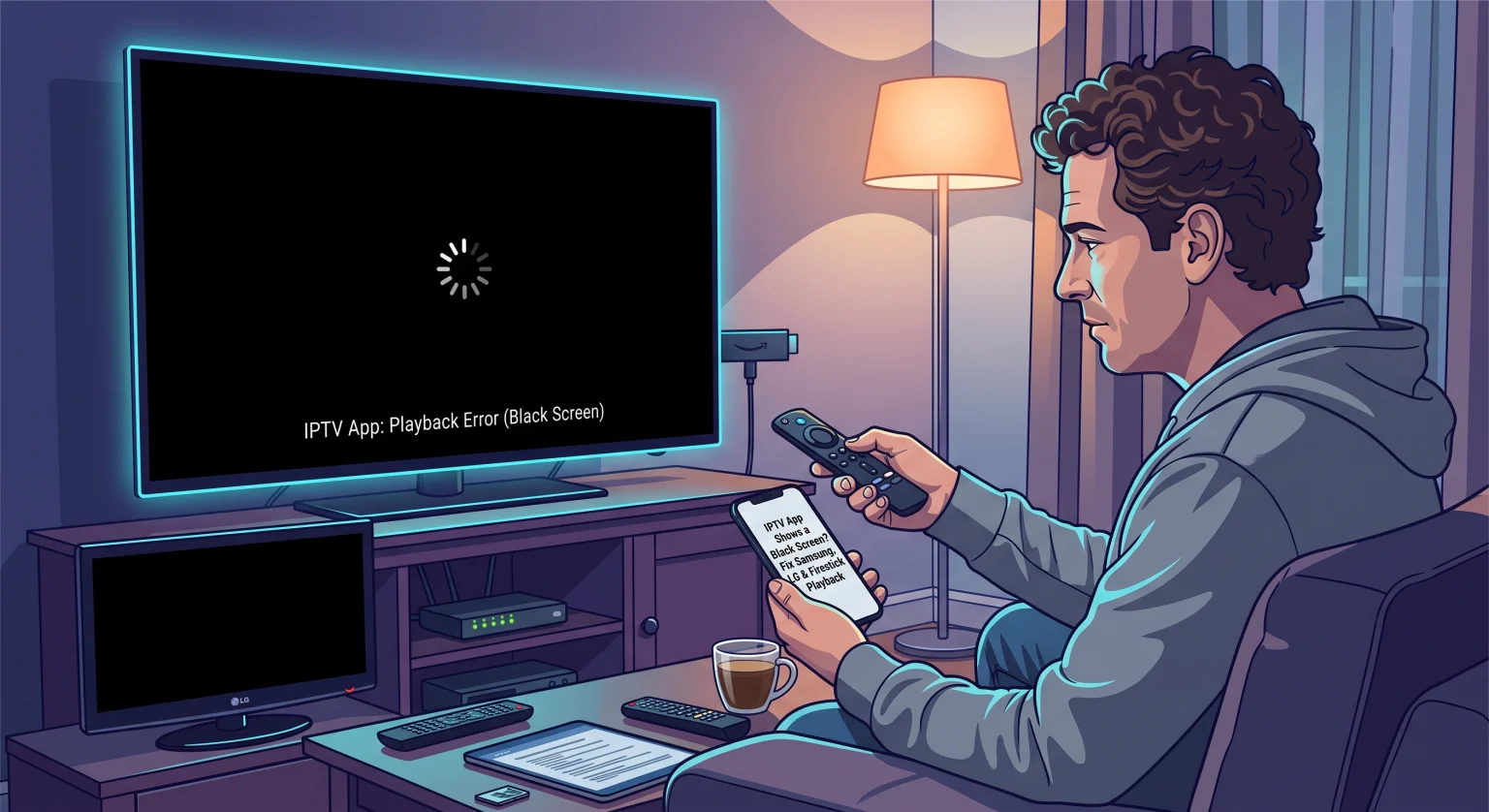
What Causes the Picture to Go Dark?
When you hear the audio perfectly but see a blank screen on IPTV, your media player is likely failing to decode the video stream. This mismatch prevents the visual data from displaying properly while the audio continues to play.
Other times, a stream fails to load completely due to HDMI handshake errors or internet provider blocks. The good news is that you rarely need to buy new equipment to solve these issues.
Common Culprits:
Video Decoder Settings: The app is trying to use a hardware format your TV does not understand.
ISP Throttling: Your internet provider is actively blocking high-bandwidth streaming traffic.
App Glitches: Outdated software or full cache memory is causing a no video on IPTV error.
Device Comparison: Troubleshooting the Black Screen
Understanding how different devices process video is the key to solving this IPTV video glitch. Below is a quick comparison of the most popular platforms and their typical failure points.
| Streaming Device | Primary Black Screen Cause | Recommended Quick Fix |
| Amazon Firestick | Tunneled Playback or AFR conflicts | Disable Tunneled Playback & Auto Frame Rate |
| Samsung Smart TV | Unsupported HEVC video codecs | Switch player from Hardware (HW) to Software (SW) |
| LG Smart TV | Outdated webOS app caching | Clear the app cache or use an alternative player engine |
How to Fix an IPTV App Black Screen on Firestick
Firesticks are notorious for video sync issues due to their default playback settings. If you use apps like TiviMate or IPTV Smarters, you might encounter a total blackout when switching channels.
To fix this immediately, navigate to your player settings and turn off Tunneled Playback. You should also disable the Auto Frame Rate (AFR) feature, which often causes your screen to time out during resolution changes.
If the problem persists, try these steps:
Change the Video Decoder: Switch from HW (Hardware) to SW (Software) decoding to force the app to process the image.
Bypass the Soundbar: Plug your Firestick directly into the TV’s primary HDMI port.
Use the Wall Adapter: Power your Firestick from a wall outlet, as TV USB ports often lack the necessary voltage for 4K streams.
Resolving Playback on Samsung & LG Smart TVs in the United States
For users operating Samsung and LG smart TVs across the United States, native hardware decoders often struggle with modern streaming formats. When tuned into a high-definition channel, the TV drops the video but keeps the audio running.
You can bypass this by forcing the app to rely on software decoding instead. Go to your IPTV app’s internal settings and change the media engine to VLC or ExoPlayer.
Additionally, be sure to clear your app cache regularly. Heavy usage can easily overwhelm your TV’s internal memory, leading to a recurring IPTV app black screen.
Stop ISP Throttling and Connection Drops
If you have absolutely no picture and no sound, your internet service provider might be blocking the connection. This is incredibly common on weekends during major live sports events.
To test this, connect your TV to your smartphone’s mobile hotspot. If the stream suddenly works perfectly, your home internet connection is actively throttling your IPTV traffic. The only reliable solution here is to use a premium, high-speed VPN to mask your streaming activity.
Conclusion: Get Back to Streaming in the United States
Encountering an IPTV app black screen doesn’t mean your device is broken. By adjusting your decoders, disabling buggy playback features, and bypassing ISP blocks, you can restore your viewing experience in minutes. Whether you are watching from the United States or traveling abroad, these troubleshooting steps ensure your setup runs smoothly.
Are you tired of unreliable streams and constant buffering? Upgrade your entertainment experience today by subscribing to a premium IPTV service that offers dedicated 24/7 technical support and flawless 4K playback. [Click here to start your risk-free trial now!]
People Also Ask (FAQ)
Why do I hear audio but see a blank screen on IPTV?
This is almost always a video codec mismatch. Your device can process the audio track but fails to decode the visual data. Switching your app’s setting from Hardware (HW) to Software (SW) decoding usually fixes this instantly.
Can my HDMI cable cause an IPTV playback error?
Yes. Frayed or outdated HDMI cables (like HDMI 1.4) cannot carry the high bandwidth required for 4K streams. If the screen goes dark randomly, swapping to a certified high-speed HDMI 2.0 cable is highly recommended.
Does a black screen mean my IPTV subscription expired?
It can. If every single channel is black and there is no sound, you should verify your account status. An expired subscription or incorrect login credentials will often result in a totally dark screen instead of a traditional error message.