
¿Te estás perdiendo tus eventos deportivos en directo o tus programas favoritos porque el TiviMate EPG momento inadecuado ¿Te sigue desajustando la programación? No eres el único. Si tu guía de televisión va con retraso o se adelanta, ajustar la configuración del desfase horario y la zona horaria es más rápido de lo que crees. Vamos a sincronizar tu guía a la perfección.
Tanto si estás viendo los informativos locales de Estados Unidos como si sigues acontecimientos internacionales, que la programación de la televisión no coincida resulta tremendamente frustrante. Afortunadamente, este problema habitual de la IPTV se puede resolver con unos sencillos ajustes en la configuración.
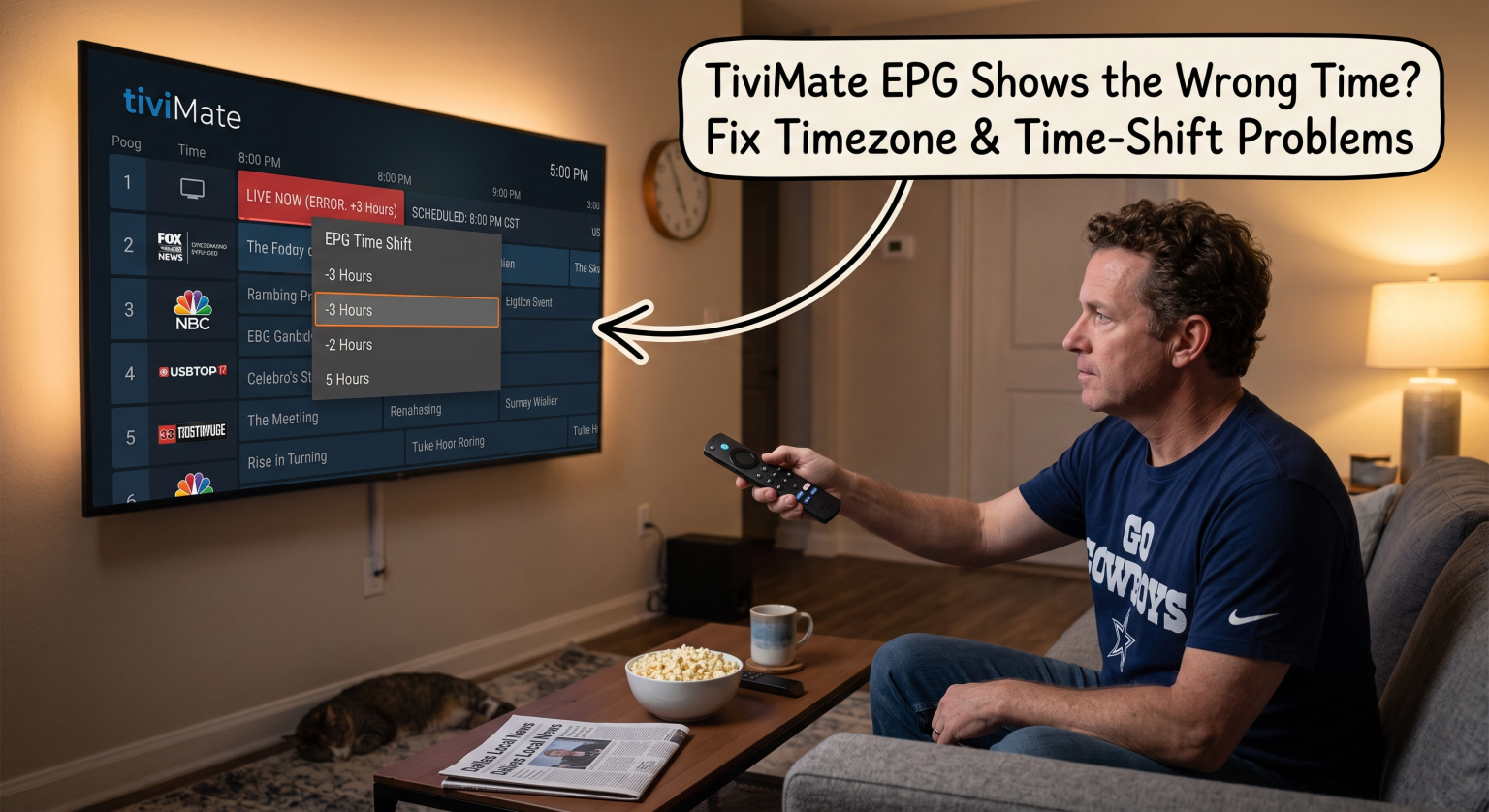
¿Por qué se produce el problema de la hora incorrecta en la guía de programación (EPG) de TiviMate?
Su sincronización de la guía electrónica de programación se basa en los datos facilitados por tu Servicio IPTV. A menudo, estos servidores se encuentran en diferentes partes del mundo, lo que significa que su zona horaria predeterminada podría no coincidir con la de tu dispositivo.
Además, los cambios al pasar al horario de verano o al volver al horario estándar pueden desajustar tu programación en una hora de forma instantánea. Si el proveedor no actualiza el reloj de su servidor, tu aplicación mostrará una programación incorrecta. Por último, es posible que el reloj del sistema de tu Android TV o Firestick simplemente no esté sincronizado con tu red.
Zona horaria del dispositivo frente a la configuración del proveedor
Es fundamental determinar si el problema se limita a la aplicación o si se debe al dispositivo de streaming. Si tu Amazon Firestick está configurado con una zona horaria incorrecta, todas las aplicaciones mostrarán datos erróneos. Si solo TiviMate está desincronizada, el problema radica en el desfase horario interno de la aplicación.
Paso a paso: cómo ajustar la configuración de la hora en TiviMate en EE. UU.
Para los espectadores de todo Estados Unidos que reciben emisiones regionales, es importante configurar correctamente el Desplazamiento de la guía de televisión es imprescindible. A continuación te explicamos cómo aplicar la corrección de forma generalizada a toda tu lista de reproducción.
Método 1: Aplicación de un desfase horario global
Si todo tu horario presenta sistemáticamente el mismo desfase, necesitas una solución global.
Abre TiviMate y ve a Configuración.
Seleccionar EPG, y a continuación haz clic en Fuentes de la guía electrónica de programación (EPG).
Elige la fuente de tu lista de reproducción activa y desplázate hacia abajo hasta Desfase temporal, y ajusta las horas (+ o -) hasta que coincida con tu hora local.
Vuelve al menú principal y fuerza una actualización de la guía electrónica de programación (EPG).
Método 2: Configuración del retraso temporal específico para un canal
A veces, solo algunos canales regionales muestran una programación errónea. En este caso, un retraso temporal específico por canal es la mejor forma de proceder.
Abre la guía de televisión y marca el canal con el problema.
Mantén pulsado el botón “Seleccionar” u “OK” del mando a distancia para abrir el menú de la derecha.
Desplázate hacia abajo hasta Opciones de canal, selecciona Grabación programada de la guía electrónica de programación (EPG), y ajusta el tiempo según corresponda.
¿Qué método de sincronización de la guía electrónica de programación (EPG) deberías elegir?
¿No sabes qué paso de resolución de problemas dar primero? Utiliza esta tabla comparativa para identificar la solución adecuada para tu caso concreto Retraso en la guía de IPTV.
| Método de resolución de problemas | Ideal para | Nivel de dificultad | Es hora de presentar la solicitud |
| Diferencia horaria global | Todo el horario de la lista de reproducción tiene un desfase de más de una hora. | Fácil | 1 minuto |
| Desplazamiento específico por canal | Solo algunas cadenas regionales muestran una hora incorrecta. | Medio | 2 minutos |
| Sincronización horaria del dispositivo | El reloj del sistema del Firestick o del Android TV es totalmente incorrecto. | Fácil | 1 minuto |
| Borrar la caché de la guía de programación | Los datos dañados de la aplicación están provocando errores aleatorios en la guía. | Medio | 3 minutos |
Soluciones avanzadas: Borrar la caché de la guía de programación y problemas con el cambio de hora
Si los métodos de compensación no funcionan, es posible que el problema se deba a datos dañados. Tendrás que borrar la caché de la guía de programación para obligar a la aplicación a descargar una copia actualizada del horario. Ir a Ajustes > EPG > Borrar EPG, y a continuación haz clic en Actualizar la guía de programación (EPG) para obtener datos actualizados.
Por último, ten en cuenta que hora de verano IPTV fallos técnicos. Durante los cambios de hora de primavera y otoño, los proveedores suelen tardar unos días en ajustar manualmente los relojes de sus servidores. Durante este periodo, es posible que tengas que aplicar un desfase temporal de +1 o -1 hora hasta que lo corrijan por su parte.
Disfruta de una televisión perfectamente sincronizada en cualquier lugar de EE. UU.
Cómo afrontar una TiviMate EPG momento inadecuado No tiene por qué estropearte tu maratón deportivo del fin de semana. Si compruebas la hora de tu dispositivo y ajustas la diferencia horaria interna, podrás sincronizar perfectamente tu guía de televisión con cualquier zona horaria de Estados Unidos en cuestión de minutos.
¿Estás listo para mejorar tu configuración sin televisión por cable? Asegúrate de tener siempre instalada la última versión del software para evitar molestos errores. ¡Suscríbete hoy mismo a nuestro boletín para recibir más tutoriales exclusivos sobre Firestick, guías de resolución de problemas de IPTV y consejos de expertos sobre streaming!
Preguntas frecuentes (FAQ)
¿Por qué no se actualiza en absoluto mi EPG de TiviMate?
Si tu guía está completamente en blanco, es posible que la URL de tu proveedor haya cambiado o haya caducado. Intenta actualizar manualmente la guía en la configuración o ponte en contacto con tu proveedor de IPTV para asegurarte de que el enlace a la guía electrónica de programación (EPG) sigue activo.
¿Puedo establecer diferentes desfases de tiempo para varias listas de reproducción?
Sí. TiviMate te permite asignar un desfase horario único a cada lista de reproducción. Ve a Ajustes > EPG > Fuentes de EPG y ajusta el desplazamiento de cada fuente de forma independiente.
¿Influye mi VPN en la hora que aparece en la guía de TiviMate?
No, tu VPN redirige tu tráfico de Internet, pero no modifica el reloj interno del sistema de tu dispositivo. No obstante, asegúrate siempre de que la configuración de fecha y hora de tu dispositivo de streaming esté ajustada en “Hora proporcionada por la red”.”